How to Create SVG Images Online with AI: A Beginner's Guide to Clean Vector Graphics (2026)
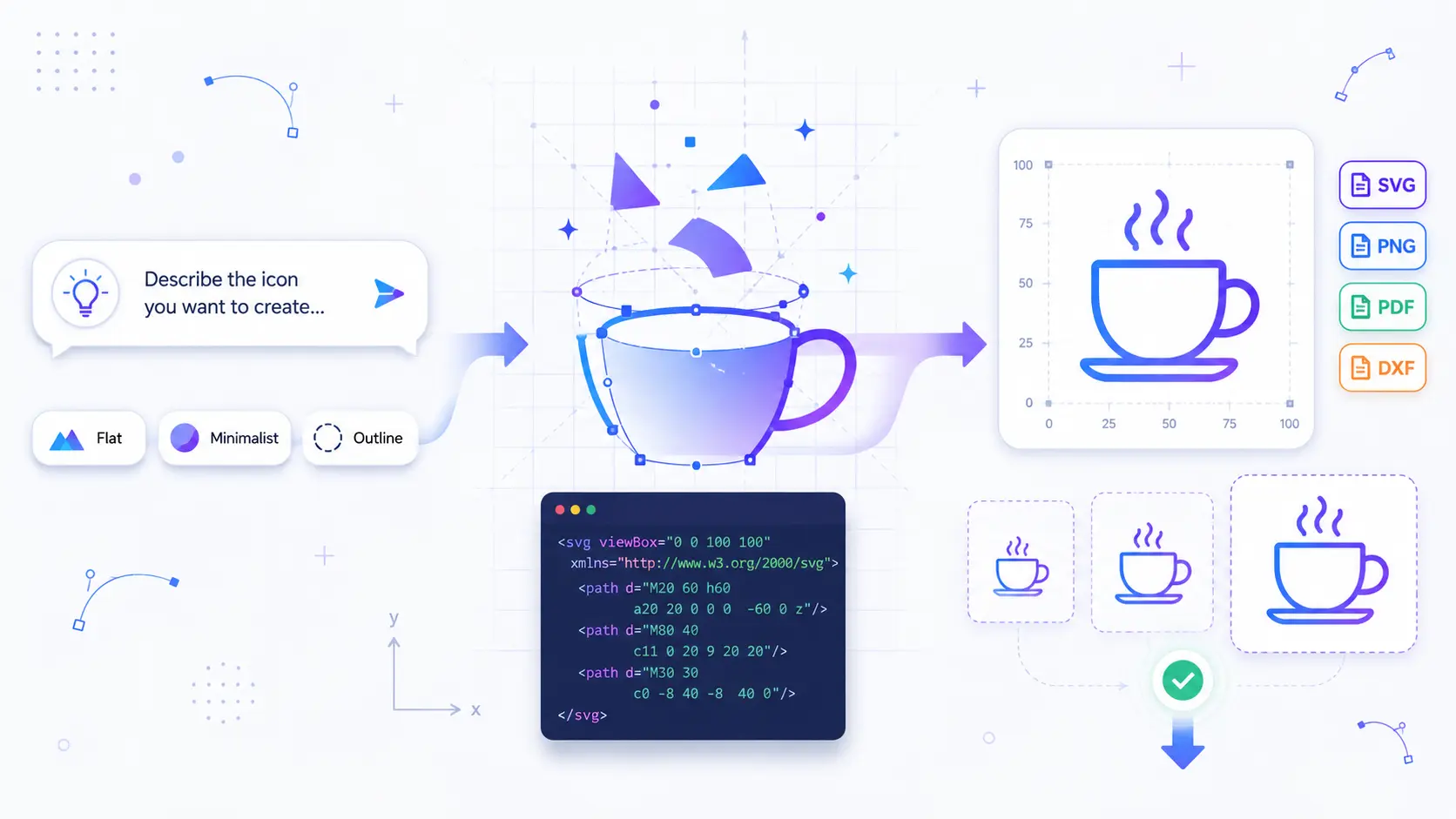
You need an icon for your website, a logo for your side project, or a clean illustration for a presentation. You open a design tool, stare at a blank canvas, and realize you have no idea where to start. Sound familiar?
This is the wall most beginners hit when they try to create SVG images for the first time. SVG (Scalable Vector Graphics) is a file format that uses code not pixels to describe shapes, colors, and lines. Because SVGs are code-based, they scale to any size without losing quality. A tiny favicon and a massive billboard poster can use the exact same SVG file, and both will look perfectly sharp.
Here's what a simple SVG looks like under the hood:
That's a purple circle with a white rounded rectangle — just a few lines of code. But you don't need to write any of this yourself. In 2026, AI tools let you create custom SVG files by simply describing what you want in plain English. No design skills, no code, no expensive software.
In this guide, you'll learn every way to create SVG files online — and why AI generation is the fastest, easiest path for beginners.
5 Ways to Create SVG Files
Before we dive into the AI approach, here's a quick overview of every method available to you. Each has its place depending on your skill level and what you're starting with.
| Method | Difficulty | Speed | Best For |
|---|---|---|---|
| AI Generation | Easy | Seconds | Anyone — describe what you want, get an SVG |
| Hand-Coding | Hard | Slow | Developers who need precise control over simple shapes |
| Drawing Tools (Inkscape, Illustrator) | Medium–Hard | Medium | Designers with vector editing experience |
| Image Conversion (PNG/JPG to SVG) | Easy | Seconds | Turning existing raster images into scalable vectors |
| Figma Export | Medium | Medium | UI/UX designers already working in Figma |
AI generation is the only method that requires zero prior knowledge. You type a sentence, and the tool builds the SVG for you. Hand-coding gives you complete control, but you need to understand SVG syntax. Drawing tools like Inkscape (free) and Adobe Illustrator (paid) are powerful but take weeks to learn. Image conversion is great when you already have a PNG or JPG, but the output quality depends heavily on the tool you use. And Figma export works well for UI designers, but it's a design tool first not an SVG creation tool.
For beginners who want to create SVG images online without a learning curve, AI generation is the clear starting point. Let's walk through exactly how it works.
How to Create SVGs with AI: Step-by-Step
SVGMaker is an AI-powered Creator platform built specifically for creating and editing SVG files. Unlike general AI image generators that output raster files (PNG, JPG), SVGMaker produces clean, native SVG code from the start. Here's how to create your own SVG in under a minute:
Step 1: Describe What You Want
Go to SVGMaker and type a text prompt describing the image you need. Be specific about the style and subject:
- "A flat icon of a coffee cup with steam rising"
- "A minimalist outline logo of a mountain with a sun behind it"
- "An isometric illustration of a laptop on a desk"
The more detail you include — colors, style, composition — the closer the result will be to what you're imagining.
Step 2: Choose a Style Preset
SVGMaker offers design-ready style presets that shape the visual output:
- Flat — clean, solid-color shapes with no gradients
- Minimalist — stripped-down, essential shapes only
- Outline — line-based icons with consistent stroke weight
- Isometric — 3D-perspective illustrations
- Line Art — detailed hand-drawn appearance
- Silhouette — solid single-color shapes
- Cartoon/Playful — fun, expressive illustrations
These presets save you from writing long prompts. Selecting "Flat" and typing "coffee cup" gives you a production-ready flat icon without needing to specify "no gradients, solid fill, centered composition."
Step 3: Generate and Pick Your Favorite
Hit generate and SVGMaker produces up to 4 variations in seconds. Each variation is a fully independent SVG with different compositions, slightly different interpretations of your prompt. Pick the one that fits your needs best.
Step 4: Download or Export
Download your SVG directly, or export to other formats depending on where you'll use it:
- SVG — websites, apps, design tools (recommended default)
- PNG / JPG / WebP — social media, email, documents
- PDF / EPS / AI — print workflows
- DXF — cutting machines (Cricut, Glowforge, laser cutters)
- JSX (React) — drop directly into React/Next.js code
SVGMaker includes free credits on signup plus daily free credits, so you can start creating without paying anything.
Edit and Refine Your SVG
AI gets you to a strong first draft. The refinement tools get you to a finished product. SVGMaker provides four editing approaches — all within the same platform, no app-switching required.
Visual Editing — The free SVG Editor lets you manipulate your SVG directly. Change colors with a color picker, erase unwanted elements with the Magic Eraser, adjust layers, and reposition shapes. This is the easiest option for non-technical users.
AI-Powered Editing — The SVGMaker AI SVG Editor accepts plain-English instructions. Type "change the background color to navy blue" or "remove the text and make the icon larger" and the AI modifies the SVG for you. No menus, no manual selection — just describe the change you want.
Code Editing — The SVG Code Editor online, powered by the same engine as VS Code, gives you direct access to the SVG markup with a live preview. If you want to fine-tune a path, add accessibility attributes, or strip unnecessary metadata, this is where you do it.
Color Editing — The free online SVG Color Editor lets you instantly recolor any element in your SVG. This is particularly useful when you need the same icon in multiple color variations — light mode, dark mode, brand colors. For a deeper dive into color workflows, see our guide on the best workflows to generate AI SVGs with exact hex codes and recolor for multiple themes.
Converting Existing Images to SVG
What if you already have a PNG logo, a JPG photograph, or a hand-drawn sketch on paper? You don't need to recreate it from scratch. SVGMaker's AI SVG Conversion platform offers specialized conversion tools for common use cases:
- PNG to SVG — the most common conversion for web graphics and icons
- JPG to SVG — photographs and compressed images
- Logo to SVG — brand marks and wordmarks
- WebP to SVG — modern web image format
For pictures specifically, the Picture to SVG tool converts pictures into stylized vector artwork and not just a mechanical trace, but an AI-interpreted vector illustration.
It also supports SVG background removal, so you can isolate your subject without a separate pre-processing step and get a clean SVG with minimal anchor points, ready to edit, scale, or cut on a vinyl machine.
What's Inside an SVG File?
You don't need to understand SVG code to use AI tools, but a basic understanding helps you troubleshoot and customize. Here's a simple SVG with two shapes:
Here's what the key parts mean:
- viewBox="0 0 200 200" — defines the coordinate space (200 units wide, 200 units tall)
- <rect> — draws a rectangle. rx="8" rounds the corners.
- <circle> — draws a circle. cx and cy set the center point, r sets the radius.
- fill — the shape's color. stroke adds an outline.
That's genuinely all you need to start reading SVG files. If you want to experiment with writing your own, open SVGMaker's SVG Code Editor. Just paste any SVG code and SVGMaker image to svg code renders it live as you make changes. For a more in-depth developer guide, check out our article on the best way to create and edit SVG illustrations for websites.
Frequently Asked Questions
1. Can AI create SVG files?
Yes. AI SVG generators like SVGMaker produce native SVG code not rasterized images saved with an .svg extension, but actual vector paths built from your text description. The output is clean, scalable, and editable in any vector design tool.
2. Is it free to create SVGs online?
SVGMaker offers free credits on signup plus daily free credits that reset every 24 hours. The visual SVG Editor and SVG Code Editor are free to use without any credit cost. For most beginners, the free tier covers everything you need to get started.
3. What can I use SVG files for?
Websites and web apps (icons, logos, illustrations), mobile apps, print materials (PDF export), cutting machines like Cricut and Silhouette (DXF export), laser engraving, merchandise and print-on-demand products, presentations, and social media graphics. SVGs are the standard format for any graphic that needs to look sharp at every size.
4. Do I need design skills to create SVGs?
Not with AI tools. SVGMaker's text-to-SVG generation and AI-powered editing remove the design skill requirement entirely. You describe what you want, choose a style, and the AI builds it. The visual editor handles refinements without any technical knowledge.
5. What's the best format to download my SVG in?
It depends on where you're using it. SVG is the default for websites, apps, and design tools. It stays sharp at any size and keeps the file editable. PNG works for social media and email where SVG isn't supported. PDF is best for print. DXF is the standard for cutting machines. SVGMaker lets you export to all of these from a single source file.
Conclusion
Creating SVG images used to require either design expertise or developer knowledge. In 2026, AI SVG tools like SVGMaker have removed that barrier entirely: describe what you need, generate it in seconds, refine it with visual or AI-powered editors, and export it to any format all from your browser, for free.
