How to create a Custom QR Code using SVGMaker
You need a QR code for a menu, product package, event poster, business card, or marketing campaign. A standard black and white code will work, but it may look disconnected from everything around it. Its colors do not match your brand, it has no logo, and it feels like a technical object placed on top of an otherwise polished design.
With SVGMaker, you can describe the QR code you want in a prompt. You can provide the destination, choose colors, request a logo in the center, and generate a scalable SVG without manually drawing the grid. The result can then be refined and downloaded for print or digital use.
This guide explains how to create a custom QR code using SVGMaker, how to write a useful prompt, and how to customize the design without making it difficult to scan.
What Is a QR Code?
QR stands for Quick Response. A QR code is a square visual code that stores information in a pattern of light and dark modules. A phone camera or scanner reads that pattern and converts it into useful data.
A QR code can contain many kinds of information, including:
- A website address
- Plain text
- Contact details
- A menu or document link
- An event registration page
- A social media profile
- A payment or booking page
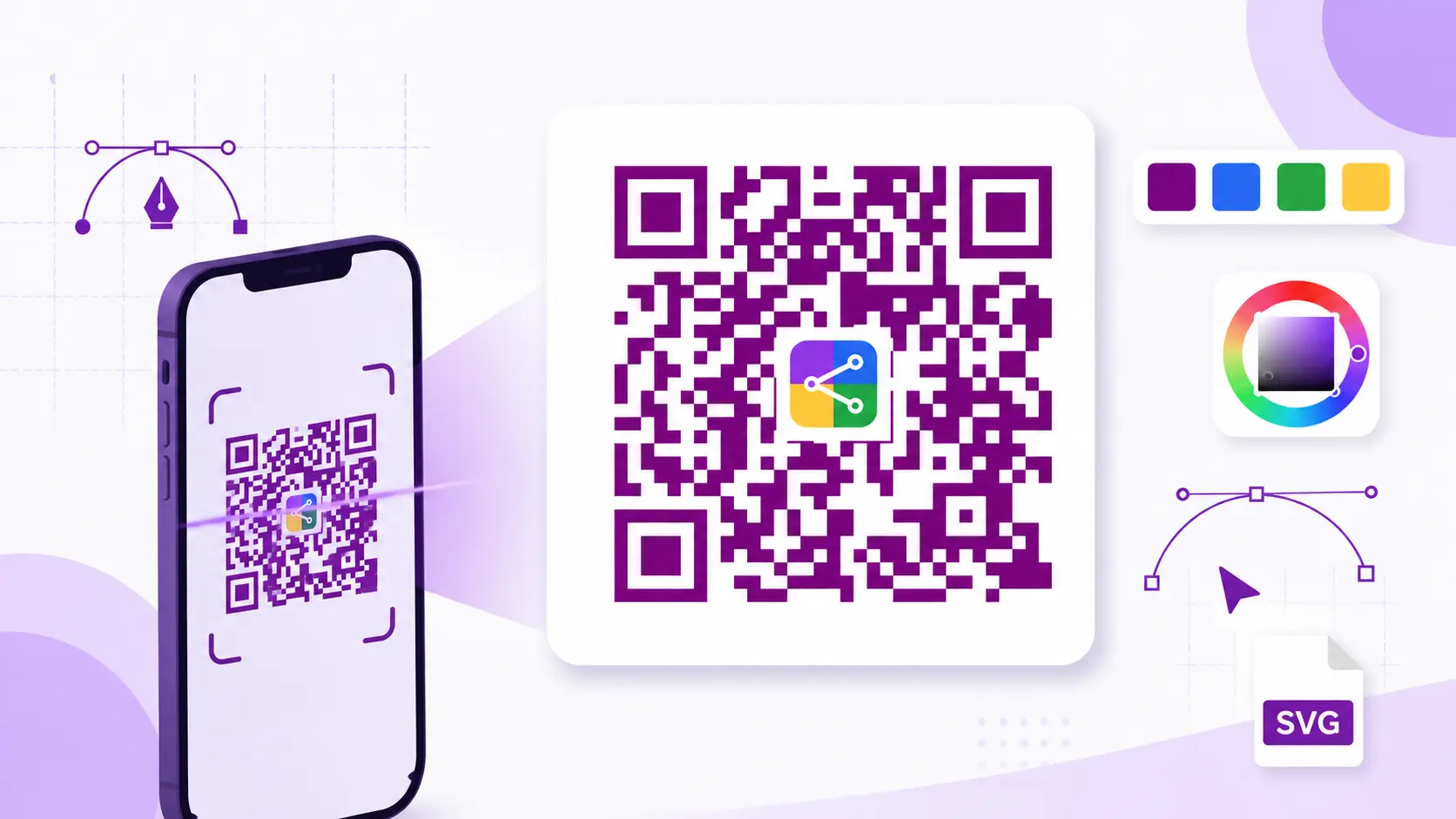
The three large squares near the corners help a scanner recognize the position and orientation of the code. The smaller modules carry the encoded information. The empty space surrounding the code is called the quiet zone. It separates the pattern from nearby text, images, and backgrounds so a scanner can identify it correctly.
A custom design can change the colors and add a logo, but it should not hide the structural parts that make the code readable.
Why Create a QR Code as an SVG?
QR codes are frequently used in both small digital layouts and large printed materials. That makes SVG a practical output format.
SVG is built from vector data instead of a fixed grid of image pixels. It can scale from a small label to a large banner while keeping every module sharp. Clear edges matter because a scanner must distinguish one module from the next.
PNG can still be useful for social posts, email, and software that does not accept SVG. However, a PNG has fixed pixel dimensions. Enlarging a small PNG can soften its edges, while an SVG remains crisp at any size.
How to Create a Custom QR Code Using SVGMaker
You do not need to understand SVG code or design the QR pattern by hand. Start with the information you want to encode, then describe the appearance in plain language.
1. Choose the Destination
Decide what should happen when someone scans the code. For example, it might open your website, show a restaurant menu, display an event ticket page, or lead to a product guide.
Use the final destination address in your prompt. Test that address in a browser before generating the code. A perfectly designed QR code is still useless if it points to a broken or incorrect page.
2. Write a Clear Prompt
Tell SVGMaker what the code should contain and how it should look. A useful prompt specifies the destination, foreground color, background color, output format, and any logo request.
For a simple code, try:
For a branded code, try:
Specific instructions give the generator a clearer design target. Avoid vague requests such as make it artistic. State the colors and practical requirements directly.
3. Add Your Brand Colors
A custom color can make the QR code feel like part of your packaging or campaign instead of an unrelated black square. Use a dark foreground and a light background for the safest result.
Good combinations include dark navy on white, deep green on cream, dark purple on pale gray, or black on a light brand color. The exact choice matters less than the contrast between the two colors.
Avoid using two similar colors. Pale blue modules on a white background may look elegant to a person but can be difficult for a camera to separate. Also avoid busy gradients, transparent modules, or patterned backgrounds unless you can test the final code carefully.
If you know your brand values, include the exact hex codes in the prompt. This prevents approximate colors from drifting away from your visual identity.
4. Place a Logo in the Center
A centered logo helps people connect the QR code with your business before they scan it. Ask SVGMaker to place a simple logo in the middle while keeping the important corner markers untouched.
Try a prompt such as:
A logo covers some of the data modules. Error correction gives the code a better chance of remaining readable when part of the pattern is hidden or damaged. Level H offers the greatest standard recovery capacity, but it also creates a denser pattern. Official QR code guidance from DENSO WAVE explains that higher recovery levels improve resilience while increasing the amount of code data.
Keep the logo small and simple. Do not stretch it across the code, cover a corner marker, or remove large areas of modules. A white badge behind the logo can separate it from the pattern and improve visual clarity.
5. Review and Refine the SVG
Inspect the generated code before using it. Check that the destination is correct, the quiet zone is visible on all sides, the colors have strong contrast, and the logo is not too large.
If a visual detail needs adjustment, open the file in the SVGMaker SVG editor. You can refine colors, spacing, size, and placement while keeping the file in vector format.
Do not treat visual polish as more important than readability. If a design looks attractive but scans inconsistently, simplify it. Increase contrast, reduce the logo, remove decorative elements, or generate a less complex version.
6. Test Before You Publish or Print
Testing is the most important step. A QR code should not be approved only because it looks correct on a monitor.
Scan it with more than one phone if possible. Test both Android and iPhone cameras, as well as a dedicated scanner when the code will be used in a business workflow. Confirm that every scan opens the intended destination.
Test the code at its final physical size. A code that scans at full screen size may fail when printed on a small label. Print a sample using the same paper, ink, finish, and dimensions planned for production. Glossy surfaces, curved containers, folds, shadows, and poor lighting can all affect scanning.
Custom QR Code Prompt Checklist
Before generating, include the following details in your request:
- The exact URL or text to encode
- A dark foreground color
- A light background color
- A clear quiet zone around the full code
- Preserved corner markers
- SVG as the requested output
- High error correction when adding a logo
- A small centered logo on a simple badge
- A requirement that the code remain functional and scannable
This checklist gives SVGMaker both the creative direction and the technical boundaries needed for a useful result.
Where to Use a Custom QR Code
Restaurant Menus
Place a branded code on tables, receipts, and takeaway packaging. Link it to a mobile menu that is easy to update.
Product Packaging
Connect customers to instructions, registration, authenticity details, or support while preserving strong contrast.
Business Cards
Use a compact code that opens a portfolio, booking page, or contact profile. Keep clear space around it.
Events and Posters
Link visitors to tickets, schedules, maps, or registration forms. Test it from a realistic distance.
Marketing Campaigns
Add QR codes to flyers, displays, advertisements, and direct mail. Use a measurable destination to track visits.
Common QR Code Mistakes to Avoid
Avoid these problems:
- Weak contrast between modules and background
- A logo that covers too much of the pattern
- Missing clear space around the outer edge
- Decorative elements placed over corner markers
- A destination that is incorrect or no longer active
- Printing the code too small
- Testing only on one screen or device
- Placing the code on a reflective or heavily patterned surface
If a scan fails, return to the simplest possible version. Use dark modules, a plain light background, a smaller logo, and a generous quiet zone. Add styling again only after the basic code scans reliably.
Frequently Asked Questions
1. Can I create a QR code from a text prompt?
Yes. With SVGMaker, describe the destination and appearance in plain language. Include the exact URL or text, colors, quiet zone, output format, and any logo request.
2. Can I use my brand colors in a QR code?
Yes. Use exact hex values when possible, but keep the foreground much darker than the background. Strong contrast is more important than matching a subtle color combination.
3. Can I put a logo in the center?
Yes. Keep it small, place it away from the corner markers, and use high error correction. Test the final code because every logo hides part of the encoded pattern.
4. Is SVG better than PNG for QR codes?
SVG is usually better for print, packaging, and layouts that may need resizing because it stays sharp at any scale. PNG is convenient for digital platforms that do not accept SVG.
5. Why does my custom QR code not scan?
Common causes include weak contrast, an oversized logo, missing quiet space, excessive decoration, a code printed too small, or distortion during resizing. Simplify the design and test it again.
6. Should I test a QR code before printing it?
Always. Scan it on several devices, print it at the intended size, and test it under realistic lighting and viewing conditions before approving a large print run.
Conclusion
A QR code does not have to look generic. With a clear prompt, you can create one that matches your brand colors, includes a centered logo, and remains useful across print and digital materials.
The workflow is straightforward: choose the destination, describe the design, generate the SVG, review the structure, and test the finished code. Keep contrast strong, protect the quiet zone and corner markers, and treat logo size carefully.
Most importantly, never skip scan testing. A custom QR code succeeds only when it looks right and works reliably for the people using it. SVGMaker gives you a simple way to create and refine that balance without drawing the pattern or editing SVG code by hand.