How to Build Custom SVG Graphics Online
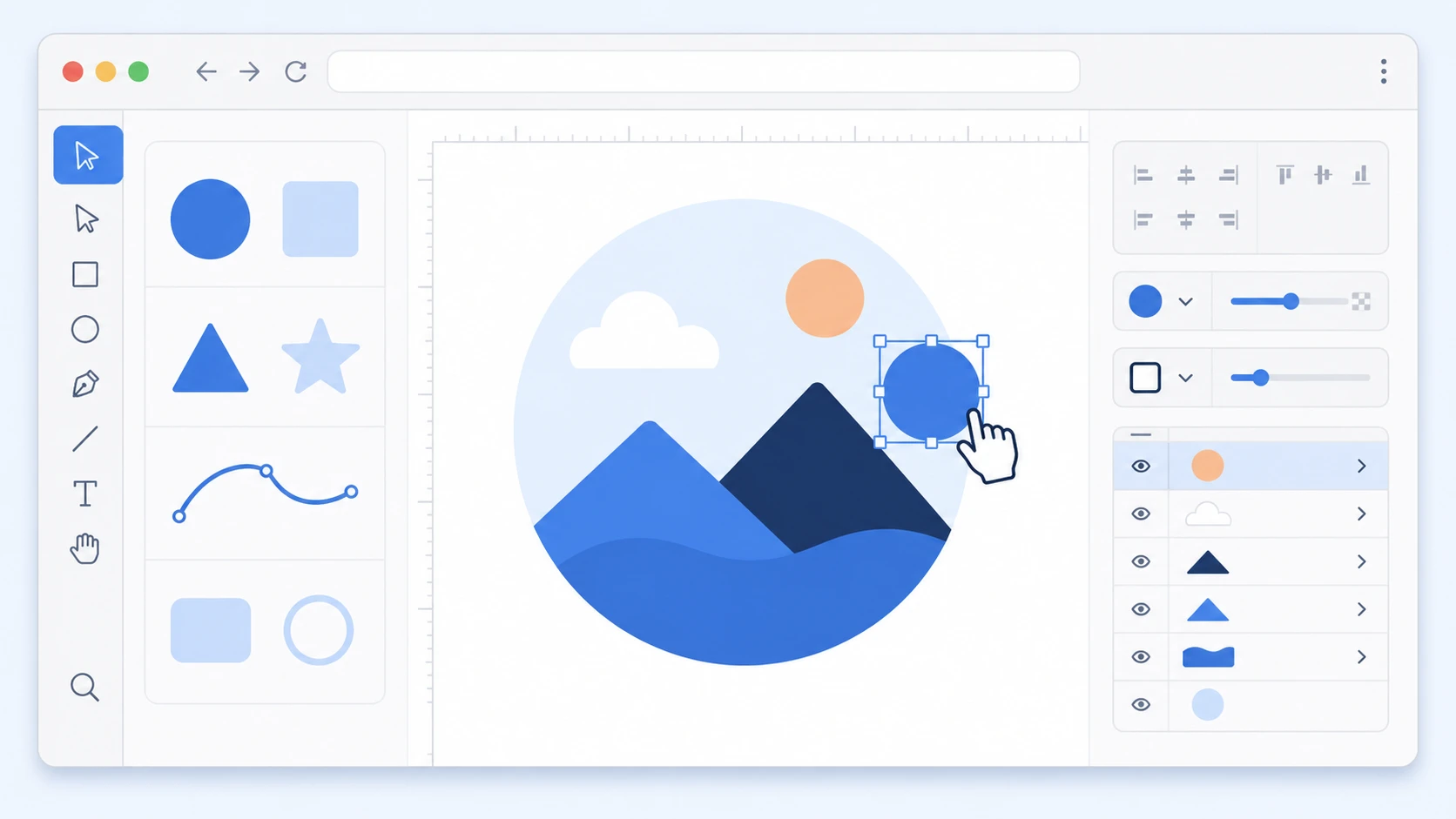
- There are multiple ways to build SVGs online now: visual editors, AI generation, sketch-to-SVG, and code editors. You don't need to pick just one.
- You don't need desktop software or design skills for most SVG projects. Browser-based tools handle everything from logos and icons to Cricut files and web illustrations.
- The right approach depends on what you're building and your comfort level. This guide covers how each method works, compares the free SVG builders available, and walks through creating SVGs without Illustrator.
- AI has changed the game for SVG creation. Sketch-to-SVG and text-to-SVG tools let you go from idea to finished vector in seconds, something that wasn't realistic even a couple of years ago.
What Can You Actually Build with an Online SVG Builder?
People often assume online tools are only good for simple edits. That was true a few years ago, but not anymore. Here's what people are actually using browser-based SVG builders for today.
Logos and Brand Assets
Logos are one of the most common reasons people search for an SVG builder. You need a file that looks sharp on a website favicon, a business card, and a storefront sign without creating three separate versions. SVG handles that by default. Online builders let you create a logo from a text prompt, sketch, or manual drawing and export a file that works everywhere.
Icons for Websites and Apps
Custom icon sets used to mean hiring a designer or downloading generic packs. Now you can generate or draw icons in the browser, tweak the style to match your brand, and export them ready for web use. Developers working on UI projects use this workflow regularly.
Web Illustrations and Landing Page Graphics
Marketing teams and solo founders use SVG builders to create custom illustrations for landing pages, blog headers, and feature sections. AI generation is especially useful here because you can describe the style you want and get something usable in seconds rather than waiting on a designer.
Social Media Graphics and Infographics
SVGs scale perfectly, which makes them a good base for social media content. You can build the graphic as an SVG for flexibility, then export as PNG at whatever resolution the platform needs.
Quick Edits and File Fixes
Sometimes you just need to change a color in an existing SVG, remove an element, or resize something. Opening Illustrator or Inkscape for a 30-second edit feels like overkill. A browser-based editor lets you drag and drop the file, make the change, and export without any setup.
How to Draw SVG Graphics Online
There are more ways to draw SVGs in the browser than most people realize. Here's how the main approaches work.
Visual Shape Editors
Browser-based drawing tools where you pick shapes, click and drag to place them, and adjust color, size, and stroke. More advanced ones include pen tools for freeform bezier curves. This is the closest thing to using Illustrator in a browser.
Tools in this category include Method Draw, Boxy SVG, SVGMaker's SVG Editor, Vectr, and Figma (which exports to SVG).
AI Sketch to SVG
This solves a specific problem: you have an idea in your head, you can sketch it roughly, but you can't turn that rough drawing into clean vector art on your own.
With sketch-to-SVG tools, you draw on a canvas using basic pencil and shape tools, then add a text prompt explaining what the sketch represents. The AI uses both the drawing and the description to produce a polished SVG with proper paths.
It's one of the fastest ways to draw SVG online if you have even basic sketching ability. SVGMaker's AI Sketch to SVG and Vector Ink both offer this workflow.
AI Text-to-SVG Generation
You describe what you want in plain language ("flat icon of a coffee cup, warm colors, no background") and the AI produces an SVG. Output quality varies between tools, and the results usually benefit from some editing afterward. But as a way to get a starting point fast, nothing else comes close.
SVGMaker and Recraft are two options here, with new tools appearing regularly.
Writing SVG Code Directly
SVG is XML. You can write it the same way you'd write HTML: define shapes, set colors, add gradients, position text. Pair it with a live preview and you have a practical creation environment. This approach produces the leanest output since there's no editor adding extra attributes.
CodePen, JSFiddle, SVGMaker's SVG Code Editor, or any text editor with a browser tab will work.
Image Tracing
Tracing converts a raster image (PNG, JPG) into vector paths. The tool analyzes edges, colors, and shapes in your image and generates SVG paths that approximate the original. Traditional tracing uses edge detection. Newer AI-powered tracers recognize semantic shapes for cleaner results.
Works best with high-contrast images. Logos, line art, and flat illustrations trace well. Photographs with gradients and noise usually don't.
Inkscape's Trace Bitmap, Illustrator's Image Trace, and VectoSolve are common choices.
Can I Create SVG from Scratch in a Browser?
Yes, and this is something that's changed a lot in recent years. It used to be that serious SVG work required desktop software. Now browser-based tools cover most workflows.
You can draw shapes and paths visually, write SVG code with live preview, generate vectors from text prompts, turn rough sketches into polished graphics, or trace raster images into vector format. All of it runs in the browser with no installation.
The one area where desktop tools still have an edge is complex illustration with heavy node editing. If you're doing detailed vector artwork with hundreds of anchor points, Inkscape or Illustrator will feel more responsive. But for everything else (icons, logos, web graphics, simple illustrations, cutting machine files), browser tools handle it fine.
SVGMaker, Method Draw, Boxy SVG, and Figma all run entirely in the browser. Each has different strengths, but the point is you're no longer limited to desktop software.
How to Build SVG Shapes Without Illustrator
Illustrator has been the default for vector work for decades, but it's expensive and honestly more tool than most people need. Here's how people are replacing it with browser-based alternatives.
The typical workflow looks like this: start with either a rough sketch or a text prompt, refine the result in a visual editor, and export the finished file. The starting point depends on you.
If you have a visual idea you can draw roughly, AI Sketch to SVG tools let you sketch it out and have AI turn it into clean vector art. If you know what you want but can't draw it, text-to-SVG generators like SVGMaker's AI Creator or Recraft create vectors from descriptions. If you prefer manual control, open a visual editor like SVGMaker browser-based SVG Editor, Method Draw, or Boxy SVG and use the shape and pen tools directly.
Once you have a base graphic, the editing step is the same regardless of how you started. Adjust colors, resize elements, reposition things, add or remove shapes. Then export. Browser-based tools generally produce cleaner output than desktop software because they skip the vendor-specific metadata that Illustrator and Inkscape tend to add.
For most use cases such as logos, icons, web graphics, simple illustrations — this workflow covers everything Illustrator does, without the subscription or the learning curve.
How AI Is Changing the Way People Build SVGs
A couple of years ago, building an SVG meant either drawing it manually or hiring someone who could. That was the bottleneck. You needed design skills, or you needed a designer.
AI has removed that bottleneck for a lot of common SVG work. The shift isn't just about speed, it's about who can create vectors now.
Text to SVG generation lets you type a description and get a usable vector graphic back. It works surprisingly well for icons, simple logos, and flat illustrations. The output isn't perfect every time, and you'll often want to edit the result, but getting a solid starting point from a sentence is a real change in how SVG creation works.
Sketch-to-SVG takes it further. Instead of needing clean, precise drawing skills, you can sketch your idea roughly and let AI handle the refinement. The combination of a visual sketch plus a text prompt gives the AI enough context to produce something that actually matches what you had in mind. For people who can picture what they want but can't execute it in a traditional vector editor, this is the workflow that finally makes sense.
Where AI still falls short is fine detail and consistency. If you need exact proportions, specific stroke weights, or pixel-perfect alignment, you'll need to do that manually. AI is better at generating the broad strokes than nailing the details. That's why the most practical workflow right now is AI for the first draft, then a visual editor for the polish.
The other thing worth noting is that these AI features exist almost exclusively in browser-based tools. Desktop software like Inkscape and Illustrator hasn't adopted AI-powered SVG generation in any meaningful way yet. If you want to use AI to build SVGs, you're building online.
What Is the Best Free SVG Builder?
There's no single answer because "SVG builder" means different things to different people. A web developer building programmatic icons has completely different needs from someone making Cricut designs. Here's how the main free options compare.
Inkscape is the most powerful free vector editor available. Full node editing, path operations, extensions, filters. The trade-off is that it's desktop-only software with a steep learning curve. If you're doing detailed illustration or complex path work and don't mind investing the time, Inkscape is hard to beat.
Figma has a generous free tier and works great for UI/UX-focused design. It's not built specifically for SVG, but it exports to SVG cleanly and most designers already know it. The collaboration features are a bonus if you're working with a team.
Method Draw is a minimal browser-based SVG editor. No AI, no fancy features, just basic shapes and paths. Good for quick simple edits when you don't need anything heavy.
Boxy SVG sits somewhere between Method Draw and Inkscape. More features than Method Draw, less overwhelming than Inkscape. Runs in the browser and as a desktop app.
SVGMaker takes a different approach by combining multiple creation methods in one place: AI generation, sketch-to-SVG, visual editing, and code editing. If you want to try different approaches without switching between tools, it covers the most ground in a single platform.
| Tool | Type | Strengths | Weaknesses |
|---|---|---|---|
| Inkscape | Desktop | Most powerful free editor, full path control | Steep learning curve, no browser version |
| Figma | Browser/desktop | Great for UI, team collaboration | Not SVG-focused, limited path editing |
| Method Draw | Browser | Simple, fast, lightweight | Very basic feature set |
| Boxy SVG | Browser/desktop | Good middle ground | Smaller community, fewer tutorials |
| SVGMaker | Browser | Multiple creation methods, AI features | Less manual path control than Inkscape |
The "best" tool really depends on whether you value power and control (Inkscape), simplicity (Method Draw), team workflows (Figma), or speed and AI assistance (SVGMaker).
FAQs
1: Do I need to know code to build SVGs?
A: No. Visual editors and AI tools handle SVG creation without writing any code. That said, knowing a few basics (like what viewBox, fill, and stroke do) makes it easier to customize and troubleshoot your graphics later.
2: What's the difference between drawing an SVG and tracing an image?
A: Drawing creates an SVG from nothing, either by hand or with AI. Tracing converts an existing raster image into vector paths. Drawing gives you full control over the output. Tracing depends on the source image quality. High-contrast logos and line art trace well; noisy photographs usually don't.
3: Can I edit an existing SVG file in the browser?
A: Yes. Most browser-based SVG editors let you open an existing file and make changes. You can adjust colors, move elements, resize shapes, add text, and re-export. It's useful when you need a quick fix without opening desktop software.
4: What export formats does SVGMaker support?
A: SVGMaker supports a wide range of export formats. For vectors: SVG, optimized SVG, SVGZ (compressed), PDF, EPS, PS, DXF, and AI. For rasters: PNG, JPG, WebP, and BMP. For developers: React JSX/TSX components, React Native JSX/TSX, data URIs (minified, base64, encoded), standalone HTML, HTML elements, and CSS backgrounds.
5: How do AI sketch-to-SVG tools work?
A: You draw a rough sketch on a digital canvas using basic pencil and shape tools. Then you add a text prompt describing what the sketch is supposed to be. The AI uses both your drawing and the text description to generate a clean SVG with proper paths and structure. The sketch guides the layout and composition while the prompt guides the style and detail.
6: Is AI-generated SVG good enough for production use?
A: For icons, simple logos, and web illustrations, AI-generated SVGs are often good enough with minor editing. For detailed artwork or files that need pixel-perfect precision, you'll want to refine the output in a visual editor or clean up the code manually. AI generation works best as a fast starting point.
7: Why does my SVG look fine in the editor but break on my website?
A: Usually one of these: missing viewBox (so it won't scale), hard-coded width/height values that override responsive sizing, embedded fonts the viewer's browser doesn't have, or browser-specific rendering differences with filters and gradients. Test in the actual target environment before calling it done.
8: Can I use SVGs built online for commercial projects?
A: If you created the SVG yourself (drew it, generated it with AI, or wrote the code), you own it. Most online SVG builders don't claim ownership of your exports. That said, if you started from a template or used someone else's SVG as a base, check the license on the original file. When in doubt, creating from scratch or generating with AI is the safest route for commercial use.
9: What's the difference between SVG and optimized SVG?
A: A standard SVG file may contain editor metadata, comments, redundant attributes, and extra decimal precision in path data. An optimized SVG strips all of that out, producing a smaller file that renders identically. The visual result is the same but the file size can be significantly smaller, which matters for web performance.
10: Can I build SVGs on my phone or tablet?
A: Most browser-based SVG builders work on tablets since they run in the browser. The experience depends on the tool and screen size. Drawing with a stylus on a tablet works reasonably well for sketch-to-SVG workflows. Phone screens are generally too small for detailed SVG editing, though simple tasks like recoloring or resizing are doable.
Conclusion
Building custom SVG graphics used to mean learning complex desktop software. That's no longer the case. Between visual editors, AI generators, sketch-to-SVG tools, and code editors, there's a browser-based approach for practically every skill level and use case.
If you can sketch roughly, AI Sketch to SVG tools turn that into clean vector art. If you can describe what you want, text to SVG Generator handles the rest. If you want hands-on control, the SVG Editor online runs right in the browser with no setup. And if you're a developer who prefers code, SVG is just XML.
The tools have caught up. The only question left is which approach fits what you're trying to build.
