SVG Text & Fonts: Complete Guide to Typography in SVG
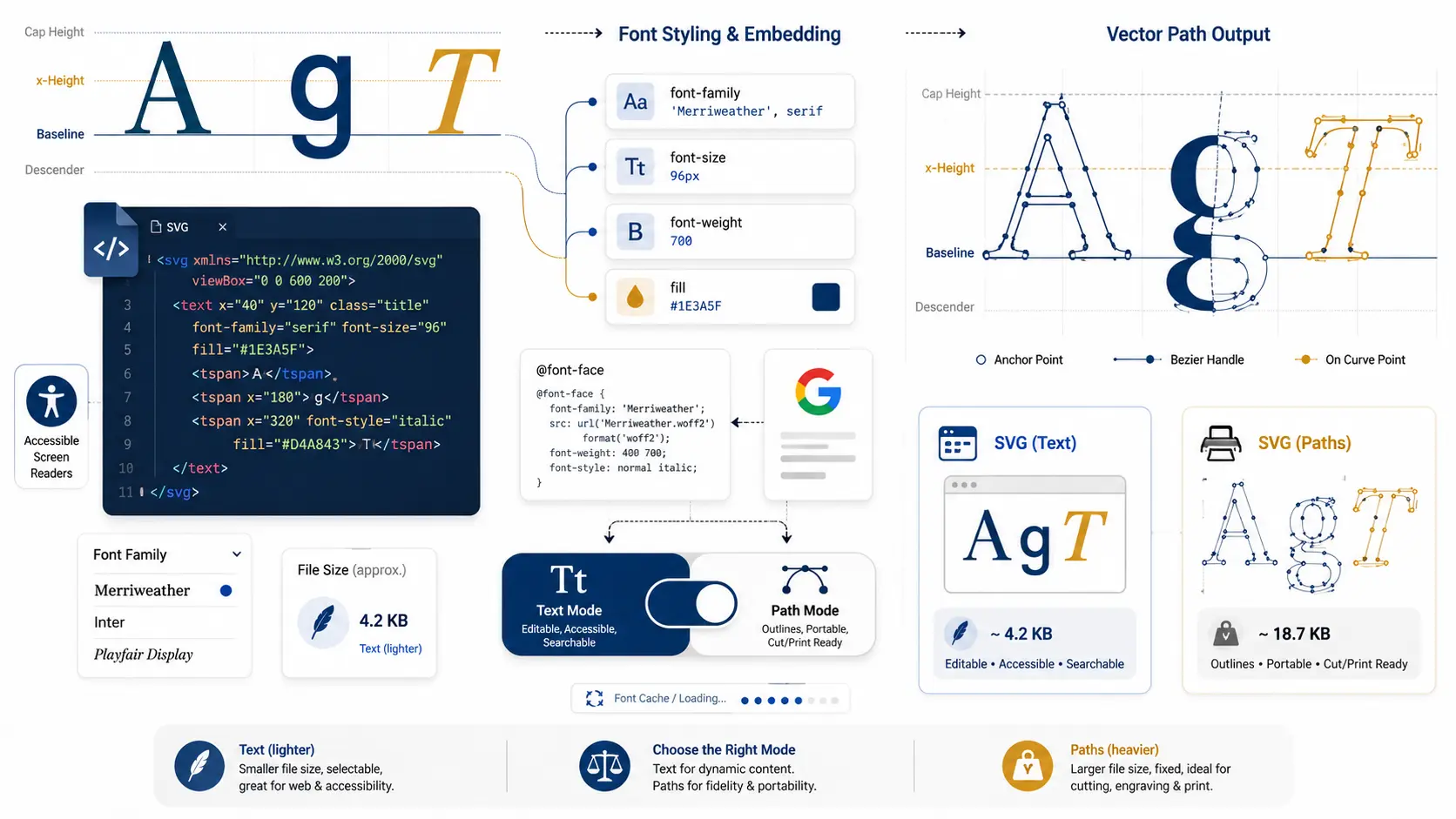
Introduction: The Font That Disappeared
You design a logo in SVG. The heading is set in Georgia, 32px, dark charcoal. It looks perfect on your machine. You send the file to a client, they open it, and the text has collapsed into Arial. The spacing shifted. The weight changed. The design is ruined.
This is the most common failure point in SVG typography, and it happens because SVG handles text fundamentally differently from HTML. In a web page, if a font fails to load, the browser substitutes a fallback and the layout adjusts gracefully. In an SVG file, a missing font can break positioning, alter character widths, and destroy the visual hierarchy you carefully built.
The root cause is simple: SVG files do not embed fonts by default. The <text> element stores the font name as a reference, not the font data itself. If the viewer's system doesn't have that exact font installed, the rendering engine substitutes whatever it considers the closest match, often with visually destructive results.
This problem gets worse when SVG files need to work across multiple environments: web browsers, design tools like Figma and Illustrator, cutting machines like Cricut and Silhouette, email clients, and print workflows. Each environment handles font resolution differently, and none of them agree.
In this guide, you'll learn everything you need to control text in SVG:
- The SVG text elements (
<text>,<tspan>,<textPath>) and their attributes - How to style SVG text with CSS, including web font loading
- Three font embedding strategies and when to use each one
- How to convert text to vector paths for universal rendering
- A comparison of the best text-to-SVG and txt to svg converter tools
- Accessibility and SEO best practices for SVG typography
Whether you're a designer shipping brand assets, a developer embedding inline SVGs, or a Cricut user preparing cut files, this guide covers the full typography pipeline. If you'd rather skip the manual font wrangling, SVGMaker's SVG Editor tackles the disappearing-font problem directly: pick from 33 built-in web fonts in a live preview, and the font you choose embeds automatically into your exported SVG. For a focused walkthrough on modifying existing text, see our guide on how to edit text in SVG.
SVG Text Elements: The Building Blocks
Every piece of text in an SVG starts with one of three elements. Understanding how they work, and how they differ, is the foundation of SVG typography.
The <text> Element
The <text> element is the primary container for rendering text in SVG. It accepts positioning attributes (x, y) to set the baseline origin point, along with presentation attributes for font styling and fill color.
The text-anchor attribute controls horizontal alignment (start, middle, end), while dominant-baseline controls vertical positioning. Together, they let you center text precisely within a viewBox without calculating pixel offsets manually.
The <tspan> Element for Inline Styling
The <tspan> element works like HTML's <span>: it lets you apply different styles to portions of text within a single <text> element. Each <tspan> can override the parent's font properties, color, and position.
The dx and dy attributes on <tspan> create relative offsets from where the text would naturally flow. This is how you build multi-line text in SVG, since the <text> element doesn't support line breaks natively.
The <textPath> Element for Curved Text
The <textPath> element renders text along a <path> defined in the SVG's <defs> section. This is one of SVG's most distinctive typographic capabilities, impossible to replicate in standard HTML/CSS without significant workarounds.
Text Attributes Reference
Here's a complete reference of the attributes that control SVG text rendering. You can experiment with all of these live in SVGMaker's SVG Code Editor.
| Attribute | Values | What It Controls |
|---|---|---|
x, y | Coordinates (px) | Baseline origin point |
dx, dy | Relative offset (px) | Shift from natural text flow position |
text-anchor | start, middle, end | Horizontal alignment relative to x position |
dominant-baseline | auto, central, hanging, middle | Vertical alignment relative to y position |
font-family | Font name + fallback | Typeface selection with fallback chain |
font-size | Number (px, em, %) | Text size |
font-weight | normal, bold, 100–900 | Text thickness |
font-style | normal, italic, oblique | Italic or oblique rendering |
fill | Color value | Text fill color |
stroke | Color value | Text outline color |
letter-spacing | Length (px, em) | Space between characters |
word-spacing | Length (px, em) | Space between words |
text-decoration | none, underline, line-through | Underline or strikethrough |
writing-mode | lr, rl, tb | Text direction (left-to-right, right-to-left, top-to-bottom) |
Styling SVG Text with CSS: Fonts, Colors, and Effects
SVG text can be styled using the same CSS properties you'd use for HTML text. The key difference is where and how you apply those styles.
Three Approaches to SVG Text Styling
| Method | Portability | Maintainability | Best For |
|---|---|---|---|
| Inline attributes | Works everywhere | Hard to update across many elements | Single-use SVGs, icon exports |
<style> block inside SVG | Works in browsers and most design tools | Easy to update with class-based selectors | Standalone SVG files for web |
| External CSS | Only works for inline SVGs in HTML | Full separation of concerns | SVGs embedded directly in web pages |
For standalone SVG files, the <style> block approach gives you the best balance of portability and maintainability:
Loading Web Fonts with @font-face in SVG
You can load web fonts directly inside an SVG file using @font-face within the <style> block. This technique works well in browsers but has an important limitation: most design tools (Figma, Illustrator), email clients, and cutting machine software ignore @font-face declarations inside SVGs entirely.
This works in Chrome, Firefox, and Safari. But if this SVG is opened in Cricut Design Space, dropped into a Figma frame as an image, or attached to an email, the font will not load and the text will fall back to the system default.
For visual font adjustments without touching code, SVGMaker's SVG Editor lets you change font families, sizes, and colors directly on the canvas, with 33 built-in fonts in a live preview. The web fonts you pick embed automatically into your export, so the text holds up even when the original font isn't installed.
Font Embedding in SVG: Three Strategies That Actually Work
The font portability problem has three solutions. Each trades off between file size, editability, and universal rendering.
Strategy 1: System Font Stacks
Use fonts that are pre-installed on virtually every operating system. This is the safest approach for files that need to render correctly everywhere without any external dependencies.
A robust system font stack might look like: font-family: -apple-system, BlinkMacSystemFont, 'Segoe UI', Roboto, 'Helvetica Neue', Arial, sans-serif;
The downside is obvious: you're limited to a small set of generic typefaces. Brand typography is off the table.
Strategy 2: Base64 Font Embedding
Embed the entire font file as a Base64-encoded data URI inside the SVG's @font-face declaration. The SVG becomes completely self-contained, carrying its own font data.
The trade-off is file size. A single font weight typically adds 20–100 KB of Base64 data to your SVG. For a file that would otherwise be 2 KB, this is a 10–50x size increase. For web performance, this approach is usually unacceptable. For print or cutting machine workflows where file size doesn't matter, it can be the right choice.
Strategy 3: Convert Text to Paths (Recommended for Production)
Replace <text> elements with <path> elements that trace the exact outlines of each glyph. The SVG no longer references any font at all. It renders identically on every device, in every application, forever.
This is the industry standard for production SVG assets: logos, icons, brand marks, cut files, and any SVG that leaves your controlled environment. The trade-off is that path-converted text is no longer editable as text, not searchable, and not readable by screen readers without additional accessibility metadata.
| Strategy | File Size | Editability | Universal Rendering | Best For |
|---|---|---|---|---|
| System font stacks | Smallest | Fully editable | High (common fonts only) | Draft files, internal documents |
| Base64 embedding | Largest (20–100 KB per font) | Fully editable | Universal | Print workflows, cutting machines |
| Text-to-path conversion | Moderate increase | Not editable as text | Universal | Logos, icons, brand assets, distribution |
Shortcut: You don't have to wire up any of these by hand. When you style text in SVGMaker's SVG Editor using one of its 33 built-in web fonts, the chosen font is embedded into your exported SVG automatically, giving you the portability of Strategy 2 without the manual Base64 work. You can still convert to paths on export when you need the universal rendering of Strategy 3.
For techniques on keeping your SVG files lean after conversion, see our guide on how to compress and clean SVG code.
Text to Vector Conversion: Turning SVG Text into Path Outlines
Converting text to vector paths is the single most reliable way to guarantee that your SVG typography renders correctly everywhere. Here's how to do it manually, programmatically, and automatically.
Why Convert Text to Paths?
- Font independence: The SVG carries its own shape data. No font installation required.
- Cutting machine compatibility: Cricut, Silhouette, and laser cutters need path data, not text references. Paths define the exact cut lines.
- Print production safety: Print shops and sign makers require outlined text to prevent font substitution errors.
- Cross-renderer consistency: Eliminates text reflow, kerning differences, and baseline shifts between browsers, design tools, and operating systems.
Manual Conversion in Design Tools
- Adobe Illustrator: Select text, then Type > Create Outlines (Shift+Cmd+O)
- Inkscape: Select text, then Path > Object to Path (Shift+Ctrl+C)
- Figma: Select text frame, then right-click > Flatten
Programmatic Conversion with JavaScript
For automated workflows, the opentype.js library parses font files and converts text strings into SVG path data. This is the approach used by professional SVG tools, including SVGMaker's export pipeline.
The font.getPath() method converts each character into Bezier curve commands. The toPathData(2) call rounds coordinates to 2 decimal places, keeping the output clean without sacrificing visual quality.
For complex SVGs with multiple <text> elements, you'd iterate through each element, extract its font-family, font-size, text-anchor, and dominant-baseline attributes, load the appropriate font, generate the path, and replace the <text> node with the resulting <path>. This is exactly what production text-to-path converters do under the hood.
When NOT to Convert to Paths
- Accessibility: Screen readers cannot read
<path>data. If the text needs to be announced to assistive technology, keep it as<text>or add<title>/<desc>elements. - SEO: Search engines can index
<text>content in inline SVGs. Path data is invisible to crawlers. - Editability: Once converted, you can't change the text content, font, or size without reconverting from the original.
- File size: Complex typefaces with decorative glyphs produce large path data. A 20-character
<text>element might be 200 bytes; the same text as<path>data can be 2–5 KB.
For a deeper analysis of why AI-generated text-to-vector conversions produce inconsistent results, read our guide on why text-to-vector AI creates inconsistent results.
How SVGMaker Handles SVG Typography End-to-End
Most tools handle one piece of the SVG typography puzzle. SVGMaker covers the entire pipeline: text creation, font management, text-to-path conversion, and post-conversion editing, all within a single platform.
Text Icon Generator
SVGMaker's AI Icon Generator includes a dedicated Text Icon tab that generates SVG icons from typed text. You select a font family (Inter, Arial, Georgia, Courier New, Times New Roman, and more), set the font size, toggle bold or italic, and add decorations like underline, strikethrough, superscript, or subscript.
The generator auto-scales the font size based on text length to prevent clipping. A single character gets the full canvas; a 20-character string scales down proportionally. The output is a clean SVG with proper text-anchor="middle" and dominant-baseline="central" centering, ready for use as an icon or logo element.
Automatic Text-to-Path on Export
When you export an SVG from SVGMaker, the platform automatically converts all <text> elements to <path> outlines using opentype.js. The conversion engine maintains a font cache to avoid redundant network requests, maps common fonts to metric-compatible Google Font substitutes (Arial to Arimo, Courier New to Cousine, Times New Roman to Tinos, Georgia to Lora), and falls back gracefully: if a font cannot be loaded, the original <text> element is preserved unchanged rather than producing broken output.
Font Parsing and Mapping
Upload any SVG to SVGMaker, and the platform's font parser automatically detects every font referenced in the file: from direct font-family attributes, inline styles, and <style> blocks. The font mapper then resolves each detected font against a library of 30+ bundled TTF files with weight and style matching, ensuring accurate rendering regardless of what fonts are installed on your local machine.
Visual, Code, and AI Editing
- SVG Editor: Adjust text colors, font sizes, and positioning visually on the canvas, and pick from 33 built-in fonts in a live-preview dropdown. The web fonts you choose embed automatically into your exported SVG, so your text renders correctly anywhere.
- SVG Code Editor: Edit
<text>elements directly with syntax highlighting and live preview. - AI SVG Editor: Modify text with natural language commands like “change the heading to red bold” or “make the subtitle italic.”
7 Best Text-to-SVG Tools Compared
Whether you need a quick one-off conversion or a production-grade SVG font generator, these are the most popular tools for turning text into vector SVG output. We evaluated each on input flexibility, font support, customization depth, output quality, and pricing.
| Tool | Input Type | Font Support | Customization | Output Quality | Pricing | Best For |
|---|---|---|---|---|---|---|
| SVGMaker | Text input + font selector | 33 built-in fonts, auto text-to-path | Font, size, weight, style, decorations, color | Production-ready path output | Free tier + paid plans | Full typography workflow with editing |
| Text-To-SVG.com | Plain text | Limited web fonts | Basic size and color | Clean but basic | Free | Quick one-off conversions |
| TextToSVG.app | Plain text | Google Fonts library | Font, size, kerning, ligatures | Good path output, browser-local | Free | Designers needing font variety |
| CodeShack | Plain text + custom font upload | Upload TTF/OTF/WOFF | Size, spacing, alignment, stroke | Raw path data | Free | Developers needing raw path data |
| SVG Genie | Plain text | System fonts | Basic styling and colors | Moderate | Free | Simple text badges and labels |
| Aspose TXT to SVG | .txt file upload | System fonts | Minimal | Bulk file conversion | Free tier + paid | Batch file format conversion |
| Convertio TXT to SVG | .txt file upload | None (plain text render) | None | Basic text rendering | Free tier + paid | Quick file format conversion |
The key differentiator is what happens after conversion. Tools like TextToSVG.app and CodeShack produce clean path output, but the result is final: if you need to adjust a color, tweak the spacing, or change a single word, you start over. SVGMaker is the only tool on this list that combines text input, font selection, automatic text-to-path conversion, and integrated visual and code editing in one platform.
For guidance on choosing the right fonts for specific design workflows, see our guide on choosing fonts and typography for t-shirt designs.
Using Web Fonts in SVG on Websites
How your SVG text renders on the web depends entirely on how you embed the SVG in your HTML. The embedding method determines whether the SVG can access your page's fonts.
Embedding Methods and Font Access
| Embedding Method | Inherits Page CSS Fonts? | Use Case |
|---|---|---|
Inline SVG (<svg> in HTML) | Yes | Interactive graphics, icons styled with page CSS |
<img src="file.svg"> | No | Static images where fonts must be embedded or converted to paths |
<object data="file.svg"> | No (separate document context) | Complex SVGs that need their own scripts or styles |
CSS background-image | No | Decorative backgrounds where text should be path-converted |
Google Fonts in Inline SVG
When an SVG is embedded inline in your HTML, it shares the page's CSS context. This means any Google Font loaded via a <link> tag is available to SVG text elements automatically:
This works because the browser treats inline SVG as part of the DOM. The SVG <text> element resolves font-family: 'Inter' against the same font registry that HTML elements use.
Standalone SVG Files: Self-Contained Font Loading
For SVGs served as separate files (via <img>, download, or email), fonts must be embedded within the SVG itself. Use @import or @font-face inside the <style> block, or convert text to paths before distribution. There is no middle ground: if the SVG is loaded as an external resource, it cannot access the parent page's styles.
For more on generating SVGs from text descriptions, see our guide on generating SVGs from text prompts.
SVG Text Accessibility and SEO Best Practices
The choice between <text> and <path> has direct consequences for accessibility and search engine visibility. Getting this right requires understanding how assistive technology and crawlers interact with SVG content.
Screen readers can read <text> elements. When an SVG contains <text>Hello World</text>, a screen reader announces “Hello World” to the user. This is the most accessible approach for SVG typography.
Screen readers cannot read <path> data. Once text is converted to paths, the character information is lost. The screen reader sees a shape, not words. To restore accessibility, you must add explicit metadata.
Search engines can index <text> content in inline SVGs. If your SVG is embedded inline in HTML, the <text> content is part of the DOM and can be indexed. Path-converted text is invisible to search crawlers.
Accessibility Decision Framework
| Approach | Screen Reader Access | SEO Indexable | Rendering Consistency |
|---|---|---|---|
<text> elements | Yes (reads text directly) | Yes (inline SVG only) | Depends on font availability |
<path> with <title> and <desc> | Partial (reads metadata, not original text) | No | Universal |
<path> without metadata | None | No | Universal |
Frequently Asked Questions
1. What is the difference between <text> and <tspan> in SVG?
<text> is the container element for rendering text in SVG, similar to <p> in HTML. <tspan> is an inline element that lives inside <text>, similar to <span> in HTML. You use <tspan> to apply different styles (font weight, color, size, position offsets) to portions of text within a single <text> block. A <tspan> cannot exist outside a <text> element.
2. Why does my SVG text look different on another computer?
The font specified in your SVG's font-family attribute is not installed on the other machine. SVG does not embed font data by default. The viewer's system substitutes a fallback font, which has different character widths, kerning, and weight, causing the text to shift and reflow. Fix this by converting text to paths before sharing, or by embedding the font. In SVGMaker's SVG Editor, styling text with one of its 33 built-in fonts handles this for you: the web fonts embed automatically into your exported SVG, so the text looks the same on every machine.
3. How do I convert text to vector paths in SVG?
Three ways. In design tools: Illustrator uses Type > Create Outlines, Inkscape uses Path > Object to Path, Figma uses Flatten. Programmatically: use opentype.js in JavaScript to parse a font file and convert text strings into <path> elements. Automatically: SVGMaker converts all text to paths during export with no manual steps required.
4. What is an SVG font generator?
An SVG font generator is a tool that takes typed text and a font selection as input and produces an SVG file with that text rendered as vector data. SVGMaker's AI Icon Generator is an example: you type text, choose a font family, adjust styling options (bold, italic, size, color, decorations), and get a production-ready SVG icon instantly. The text can then be exported as <path> outlines for universal compatibility.
5. Can I use Google Fonts inside an SVG file?
Yes, using @import url() or @font-face within the SVG's <style> block. This works in web browsers (Chrome, Firefox, Safari) but does not work in most design tools (Figma, Illustrator), email clients, or cutting machine software. For universal compatibility, use Google Fonts for browser-rendered inline SVGs, and convert text to paths for standalone SVG files.
6. How do I make SVG text accessible to screen readers?
Keep text as <text> elements whenever possible, since screen readers can read them directly. When text must be converted to paths (for distribution or cutting), add <title> and <desc> elements inside the SVG and reference them with aria-labelledby on the <svg> root element. This gives screen readers a text alternative to announce.
7. What is the best txt to svg converter?
It depends on what you need. For styled typography with font selection and customization: SVGMaker or TextToSVG.app. For raw path data for development: CodeShack's Text to SVG Path Converter. For bulk plain text file format conversion: Aspose or Convertio. See the comparison table above for a detailed breakdown of all seven options.
8. Does converting text to paths increase SVG file size?
Usually yes. A <text> element with 20 characters might be 200 bytes. The same text as <path> data can be 2–5 KB depending on the font's glyph complexity. Decorative and serif fonts produce significantly more path data than simple sans-serif faces. The increase is worth it for rendering consistency. After conversion, optimize the paths with SVGO or SVGMaker's optimizer to reduce decimal precision and remove redundant commands.
Conclusion: Master SVG Typography in Three Steps
SVG typography is powerful, but it demands understanding a pipeline that most tutorials only partially cover.
- Author with
<text>elements,<tspan>for inline styling, and CSS<style>blocks for maintainability. - Decide on a font strategy: system stacks for maximum portability, web font loading for browser-rendered SVGs, or text-to-path conversion for universal rendering.
- Protect accessibility by keeping
<text>for web-displayed SVGs and adding<title>/<desc>metadata when converting to paths.
The central trade-off in SVG typography is editability versus consistency. <text> elements are editable, searchable, and accessible, but depend on font availability. <path> outlines render identically everywhere, but lose all text semantics. Knowing when to use each one is what separates production-ready SVGs from files that break on the first machine that isn't yours.
For a complete end-to-end workflow, try SVGMaker's SVG Editor to author text visually, the SVG Code Editor to fine-tune <text> attributes with live preview, or the AI App Icon Generator to generate text-based SVG icons with automatic font handling and text-to-path export.
