Edit SVG Online: Change Colors, Layers, Paths & Text (Beginner Guide)
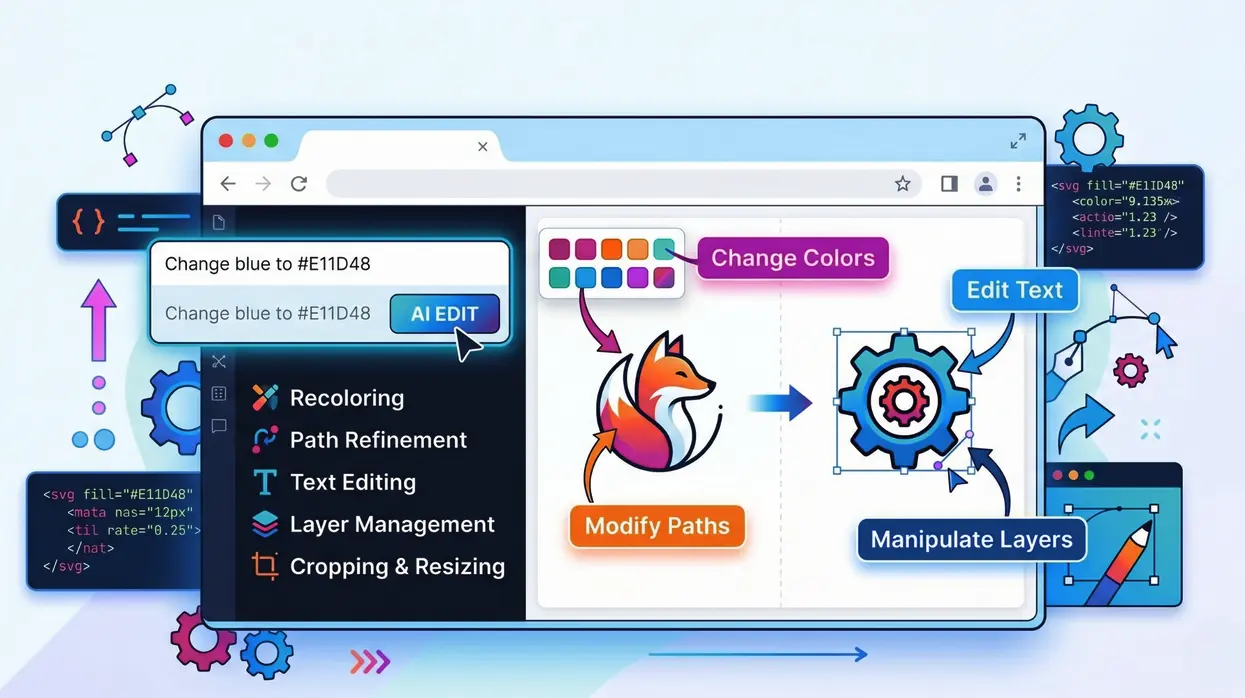
New to SVG editing? This beginner-friendly guide walks you through the most common tasks step by step: changing colors, updating text, managing layers, and adjusting paths — all directly in your browser using SVGMaker's free AI‑powered SVG editor. No Illustrator, no Inkscape, no design experience required. Just upload your SVG and start making changes.
What Is an Online SVG Editor?
An online SVG editor is a browser‑based tool that lets you view and modify scalable vector graphics without installing desktop software. SVGMaker's online SVG editor combines two editing modes:
- AI‑powered editing – describes the change in plain English and the AI applies it instantly.
- Code editor – edit raw SVG markup with a live visual preview.
Together, they give every user from crafters and small business owners to web developers full control over any SVG file, anywhere.
Why Edit SVGs Online Instead of Desktop Software?
Professional tools like Adobe Illustrator ($23/month) and Inkscape (free but complex) are powerful, but for most SVG editing jobs they're overkill.
| Desktop SVG Editor | Online SVG Editor (SVGMaker) | |
|---|---|---|
| Setup | Download, install, configure | Open browser, upload file |
| Cost | $23/month or steep learning curve | Free daily credits to start |
| Learning curve | Weeks to master panels and tools | Type what you want in plain English |
| Quick edits | Open app → find tool → click → export | Upload → describe change → download |
| Platform | Windows / macOS only | Any browser — Windows, macOS, Linux, Chromebook |
| AI assistance | None | Natural‑language editing built in |
If you edit SVGs daily as a professional designer, desktop tools make sense. For everyone else such as developers, marketers, crafters, small business owners an online SVG editor gets the job done faster and with zero friction.
How to Edit SVG Files Online with SVGMaker
SVGMaker gives you two ways to edit SVG online, both accessible from the same editor.
Method 1: AI‑Powered Editing (Recommended for Speed)
Upload your SVG, then type what you want changed. The AI understands the structure of your file and applies the edit without you needing to know which layer, path, or group to select.
Examples:
- "Change the blue header to #E11D48"
- "Remove the background rectangle"
- "Make the text bold and larger"
- "Delete the bottom border line"
- "Change all green elements to orange"
Method 2: SVG Code Editor (For Developers)
Switch to the SVG Code Editor to edit the raw markup. Code appears on the left, a live preview on the right — every change reflects instantly. Ideal for:
- Adjusting exact coordinates or dimensions
- Modifying
viewBoxvalues - Adding or removing attributes
- Debugging rendering issues
- Cleaning up bloated markup
Common SVG Editing Tasks (and How to Do Them)
Every editing action you'll encounter fits into the workflows below. Use the AI editor for natural‑language changes, or the code editor for precise control.
Change SVG Colors Online
Recoloring is the most frequent request. SVGMaker's AI finds every instance of a color fills, strokes, gradients, inline styles and replaces them.
- Target one color: "Change the red to #3B82F6"
- Rebrand entirely: "Apply my brand colors: primary #1E40AF, secondary #F59E0B"
- Create dark‑mode variants: "Invert all colors for dark background make black elements white"
- Batch recolor: Use the dedicated SVG Color Editor for a palette‑based view of every color in your file.
Edit SVG Paths Online
Paths are the curves and lines that form your graphic. Normally, editing them requires learning path syntax (M, C, Z) or using Illustrator's pen tool. SVGMaker simplifies this.
With AI:
- "Make the border thicker"
- "Round the corners of the rectangle"
- "Smooth out the jagged edges"
- "Simplify the paths — reduce anchor points"
With code: Use the SVGMaker's free SVG Code Editor to directly modify path data. The live preview shows exactly how each change affects the visual.
For Cricut & cutting machines: "Close all open paths," "Remove overlapping paths," and "Remove paths smaller than 5px" make your SVG cut‑ready.
Edit SVG Text Online
SVG text comes in two forms — live <text> elements (editable) and outlined paths (letters converted to curves).
- Live text: "Change the heading to 'New Brand Name'," "Make the title font size 24px," "Center the text horizontally."
- Outlined text: You can't retype the words, but you can "Change the color of the text shapes," "Scale the text area larger," or "Remove the tagline text." To replace outlined words, delete the old paths and add a new
<text>element. - Add new text: "Add the text 'SALE' in bold red at the top."
For a deep‑dive, see the SVG Text Editor guide.
Manage SVG Layers and Groups
SVGs use <g> tags — the equivalent of layers in Photoshop. The AI understands these groups.
- Remove: "Remove the background layer"
- Reorder: "Move the icon above the text"
- Group/Ungroup: "Group the three circles together"
- Hide: "Hide the watermark group"
For more detailed layering, see How to Group and Ungroup SVG Elements.
Crop and Resize SVGs
Unlike raster images, SVGs crop by adjusting the viewBox — the visible area.
- "Crop to just the icon, remove surrounding whitespace"
- "Trim the empty space around the design"
- "Set the width to 512px" or "Scale to 24×24 for an icon"
Resizing changes only the width/height attributes; the viewBox keeps everything sharp at any dimension.
Remove Background from SVG
Received an SVG with an unwanted white rectangle or colored backdrop? The AI can handle it:
- "Remove the white background"
- "Delete the background rectangle"
- "Make the background transparent"
For complex backgrounds, the Background Remover SVG strips background elements while preserving your foreground design.
How SVGMaker Simplifies Your Entire SVG Editing Workflow
SVGMaker isn't just a collection of loose editing features. It provides a complete online SVG editor built around a single idea: you shouldn't have to learn a complex interface just to change a color or prepare a file for your cutting machine.
- No install, no subscription: Every edit happens in your browser. Free daily credits let you start immediately.
- AI that understands SVGs: The AI knows the difference between a
<rect>, a<path>, and a<text>element, so it applies changes to the right piece of your graphic. - Full‑workflow tools in one place: After editing, you can immediately convert a PNG to SVG, generate an app icon, or automate a batch task — all without leaving the platform.
- Precise control when you need it: The code editor is always one click away for developers who need pixel‑perfect adjustments.
Whether you're fixing a logo, preparing a Cricut project, or tweaking a web icon, SVGMaker turns "I don't know how to edit this" into "done."
Common SVG Editing Mistakes (and How to Fix Them)
- Using find‑and‑replace on hex codes – SVGs store colors in multiple places (
fill,stroke,style,<style>blocks,currentColor). A simple text replace will miss some and break others. Let the AI handle the entire recolor. - Forgetting to close paths before cutting – Cricut and Silhouette machines demand closed loops. Always run "Close all open paths" before sending to Design Space.
- Leaving a hidden background
<rect>– Many SVGs carry a full‑size white rectangle as the bottom layer. Remove it with "Remove the background rectangle" to get true transparency. - Embedding raster images inside SVGs – Some editors export SVGs that contain a
<image>tag wrapping a PNG. That isn't a true vector. SVGMaker's converter can rebuild a real vector version. - Skipping the viewBox check – An incorrect or missing
viewBoxmakes the SVG scale unpredictably. The code editor lets you verify and fix it instantly. - Not creating dark‑mode variants – Once your SVG is clean, take 10 seconds to ask "Invert all colors for dark background." You'll have the light and dark versions your website needs.
Frequently Asked Questions
1. How do I edit an SVG file online for free?
Upload your SVG to SVGMaker's free SVG editor online. Describe the change you want — recolor, resize, remove an element — and the AI applies it instantly. Download the edited SVG with no software to install.
2. How do I change colors in an SVG file?
Open your SVG in SVGMaker and type "change the blue to #FF5733" or "make all text black." The AI finds every instance of that color — including fills, strokes, and styles — and updates them. For a palette‑based bulk recolor, use the SVG Color Editor.
3. Can I edit SVG paths without Illustrator?
Yes. SVGMaker's AI editor modifies paths from a plain‑language description ("make the border thicker," "round the corners," "simplify the curves"). For direct path code changes, the SVG Code Editor gives you real‑time visual feedback as you type.
4. How do I prepare an SVG for Cricut or Silhouette?
Upload your file to the editor and ask the AI to "close all open paths," "remove the background," and "separate colors into layers." The output imports directly into Cricut Design Space or Silhouette Studio as a clean, cut‑ready file.
5. Is an online SVG editor better than Figma for quick edits?
For standalone SVG edits color swaps, text changes, path tweaks an AI‑powered online editor like SVGMaker is faster because you simply describe the change. Figma excels at collaborative UI design workflows, not single‑file SVG repair.
6. Can I edit SVG files on a phone?
Yes. SVGMaker's editor works in any mobile browser such as Chrome, Safari, Firefox. Upload your SVG, type your edit, and download the result. No app install required.
Start Editing Your SVG Files Online
You don't need Illustrator. You don't need Inkscape. You don't need to memorize path commands. SVGMaker built‑in SVG editor lets you change colors, modify paths, edit text, remove backgrounds, and prepare files for web, print, and cutting machines — all directly in your browser. Type what you want changed, and the AI handles the rest.
For developers, the SVG Code Editor gives you full markup control with instant visual preview. For focused tasks, the SVG Color Editor and SVG Background Remover offer streamlined, single‑purpose workflows.
Upload your SVG to SVGMaker's SVG Editor now and make your first edit in under 30 seconds.
