TTF to SVG Converter: The Easiest Way to Get Clean Vector Font Paths
You bought a display font for a client wordmark. You typed the brand name, and it looked perfect. You exported an SVG, but when the developer opened the file on their machine, they saw Times New Roman. Or you dropped the same file into Cricut Design Space or Silhouette Studio, and the lettering vanished completely.
The font is not broken, and the SVG is fine. The file just points to a typeface that exists only on your computer.
To fix this, stop referencing the font and start shipping its actual shapes. With SVGMaker, you can convert text and font-based artwork into editable SVG paths. These paths render consistently across browsers, design software, cutting machines, and other devices without needing the original font to be installed.
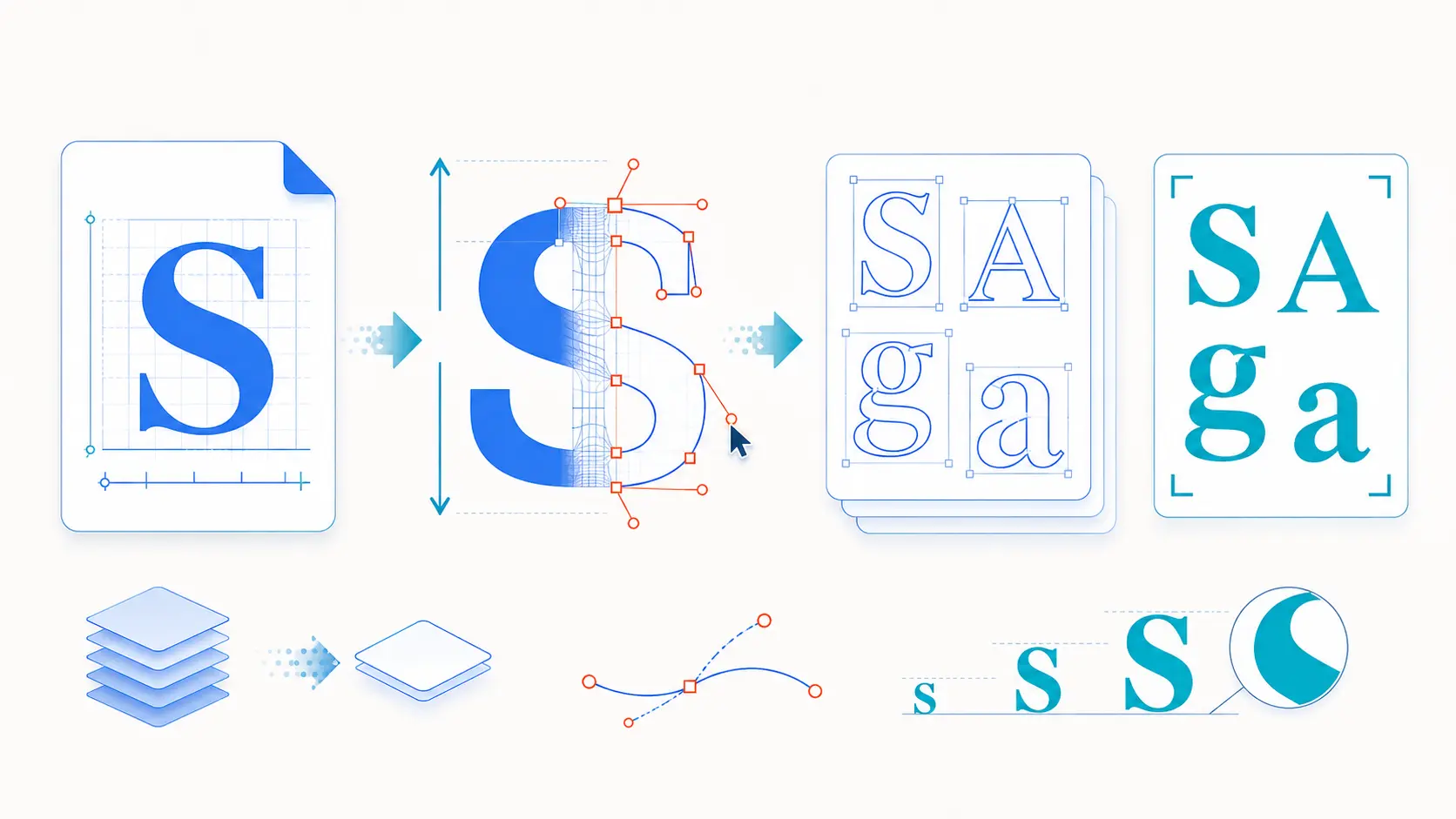
That is what a TTF to SVG converter does. A TTF file is not a picture. It is a container filled with glyph outlines. Each character has a closed set of curves stored on the font’s own coordinate grid. Converting TTF to SVG means extracting those outlines and writing them as <path> data so they display the same everywhere.
This guide explains what “TTF to SVG” really means. It can refer to three different processes, and people often request the wrong one. It will cover the three reliable ways to perform the conversion, the two coordinate quirks that can make converted glyphs appear upside down, and what a clean set of font paths should look like when you are done.
What "TTF to SVG" Actually Means
Search for this phrase and you get three unrelated answers, because three unrelated jobs share the same name. Find your row first, because the rest of the article depends on it.
| What you want | What you actually get | When you need it |
|---|---|---|
| Glyph extraction | One <path> per letter for the specific text you type | Wordmark logos, cut files, lettering you plan to distort or animate |
| Text to outlines | An existing <text> element inside an SVG, converted into paths | Fixing an SVG that renders in the wrong font on other machines |
| SVG font format | The legacy <font> and <glyph> elements, a font written in SVG markup | Almost never. This one is dead. |
That last row deserves a warning. SVG fonts were a real part of the SVG 1.1 spec, but Chrome removed support, Firefox never shipped it, and Edge dropped it too. If a tutorial from 2011 tells you to convert your TTF into an SVG font for the web, ignore it and use WOFF2 instead. When people today say "TTF to SVG" they almost always mean row one: give me the letter shapes as paths.
Rows one and two are the same operation seen from two sides. One starts from a font file, the other starts from an SVG that references a font. Both end at the same place: outlines, no font dependency.
Why You Would Convert a Font to SVG
- Wordmark logos. A logo built from live text is a liability. Outlined letters are a permanent asset that renders the same in every browser, every design tool, and every printer's RIP.
- Cricut, Silhouette, Glowforge and laser work. Cutting machines follow paths. They do not read font files, so live text either fails to import or arrives as an empty box.
- Handoff to developers, Figma or Framer. The font that renders beautifully on your machine is missing on theirs. Paths remove the dependency completely.
- Icon fonts that need to become icons. Older projects often ship glyphs as an icon font. Extracting the glyphs turns each one into a real, styleable SVG icon.
- Custom lettering. Once a letter is a path you can stretch a terminal, merge two letters into a ligature, cut a notch, or morph one shape into another. None of that is possible while it is still text.
- Animation and per letter styling. Each glyph becomes its own element you can target, stagger, stroke or fill independently with CSS.
TTF to SVG Use Cases
Create Consistent Wordmark Logos: Convert custom typography into SVG paths so a logo displays the same across websites, design tools, print files, and client devices without needing the original font.
Prepare Text for Cricut and Silhouette: Cutting machines work with vector paths instead of installed fonts. Converting TTF text to SVG creates clean, cut-ready lettering for vinyl decals, signs, apparel, stencils, and craft projects.
Design Laser-Cut and Engraved Lettering: Turn font characters into scalable paths that can be imported into Glowforge and other laser-cutting software for engraving, scoring, or cutting wood, acrylic, paper, and similar materials.
Convert Icon Fonts into SVG Icons: Extract individual symbols from an icon font and save them as independent SVG files. Developers can resize, recolor, animate, and use these files without loading the complete font library.
Customize Individual Letters: Once text becomes editable SVG paths, designers can reshape curves, stretch terminals, merge characters, create custom ligatures, remove sections, or develop entirely original lettering.
Prevent Missing Font Problems: Outlined SVG text does not rely on a font being installed on another person’s computer. This makes it safer for sharing files with developers, printers, clients, and collaborators using Figma, Framer, Illustrator, or other software.
Animate or Style Letters Separately: Export each glyph as an individual SVG object to apply different colors, strokes, hover effects, transitions, or staggered animations to each character.
Automate Personalized SVG Designs: Developers can programmatically extract font paths to generate names, product labels, event graphics, certificates, and personalized merchandise using customer or spreadsheet data.
A Quick Word on Font Licensing
Converting glyphs to outlines does not remove the typeface from the equation. You are still using the designer's work, you have just changed the file format it arrives in.
Most commercial desktop licenses explicitly allow outlined use in a logo, which is exactly why this workflow is standard practice in branding. Some licenses restrict it, and a few free fonts labeled "personal use" prohibit commercial logos in any form. Free does not mean unrestricted.
Read the EULA before you ship a client wordmark. It takes two minutes and it is far cheaper than a licensing dispute after the brand launches. This applies just as much to converted outlines as it does to a @font-face file on a website.
Method 1: Convert It in Your Browser
The fastest route for a single word or a handful of letters is an online font to SVG converter. The flow is always the same three steps: upload the font file, type the characters you want, download the resulting SVG. Tools like SVGGenie's font to SVG converter run the whole conversion in your browser using JavaScript, so the font binary never travels anywhere.
That detail matters more than it sounds. A TTF file is licensed property, and often the paid kind. Uploading it to an unknown server means handing a redistributable copy of a commercial font to a service whose retention policy you have never read. If a converter cannot tell you plainly that processing happens in your browser, use a different one.
A good converter gives you all four of these:
- Real
<path>elements, not a<text>element with afont-familyattribute. If the output still names a font, nothing was actually converted. - A tight viewBox that wraps the visible letterforms, not the full em square with a lake of empty space around your word.
- One group or path per glyph, so you can kern and recolor letters individually later.
- No embedded base64 blob. Some tools quietly embed the entire font inside the SVG. That defeats the purpose and balloons the file.
Everything on that list is checkable in a text editor in about ten seconds. Open the file and look.
Method 2: Create Outlines in a SVG Editor
If the type is already sitting in a document, your design app converts it in one menu command.
- Illustrator: select the text, then Type → Create Outlines (Shift+Cmd+O).
- Inkscape: select the text, then Path → Object to Path (Shift+Ctrl+C).
- Figma: right click the text layer and choose Outline stroke after flattening, or use Flatten selection.
- FontForge: open the font itself, select a glyph, and export it directly. This is the option when you need one specific character straight out of the font rather than typed text.
This is the easiest method and it has a real tradeoff. The moment you outline, the text stops being editable, so a typo means undoing back past the conversion. Do it as the final step before export, and keep a live text version of the file archived alongside it.
The second tradeoff is size. Design tool exports are usually bloated with generator metadata, empty groups, clip paths and coordinates carried out to six or eight decimal places. The shapes are correct, the markup is not clean. That is fixable, and the section after next covers it.
Method 3: Extract Glyph Paths with Code
When you need forty logos generated from a spreadsheet, or a build step that turns product names into vector headings, do it with opentype.js. It is a free, open source font parser that reads TTF and OTF files directly and hands back path data.
That is the whole conversion. Four lines of real work. The library handles the awkward parts for you, which is worth knowing about because those parts are exactly where hand rolled attempts fall apart.
| The quirk | What goes wrong | What to do |
|---|---|---|
| Flipped Y axis | In a font, Y increases upward from the baseline. In SVG, Y increases downward. Glyphs come out mirrored vertically. | getPath() already flips it. If you are reading raw glyph coordinates yourself, apply scale(1, -1). |
| unitsPerEm | Fonts are drawn on their own grid, usually 1000 units (OTF) or 2048 (TTF). Raw coordinates look enormous. | Scale by fontSize / font.unitsPerEm, or just pass a fontSize to getPath() and let it do the math. |
| Em box vs bounding box | Using the em square as your viewBox leaves large dead margins above and below the letters. | Use path.getBoundingBox() for a viewBox that hugs the actual shapes. |
| Decimal precision | Default output can carry coordinates to many decimal places, tripling file size for accuracy no screen can render. | path.toSVG(2) rounds to two decimals. Two is plenty for anything under poster size. |
If you want each letter as a separate element instead of one merged path, loop the glyphs and advance the pen yourself:
Note the advanceWidth line. That is the glyph's own spacing value, and skipping it is why hand built extractions end up with every letter stacked on top of each other at the origin. Kerning pairs are a separate table, so if two specific letters sit slightly too far apart, that is why, and nudging them in an editor is faster than reading the kern table.
What Clean Font Paths Actually Look Like
"Clean" is a vague word, so here is a concrete checklist. Open your converted file in any text editor and compare it against both columns.
| Check | A messy export | A clean file |
|---|---|---|
| Element type | <text font-family="Gilroy"> | <path d="M12 4L20 ..."> |
| viewBox | Missing, or a huge square with empty margins | Tight around the visible letterforms |
| Coordinate precision | M 128.4738261 44.1937492 | M 128.47 44.19 |
| Structure | One merged blob, letters inseparable | One group per glyph, individually selectable |
| Font data | An embedded base64 @font-face blob | No font data at all, only geometry |
| Leftovers | Editor metadata, empty <g> wrappers, unused clip paths | Nothing but the paths and their fills |
| Fills | Hard coded on every path, impossible to theme | Set once on the parent, or currentColor |
Most converted files fail three or four of these rows on the first pass. None of the failures are hard to fix, they just have to be noticed first.
Cleaning and Finishing the Paths
Extraction gives you correct geometry. It does not give you a finished asset. Between "the shapes are right" and "this is the logo we ship" there is a short list of jobs that no converter does for you.
Open the file in the SVGMaker’s SVG editor for the visual pass. This is where you nudge individual glyph groups to fix the spacing the converter got literally right but optically wrong, union overlapping letters into a single shape so a cutting machine does not trace the seam between them, recolor from the flat black every converter defaults to, and delete the stray empty groups that design tool exports leave behind. Being able to select one letter and move it is exactly why the per glyph structure from the previous section matters.
Then open the SVG code editor for the markup pass. Reading the actual code is the only way to confirm what shipped: that every <text> element is gone, that no base64 font is hiding in a <style> block, that the viewBox is sane, and that coordinates are not carrying eight decimal places of false precision. A wordmark that was 40 KB out of Illustrator often lands under 4 KB after a metadata trim and a precision round, with no visible difference at any size.
For a logo that will sit in a header on every page of a site, that difference is worth the two minutes.
Frequently Asked Questions
1. Can I convert a TTF to SVG for free?
Yes. Converters that run in your browser are free, Inkscape is free and open source, and opentype.js is a free library if you want to script it. There is no paid step anywhere in this workflow. The only thing that may cost money is the font license itself.
2. Does converting a font to SVG break the license?
Outlining does not change the fact that you are using the typeface. Most commercial desktop licenses permit outlined logo use, which is why the practice is standard in branding, but some restrict it and many "personal use" free fonts forbid commercial work in any form. Check the EULA before shipping.
3. Why is my converted text upside down or way off canvas?
Two causes, both coordinate related. Font files measure Y upward from the baseline while SVG measures Y downward, so raw glyph outlines render mirrored unless something flips them. And fonts are drawn on a grid of 1000 or 2048 units per em, so unscaled coordinates land far outside a normal viewBox. Libraries like opentype.js handle both when you use getPath() with a font size. Doing the transform by hand is where it goes wrong.
4. Why does my SVG show the wrong font on someone else's computer?
Because the file contains a <text> element naming a font that is installed on your machine and not on theirs, so their browser substitutes a fallback. Converting the text to outlines removes the dependency permanently. Our complete guide to SVG text and typography covers the full set of options, including when embedding a web font is the better call.
5. What is the difference between TTF, OTF, WOFF and SVG fonts?
TTF and OTF are desktop font formats and both hold glyph outlines, with OTF supporting richer typographic features. WOFF and WOFF2 are compressed wrappers built for web delivery, and WOFF2 is what you should serve to browsers today. SVG fonts are a deprecated format that modern browsers no longer support. All of them can be a source for glyph extraction. Only WOFF2 is a sensible choice for shipping live web text.
6. Can I convert every glyph in a font at once?
Yes, though it is rarely what you want. Loop font.glyphs in opentype.js and write each glyph to its own file. FontForge can batch export as well. A full character set runs to hundreds of files, so unless you are building an icon set from an icon font, extracting only the characters you actually need keeps things manageable.
7. Why did my file get huge after converting text to outlines?
Because every curve in every letter became explicit coordinate data, and design tool exports pile metadata and excess decimal precision on top of that. Script fonts with heavily detailed letterforms are the worst offenders. Rounding coordinates to two decimals and stripping editor metadata typically cuts such a file by 60 to 90 percent with no visible change.
8. Should I use paths or keep live <text> on my website?
Use paths for logos, wordmarks and lettering that must render identically for everyone. Keep live <text> for anything a person needs to read, search, select or hear through a screen reader, since outlined text is invisible to all of those. The rule of thumb: if it is a graphic, outline it. If it is content, leave it as text.
Conclusion
Converting a TTF to SVG is not one task, it is a choice between three, and picking the right one takes seconds once you know they exist.
- One word, right now? Use a converter that runs in your browser so the font file never leaves your machine.
- Already in a design file? Create outlines in Illustrator or Inkscape as the last step before export.
- Many files, or a build step? Script it with opentype.js and get consistent output every time.
Whichever route you take, the conversion is only half the job. Extraction hands you correct geometry with messy markup around it. Do the second half, tighten the viewBox, round the coordinates, drop the metadata, fix the optical spacing, and you get what the title promised: font paths clean enough to ship as a logo and small enough to sit in a page header without anyone noticing the weight.