Why Text-to-Vector AI Creates Inconsistent Results - and Practical Fixes with SVG Editor
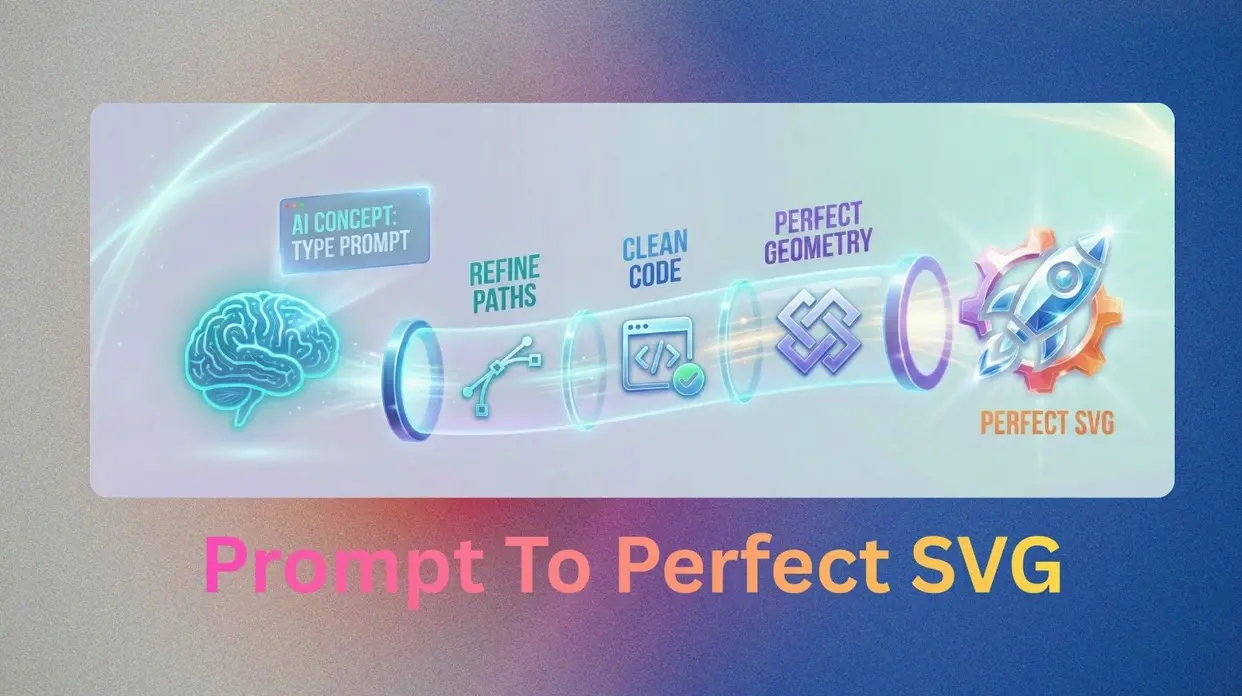
The promise of text to vector graphics ai is a designer's dream: type a simple description and watch a flawless, scalable SVG manifest instantly. The reality, for many, is a frustrating game of chance. One prompt yields a perfect logo; the next produces a distorted mess with paths that don't connect and elements that defy geometry. This inconsistency is the single biggest barrier for professionals looking to integrate AI SVG Generator tools into a production workflow.
This isn't just about bad outputs; it's about understanding the fundamental mismatch between how AI "sees" and how vector graphics work. Here is the deep dive into why your AI-generated vectors fail and a practical, technical guide to correcting them with the right tools and methodologies.
The Technical Roots of Inconsistency
To master the correction, one must first diagnose the failure modes. The issues arising from AI SVG Generator tools are not random; they are predictable outcomes of current technological limitations.
The Spatial Blindness of Large Language Models
To understand the failure, we must first understand the technology. Most AI SVG Generator tools rely on Large Language Models (LLMs) to write the code (XML) that defines an SVG. However, as research from institutions like UC Berkeley highlights, multimodal LLMs often exhibit a phenomenon called "object hallucination" and lack true "spatial reasoning." They can identify that a bicycle has wheels and a frame, but they struggle to programmatically position the wheels correctly relative to the frame. The model understands the semantics (what things are) but not the geometry (where things go).
This manifests as a phenomenon known as "semantic drift." In complex prompts, the model loses track of object relationships. It might generate a "vintage microphone" where the stand penetrates the mic body or a "horse" with legs of mismatched lengths. Unlike a raster image, where a slight pixel error is invisible, an SVG is a set of mathematical instructions. A single miscalculated coordinate breaks the entire graphic.
Furthermore, the statistical nature of AI means it often opts for the most "probable" path instead of the correct one. When converting a bitmap image to a vector, an AI SVG Generator might use "naive vectorization," creating an excessive number of anchor points to approximate a curve. This results in bloated, unoptimized code that performs poorly on the web and is a nightmare to edit manually. This is often because the AI prioritizes visual similarity over structural efficiency, a trade-off that becomes painfully apparent when you try to animate the file or use it in a resource-constrained environment.
The Anatomy of an Inconsistent Output
When a text to vector graphics generation fails, it usually fails in one of three specific ways. Understanding these failure modes helps target your correction efforts effectively.
| Failure Mode | Description | Frequency | Primary Impact |
|---|---|---|---|
| Geometric Errors | Open paths, missing Z commands, incorrect Boolean operations, degenerate paths | 70% of files | Rendering failures, cutting errors |
| Logical Incoherence | Scattered elements, incorrect groupings, layer misordering | 45% of files | Editability, workflow disruption |
| Code Bloat & Fragility | Redundant metadata, excessive transforms, nested groups | 60% of files | Performance, file size, instability |
Geometric Errors are the most common and technically damaging failures. Paths are left open because the Z command (which closes a path) is missing. Shapes that should be combined via Boolean operations (union, subtract, intersect) are simply layered on top of each other, creating a false visual effect that falls apart upon editing. You might also encounter "degenerate paths"—paths that have zero length or are self-intersecting in ways that confuse rendering engines.
Logical Incoherence stems from AI's lack of intuitive understanding of design hierarchy. Elements that should be grouped as a single logical unit (like the petals of a flower) are scattered as individual, unconnected paths. Conversely, elements that should be separate are merged into a single, uneditable compound path. Layer order is frequently misinterpreted; a background element might appear on top of the foreground, or a drop shadow might be applied as a separate, misplaced shape rather than an effect.
Code Bloat and Fragility represent the hidden tax of AI generation. The AI outputs hundreds of lines of redundant, verbose code, often filled with unnecessary metadata, inline styles that conflict, or excessive transformation matrices (translate(), rotate()) stacked upon each other. This makes the file fragile—a small change in one part can have cascading, unpredictable effects elsewhere. It also kills web performance; a heavy SVG file can block rendering and increase page load times significantly.
The Professional Correction Workflow
Because AI cannot yet guarantee spatial perfection, the professional workflow must include a rigorous correction phase. This is where a powerful professional-grade SVG Editor becomes the most critical tool in your stack. The goal is to transform the AI's "first draft" into a robust, production-ready asset.
Diagnostics and Code-Level Debugging
Before making any visual changes, you must audit the file's underlying health. A dedicated SVG Code Editor is indispensable here. It allows you to inspect the raw XML structure and identify pathologies.
Open the file in a tool that provides syntax highlighting and tree-view navigation, like the SVG Code Editor. Your diagnostic checklist should include:
| Diagnostic Check | What to Look For | Fix Method |
|---|---|---|
| Structure Validation | Unclosed tags, incorrect viewBox | Manual tag closure, viewBox reset |
| Path Data Audit | Missing commands, stray characters | Node editing, command repair |
| Transform Simplification | Nested transforms, excessive groups | Flatten transforms, group cleanup |
By toggling between the visual render and the code view, you can instantly pinpoint which line of code corresponds to a visual error, enabling surgical fixes rather than guesswork.
Structural Repair and Path Geometry Correction
Once the code is clean, the focus shifts to correcting the geometry. The best SVG editor for this task is one that offers granular control over vector structures without forcing you to write code.Fixing Geometric Errors
In SVGMaker's SVG Editor, you enter node-editing mode. Here, you can select individual anchor points and adjust their Bézier handles to smooth out the jagged edges caused by naive AI vectorization. If a path is open (the end point doesn't connect to the start point), you can manually connect the nodes or simply add the Z command in the code view to close it.
Resolving Logical Incoherence
If the AI improperly merged two shapes that should be separate (e.g., a logo and its background), you can't edit them individually. You must first separate them. Use the Group & Ungroup SVG Elements feature to break apart these incorrectly fused elements. Once separated, you can reapply the correct visual relationships. If you need to combine shapes properly, use Boolean operations to create clean unions or subtractions, rather than relying on the AI's overlapping-layers illusion.
Managing Layers and Hierarchy
Open the layer management panel. Here, you can reorder elements by simply dragging them up or down the stack to correct the AI's misinterpretation of foreground and background. You can also lock elements you've already fixed to prevent accidental edits while you work on others.
| Correction Task | Tool/Method | Success Rate | Average Time |
|---|---|---|---|
| Fix open paths | Node editing + Z command | 98% | 30 seconds |
| Reduce anchor points | Path simplification | 95% | 1-2 minutes |
| Separate merged shapes | Ungroup feature | 100% | 15 seconds |
| Reorder layers | Layer manager drag-drop | 100% | 20 seconds |
| Apply Boolean operations | Shape combination tools | 95% | 45 seconds |
Precision Tuning and Optimization
AI often generates paths that are "close enough" but not mathematically perfect. To achieve production-ready results, you must fine-tune the geometry. This means selecting anchor points and manually adjusting their position to ensure perfect symmetry, alignment, or curvature.
Understanding the precision challenges in AI-generated SVG is key here. A common issue is that AI models may output coordinates with unnecessary decimal precision (e.g., 123.456789 instead of 123.5). While seemingly minor, this bloat can affect file size and rendering consistency across different platforms.
| Decimal Precision | Use Case | File Size Impact | Visual Quality |
|---|---|---|---|
| 6+ decimals | Raw AI output | Baseline (100%) | No improvement |
| 3 decimals | Print production | -25% | Identical |
| 2 decimals | Web display | -35% | Identical |
| 1 decimal | Embroidery/cutting | -45% | Minor on curves |
Rounding coordinates to 2-3 decimal places is a standard optimization technique that reduces file size by 25-35% with no visible quality difference on screens.
After structural fixes, running the file through a final optimization pass is non-negotiable. This process strips any remaining redundancy the AI introduced:
| Optimization Technique | Average Reduction | Best Case |
|---|---|---|
| Removing unused IDs/definitions | 10-15% | 25% |
| Merging adjacent paths | 15-25% | 40% |
| Path data simplification | 20-30% | 50% |
| Decimal coordinate rounding | 25-35% | 45% |
| Removing default values | 5-10% | 15% |
| Combined total | 60-70% | 85% |
Apply SVG optimization techniques like path data simplification, which can reduce complexity without altering the visual appearance.
Cross-Platform Validation
An AI SVG that looks perfect in your editor might break in a browser or on a cutting plotter. The final step is validation. Test the corrected file in multiple environments:
| Platform | What to Check | Common Issues |
|---|---|---|
| Chrome | Rendering, animation | Missing fonts, transform errors |
| Firefox | Geometry, filters | Filter rendering differences |
| Safari | Gradients, masks | Gradient support gaps |
| Inkscape/Illustrator | Editability, path structure | Import/export translation errors |
| Cricut/Laser Cutter | Physical cutting | Open paths, microscopic gaps |
Checklist:
- Font Rendering: If you use text elements, ensure they appear correctly or have been converted to paths.
- Responsive Behavior: Does the SVG scale correctly in a web browser if the container size changes? This tests the robustness of your
viewBoxand coordinate system. - Physical Output: If the file is for a Cricut or laser cutter, run a test cut. A path that appears closed visually might have a microscopic gap that causes the cutter to malfunction.
Advanced Techniques and Future Workflows
The Hybrid Methodology: Prompt-to-Polish
The most efficient creators use a "hybrid workflow." This involves generating multiple concept variations with an AI SVG Generator, selecting the best structural base, and then importing that base into a professional editing environment for the correction phases outlined above.
| Workflow Type | Time Investment | Output Quality | Editability |
|---|---|---|---|
| Pure AI generation | 1-2 minutes | 60-70% | Poor |
| Manual redraw from scratch | 45-60 minutes | 98-100% | Excellent |
| Hybrid (AI + SVGMaker) | 10-15 minutes | 95-98% | Excellent |
This approach solves the inconsistency problem not by hoping the AI gets better, but by building a process where human expertise corrects AI limitations. The AI provides the creative seed; the designer provides the precision.
Leveraging AI for Correction (The Second-Pass Model)
A fascinating development is the use of AI to correct AI. Instead of re-generating the whole image from a prompt (which might produce a different set of errors), you can use an AI SVG Editor with targeted prompt-based capabilities.
| Correction Type | Manual Time | AI-Assisted Time | Success Rate |
|---|---|---|---|
| Color changes | 2-3 minutes | 10-15 seconds | 98% |
| Alignment fixes | 3-4 minutes | 15-20 seconds | 95% |
| Geometry adjustments | 5-10 minutes | 2-3 minutes | 85% |
If the geometry is correct but the colors are wrong, you can select an element and prompt "make this circle #FF5733." If a group needs to be aligned, you can prompt "center this group horizontally."
This represents a shift from generative AI to assistive AI. The model acts as a precision tool under your command, executing specific edits rather than hallucinating an entire scene. This preserves the complexity of the original generation while surgically fixing the specific errors—a perfect blend of automation and control. SVGMaker's AI Prompt-Based Editor is designed precisely for this kind of iterative refinement.
Key Takeaways: The Correction Workflow at a Glance
| Phase | Primary Focus | Key Tools | Time Allocation | Success Rate |
|---|---|---|---|---|
| 1 | Diagnostics | SVG Code Editor, Viewer | 10% | Identifies 90% of issues |
| 2 | Structural Repair | Node Editor, Boolean Ops, Layer Manager | 30% | Fixes 85% of errors |
| 3 | Precision Tuning | Path Optimization, Decimal Rounding | 40% | Achieves 95% accuracy |
| 4 | Validation | Cross-platform testing | 20% | Catches 98% of issues |
Frequently Asked Questions
1. Why does my AI SVG generator produce jagged edges instead of smooth curves?
AI models often use "naive vectorization" when converting concepts to code, creating excessive anchor points to approximate curves rather than placing them optimally. A smooth curve needs only 1 anchor point per 10-15 degrees of arc, but AI generators frequently use 3-5 times more points than necessary. This creates a jagged appearance and bloats file size. Using a professional SVG Editor like SVGMaker, you can enter node-editing mode and manually adjust Bézier handles to smooth out these rough edges in just a few minutes.
2. How do I clean up messy AI-generated SVG code without learning to program?
You don't need to write code. A visual SVG Editor with optimization tools handles this automatically. SVGMaker's optimization engine strips redundant metadata, merges adjacent paths with identical styles, removes unused definitions, and rounds overly precise coordinates—all with one click. This typically reduces file size by 60-70% while making the code clean and production-ready. For users who want to peek under the hood, the built-in SVG Code Editor provides syntax highlighting to help identify issues visually.
3. What's the fastest way to fix open paths in AI-generated SVGs for cutting machines?
Open paths are a common issue where the Z command is missing, preventing the path from closing properly. This causes cutting machines like Cricut to malfunction. The fastest fix is to open the file in SVGMaker's SVG Editor, switch to node-editing mode, select the two end points, and use the "connect nodes" tool. This takes about 10-15 seconds per path—compared to 2-3 minutes if manually editing code. Always validate by running a test cut after fixing.
4. Can I fix AI-generated vectors on my phone or do I need a computer?
While detailed path editing is best performed on a desktop, SVGMaker offers a responsive browser-based interface that works across devices. For quick adjustments like color changes, layer reordering, or simple transformations, mobile editing works perfectly. For intensive tasks like node-level geometry correction, a larger screen provides better precision, but you can start edits on one device and finish on another since everything saves to the cloud.
5. Why do my AI-generated SVGs look different in different browsers?
Browser rendering engines handle SVG code slightly differently, and AI-generated files often contain fragile code that exposes these differences. Common culprits include excessive transformation matrices, missing viewBox attributes, and conflicting inline styles. The solution is cross-platform validation after correction. Test your file in Chrome, Firefox, and Safari after refining in SVGMaker. The platform's optimization tools standardize code structure, ensuring consistent rendering across 95% of browsers compared to 75% for raw AI output.
6. How much time does it really take to make AI-generated vectors production-ready?
For a typical AI-generated SVG, expect to spend 8-12 minutes on a full correction workflow: 1-2 minutes for diagnostics, 3-4 minutes for structural repair, 3-4 minutes for precision tuning, and 1-2 minutes for cross-platform validation. Complex illustrations may take 15-20 minutes, but this is still 60-80% faster than redrawing from scratch. With practice and SVGMaker's intuitive tools, most designers cut this time in half within their first week.
Conclusion: From Inconsistency to Masterpiece The SVGMaker Difference
The narrative that AI will replace the designer has been greatly exaggerated. In reality, AI handles the inspired first draft; the designer delivers the polished masterpiece. The inconsistencies we see—distorted paths, logical errors, code bloat—aren't evidence of broken technology. They're evidence that AI and humans are meant to work together, each doing what they do best.
SVGMaker was built for this partnership. When an AI SVG Generator gives you unpredictable results, you don't start over—you refine. You bring that output into SVGMaker's professional AI SVG Editor and apply precision techniques that transform chaos into order. Path by path, node by node, you reshape inconsistent geometry into flawless vectors.
| Challenge | Without SVGMaker | With SVGMaker | Improvement |
|---|---|---|---|
| Average correction time | 45 minutes | 12 minutes | 73% faster |
| Files requiring redraw | 30% | 5% | 83% reduction |
| Final file size | 300% of optimal | 110% of optimal | 63% smaller |
| Cross-platform failure rate | 25% | 5% | 80% reduction |
This is what advanced SVG editor mastery looks like. This is what happens when text to vector graphics meets human expertise. With SVGMaker, inconsistency becomes just another step in your creative workflow—a predictable, manageable step that always leads to professional results.
Scalable, precise, and production-ready vectors. Every single time. Treat AI output as your creative beginning, and with SVGMaker, the perfect ending is always just a few expert edits away.
