Batch Image to SVG Converter API: Convert PNG and JPG to Vectors at Scale
Picture this. Your team has a folder with two thousand product images. Each image is either a PNG or a JPG. Every one needs to be converted into a clean, scalable SVG. This ensures they look sharp on retina screens, stay small when sent over the internet, and can be changed in code. Dragging files into a browser one by one would take days, and nobody wants to spend their week clicking an upload button. This is where a batch converter API from SVGMaker comes in. Instead of converting images manually, you send many files in one request and let the server handle the work at the same time. You receive clean vector output that you can save, ship, or place directly into a build pipeline. In this guide, you will learn how to batch convert raster images into SVG vectors using the SVGMaker API. We will discuss the endpoint, how many files you can send at once, the two vectorization engines and when to choose each one, how credits are charged, and how to automate large jobs with streaming and webhooks. If you prefer not to write any code, there is also a browser option available.
Why Convert Raster Images to SVG in Bulk
Raster formats like PNG and JPG store a fixed grid of pixels. Blow them up and they turn blurry. SVG is different. It stores shapes as math, so it stays crisp at any size, from a 16 pixel favicon to a billboard. A vector icon is often under 1KB where the equivalent PNG is five to ten times larger, and because SVG is just markup, you can restyle it with CSS instead of exporting a new file for every color.
For a single image none of this is hard. The pain shows up at volume. A design system migration, a fresh icon library, a CMS full of user uploads, or a product catalog that needs vector thumbnails all involve hundreds or thousands of conversions. That is exactly the kind of repetitive work a batch API is built to remove. You describe the job once, run it against every file, and get consistent results without a human in the loop.
What “Batch” Really Means Here
The batch endpoint is a single POST request:
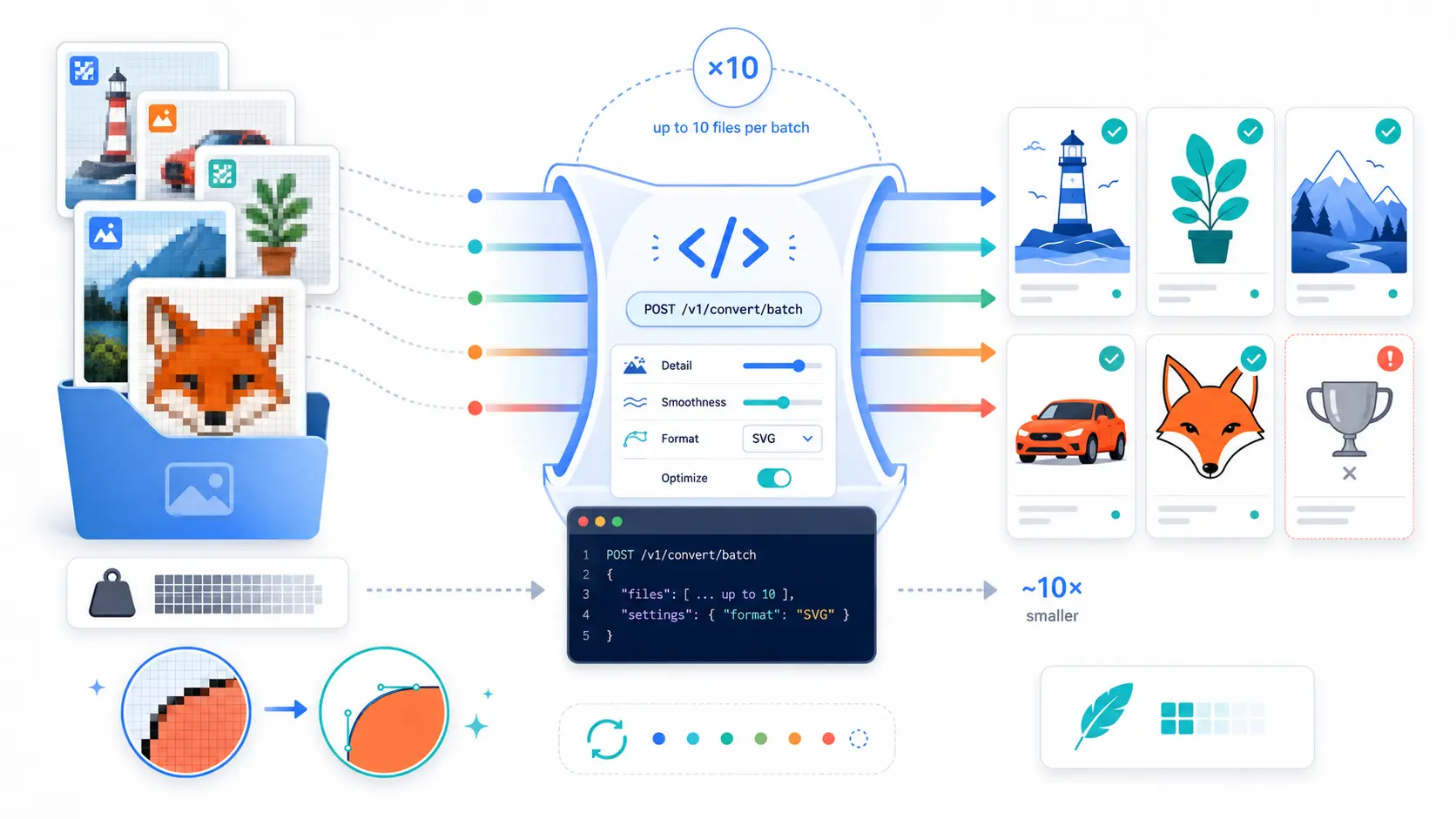
POST https://api.svgmaker.io/v1/convert/batch
You attach your files as multipart form data and set the target format. A few things make it genuinely built for scale rather than a convenience wrapper:
- Up to 10 files per request. Each call accepts a batch of ten images, so a job of a thousand files becomes a hundred tidy requests you can queue and retry.
- Parallel processing. The server converts every file in the batch at the same time, not one after another, so a batch of ten finishes about as fast as a batch of one.
- Per file isolation. If one image is corrupt or unsupported, it fails on its own. The other nine still convert and come back successfully, and you see exactly which file broke.
- Per file billing. You are charged for the files that convert, priced by the output type, so a mixed batch never overcharges you for work that did not happen.
Here are the formats the converter accepts and produces.
| Direction | Accepted inputs | Produces |
|---|---|---|
| Raster to SVG (vectorize) | PNG, JPG, WEBP, TIFF | SVG |
| SVG to vector formats | SVG | PDF, EPS, DXF, AI, PS |
| Raster to raster | PNG, JPG, WEBP, TIFF, GIF, AVIF | PNG, JPG, WEBP, TIFF, GIF, AVIF |
Every file can be up to 25MB. For this guide the row that matters is the first one: raster images in, clean SVG out.
Two Ways to Vectorize (Trace or AI)
Not every image should be vectorized the same way. SVGMaker gives you two engines, and picking the right one per asset is the difference between a crisp result and a muddy one.
| Algorithmic trace | AI vectorize | |
|---|---|---|
| Best for | Logos, flat art, line icons, high contrast graphics | Photos, shaded illustrations, complex or noisy images |
| How it works | Traces edges and color regions into precise paths | A vision model rebuilds the image as clean vector shapes |
| Strengths | Fast, deterministic, very tight paths | Handles gradients, soft edges, and messy sources |
| Cost | 0.5 credit per file | 1 credit per file |
| Endpoint | /v1/convert/trace (single file) | /v1/convert/ai-vectorize (single file) |
The rule of thumb is simple. If the source already has clean flat colors and sharp edges, trace it. If it is a photograph or a busy illustration where a literal trace would produce thousands of jagged paths, let the AI engine reinterpret it.
The batch endpoint runs the trace engine across your ten files, so it is ideal for logo sets, sticker packs, and icon libraries. For a folder of photographs, loop over the AI vectorize endpoint instead. You can tune the trace output with simple sliders for detail, smoothness, and corners, plus a preset such as bw, poster, or photo to match the character of your source art.
Getting Your API Key
Every request to the API is authenticated with a single header. To get your key, open your Account Page and generate one. Each account gets one key, and it looks like this:
svgmaker-io7323...05d1
Pass it on every call using the x-api-key header. Treat it like a password. Keep it in an environment variable, never commit it to a repository, and never expose it in client side code where a visitor could read it. If a key is ever leaked, revoke it from the same settings screen and generate a fresh one.
Batch Converting Images with the API
With a key in hand, converting a batch is one request. Attach each image as a file field, set toFormat to SVG, and send it:
The response comes back in a consistent envelope. The data object carries one result per file, and metadata tells you what the job cost and what you have left:
Notice how the failed file does not sink the batch. You get URLs for the two that worked and a clear error for the one that did not, so your code can log it, skip it, or retry it on its own. Loop this request over your file list in chunks of ten and you have a complete pipeline.
Automating at Scale
Ten files per request is the building block. Real automation is about what you wrap around it.
- Streaming progress. Add
stream: trueto receive server sent events as each stage completes, which is handy when you want a live progress bar instead of waiting for the whole batch to return. - Async jobs with webhooks. For large or slow jobs, include a
callback_url. The API immediately returns202with ajobId, then POSTs the finished result to your URL when it is done. Your process is never left holding a connection open. - Rate limits. The API returns rate limit headers on every response and answers with
429when you go over. Read the headers and back off, and a thousand file job runs smoothly overnight. - Size ceiling. Keep each file at or under 25MB. Downscale oversized sources before sending them.
If your automation lives inside an AI assistant or a code editor rather than a standalone script, the SVGMaker MCP server exposes the same conversion tools to agents, so you can generate and vectorize assets straight from your workflow using the same API key.
Frequently Asked Questions
1. Which formats can I convert to SVG?
The vectorizer accepts PNG, JPG, WEBP, and TIFF as input and returns SVG. If you already have an SVG and need a different vector format, the same converter can turn it into PDF, EPS, DXF, AI, or PS.
2. How many images can I send in one request?
Up to ten files per batch request. To process more, split the job into groups of ten and send them in sequence or queue them. Each file can be as large as 25MB.
3. Should I use trace or AI vectorize?
Use trace for logos, icons, and flat high contrast art where you want tight, precise paths. Use AI vectorize for photographs and shaded or complex images where a literal trace would create a mess of jagged shapes. The batch endpoint uses the trace engine, so it fits icon and logo sets best.
4. How do I authenticate my requests?
Generate one API key in your account settings, then send it in the x-api-key header on every request. Keep the key in an environment variable and never expose it in client side code.
5. What happens if one file in a batch fails?
Nothing happens to the rest. Files are converted in parallel and isolated from each other, so a bad file returns its own error while every other file in the batch still converts and comes back successfully. The response tells you exactly which file failed and why.
6. How are credits charged for a batch?
You pay per file by output type. A vector output such as SVG costs half a credit per file, and a raster output costs a quarter of a credit per file. You are only charged for files that actually convert, and the response reports how many credits the job used and how many remain.
7. Can I process very large jobs asynchronously?
Yes. Include a callback_url and the API returns a jobId right away, then posts the finished result to your endpoint when the work is complete. You can also enable streaming to watch progress live. Both let you run big jobs without blocking your own process.
8. Is there a way to batch convert without writing code?
Yes. The browser image converter runs the same engine. Drop your files in, pick SVG, and download the converted set. It is the quickest option for a single folder or for anyone who does not want to touch an API.
Conclusion
Converting raster images to SVG one at a time does not scale, and it does not have to. Pick the right engine for each asset, trace for flat art and AI for photos, send up to ten files per request, and let the server convert them in parallel with per file results you can trust. Wrap that single call in a loop, add streaming or a webhook for the big jobs, and a folder of two thousand images becomes a job that runs itself.
When you only need a handful of files converted right now, the browser converter gives you the same clean vectors with zero setup. Either way, you end up with sharp, scalable SVGs that stay crisp at any size and are ready to ship.