SVG to JPG Converter: How to Convert Vector to Image Online
You've just finished designing a logo in your favorite vector editor. The SVG file looks flawless — crisp lines, perfect colors, infinitely scalable. Then you try to upload it to Instagram. Rejected. You attach it to a client email. It shows up as a broken image. You drop it into a WordPress blog post, and nothing renders.
This is the SVG compatibility problem. SVG (Scalable Vector Graphics) is the gold standard for web developers and designers who need resolution-independent graphics. But the rest of the digital world — social media platforms, email clients, content management systems, presentation software — still runs on raster image formats. And JPG (also called JPEG) is the most universally accepted raster format on the planet.
The solution is straightforward: convert your SVG to JPG. But the quality of that conversion depends entirely on the tool you use and the settings you choose. A bad conversion produces blurry edges, washed-out colors, and artifacts that make your professional design look amateur. A good conversion preserves every detail of your original vector at the exact resolution you need.
In this guide, you'll learn exactly when and why to convert SVG to JPG, how to do it in three simple steps using SVGMaker online converter, what pitfalls to avoid, and how to choose the right format for every situation.
When and Why to Convert SVG to JPG
Before you convert anything, it helps to understand what you're actually doing. SVG and JPG are fundamentally different file formats, and each has strengths the other lacks.
SVG vs JPG: A Quick Comparison
| Property | SVG | JPG |
|---|---|---|
| Format type | Vector (code-based) | Raster (pixel-based) |
| Scalability | Infinite — sharp at any size | Fixed — pixelates when enlarged |
| Transparency | Supported | Not supported |
| File size | Tiny for simple graphics, large for complex ones | Small and consistent thanks to compression |
| Browser support | All modern browsers | Universal — every device, app, and platform |
| Email client support | Almost none | Universal |
| Social media support | Almost none | Universal |
| Best for | Web graphics, icons, logos on websites | Photos, social media, email, print, presentations |
The key takeaway: SVG is better for displaying graphics on the web, but JPG is better for sharing graphics everywhere else. That's why conversion matters.
Common Use Cases for SVG to JPG Conversion
Here are the situations where converting SVG to JPG isn't just convenient — it's necessary:
| Use Case | Why JPG Is Required |
|---|---|
| Email campaigns | Most email clients (Gmail, Outlook, Yahoo) don't render inline SVG. JPG displays reliably in every client |
| Social media posts | Twitter/X, Instagram, LinkedIn, and Facebook reject SVG uploads entirely. JPG is accepted everywhere |
| Client deliverables | Not every client has software that opens SVG files. JPG opens on any device with zero friction |
| CMS and blog uploads | Many content management systems restrict uploads to raster formats like JPG, PNG, and WebP |
| Presentation decks | PowerPoint and Google Slides handle JPG natively. SVG support is inconsistent |
| Print production | Print vendors often require raster files at specific resolutions. JPG at 300 DPI is the industry standard |
If your SVG needs to leave the browser and enter the real world of email inboxes, social feeds, or slide decks, JPG is the format that gets it there.
How to Convert SVG to JPG Online (Step-by-Step)
The fastest way to convert SVG to JPG is with an online converter that handles the rasterization for you — no software to install, no command-line tools to learn. Here's how to do it with SVGMaker:
Step 1: Upload Your SVG File
Go to SVGMaker converter and upload your SVG file. You can drag and drop it directly into the converter, click to browse your files, or paste from your clipboard. The converter accepts files up to 25MB and supports batch uploads of up to 10 files at a time.
Step 2: Select JPG as Your Output Format
Choose JPG from the output format dropdown. The converter will automatically detect that your source file is an SVG and configure the conversion settings accordingly.
Step 3: Download Your JPG
Click convert and download your JPG file. The conversion takes just a few seconds, even for complex multi-element SVGs with gradients and text.
Tips for the Best Results
Getting a clean conversion isn't just about clicking a button. These settings make the difference between a professional result and a pixelated mess:
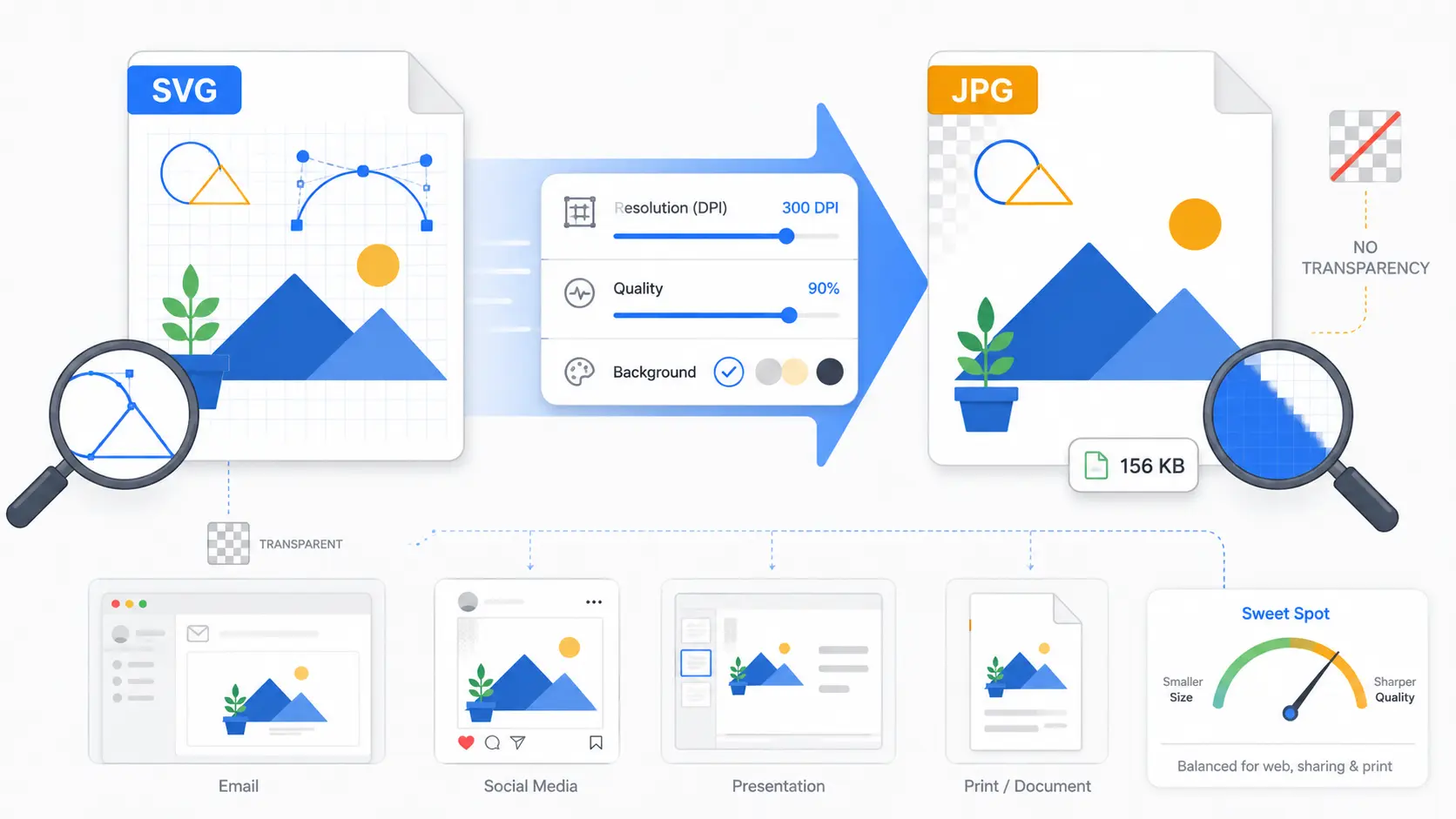
- Resolution matters. For web and social media, 72–150 DPI is sufficient. For print, use 300 DPI. Higher resolution means a larger file but sharper output.
- Quality setting. JPG uses lossy compression, which means some detail is sacrificed for smaller file size. A quality setting of 85–95% gives you the best balance — visually indistinguishable from the original at a fraction of the file size.
- Background color. JPG does not support transparency. Any transparent areas in your SVG will be filled with a background color, typically white. If your SVG has a transparent background and you need a specific color behind it, set that before converting.
- Size your SVG first. Always resize within the SVG (where scaling is lossless) before converting to JPG. Resizing the JPG after conversion introduces blur and pixelation.
For more control over your SVG before converting, you can edit it in SVGMaker's SVG editor to adjust colors, remove elements, or tweak the design — then export directly to JPG from the same platform.
What to Watch Out For: Common SVG to JPG Pitfalls
Converting SVG to JPG seems simple, but there are traps that catch even experienced designers. Here are the most common problems and how to avoid them:
| Problem | What Happens | How to Fix It |
|---|---|---|
| Transparency loss | Transparent areas in your SVG become solid white (or black) in the JPG | Set an explicit background color before converting. If you need transparency, convert to PNG instead |
| Blurry edges | Text and fine lines look soft or pixelated | Increase the output resolution. For text-heavy SVGs, 150+ DPI prevents softening |
| Color shifts | Colors in the JPG don't match the original SVG | Check that your SVG uses sRGB color values. Some SVGs use device-dependent colors that shift during rasterization |
| Text rendering issues | Fonts look different or characters are missing | Convert text to paths in the SVG before exporting. This embeds the font shapes directly into the file. You can do this in SVGMaker's code editor |
| Oversized file | The JPG is unexpectedly large (several MB) | Lower the quality setting to 85% or reduce the output resolution. For web use, files under 200KB are ideal |
| Artifacts around shapes | JPG compression creates visible "halo" effects around high-contrast edges | Use a higher quality setting (90%+) or switch to PNG for graphics with sharp edges and flat colors |
Most of these issues come down to one principle: prepare your SVG before you convert it. A clean, well-structured SVG with explicit colors, outlined text, and a defined background will always produce a better JPG than a hastily exported file.
If you're dealing with SVGs that have messy or bloated code, our guide on how to compress and clean SVG code walks through the cleanup process step by step.
Quick Comparison: SVG to JPG Converter Tools
There are dozens of SVG to JPG converters available online. Most of them work — the question is how well they work and what features they offer beyond basic conversion. Here's how the most popular options compare:
| Feature | SVGMaker | CloudConvert | Convertio | Zamzar | Inkscape |
|---|---|---|---|---|---|
| Conversion speed | 3–5 sec | 10–20 sec | 10–30 sec | 15–30 sec | Manual (30+ sec) |
| Batch conversion | Up to 10 files | Up to 5 files (free) | Up to 10 files/24hrs | Up to 2 files (free) | One at a time |
| Quality control | Configurable DPI, quality, dimensions | Configurable | Limited | Limited | Full manual control |
| Built-in SVG editor | Yes — visual + code + AI editor | No | No | No | Yes (desktop only) |
| API for automation | Yes — REST API | Yes | No | Yes | No |
| Free tier | 6 credits on signup + 3 daily | 25 min/day | 10 files/24hrs | 2 files (free) | Free (open source) |
| Additional formats | SVG, PNG, WebP, PDF, EPS, DXF, AI | 200+ formats | 300+ formats | 1200+ formats | SVG, PNG, PDF, EPS |
| Operation mode | Online | Online | Online | Online | Offline (desktop) |
The bottom line: If you just need a quick, one-off conversion, most of these tools will get the job done. But if you need consistent quality, batch processing, or the ability to edit your SVG before converting, SVGMaker is the only tool that combines conversion with a full editing suite — visual editor, code editor, and AI-powered editor — in a single platform. No downloading, no switching between apps.
For a detailed breakdown of how different converters handle raster-to-vector quality, our 2026 SVG quality benchmark tested 7 tools across 40,000+ images.
When NOT to Convert to JPG
JPG is the right choice most of the time, but not every time. Here's a quick decision guide:
| Scenario | Best Format | Why |
|---|---|---|
| You need transparency (e.g., logo on colored background) | PNG | PNG supports transparency; JPG doesn't |
| The image will be displayed on a website | SVG | SVG renders sharper, loads faster, and scales to any screen size |
| You're sharing on social media or email | JPG | Universal compatibility across all platforms and clients |
| The graphic has sharp edges and flat colors (icons, logos) | PNG | PNG's lossless compression preserves hard edges without artifacts |
| The image is a photograph or complex illustration | JPG | JPG compression is optimized for continuous-tone photographic content |
| You need to animate the graphic | SVG or GIF | SVG supports CSS/JS animation; JPG is static. See our guide on converting SVG to GIF for social media |
| The graphic will be printed at large scale | SVG or PDF | Vector formats scale to billboard size without quality loss |
For a deeper comparison of web image formats, our guide on SVG vs WebP vs PNG for web performance breaks down the trade-offs in detail.
The simplest rule: use SVG for the web, JPG for everything else, and PNG when you need transparency. If you're unsure, JPG is the safest default because it works literally everywhere.
Frequently Asked Questions
1. Does converting SVG to JPG reduce quality?
It depends on your settings. SVG is a vector format with infinite resolution, while JPG is a fixed-resolution raster format. If you convert at a high enough resolution (150+ DPI for web, 300 DPI for print) and set the quality to 85–95%, the visual difference is imperceptible. The "quality loss" people complain about is almost always caused by converting at too low a resolution or with too aggressive compression.
2. Can I batch convert multiple SVG files to JPG at once?
Yes. SVGMaker's converter supports batch uploads of up to 10 files at a time, and the REST API allows unlimited queuing for production-scale workflows. CloudConvert and Convertio also offer batch conversion, but with more restrictive free-tier limits.
3. What resolution should I use when converting SVG to JPG?
For web and social media: 72–150 DPI (1x to 2x your display size). For email: 96–150 DPI. For print: 300 DPI minimum. When in doubt, 150 DPI at the dimensions you need is a safe default — sharp enough for screens, small enough for fast loading.
4. Is SVGMaker's SVG to JPG converter free?
SVGMaker offers a free tier with 6 credits on signup plus 3 additional daily credits. Each conversion costs 1 credit. The visual SVG editor and code editor are completely free to use with no credit cost.
5. What's the difference between SVG to JPG and SVG to PNG?
JPG uses lossy compression (smaller files, no transparency, slight quality reduction) while PNG uses lossless compression (larger files, supports transparency, pixel-perfect quality). Use JPG for photos, social media, and email. Use PNG for logos, icons, and anything that needs a transparent background.
6. Can I convert a JPG back to SVG?
You can, but it's a fundamentally different process. Converting JPG to SVG requires AI-powered vectorization — tracing the pixel boundaries to recreate vector paths. The result is never a perfect reproduction of the original SVG. For the best results, use SVGMaker's AI-powered converter which uses advanced edge detection. Our guide on how to convert any image to SVG with AI covers this process in detail.
7. Does SVG to JPG conversion preserve text?
Yes, but with a caveat. The text is rasterized — converted from editable vector text into fixed pixels. This means you can't edit the text in the JPG. If the SVG uses a custom font that isn't embedded or converted to paths, the text may render in a fallback font during conversion. To avoid this, convert text to paths in your SVG before exporting. SVGMaker's SVG code editing tool can help you inspect and fix text elements before conversion.
8. Why does my SVG have a white background after converting to JPG?
JPG does not support transparency. Any transparent areas in your SVG are automatically filled with a solid color and white by default. If your design requires a specific background color, set it explicitly before converting. If you need to preserve the transparent background, convert to PNG instead of JPG.
Conclusion: Convert with Confidence
Converting SVG to JPG is one of those tasks that sounds simple but produces wildly different results depending on how you do it. The format itself is straightforward — you're rasterizing vector paths into a fixed-resolution pixel grid. But the quality of that rasterization, the preservation of colors and edges, and the efficiency of the output file all depend on using the right tool with the right settings.
Here's the short version:
- Prepare your SVG first — set the background color, convert text to paths, and clean up the code.
- Convert using a tool that gives you control over resolution, quality, and output dimensions. SVGMaker's AI-powered converter handles all of this in one platform.
- Verify the output before using it — check edges, colors, and file size.
If you're converting SVGs regularly — for social media content, email campaigns, client deliverables, or print production — SVGMaker gives you the full workflow: edit your SVG in the visual editor, fine-tune the code in the code editor, convert to JPG (or PNG, WebP, PDF, EPS, DXF), and download production-ready files. All in one place, no app-switching required.
Try SVGMaker's SVG to JPG converter on your next batch of files — you get free credits to start — and see the difference a proper conversion tool makes.
