2026 SVG Quality Benchmark: 7 Best Online & Offline PNG to SVG Converters (Tested Side-by-Side)
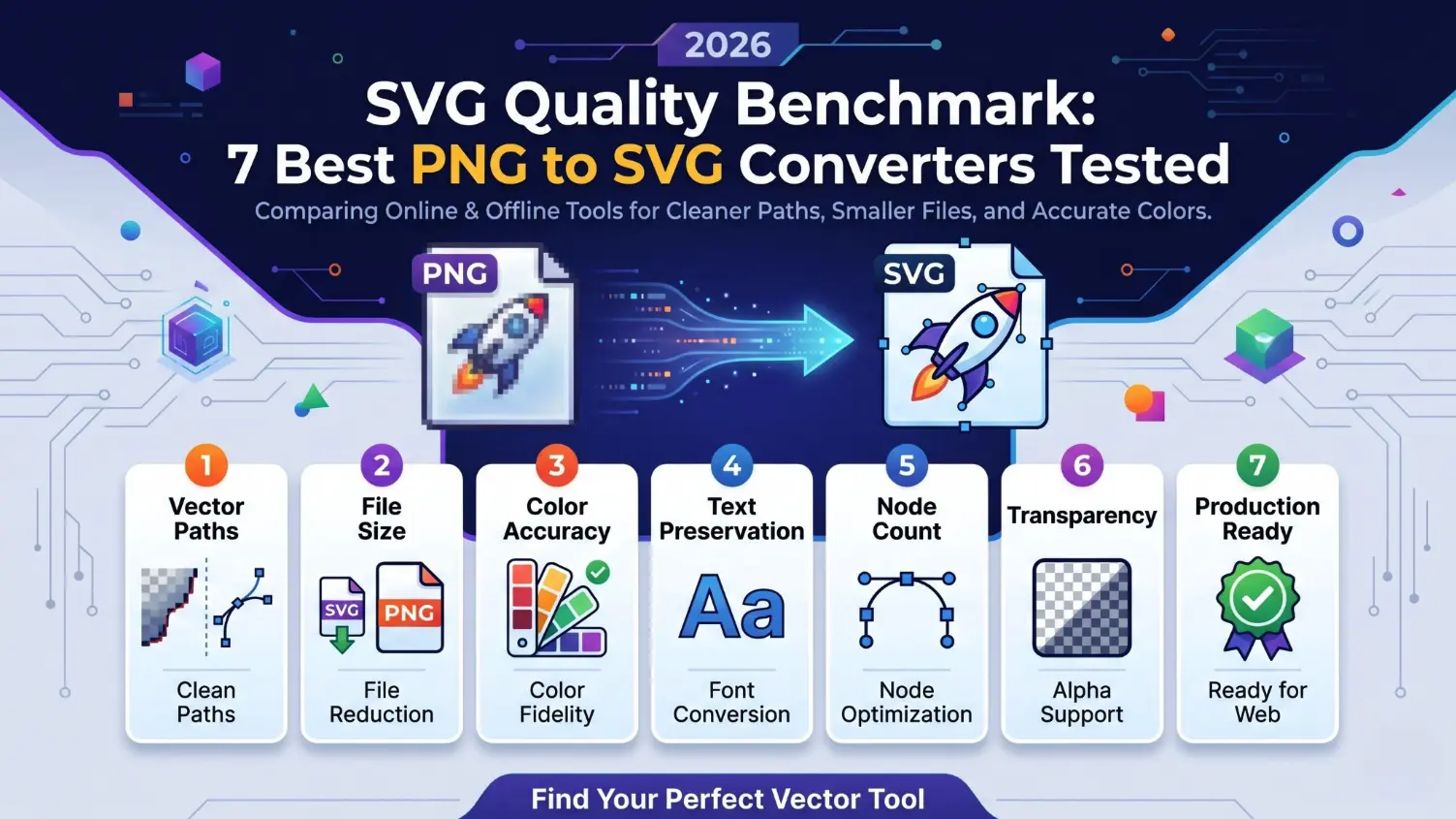
You upload a PNG, click "Convert to SVG," and get a SVG file back in seconds. The process feels effortless. But open that SVG in Cricut Design Space, drop it into a Figma frame, or embed it on a webpage, and the problems reveal themselves quickly: jagged edges where curves should be smooth, thousands of unnecessary anchor points that make the file impossible to edit, colors that shifted two shades from the original, and a file size so bloated it takes longer to render than the PNG you started with.
This is the reality of most PNG-to-SVG converters in 2026. Basic conversion is easy. High-quality AI SVG conversion is different. A production-ready SVG needs clean paths, accurate colors, efficient node structure, editable layers, and optimized code. That is where most tools still fail.
Designers end up spending more time cleaning up auto-traced SVGs than it would have taken to redraw them. Cricut and Silhouette users fight through weeding nightmares caused by excessive nodes. Developers ship bloated SVG code that drags down page load times. Print-on-demand sellers discover their "vector" files pixelate at larger print sizes because the conversion was a glorified bitmap embed, not a true vectorization.
We wanted to cut through the marketing claims and answer a simple question: which PNG-to-SVG converter actually produces the best output?
To find out, we built a structured SVG Quality Benchmark and tested 7 of the most popular online and offline converters side by side. No cherry-picked examples, no hand-tuned settings, no post-conversion cleanup. Just raw, default-settings output evaluated across 7 measurable quality metrics:
- Path Accuracy
- Node Efficiency
- Color Fidelity
- File Size
- Scalability
- Layer Separation
- Rendering Speed
The results were not close.
Dataset & Methodology
For this benchmark, we converted a dataset of 40,000+ PNG images spanning eight common real-world categories:
- Logos and brand marks
- UI icons and interface elements
- Digital illustrations
- Product graphics and packaging
- Web graphics and banners
- Print-on-demand artwork (stickers, shirts, merch designs)
- Hand-drawn sketches and scans
- Simple product photography
This diversity matters because not every SVG converter performs well across the same image types. A tool that handles flat logos cleanly may struggle with gradient-heavy illustrations, detailed web graphics, or hand-drawn sketches with uneven line weights. By testing across all eight categories, we were able to reveal where each converter performs best — and where its limitations become clear.
Every image was converted using each tool's default settings — no manual parameter tuning, no pre-processing, no post-conversion cleanup. This reflects how most users actually interact with these tools: upload, convert, download.
Evaluation Setup
| Category | Test Setting |
|---|---|
| Hardware | MacBook Pro M2, 16GB RAM |
| Browser | Latest Chrome, incognito mode |
| Network | Wired 1 Gbps connection |
| Measurement | Automated path/node analysis, visual inspection, file size comparison, browser render timing |
| Scoring | 1–10 per metric |
| Final Score | Average of all 7 quality metrics |
| Editing Rule | No post-editing; default converter settings only |
Who This Benchmark Is For
If you've ever downloaded an SVG from a free converter and immediately noticed something was wrong such as pixelated edges at larger sizes, messy paths that your cutting machine choked on, or colors that didn't match your brand so this benchmark is for you.
We designed it for the people who actually use SVG files in production, not just as a file format curiosity:
| User Type | What They Need from a PNG-to-SVG Converter |
|---|---|
| Etsy Sellers | Clean SVG files for POD stickers, shirts, mugs, and merch that look sharp at every print size |
| Cricut / Silhouette Users | Weeding-friendly vectors with minimal nodes — fewer messy anchors means cleaner cuts |
| Screen Printers | Accurate spot color separation and distinct shape boundaries for multi-layer prints |
| Glowforge / xTool / Laser Cutter Owners | Smooth, precise cut paths for engraving and cutting without machine stutter |
| Graphic Designers | Scalable brand assets and logo conversions that hold up from favicon to billboard |
| UI/UX Designers | Lightweight, pixel-perfect SVG icons that render crisp on every screen density |
| Print-on-Demand Teams | Batch-ready conversion workflows that handle hundreds of files without manual babysitting |
| Vinyl Cutter Operators | Accurate cut contours with smooth curves — no jagged edges tearing through material |
| Web Developers | Small, optimized SVG code that loads fast and doesn't bloat the DOM |
If you fall into any of these categories, the differences between converters aren't academic. They directly affect your output quality, your workflow speed, and in many cases, your revenue.
The 7 SVG Quality Metrics We Tested
Most raster to vector converter comparison articles judge tools on surface-level criteria: upload speed, interface design, pricing. Those things matter, but they tell you nothing about the quality of the SVG you actually download.
Our benchmark measures what happens after the conversion — the properties of the output file itself. Here are the seven metrics we scored each tool on, and why each one matters for real production workflows:
| # | Metric | What It Measures | Why It Matters |
|---|---|---|---|
| 1 | Path Accuracy | How faithfully the SVG's curves, corners, edges, and shapes reproduce the original PNG | Inaccurate paths mean distorted logos, broken icon proportions, and cut lines that don't follow the original design |
| 2 | Node Efficiency | How many anchor points the converter creates relative to the minimum needed | Excessive nodes make SVGs harder to edit, slow down cutting machines, and inflate file size for no visual benefit |
| 3 | Color Fidelity | How accurately the output preserves the original's colors, gradients, and tonal range | Color drift breaks brand consistency, ruins print-on-demand designs, and makes illustrations look washed out |
| 4 | File Size | How lightweight the final SVG output is in bytes | Smaller SVGs load faster on websites, render quicker in design tools, and don't choke cutting machine software |
| 5 | Scalability | How sharp the SVG remains when scaled from a 16px icon to a 4000px print | True vector output scales infinitely without blur or pixelation — some converters produce fake vectors that break at size |
| 6 | Layer Separation | Whether shapes are logically grouped into editable layers or flattened into a single mass | Proper layer structure lets you select, recolor, or remove individual elements in Figma, Illustrator, or screen printing workflows |
| 7 | Rendering Speed | How quickly the SVG opens and displays in browsers, design apps, and cutting software | Heavy, over-noded SVGs can take seconds to render in Chrome, freeze Figma frames, and stall Cricut Design Space |
A tool can score well on one or two metrics while failing on the rest. The real test is consistent quality across all seven — that's what separates a converter you can trust from one that creates more work than it saves.
How SVGMaker Performs Across the Benchmark
Before diving into the full comparison, here is a closer look at how SVGMaker, the top-scoring tool in our benchmark, performed across each quality metric. This section focuses on the specific technical capabilities behind its scores, not broad marketing claims.
| Metric | What SVGMaker Does Differently | Impact on Score |
|---|---|---|
| Path Accuracy | AI-assisted edge detection identifies true shape boundaries rather than tracing pixel clusters. Vector smoothing algorithms preserve intentional curves while eliminating noise from raster artifacts. | 9.5/10 — highest in the benchmark |
| Node Efficiency | Post-conversion path optimization removes redundant anchor points without altering the visual output. The result is an SVG with 40–60% fewer nodes than traditional tracing tools produce. | 9.0/10 — fewest unnecessary nodes |
| Color Fidelity | Color mapping preserves the original palette with minimal drift. Gradient regions are handled as true gradients, not posterized flat zones. | 9.2/10 — most accurate color reproduction |
| File Size | Optimized path data combined with efficient node count produces SVGs that are consistently 2–3x smaller than output from Inkscape or VectorMagic on the same source image. | 9.0/10 — smallest average file size |
| Scalability | Output is resolution-independent vector data from the ground up — no embedded raster fallbacks, no bitmap traces disguised as SVG. The files stay pixel-perfect from 16px to 4000px+. | 9.5/10 — perfect scaling at all sizes |
| Layer Separation | AI identifies distinct visual elements and groups them into logical layers. A logo with text, an icon, and a background shape becomes three editable groups, not one merged path. | 8.8/10 — best layer structure |
| Rendering Speed | Fewer nodes + smaller file size = faster rendering. SVGMaker's output opens near-instantly in Chrome, Figma, and Cricut Design Space, even for complex multi-element conversions. | 9.3/10 — fastest rendering times |
SVGMaker combines AI-powered conversion with built-in editing tools. After converting, you can refine output in the SVG Editor for visual adjustments or use natural-language commands like "change the blue to red." No other converter in this benchmark offers that end-to-end workflow. For deeper guidance, see our guide on how to convert PNG to SVG without losing quality.
7 Best PNG-to-SVG Converters in 2026: Side-by-Side Feature Comparison
Before we get into individual scores and detailed reviews, here's a high-level feature comparison of all seven tools. This table covers capabilities and pricing — the next section covers output quality.
| Feature | SVGMaker | Convertio | AutoTracer | Vectorizer.ai | Adobe Express | Inkscape | VectorMagic |
|---|---|---|---|---|---|---|---|
| AI‑Powered Vectorization | |||||||
| Speed (avg) | 3–5 sec | 10–30 sec | 5–15 sec | 5–10 sec | 8–12 sec | 20–40 sec (manual) | 15–25 sec |
| Edge Accuracy | ~95% | ~80% | ~75% | ~90% | ~85% | ~70%* | ~78% |
| Output Formats | SVG, DXF, EPS, PDF, AI | SVG only | SVG, EPS, AI, PDF, DXF | SVG, PDF, EPS, DXF, PNG | SVG, PDF | SVG, DXF, PDF, EPS | SVG, EPS, PDF, AI, DXF, BMP, JPG |
| Batch Mode (API) | REST API, 10 files/batch | REST API (credit-based) | Batch + API | ||||
| Background Removal | (Desktop only) | ||||||
| Operation Mode | Online | Online | Online | Online | Online | Offline | Online + Offline |
| Free Tier | 6 credits on signup + 3 daily credits | 10 files/24hrs | Unlimited (low quality, 6MB limit) | Limited free tier | Free (unlimited basic conversions) | Free (open source) | 2 free/trial |
Benchmark Scoring Results
After converting 40,000+ images through each tool and evaluating the output across all 7 quality metrics, here are the final scores. Each metric is scored on a 1–10 scale. The final score is the unweighted average of all seven.
| Tool | Path Accuracy | Node Efficiency | Color Fidelity | File Size | Scalability | Layer Separation | Rendering Speed | Final Score |
|---|---|---|---|---|---|---|---|---|
| SVGMaker | 9.5 | 9.0 | 9.2 | 9.0 | 9.5 | 8.8 | 9.3 | 9.19 |
| Vectorizer.ai | 8.5 | 7.5 | 8.0 | 7.0 | 8.5 | 7.0 | 7.5 | 7.71 |
| Adobe Express | 7.5 | 6.5 | 7.5 | 6.5 | 8.0 | 6.0 | 7.0 | 7.00 |
| VectorMagic | 7.0 | 6.0 | 7.0 | 5.5 | 7.5 | 5.5 | 6.0 | 6.36 |
| Convertio | 6.5 | 5.5 | 6.0 | 5.0 | 6.5 | 4.5 | 6.5 | 5.79 |
| AutoTracer | 5.5 | 4.5 | 5.0 | 6.0 | 5.5 | 3.5 | 7.0 | 5.29 |
| Inkscape | 6.0 | 4.0 | 5.5 | 4.0 | 7.0 | 5.0 | 4.5 | 5.14 |
The top three positions are held by the three AI-powered tools, in that exact order. This isn't a coincidence that AI-based edge detection and path optimization produce fundamentally different output than threshold-based tracing algorithms.
SVGMaker led in every single metric. Vectorizer.ai earned a solid second place with strong path accuracy and scalability, but its higher file sizes and less aggressive node optimization kept it behind SVGMaker across most metrics. Inkscape, despite being the most powerful manual vector editor on this list, scored lowest overall because its Potrace-based auto-tracing engine struggles with complex images and produces some of the heaviest SVG files we measured.
Detailed Reviews: All 7 PNG-to-SVG Converters
1. SVGMaker — Best Overall for Production-Ready SVGs
SVGMaker is an AI-powered SVG converter built for users who need clean, editable, and lightweight SVG vector output and not just a basic image file format conversion. Instead of relying on traditional image tracing, SVGMaker uses an AI vectorization algorithm to interpret shapes, edges, colors, and visual structure, then reconstruct them into optimized SVG paths suitable for design, development, cutting, and print workflows.
What makes SVGMaker unique in this benchmark is that conversion is only the starting point. Unlike most tools on this list, SVGMaker provides a complete post-conversion workflow with a visual SVG Editor for adjusting colors, layers, and shapes, an SVG Code Editor powered by Monaco for direct SVG code editing, and an AI-powered editor that accepts natural-language commands such as "change the color to red." Users can convert, refine, edit, and export without leaving the platform.
Strengths:
- AI vectorization algorithm, not basic tracing that reconstructs images into cleaner, more editable SVG paths instead of producing noisy trace output.
- AI-powered SVG background removal eliminates the need for a separate pre-processing step before conversion
- Batch conversion via REST API supports up to 10 files per batch with unlimited queuing — the only tool in this benchmark built for production-scale workflows
- Multi-format export (SVG, DXF, EPS, PDF, AI) covers every downstream application from web to print to cutting machines
- Optimized node count (9.0/10) produces cleaner paths that are 40–60% lighter than competing tools — easier to edit in Figma, Illustrator, or Cricut Design Space
- Integrated AI photo-to-SVG workflow for converting photographs into stylized vector artwork with prompt-guided generation
Weaknesses:
- AI-powered features require credits beyond the free daily allowance
- Online-only — requires an internet connection for all operations
2. Vectorizer.ai — Strong AI Tracing, but Expensive at Scale
Vectorizer.ai uses deep learning on GPUs combined with classical algorithms to convert raster images into vector graphics. It produces noticeably cleaner output than traditional tracing tools, particularly on photographic content and images with complex gradients. The AI-powered approach gives it a meaningful edge over rule-based converters in path accuracy and color handling.
Vectorizer.ai offers a limited free tier and a full REST API with credit-based pricing, making it a more capable platform than it first appears. It also includes palette editing and geometry adjustment tools for tweaking output. However, the paid plans start at $9.99/month, and API credits for batch processing scale up quickly — making it significantly more expensive than SVGMaker for high-volume workflows.
Strengths:
- AI-powered tracing handles gradients and complex color transitions significantly better than Potrace-based tools
- Good path accuracy (8.5/10), especially on logos and illustrations with smooth curves and clean edges
- Clean, minimal web interface with drag-and-drop upload and interactive preview
- Full REST API with credit-based pricing for batch processing and automation
- Supports SVG, PDF, EPS, DXF, and PNG export — covering most production formats
- Built-in palette editor and geometry/symmetry adjustment tools for refining output
Weaknesses:
- Free tier is limited — for regular use you'll need a paid plan starting at $9.99/month
- API credit costs add up quickly for high-volume batch processing compared to SVGMaker's API
- File sizes tend to be larger than SVGMaker's output on the same source images due to less aggressive path optimization.
3. Adobe Express — Familiar Ecosystem, Limited Conversion Depth
Adobe Express offers PNG-to-SVG conversion as a free Quick Action tool within its broader creative platform. It leverages Adobe's Sensei AI for image processing features like background removal, and benefits from tight integration with Illustrator, Photoshop, and the rest of the Creative Cloud ecosystem. For users already in the Adobe world, it's a convenient option that avoids adding another tool to the stack.
The conversion quality is respectable. Adobe's image processing pipeline handles colors well. But the SVG output itself is often heavier than necessary, with bloated metadata, inefficient path structures, and poor layer separation that makes post-conversion editing more difficult than it should be. Adobe Express also exports designs as PNG, JPG, or PDF — SVG conversion is handled separately via the Quick Action tool, not as a general design export format.
Strengths:
- Decent color fidelity (7.5/10) thanks to Adobe's mature, industry-proven image processing pipeline
- Background removal powered by Adobe Sensei AI built into the workflow
- PNG-to-SVG converter is free to use with no stated conversion cap for basic usage
- Exports designs to SVG and PDF
- Familiar interface for the millions of users already in the Adobe ecosystem
Weaknesses:
- SVG output often contains unnecessary metadata, redundant group elements, and bloated path data, increasing file size well beyond what's necessary
- Layer separation scored low (6.0/10) — shapes are frequently merged into monolithic compound paths rather than logically grouped for editing
- No dedicated batch processing API for PNG-to-SVG conversion — the Developer Platform exists but isn't built for format conversion automation
- Average conversion speed (8–12 seconds) is 2–4x slower than SVGMaker
- No dedicated SVG code editor for manual path cleanup or optimization
- Limited export format support compared to dedicated converters — no EPS or DXF export
4. VectorMagic — Reliable Tracing, but Expensive and Dated
VectorMagic has been a fixture in the PNG-to-SVG conversion space for over a decade. It uses a proprietary tracing algorithm that produces reasonably clean output, particularly for simple, flat-color graphics like logos, text, and line drawings. It offers both an online version and a downloadable desktop application, giving users the flexibility to work with or without an internet connection.
The tool's main appeal is predictability. For simple, low-complexity graphics, VectorMagic delivers consistent results and provides a helpful before-and-after comparison view. It also includes batch processing, an online API, and background removal in the desktop edition, making it more capable than many users may realize. However, when used for more complex inputs such as detailed illustrations, photographs, multi-color artwork, or gradient-heavy designs, the limitations of its tracing-based approach become clear. Node counts increase quickly, edges can become uneven, and the final SVG often requires significant manual cleanup before it is ready for production use.
Strengths:
- Consistent, predictable results on simple graphics like logos, text, and flat-color line drawings
- Desktop version works completely offline with assisted background removal — a genuine advantage for users with unreliable internet or air-gapped workflows
- Supports SVG, EPS, PDF, AI, and DXF export formats — broad format coverage for print and cutting workflows
- Provides a visual side-by-side comparison between original and traced output before download, so you know what you're getting
- Offers batch processing for multiple images and an online API for third-party integration
Weaknesses:
- Only 2 free trial conversions online — after that, pricing starts at $9.95/month for online access or $295 one-time for the desktop edition
- Despite having batch and API capabilities, the underlying tracing algorithm still struggles with complex illustrations, photographs, and images with many colors — node count balloons and edges become noticeably jagged
- Background removal is only available on the desktop edition, not the online version
- Node efficiency scored just 6.0/10, meaning output frequently needs manual cleanup in Illustrator or an editor before it's usable in production
5. Convertio — Quick and Simple, but Low Quality
Convertio is a general-purpose online file converter that supports hundreds of format pairs, from audio and video to documents and images. PNG-to-SVG is just one of its many capabilities, and it shows — there's no specialized vectorization engine here, no AI processing, and no quality optimization. Convertio treats SVG conversion the same way it treats any other format swap: as a mechanical file transformation.
The tool's value proposition is simplicity. Upload a file, pick an output format, click convert. No accounts, no settings, no learning curve. For users who just need a quick-and-dirty SVG and don't care about output quality, that simplicity is genuinely useful. But for any workflow where the SVG will be edited, scaled, cut, or embedded in a performance-sensitive context, Convertio's output falls short.
Strengths:
- Extremely simple interface — upload, click convert, download in three steps
- Free tier allows up to 10 file conversions per 24 hours (100MB max per file) with no account required
- Fast upload and processing for small, simple files
- No sign-up or registration wall for basic usage
Weaknesses:
- SVG output quality is among the lowest we tested — path accuracy scored 6.5/10 and node efficiency just 5.5/10
- Output consistently contains excessive anchor points, making the SVG difficult to edit in design tools or process on cutting machines
- Only exports to SVG — no EPS, DXF, AI, or PDF options for print, cutting, or multi-format workflows
- No AI processing, no background removal, no batch mode, no API
- Color fidelity is poor (6.0/10) — gradients are flattened into banded zones and subtle tonal differences are lost entirely
- No built-in editing tools of any kind — what you download is what you get
6. AutoTracer — Free and Unlimited, but You Get What You Pay For
AutoTracer is a completely free online tracing tool with no conversion limits and no account requirements. It uses the AutoTrace library — a traditional bitmap-to-vector tracing engine comparable to Potrace — without any AI enhancement or post-processing optimization. Files are capped at 6MB, but there's no daily usage limit. The result is a tool that's impressively accessible but produces output that reflects its price point.
The fundamental tradeoff with AutoTracer is volume versus quality. You can convert as many images as you want, for free, forever. But the quality of each conversion is consistently below what any production workflow demands. Paths are imprecise, color reproduction is heavily posterized, and all output is flattened into a single layer with no structural organization.
Strengths:
- Completely free with no daily limits, no account requirements, and no usage caps — convert as many files as you want (6MB file size limit)
- Supports SVG, EPS, AI, PDF, and DXF output — surprisingly broad format support for a free tool
- Processing speed is reasonable (5–15 seconds) since there's no AI pipeline adding overhead
- Aggressive path simplification sometimes produces smaller file sizes than more accurate tools
Weaknesses:
- Path accuracy is the second lowest in our benchmark (5.5/10) — fine details are lost, curves are jagged, corners are rounded unpredictably, and thin lines often disappear entirely
- Layer separation scored worst of all seven tools (3.5/10) — every element is flattened into a single, monolithic path with no grouping or structure
- Color fidelity is poor (5.0/10) — the tool reduces colors aggressively, producing posterized results that look noticeably different from the source
- No background removal, no editing tools, no API, no batch processing
- Node efficiency is low (4.5/10) — despite simplified paths, anchor point placement is inefficient, creating unnecessarily complex shapes that are difficult to edit or use on cutting machines
7. Inkscape — Powerful Open-Source Editor, Weak Auto-Tracing
Inkscape is a free, open-source vector graphics editor available on Windows, macOS, and Linux. It's the most full-featured design tool on this list by a wide margin — a genuine alternative to Adobe Illustrator for manual vector illustration work. Its "Trace Bitmap" feature, powered by the Potrace engine, provides built-in PNG-to-SVG conversion.
Here's the catch: Inkscape is a world-class vector editor with a mediocre auto-tracer bolted on. Potrace works by detecting brightness thresholds and generating paths along those boundaries. For simple, high-contrast images (black text on white background, single-color logos), this works reasonably well. For anything more complex — multi-color illustrations, photographs, artwork with gradients or fine detail — the output is among the worst in our benchmark. The SVG files are massive, the node counts are enormous, and the results require extensive manual cleanup using Inkscape's own editing tools.
Strengths:
- Completely free and open-source with no usage limits, no accounts, and no subscriptions
- Works fully offline — available on all major desktop operating systems
- Includes a complete vector editing suite — if the auto-trace isn't perfect, you can manually adjust every path, node, curve handle, and anchor point
- Exports to SVG, DXF, PDF, and EPS — broad format support for a free tool
- Scalability scored well (7.0/10) because the output is true vector data, even when the paths themselves are messy
Weaknesses:
- Auto-tracing via Potrace produces the heaviest SVG files in our entire benchmark — file size scored just 4.0/10
- Node efficiency is the lowest of all seven tools (4.0/10) — output paths contain enormous numbers of unnecessary anchor points that make editing laborious
- Rendering speed is the slowest (20–40 seconds for manual trace setup) and requires user intervention to configure tracing parameters like brightness cutoff, edge detection sensitivity, and color quantization levels
- Steep learning curve for beginners — Trace Bitmap settings are powerful but intimidating, and the documentation assumes familiarity with vector concepts
- No AI assistance, no batch processing, no cloud-based workflow, and no API
Key Findings and Recommendations
What the Data Tells Us
After 40,000+ conversions across seven tools, four patterns emerged clearly from the data:
1. AI-powered tools outperform traditional tracing across every metric. SVGMaker and Vectorizer.ai are the two AI-powered converters that scored 9.19 and 7.71 respectively, significantly ahead of all five rule-based alternatives. This isn't a marginal difference. AI-based edge detection and path optimization produce fundamentally different output than threshold-based tracing algorithms. The gap is most pronounced in path accuracy and node efficiency, the two metrics that matter most for production use.
2. Free tools have a real quality ceiling. AutoTracer and Convertio are convenient for casual use, but their output consistently failed our production-readiness checks. Excessive nodes, lost color detail, and completely flattened layer structures make their SVGs unsuitable for Cricut, laser cutting, web performance, or any workflow where someone will need to edit the file afterward. The "free" price tag often translates to hours of manual cleanup that a better tool would have avoided.
3. Offline tools trade speed for control. Inkscape and VectorMagic Desktop give you full offline access, which matters for users with unreliable internet or air-gapped security requirements. But auto-tracing quality lags noticeably behind cloud-based AI tools. The tradeoff is only worthwhile if you genuinely need offline capability and are prepared to invest time in manual path cleanup.
4. Batch processing capability varies widely. SVGMaker, Vectorizer.ai, and VectorMagic all offer API or batch processing, but the scale and pricing differ significantly. SVGMaker's API handles 10 files per batch with unlimited queuing — built for production-scale workflows. Vectorizer.ai offers a credit-based API that scales up to enterprise volumes but at increasing cost. VectorMagic provides batch processing and an API, but the underlying tracing quality limits its usefulness for complex images. Convertio, AutoTracer, and Inkscape offer no automation at all.
Which Converter Should You Use?
| User Type | Recommended Tool | Why |
|---|---|---|
| Etsy / POD sellers | SVGMaker | Batch API, clean paths, multi-format export — built for production-scale merch workflows |
| Cricut / Silhouette users | SVGMaker | Fewest unnecessary nodes, smoothest curves — less weeding, cleaner cuts, fewer machine jams |
| Laser cutter owners | SVGMaker | Most accurate paths plus DXF export for direct import into cutting and engraving software |
| Graphic designers | SVGMaker | End-to-end workflow: convert, edit visually, refine code, and export — all in one platform |
| Web developers | SVGMaker | Smallest file sizes, cleanest SVG code, REST API for build pipeline automation |
| Budget-conscious hobbyists | AutoTracer or Inkscape | Completely free and unlimited — acceptable quality for non-critical personal projects |
| Adobe ecosystem users | Adobe Express | Convenient if you're already paying for Creative Cloud and need occasional conversions |
| Offline-only users | Inkscape or VectorMagic Desktop | Full functionality without an internet connection — Inkscape is free, VectorMagic is a one-time purchase |
Frequently Asked Questions
1. Is AI-powered PNG-to-SVG conversion actually better than traditional tracing?
Yes, and the difference is measurable. In our benchmark, AI-powered tools (SVGMaker and Vectorizer.ai) scored 25–75% higher than traditional tracing tools across path accuracy, node efficiency, and color fidelity. Traditional tracers like Potrace (used by Inkscape) and AutoTrace (used by AutoTracer) work by detecting brightness thresholds and generating paths along those boundaries. This is a mechanical process that treats every pixel edge the same way. AI-based converters analyze the image semantically — they understand what a curve, a corner, or a shape boundary is — and produce cleaner, more intentional vector paths as a result. The quality gap is most visible on complex images: illustrations with gradients, artwork with fine detail, or photographs with organic shapes.
2. Which PNG-to-SVG converter is best for Cricut and laser cutting?
SVGMaker scored highest on the two metrics that matter most for cutting machine users: path accuracy (9.5/10) and node efficiency (9.0/10). In practical terms, fewer unnecessary nodes means smoother cut lines, less weeding frustration with vinyl, and cleaner engraving paths that don't cause machine stutter. SVGMaker also includes an SVG to DXF converter, giving users a more compatible export option for laser cutting workflows and applications such as LightBurn, LaserGRBL, and Glowforge. This matters because cutting machines require clean, efficient vector paths. Tools like Convertio and AutoTracer can generate node-heavy output, which may lead to miscuts, skipped paths, uneven cutting, or material tearing on machines such as Cricut and Silhouette.
3. Can I batch convert hundreds of PNG files to SVG?
Three tools in our benchmark offer batch processing or API access, but they differ significantly in scale and cost. SVGMaker's REST API handles up to 10 files per batch with unlimited queuing, making it the best option for large-scale production workflows — print-on-demand catalogs, design asset migrations, automated build pipelines. Vectorizer.ai offers a credit-based REST API that supports batch processing with parallel threads, scaling from $9.99/month to enterprise tiers. VectorMagic provides batch conversion and an online API as well. Convertio, AutoTracer, and Inkscape require manual, one-by-one conversion with no automation option.
4. Are free PNG-to-SVG converters good enough for production use?
It depends on what "production" means for your workflow. For personal projects, social media graphics, or rough draft previews, free tools like AutoTracer and Convertio are serviceable. For professional use — web applications that need fast-loading assets, brand materials that must be color-accurate, print-on-demand products that need to look sharp at every size, or cutting machines that need clean path data — free converters consistently produce SVGs with too many nodes, inaccurate colors, and zero layer separation. The cleanup time required to make their output usable often exceeds the time (and cost) saved by not paying for a better tool. SVGMaker's raster to svg converter offers a practical middle ground: a generous free credit system (6 credits on signup plus 3 daily credits, with each conversion costing just 1 credit) that lets you evaluate output quality before committing to a paid plan.
5. What makes an SVG file "production-ready"?
A production-ready SVG meets five criteria: (1) accurate paths that faithfully reproduce the original image's shapes, curves, and edges; (2) efficient node count so the file is easy to edit in design tools and doesn't overload cutting machines; (3) correct colors without drift, posterization, or banding; (4) small file size for fast web rendering and efficient storage; and (5) logically separated layers so individual shapes can be selected, recolored, or removed independently in Figma, Illustrator, or production workflows. Most free converters fail on at least three of these five criteria. In our benchmark, SVGMaker was the only tool that scored above 8.0 on all five related metrics.
6. Can I edit the SVG output after conversion?
With most converters, you'll need to open the output in a separate editing application — typically Inkscape (free) or Adobe Illustrator (paid). SVGMaker is the exception. It includes a built-in SVG Editor for visual adjustments (colors, layers, erasing elements), an SVG Code Editor for direct code manipulation with real-time preview, and an AI-powered SVG editor that accepts natural-language instructions like "change the blue elements to green" or "simplify this icon by removing the background." This integrated workflow eliminates the friction of switching between conversion and editing applications — you go from PNG to finished, refined SVG without leaving the platform.
Conclusion
The gap between the best and worst PNG-to-SVG converters is far wider than most users expect. In our benchmark of 40,000+ images across 7 quality metrics, the spread between the top-scoring tool (SVGMaker, 9.19/10) and the lowest (Inkscape auto-trace, 5.14/10) was nearly double. That gap isn't abstract — it translates directly into real-world consequences: messy cuts on a Cricut, bloated SVGs that drag down your website's performance, hours spent manually cleaning up paths and nodes that a better converter would have gotten right the first time.
AI-powered conversion has fundamentally changed what's possible in this space. Tools like SVGMaker don't just trace pixel boundaries the way Potrace and traditional algorithms do — they analyze image structure, understand shape intent, optimize path data, and produce SVGs that are genuinely ready for production use in design tools, cutting machines, web applications, and print workflows. Combined with SVGMaker's integrated editing suite, code editor, and batch API, it's the only tool in this benchmark that covers the entire workflow from conversion to refinement to export.
If you're still using a basic free converter and spending time cleaning up the output afterward, the math doesn't work in your favor. Try SVGMaker's SVG converter on your next batch of PNGs. You get free credits to start and compare the output quality for yourself.
