PNG to SVG Without Quality Loss: AI vs Manual Methods Compared
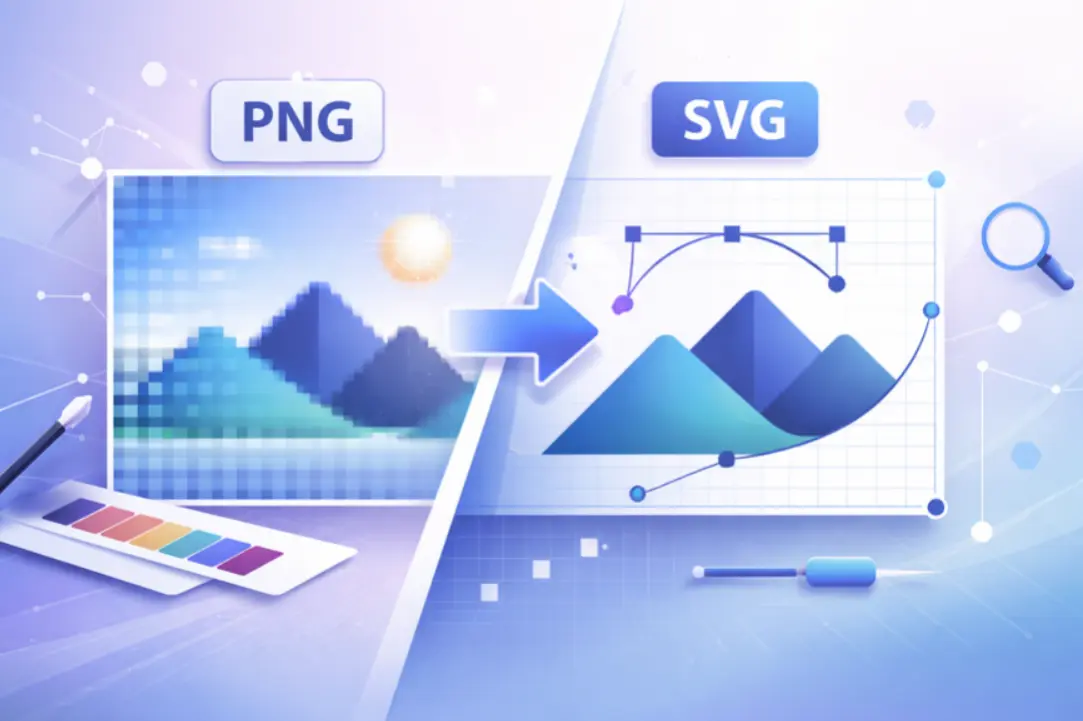
When converting PNG to SVG, the method you choose determines whether you get clean vectors or a mess of jagged paths. AI-powered conversion and manual tracing each have distinct strengths, and the right choice depends on your image type, budget, and quality expectations.
This guide compares AI-powered and manual approaches side by side, showing exactly how each method preserves quality, handles edge detection, and affects editability. You will learn when to use each method and how to get the best results from both.
PNG to SVG Conversion: Quick Summary
Converting PNG files to SVG format often results in quality loss because PNG uses pixels while SVG uses vector paths. This guide shows you how to minimize quality issues and create clean, usable SVG files.
Key Steps for Quality Conversion
Preparation is Critical
Start with high-resolution PNGs featuring solid colors and clear edges. Clean your image first by removing backgrounds, increasing contrast, and reducing unnecessary colors.
Choose Your Method Wisely
Manual tracing offers the best control but requires skill and time. Free automatic converters work quickly but often create bloated files. AI-assisted tools balance speed with quality.
Optimize Your Settings
Adjust threshold levels to control detail capture, apply edge smoothing to reduce jagged lines, and use path simplification to minimize node count. Fewer nodes typically mean better quality and easier editing.
Review and Refine
Always inspect your converted SVG by zooming in on edges, checking curves, and testing scalability. Remove duplicate paths, group related shapes, and simplify the structure for professional use.
Quick PNG to SVG Conversion Guide Before We Go Deeper:
| Step | What to Do | Why It Matters |
|---|---|---|
| Start with the right PNG | Use high resolution images with solid colors and clear edges | Clean input reduces noise and jagged paths |
| Clean the PNG first | Remove backgrounds and increase contrast | Simplifies tracing and improves accuracy |
| Choose the right method | Decide between manual, free, or AI assisted conversion | Each method affects quality and editability |
| Adjust tracing settings | Control threshold, smoothing, and path simplification | Prevents bloated SVG files |
| Review the SVG | Zoom in and inspect edges and shapes | Catches issues early |
| Optimize the SVG | Remove extra nodes and group shapes logically | Makes the SVG easier to edit and reuse |
| Test scalability | Resize the SVG to large sizes | Ensures no distortion or blur |
| Avoid common mistakes | Do not convert photos or low quality PNGs | Saves time and frustration |
| Know when SVG is not ideal | Skip SVG for photos and heavy textures | Prevents unrealistic expectations |
| Use AI tools wisely | Use AI assisted tools for better balance | Improves quality without manual tracing |
Why PNG to SVG Quality Loss Happens
PNG files are raster images made of pixels. SVG files are vector based and built from paths and shapes. When you convert a PNG to SVG, the software has to guess how pixels should become paths. If the image is noisy or the tracing settings are wrong, the result is jagged edges, too many nodes, or distorted shapes.
Quality loss usually happens because of low resolution source images, poor contrast, excessive detail, or automatic tracing that prioritizes speed over accuracy. The good news is that most of these problems can be avoided with the right approach.
When You Should Convert PNG to SVG
PNG to SVG conversion works best for graphics with clear shapes and solid colors.
Common use cases include logos, icons, flat illustrations, web graphics, and assets for printing or cutting machines.
SVG is a better choice than PNG when you need scalability, smaller file sizes, or editable graphics. However, SVG is not ideal for photographs or highly textured images. Knowing when conversion makes sense is the first step toward good results.
Step 1: Start With the Right PNG
- The quality of your SVG depends heavily on the quality of the PNG you start with.
- Use the highest resolution PNG available. Avoid small or compressed images. Flat designs with strong contrast convert better than complex visuals. Transparent backgrounds are ideal because they reduce unwanted shapes during tracing.
- If your PNG contains shadows, gradients, or textures, expect some quality loss no matter which tool you use.
Step 2: Clean the PNG Before Conversion
- Cleaning the image before conversion improves results significantly.
- Remove backgrounds if possible. Increase contrast so shapes are clearly defined. Reduce the number of colors to only what is necessary. Simplifying the image gives the converter clearer information to work with.
- This step is often skipped, but it plays a major role in reducing noise and unnecessary paths in the SVG.
Step 3: Choose the Right Conversion Method
- There are three main ways to convert PNG to SVG.
- Manual tracing gives the highest level of control. You draw paths yourself over the image. This produces the cleanest SVGs but takes time and design skill.
- Free automatic converters are fast and easy. You upload a PNG and receive an SVG instantly. These tools work well for simple images but often create bloated files with many unnecessary nodes.
- AI assisted conversion sits between these two approaches. It uses smarter edge detection and optimization to balance speed and accuracy. This approach is increasingly popular because it reduces cleanup work after conversion.
Step 4: Adjust Tracing Settings Carefully
- Tracing settings determine how pixels are turned into paths.
- Threshold settings control how much detail is traced. A lower threshold captures fewer details and produces cleaner shapes. A higher threshold captures more detail but increases complexity.
- Edge smoothing helps reduce jagged outlines. Path simplification reduces the number of nodes while preserving shape accuracy. Color grouping ensures that similar colors are treated as single shapes rather than separate paths.
- As a rule, fewer nodes usually mean better quality and easier editing.
Step 5: Review the SVG Structure After Conversion
- After conversion, always inspect the SVG closely.
- Zoom in to check curves and corners. Look for uneven edges or unnecessary shapes. Select individual paths to see if they behave predictably. Scale the SVG up and down to ensure it stays sharp at any size.
- An SVG that looks fine at first glance may reveal problems when edited or scaled.
Step 6: Optimize and Edit the SVG
- Optimization turns a usable SVG into a high quality one.
- Remove hidden or duplicate paths. Group related shapes logically. Simplify paths further if possible. Clean structure makes the SVG easier to edit, reuse, and integrate into websites or applications.
- This step is especially important if the SVG will be used in professional projects or shared across teams.
Comparing PNG to SVG Conversion Methods
Manual Conversion
Manual conversion offers the best results but requires time and skill. It is ideal for complex logos or brand assets where precision matters.
Free Automatic Converters
Free converters are quick and accessible. They are useful for basic tasks but often require cleanup to be truly usable.
AI Assisted Conversion
AI assisted conversion offers a balance. It improves edge detection and path optimization while keeping the process fast. This approach works well for users who need good results without manual tracing.
An Example of an AI Assisted Approach
One example of this approach is SVGMaker, which uses AI to assist with image to SVG conversion and post conversion editing.
AI assisted tools like this aim to reduce noise, preserve clean edges, and generate SVGs that are easier to edit. They do not eliminate the need for review, but they significantly reduce the amount of cleanup required compared to basic automatic converters.
Common Mistakes When Converting PNG to SVG
Many quality issues come from avoidable mistakes.
Using low resolution PNG files leads to rough edges.
Converting photographs instead of flat graphics results in overly complex SVGs.
Ignoring excessive node counts makes files hard to edit.
Skipping image cleanup introduces noise.
Expecting a completely lossless conversion sets unrealistic expectations.
Skipping post conversion editing leaves problems unresolved.
Avoiding these mistakes improves results more than switching tools repeatedly.
What Makes a High Quality SVG
A high quality SVG has clean edges and smooth curves.
It uses a minimal number of nodes.
Shapes are grouped logically.
The file scales without distortion.
Editing is easy and predictable.
These qualities matter whether the SVG is used on a website, in print, or with cutting machines.
When PNG to SVG Conversion Will Never Be Perfect
Some images simply do not convert well.
Photographs contain too much detail. Heavy gradients and textures confuse tracing algorithms. In these cases, SVG is not the right format. PNG or JPG may remain the better choice.
Understanding these limits helps set realistic expectations.
Frequently Asked Questions
1. Is PNG to SVG conversion lossless?
No. PNG to SVG conversion is not truly lossless because PNG files are pixel based and SVG files are path based. Some interpretation is always required, which can lead to changes in edges, shapes, or detail.
2. Why does my SVG look jagged after conversion?
Jagged edges usually appear when the source PNG is low resolution, has poor contrast, or when tracing settings capture too much pixel noise. Reducing detail and smoothing edges during tracing helps improve results.
3. Which PNG files convert best to SVG?
PNGs with high resolution, solid colors, sharp edges, and minimal gradients convert best. Logos, icons, and flat illustrations usually produce the cleanest SVGs.
4. Can photos be converted to SVG?
Photos can be converted, but the results are rarely practical. Photos contain too much detail and texture, which leads to extremely complex SVG files that are hard to edit and use.
5. How can I reduce the file size of a converted SVG?
You can reduce SVG file size by simplifying paths, removing unnecessary nodes, grouping shapes logically, and deleting hidden or duplicate elements after conversion.
6. Why does my converted SVG have so many nodes?
Excessive nodes are often caused by noise, gradients, or soft edges in the PNG. Automatic converters may trace every small detail unless path simplification is applied.
7. Is manual tracing better than automatic conversion?
Manual tracing offers the highest level of control and the cleanest SVGs, but it requires time and design skill. Automatic and AI assisted methods are faster and work well for many common use cases.
8. Are free PNG to SVG converters good enough for professional use?
Free converters can work for simple graphics, but they often require cleanup. For professional projects, cleaner SVG structure and better editability are usually needed.
9. Do I need to edit the SVG after converting it?
In most cases, yes. Reviewing and editing the SVG helps remove unnecessary paths, improve structure, and ensure the file behaves correctly when scaled or reused.
10. Which conversion method should most users choose?
For most users, an AI assisted approach offers the best balance of speed and quality. It reduces manual work while producing SVGs that are easier to edit and reuse.
Conclusion
PNG to SVG conversion does not have to result in quality loss. The key is the process, not just the tool.
Start with a clean, high quality PNG. Prepare the image properly. Choose the right conversion method. Adjust tracing settings carefully. Always review and optimize the final SVG.
AI assisted tools can make this process faster and more reliable, especially when accuracy and editability matter. If you want a smoother way to convert images into clean, editable SVGs, SVGMaker is a practical option to explore. You can start with the free version to test your images and upgrade only when your projects require higher precision and scalability.
