How to Convert SVG to GIF or Animated WebP for Social Media Posts
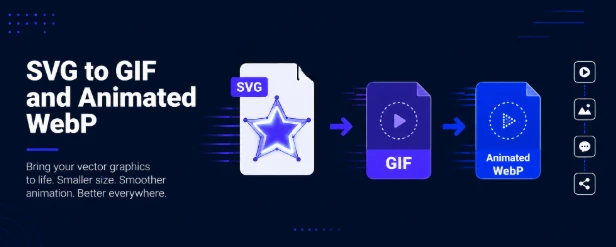
Quick Summary
- Most social media platforms do not support animated SVG files — they expect GIF, Animated WebP, or MP4 instead.
- SVG animations can use SMIL, CSS keyframes, or JavaScript, and each type converts differently depending on the tool you use.
- GIF is the safest format for cross-platform compatibility but is limited to a 256-color palette.
- Animated WebP offers smaller file sizes, full color support, and better transparency — ideal for websites and modern browsers.
- Instagram requires MP4 video; LinkedIn and X handle GIF files well; websites benefit most from Animated WebP.
- Always check FPS, export dimensions, and looping settings before exporting — these three settings affect final quality more than anything else.
- SVGMaker helps you edit and optimize SVG files before conversion, so what goes into your export tool is already clean and ready.
Why Animated SVG Files Stop Working on Social Media
Not every SVG file is animated. A normal SVG is simply a vector image. But animated SVG files contain motion instructions embedded inside the file itself.
These animations can use:
- SMIL animation
- CSS keyframe animation
- JavaScript animation
This matters because different converters handle these animation types differently.
SMIL animations are usually the easiest to convert correctly. CSS animations can work well too, but some converters require manual timing settings to preserve the animation properly. JavaScript-based SVG animations are usually the hardest to convert because many export tools cannot fully process JavaScript interactions.
Most social platforms also do not parse SVG animation correctly because SVG animations are XML-based instead of raster-based. That is why creators usually need to export the animation into formats that social media platforms understand better.
How to Convert SVG to GIF for Social Media
GIF is still one of the safest formats for social media compatibility. If you want maximum upload support across platforms, GIF is usually the easiest option.
Many creators use tools like SVGMaker's converter, SVGator, EZgif, and html5animationtogif.com. These tools allow users to upload animated SVG files and export them as GIF animations.
| Tool | Best For | Ease of Use |
|---|---|---|
| SVGMaker | Quick conversion and fast export | Very easy |
| SVGator | Fast SVG animation export | Very easy |
| EZgif | Quick free conversion | Easy |
| html5animationtogif.com | More export controls | Medium |
SVGator and SVGMaker are especially popular because the export process is simple and beginner-friendly.
Important GIF Export Settings
When converting animated SVG files into GIF format, a few settings matter a lot.
| Setting | Recommendation |
|---|---|
| FPS | 15 to 24 FPS |
| Looping | Infinite loop |
| Export size | Match social platform size |
| Compression | Moderate compression |
For smaller files, 15 FPS usually works well. For smoother motion, 24 FPS looks much better but creates larger files.
The Biggest Limitation of GIF Files
GIF files are widely supported, but they also have a significant limitation: color quality.
GIF only supports a 256-color palette. Because of this, gradients and detailed animations can sometimes lose quality after export. This is one reason many creators now prefer Animated WebP instead.
SVG to Animated WebP: Why Many Creators Prefer It
Animated WebP is becoming more popular because it offers:
- Smaller file sizes
- Better transparency support
- Richer full-color output
- Smoother image quality overall
Many creators use SVG-to-Animated WebP workflows when they want better quality than GIF. Animated WebP handles gradients and detailed artwork much better because it supports full color instead of the limited GIF palette.
According to Google's WebP documentation, Animated WebP files are typically 64% smaller than animated GIFs at comparable quality — a meaningful difference for page performance.
Some common tools for this workflow include html5animationtogif.com WebP export and Cloudinary conversion tools.
GIF vs Animated WebP: Which One Is Better?
The answer depends entirely on where you plan to upload the animation.
| Feature | GIF | Animated WebP |
|---|---|---|
| Compatibility | Excellent | Good |
| File size | Larger | Smaller |
| Color support | 256 colors | Full color |
| Transparency | Basic | Better |
| Social media support | Very common | Growing support |
GIF is usually safer for compatibility. Animated WebP is often better for image quality and smaller file sizes. That is why many creators use GIF for social uploads and Animated WebP for websites or landing pages.
Platform-by-Platform Guide for Animated SVG Conversions
Different platforms support different formats. This is one of the biggest reasons creators struggle with animated SVG exports.
| Platform | Recommended Format |
|---|---|
| MP4 video | |
| Twitter / X | GIF |
| GIF | |
| Email marketing | GIF |
| Websites | Animated WebP |
One important thing to remember is that Instagram does not support direct GIF uploads properly. Most creators convert GIF animations into MP4 videos before uploading. LinkedIn and Twitter/X handle GIF files much better. For websites, Animated WebP often gives the best balance between quality and performance.
Settings to Check Before Exporting Your Animation
A few small export settings can completely change the final result.
Before exporting:
- Check your FPS
- Confirm the output size
- Test looping behavior
- Optimize the file size
Larger dimensions create much bigger file sizes. Very high FPS settings can also make GIF exports unnecessarily heavy.
For most social media posts:
- 15 FPS works well for lightweight animations
- 24 FPS works better for smooth motion graphics
These settings help keep animations cleaner and easier to upload.
Common Animated SVG Export Problems
Animated SVG conversions sometimes fail because of animation complexity or incorrect settings.
| Problem | Cause | Fix |
|---|---|---|
| Animation stopped working | Unsupported animation type | Use compatible converter |
| GIF looks blurry | Low export size | Increase dimensions |
| File too large | High FPS | Lower FPS |
| Animation timing looks wrong | CSS timing issue | Set duration manually |
Most export problems happen because converters process SVG animation types differently. That is why testing multiple export settings often helps.
For a deeper look at how to clean and prepare SVG files before conversion, SVGMaker's guide on SVG optimization techniques covers the key steps that reduce conversion errors.
Which Conversion Workflow Works Best?
| Need | Best Option |
|---|---|
| Maximum compatibility | GIF |
| Better quality and smaller size | Animated WebP |
| Instagram posts | MP4 |
| Fast beginner workflow & all-in-one tool | SVGMaker |
There is no single perfect export format for every platform. The right choice depends on whether you care more about compatibility, quality, or file size.
Frequently Asked Questions
1. What is the easiest way to convert SVG to GIF or Animated WebP for social media?
The easiest way is by using dedicated conversion tools like SVGMaker or EZgif. GIF works best for compatibility, while Animated WebP usually offers better quality and smaller file sizes.
2. Why do creators convert SVG to GIF or Animated WebP?
Most social platforms do not support animated SVG files directly. Platforms like Instagram, LinkedIn, and X usually expect raster-based animation formats instead. Converting SVG animations helps preserve motion while making uploads compatible.
3. Which SVG to GIF converter is easiest for beginners?
Many users prefer SVGator but you can use SVGMaker because the export process is straightforward and better than any other tool. EZgif is another popular option for quick free conversions without complicated settings.
4. Why does my SVG to GIF converter reduce image quality?
GIF files only support 256 colors. This limitation affects gradients, shadows, and detailed animations. Switching to Animated WebP or increasing export dimensions often improves results.
5. Is Animated WebP better than GIF?
Animated WebP supports richer colors and smaller file sizes and handles transparency better than GIF. However, GIF still works better for compatibility across older platforms and email clients.
6. Why does my exported SVG animation stop animating on social media?
This usually happens because converters cannot properly process certain SVG animation types, especially JavaScript-based animations. Testing different export settings and animation types typically resolves the issue.
7. What are the best GIF export settings for social media?
15 to 24 FPS depending on animation style, infinite looping, and dimensions matched to the target platform. Lower FPS creates smaller files; higher FPS produces smoother motion.
Conclusion
Learning how to convert SVG to GIF or Animated WebP for social media can save a lot of frustration when posting animated content online.
Animated SVG files are excellent for websites, but most social media platforms still struggle to support them correctly. That is why formats like GIF, Animated WebP, and MP4 are still necessary for reliable uploads.
GIF works best for compatibility, while Animated WebP gives better image quality and smaller file sizes. Before exporting, always check your FPS, dimensions, and platform requirements carefully.
