SVG to AI & AI to SVG: Complete Illustrator Conversion Guide
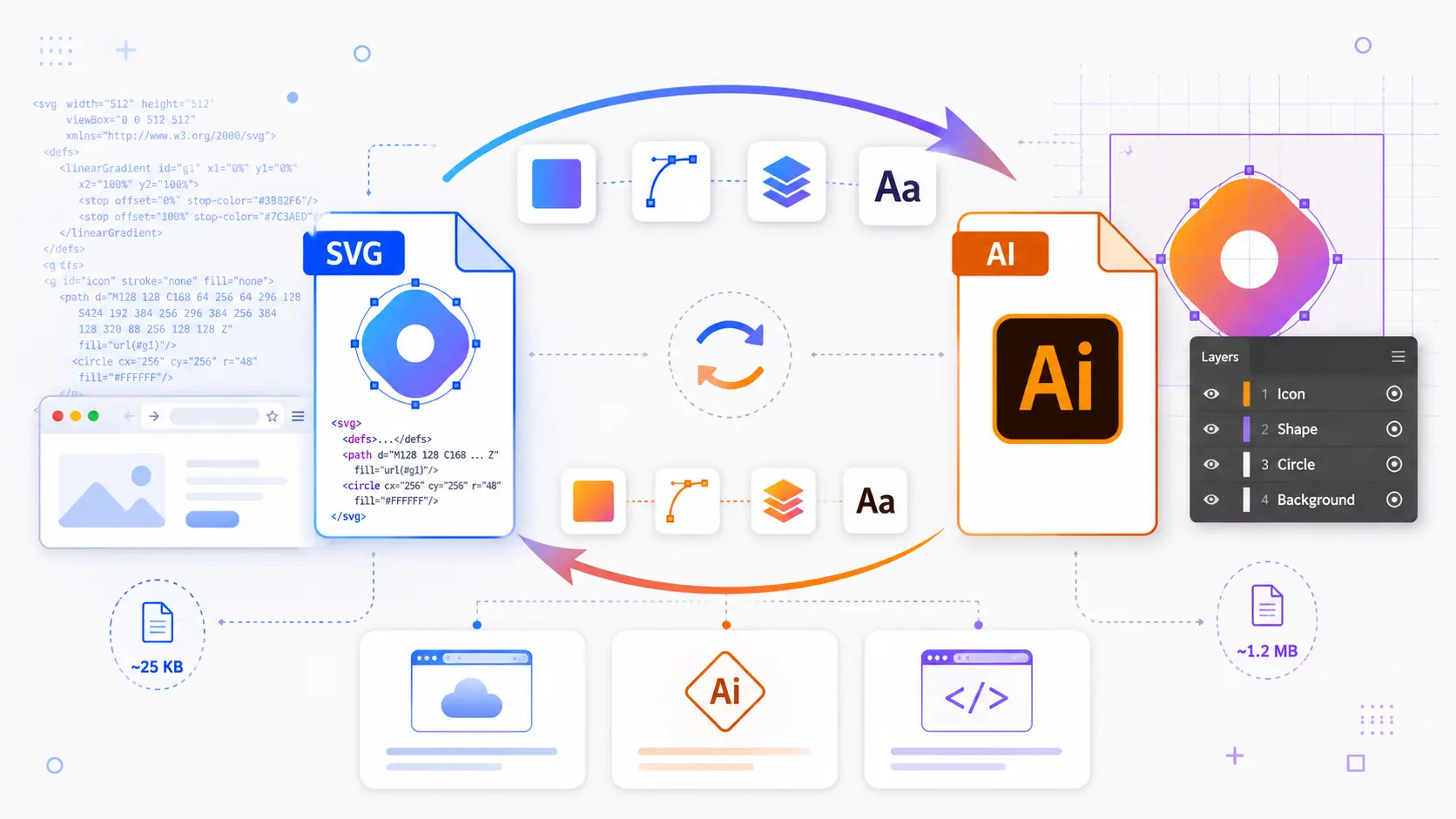
You've just finished building a set of icons in SVG for your website. The design looks perfect in the browser. Then your print team asks for the source files in Adobe Illustrator format. Or the reverse happens: a client sends you a logo as an .ai file, and you need to embed it on a webpage that requires SVG.
This is one of the most common friction points in design workflows. SVG and AI are both vector formats, but they serve fundamentally different ecosystems. SVG is the standard for the web that browsers render it natively, it's lightweight, and it's open-source code you can edit in any text editor. AI (Adobe Illustrator) is the standard for print and professional design. It preserves complex layer structures, advanced typography, and Illustrator-specific features like artboards and brushes.
The problem is that moving between these two formats isn't as simple as renaming a file extension. SVG uses XML markup. AI uses a proprietary binary format (based on PDF internals). Converting between them requires a tool that understands both structures and can map one to the other without losing critical information like gradients, layer grouping, or path precision.
In this guide, you'll learn exactly how to convert SVG to AI and AI to SVG using three methods for each direction from free online tools to Adobe Illustrator itself. You'll also learn how to diagnose and fix the most common conversion issues so your files arrive production-ready, not broken.
SVG vs AI: Understanding the Two Formats
Before converting, it helps to understand what makes these formats different. Both are vector formats. They use mathematical paths instead of pixels — but the similarities end there.
| Property | SVG (.svg) | AI (.ai) |
|---|---|---|
| Format Type | Open standard (W3C) | Proprietary (Adobe) |
| Underlying Structure | XML text markup | PDF-based binary |
| Browser Support | Native in all modern browsers | None — requires conversion or plugin |
| Editability | Any text editor, code editor, or design tool | Adobe Illustrator (primary), limited support in others |
| Layer Support | Groups (<g>) and IDs | Full layer panel with sublayers, artboards, and isolation mode |
| Gradient Support | Linear and radial gradients | Linear, radial, freeform, and mesh gradients |
| Typography | Basic text with web fonts | Full OpenType features, area type, type on a path |
| File Size | Very small (often under 5KB for icons) | Larger (includes Illustrator metadata and preview thumbnails) |
| Best For | Web, apps, UI, email, responsive design | Print, packaging, large-format signage, professional illustration |
When to use SVG: Whenever the final output is a screen — websites, mobile apps, dashboards, email signatures, or any context where the image needs to scale across device resolutions. SVG is also the best choice for icons and simple illustrations because of its tiny file size and CSS-styling capabilities.
When to use AI: Whenever the file needs to enter a professional print or design workflow. Illustrator files preserve features that SVG can't represent — mesh gradients, appearance stacks, multiple artboards, and live text with full OpenType control. If your printer, packaging vendor, or design team works in Illustrator, they need .ai files.
Why conversion between them is so common: Web-to-print and print-to-web workflows happen constantly. A logo designed for a website (SVG) needs to go on business cards (AI). An illustration created in Illustrator (AI) needs to be embedded in a React application (SVG). The two formats serve complementary roles, and professionals routinely need to move between them.
How to Convert SVG to AI (3 Methods)
Method 1: SVGMaker's Online Converter (Recommended)
The fastest way to convert SVG to AI without installing any software is SVGMaker online image converter. It handles the conversion server-side and produces an .ai file compatible with Adobe Illustrator CS6 and all Creative Cloud versions.
Step-by-step:
- Go to svgmaker.io/image-converter and upload your SVG file.
- Select AI (Adobe Illustrator) as the output format.
- Click Convert and download the .ai file.
What's preserved in the conversion:
- SVG groups (
<g>elements) are mapped to Illustrator layers - Path data (
<path>,<rect>,<circle>, etc.) converts to editable Illustrator paths - Linear and radial gradients transfer accurately
- Text elements are preserved (either as editable text or converted to outlines, depending on font availability)
- Stroke weights, fill colors, and opacity values carry over
If you need to inspect or clean up your SVG before converting, open it in SVGMaker's SVG Code Editor first. You can strip unnecessary metadata, optimize path data, and verify the structure — all with a real-time visual preview.
For teams converting at scale, SVGMaker's REST API supports batch conversion of up to 10 files per request with unlimited queuing.
Method 2: Adobe Illustrator (Open + Save As)
If you already have an Adobe Illustrator license, this is the most straightforward approach:
- Open the SVG file in Illustrator (File > Open or drag-and-drop onto the artboard).
- Review the import — check that layers, colors, and text rendered correctly.
- Go to File > Save As, choose Adobe Illustrator (.ai) as the format.
- In the Illustrator Options dialog, select your compatibility version (CS6+ recommended for broadest compatibility).
- Click OK to save.
Pros: Maximum fidelity since Illustrator handles SVG import natively. You can fix any issues in-app before saving.
Cons: Requires an active Creative Cloud subscription ($22.99/month for Illustrator alone). Not practical for batch workflows unless you script it with Illustrator Actions.
Method 3: Inkscape (Free, Offline)
Inkscape is a free, open-source vector editor that can open SVG files and export to limited formats:
- Open your SVG in Inkscape.
- Go to File > Save As and choose Encapsulated PostScript (.eps) or PDF.
- Open the exported file in Illustrator and re-save as .ai.
Note: Inkscape does not export directly to .ai format. The EPS/PDF workaround preserves vector data but may lose some SVG-specific features like CSS-based styling or embedded web fonts. This is a two-step process and is best suited for simple graphics.
SVG to AI Methods: Quick Comparison
| Feature | SVGMaker Converter | Adobe Illustrator | Inkscape |
|---|---|---|---|
| Direct SVG → AI | Yes | Yes | No (requires EPS/PDF intermediate) |
| Cost | Free credits on signup + daily credits | $22.99/month (Creative Cloud) | Free |
| Batch Support | Yes (API, 10 files/batch) | Limited (via Actions scripting) | No |
| Layer Preservation | Yes (groups → layers) | Yes (native handling) | Partial |
| Gradient Support | Linear + radial | Full (including mesh) | Linear + radial |
| Requires Installation | No (browser-based) | Yes | Yes |
| Best For | Quick, reliable conversions at any scale | Maximum fidelity with manual control | Budget-conscious users with simple files |
How to Convert AI to SVG (3 Methods)
This is the direction where most users hit a wall. If you don't have Adobe Illustrator installed, getting vector data out of an .ai file and into a web-friendly SVG isn't obvious. Here are three ways to do it.
Method 1: SVGMaker's Converter
SVGMaker's converter accepts .ai files as input and produces clean SVG output:
- Upload your .ai file to svgmaker.io/image-converter
- Select SVG as the output format.
- Download the converted SVG file.
What makes this approach especially useful is what comes after the conversion. AI files often contain Illustrator-specific features that don't have direct SVG equivalents — mesh gradients, appearance effects, or complex clipping structures. The converted SVG may need cleanup.
SVGMaker gives you three post-conversion tools for this:
- SVG Editor — Visual editing for colors, layers, and element removal
- SVG Code Editor — Direct code manipulation with real-time preview for stripping bloat, fixing path data, or adding accessibility attributes
- AI-Powered Editor — Natural-language commands like “remove the background” or “change all blue elements to green”
This end-to-end workflow — convert, review, refine, export — means you don't need a second tool to get production-ready SVG from an .ai source file.
Method 2: Adobe Illustrator (Export As SVG)
If you have Illustrator installed, this gives you the most control over SVG output:
- Open the .ai file in Illustrator.
- Go to File > Export > Export As.
- Choose SVG (.svg) as the format.
- In the SVG Options dialog, configure these settings:
| Setting | Recommended Value | Why |
|---|---|---|
| SVG Profile | SVG 1.1 | Broadest browser compatibility |
| Type | Convert to Outlines | Eliminates font dependency issues |
| Image Location | Embed | Keeps the SVG self-contained |
| Decimal Places | 2 | Balances precision and file size |
| Minify | Checked | Reduces file size for web use |
| Responsive | Checked | Removes fixed width/height, keeps viewBox |
- Click OK to export.
Pro tip: If your .ai file has multiple artboards, check “Use Artboards” in the export dialog to generate a separate SVG for each artboard — useful for exporting an entire icon set at once.
Method 3: Online Converters (CloudConvert, Convertio)
Several general-purpose online converters can process .ai to SVG conversions:
- CloudConvert — Supports AI to SVG with basic settings control. Quality is decent for simple files.
- Convertio — Drag-and-drop simplicity, but output quality is inconsistent. Node counts tend to be high and layer structure is lost entirely.
Caveat: General-purpose converters treat .ai files as opaque containers. They lack the vector-specific optimization that dedicated tools provide. The SVG output often contains excessive anchor points, bloated metadata, and no logical grouping — which means additional cleanup in a tool like SVGMaker's editor or Illustrator before the file is web-ready.
For production workflows where SVG quality matters — web performance, cutting machines, design systems — a dedicated converter produces significantly cleaner output than a general-purpose file transformer.
Common Conversion Issues and How to Fix Them
No conversion between SVG and AI is perfectly lossless. The formats represent different feature sets, and something will always need adjustment. Here are the five most common issues and their fixes:
| Problem | Direction | Cause | Fix |
|---|---|---|---|
| Missing or substituted fonts | AI → SVG | SVG can't embed .otf/.ttf fonts the way AI files can. If the font isn't available as a web font, the browser substitutes a default. | Convert text to outlines in Illustrator before exporting (Type > Create Outlines), or use SVGMaker's editor to adjust after conversion. |
| Lost or flattened gradients | AI → SVG | Illustrator supports mesh gradients and freeform gradients that have no SVG equivalent. These are rasterized or flattened during export. | Simplify complex gradients to linear/radial before converting. Check the output in SVGMaker's SVG Code Editor to verify gradient elements. |
| Bloated file size | Both directions | AI files include metadata, thumbnails, and Illustrator-specific data. Converted SVGs may carry this bloat. SVGs with excessive precision also inflate file size. | Run the converted file through SVGMaker's SVG editor or an optimizer like SVGO to strip metadata and round coordinates. See our guide on SVG optimization techniques. |
| Broken layer structure | Both directions | SVG groups don't map perfectly to Illustrator layers. Nested groups may flatten or merge during conversion. | Re-organize layers manually in Illustrator (for AI files) or use SVGMaker's editor to regroup elements in the SVG. |
| Clipping mask artifacts | AI → SVG | Complex clipping masks in Illustrator can produce unexpected visual artifacts or empty <clipPath> elements in SVG. | Flatten clipping masks in Illustrator before export (Object > Flatten Transparency), or remove empty clip paths in the SVG Code Editor. |
Most issues fall into one pattern: a feature exists in one format but not the other. The fix is almost always to simplify the source file before converting, then refine the output afterward.
Frequently Asked Questions
1. Can I convert AI to SVG without Adobe Illustrator?
Yes. SVGMaker's converter accepts .ai files directly and produces SVG output without requiring any Adobe software. Online alternatives like CloudConvert also handle this conversion, though output quality varies. For the cleanest results without Illustrator, SVGMaker's converter plus its online SVG editor for post-conversion refinement is the most reliable workflow.
2. Does SVG to AI conversion preserve layers and groups?
When using a dedicated converter like SVGMaker or Adobe Illustrator, yes — SVG <g> (group) elements are mapped to Illustrator layers. The structure isn't always a 1:1 match (SVG's grouping model is flatter than Illustrator's layer hierarchy), but named groups, IDs, and basic nesting are preserved. General-purpose online converters often flatten everything into a single layer.
3. What's the best free SVG to AI converter?
SVGMaker offers free credits on signup plus daily free credits, making it the most accessible option for high-quality SVG to AI conversion without payment. Each conversion costs 1 credit. The output is compatible with Illustrator CS6 and all Creative Cloud versions, with proper layer mapping and gradient preservation. For a completely free but lower-quality option, the Inkscape-to-EPS-to-AI workaround works for simple graphics.
4. Will my fonts survive the conversion?
It depends. SVG to AI: If the SVG uses web fonts (via @font-face or Google Fonts), Illustrator may not have those fonts installed and will substitute them. AI to SVG: If the .ai file uses desktop fonts, the SVG will either embed them (increasing file size) or reference them (requiring the viewer to have the font installed). The safest approach in both directions is to convert text to outlines before converting the file format. This replaces editable text with vector paths that render identically everywhere.
5. Can I batch convert SVG to AI or AI to SVG?
SVGMaker's REST API supports batch conversion of up to 10 files per request with unlimited queuing — ideal for design teams migrating asset libraries or developers building automated pipelines. Adobe Illustrator supports batch processing through Actions and scripts, but this requires Illustrator installed locally. Most free online converters do not offer batch processing.
6. Which format is better for web use?
SVG, without question. SVG files are natively rendered by all modern browsers, can be styled with CSS, animated with JavaScript, and are typically 5-10x smaller than equivalent AI files. AI files cannot be displayed in browsers at all — they must be converted to SVG, PNG, or another web format first. If your final destination is a website, app, or email, SVG is the correct format. Use AI only when the file needs to enter an Adobe-based print or design workflow.
Conclusion
Converting between SVG and AI is a routine part of professional design work. The two formats serve different ecosystems — SVG for the web, AI for print and professional illustration — and moving between them shouldn't require guesswork or quality compromises.
For SVG to AI, SVGMaker's converter handles the conversion in seconds with proper layer mapping, gradient preservation, and Illustrator compatibility — no software installation required. For AI to SVG, the same converter accepts .ai files and produces clean vector output, with an integrated editing suite for post-conversion refinement.
Whichever direction you're converting, the key is using a tool that understands both vector formats at a structural level not just a file transformer that wraps one format inside another. Try SVGMaker's converter on your next project and compare the output quality for yourself.
