Best Way to Convert Images into Silhouette SVG for Laser Cutting & Vinyl Decals
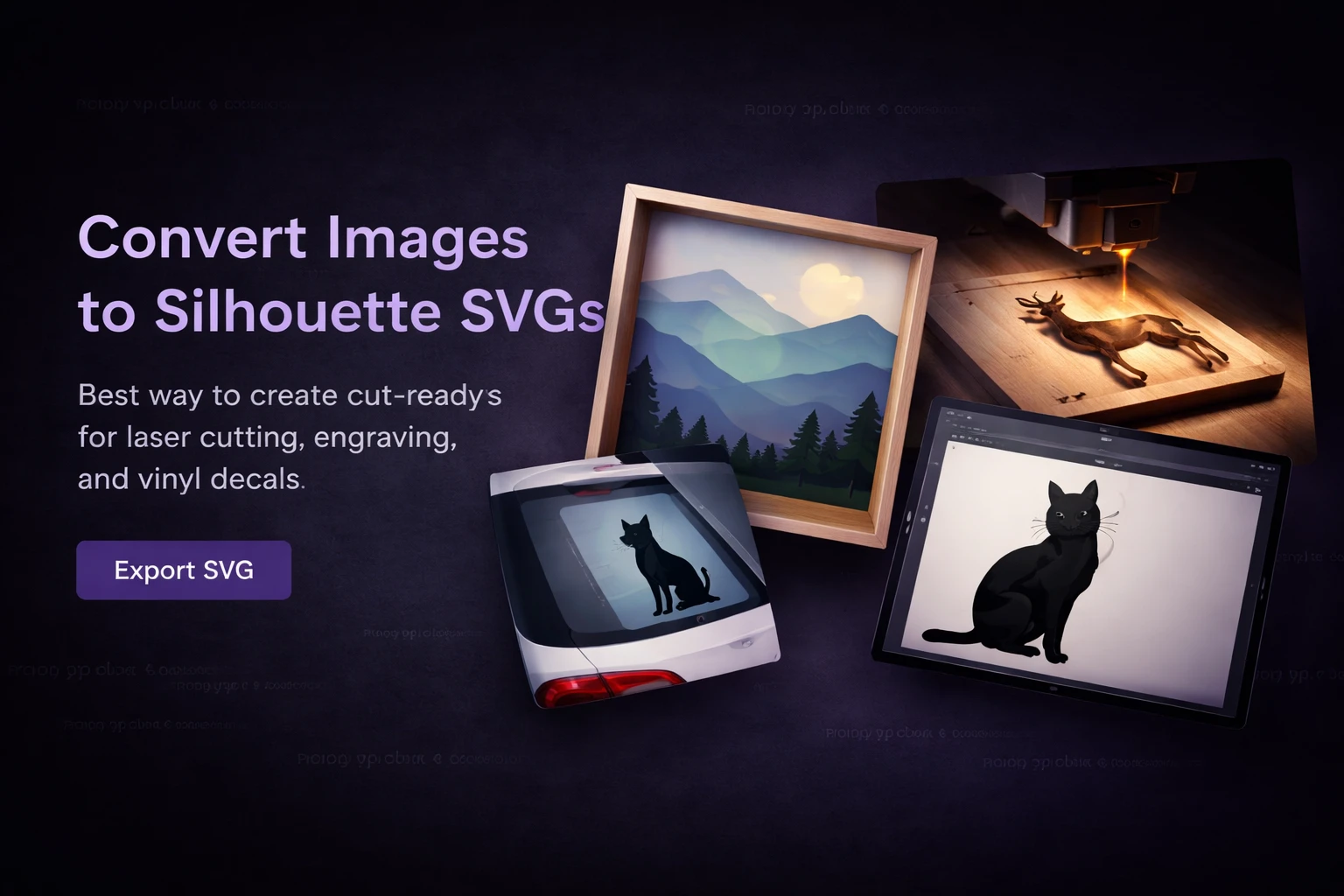
If you run a Glowforge, xTool, Cricut Design Space, Silhouette Cameo, and other laser cutting and vinyl plotting systems, you know your machine needs clean vector paths. The starting point is often customer photos or PNG files that need to become a usable silhouette SVG. This is where you need a reliable AI vectorizer for converting customer photos or PNG files into a usable silhouette SVG —one that delivers true vector paths, not a raster wrapped in an SVG tag.
Traditional tools like Inkscape (with its Trace Bitmap function) and Adobe Illustrator (with Image Trace) are proven, reliable options. They give you full manual control, but they also demand time: adjusting thresholds, simplifying paths, closing gaps, and cleaning up stray nodes. For a single image, that might mean 10–30 minutes of hands-on work. For a batch of fifty, it becomes a full-time project.
Modern AI SVG tools for laser cutting take a different approach. Instead of tracing pixel boundaries mechanically, they interpret the subject—identifying shapes, separating foreground from background, and generating optimized vector paths automatically. The result is a production-ready silhouette SVG delivered in under a minute, not an hour.
This guide covers the best way to convert raster to SVG and convert raster to DXF for production workflows. We compare manual methods against modern AI SVG tools, focusing on how SVGMaker solves these problems with its vector-focused converter suite. Whether you need to convert JPG to SVG, convert PNG to SVG, convert WEBP to SVG, or convert TIFF to SVG for high-resolution source files, the platform handles raster-to-vector conversion intelligently. Once vectorized, you can convert SVG to DXF for machines that prefer that format, convert SVG to PDF for proof sharing, convert SVG to AI for Adobe Illustrator compatibility, or convert SVG to EPS for legacy systems.
For shops handling volume, the real game-changer is the ability to batch convert PNG to SVG files using SVGMaker's API. Whether you need to convert multiple images to vector for an Etsy drop or bulk raster to vector conversion for a sign shop order, the API handles up to 10 files per call—turning what used to take days into minutes without ever opening Illustrator.
What is a Silhouette SVG?
A silhouette SVG is a vector file that defines the outline of a subject. Unlike a photograph made of pixels, an SVG contains mathematical paths (<path> elements) that a blade or laser beam can physically trace.
Critical Warning
Many free online tools perform "fake vectorization." They output an .svg file, but it contains an embedded raster image. Open your file in a text editor; if you see <image href="data:image/png..."> instead of <path d="...">, your cutter will reject it.
SVG Requirements: Laser vs. Vinyl vs. Engraving
Each fabrication method has specific needs. Exporting your PNG to SVG converter output with the wrong specs causes wasted material.
| Requirement | Laser Cutting | Vinyl Decals | Laser Engraving |
|---|---|---|---|
| Paths | Closed only | Closed, smooth curves | Filled areas for raster engrave |
| Nodes | Low count for consistent speed | Minimal (prevents blade stutter) | Less critical |
| Strokes | Hairline (0.01mm) | N/A (Blade follows path) | N/A |
| Text | Convert to outlines | Convert to outlines | Convert to outlines |
| Bridges | Required for letters (O, A, P) | Required for letters (O, A, P) | Not needed |
| File Format | SVG or convert SVG to DXF | SVG | SVG / PNG |
Top Tools for Vector Conversion
Choosing the right AI tool for laser cutting or vinyl cutting depends on your volume. Here is how the popular options compare:
| Tool | Type | Best For |
|---|---|---|
| Inkscape | Desktop (Free) | Manual Trace Bitmap, path editing |
| Adobe Illustrator | Desktop (Paid) | Professional Image Trace presets |
| SVGMaker | Web + API (Credit-based) | AI vectorization, batch processing, convert raster to SVG and other vector formats instantly |
| Vector Magic | Desktop (Paid) | High-detail auto-trace |
Three Ways to Convert Raster to SVG
Here is how to turn a JPG or PNG into a clean silhouette, ranging from manual control to automated AI workflows.
Method 1: Manual Conversion (Inkscape)
Use this for one-off projects requiring artistic control.
- Prepare: Open your image. Remove the background and apply a Threshold filter to get pure black/white.
- Trace: Navigate to Path > Trace Bitmap. Use the Brightness Cutoff setting.
- Clean Up: This is the longest step. Use Path > Simplify to reduce anchor points. Manually close any open paths.
- Export: Save as Plain SVG. This process takes 10–30 minutes per image.
Method 2: AI-Powered SVG Conversion (SVGMaker)
For faster results, an AI SVG converter interprets the subject rather than tracing pixel boundaries.
- Upload: Go to the SVGMaker AI SVG Converter and upload your PNG or JPG.
- Process: The AI automatically separates the subject from the background and generates clean, closed vector paths.
- Edit (Optional): If the fur outline is too complex, use the AI SVG Edit feature . Describe the change (e.g., "Simplify the outline for vinyl cutting"), and the AI adjusts the paths without manual node editing.
- Download: Import the SVG directly into LightBurn or Cricut Design Space. Total time: ~30 seconds.
Method 3: Generate from Scratch
If you lack a source image, skip the converter entirely. Use the SVGMaker AI SVG Generator and select the "Silhouette" style. Describe what you need (e.g., "German Shepherd side profile, black fill") and get a ready-to-cut SVG instantly. For a complete workflow on preparing files for machines, check out our guide: How to Create Laser Cut Files with AI: SVG to DXF for Glowforge & xTool.
Real Project: Pet Silhouette Vinyl Decal
Custom pet decals are top sellers on Etsy. Here is the optimized workflow using a PNG to SVG converter online.
- Source: Take a side-profile photo with a contrasting background.
- Convert: Upload the photo to SVGMaker. The AI isolates the pet and removes the background automatically.
- Simplify: For fluffy breeds, use the AI edit feature to smooth the fur line. This prevents the vinyl blade from stuttering on tiny jaggies.
- Cut: Import into your Silhouette Studio or Cricut Design Space. Size to 5 inches. Weed and apply using Oracal 651 for outdoor durability.
Batch Processing: Scaling Production
Converting one image is easy. Converting 200 images for an Etsy drop is a bottleneck.
- Manual: 200 images x 15 minutes = 50 hours of work.
- AI Batch API: 200 images via the SVGMaker API = under 10 minutes.
The API handles SVG and other vector format conversion in batches. It accepts PNG, JPG, and WebP and returns production-ready vectors. For developers, the SVGMaker's MCP Server allows you to generate assets directly from your SVG code editor, automating the path from customer upload to cut file.
Common Conversion Challenges
Too Many Anchor Points
Auto-trace tools create jagged edges. Fix: Use an AI vectorization tool that outputs optimized paths, or use the Simplify function in Illustrator.
Open Paths
If your laser cutter skips sections, your paths aren't closed. Fix: Check for open endpoints in Inkscape (Visualize Path extension).
Fur/Hair Edges
Pet silhouettes often look like "hedgehogs" after tracing. Fix: Prioritize the general shape over individual strands. Smooth the outline in your vector editor.
Frequently Asked Questions
1. What's the best file format for laser cutting, SVG or DXF?
Both work. SVG is more flexible because it supports cut paths (strokes) and engrave areas (fills) in a single file, while DXF is mainly for cut and score paths. Most modern laser software (LightBurn, xTool Creative Space) reads SVG natively. If your machine only accepts DXF, you can convert with SVGMaker's free image converter.
2. Can I convert a photo into a cut-ready silhouette SVG automatically?
Yes, though results depend on the source. High-contrast images with a clear subject produce the best silhouettes. SVGMaker's SVG converter using AI gives the most reliable automatic results. For complex photos, you'll get more control by creating a black-and-white silhouette in a photo editor first, then converting to SVG.
3. Why does my vinyl cutter skip or tear on certain SVG files?
Usually it's too many anchor points, overlapping paths, or open paths. Simplify your SVG paths and make sure all shapes are closed. AI vectorization tools produce minimal-node paths by design, which cut more smoothly.
4. How do I know if my SVG has real vector paths or an embedded raster?
Open the SVG in any text editor (Notepad, VS Code, etc.). Look for <path d="..."> elements. That's real vector data. If you see <image href="data:image/png;base64,...">, the file is a fake vector with an embedded raster image. SVGMaker's browser based SVG converter online always outputs true vector paths.
5. What resolution should my source image be for the best conversion?
At least 900px wide for clean tracing. Higher resolution means more detail captured. PNG or TIFF is better than JPEG because there are no compression artifacts to contaminate the trace. If you only have a low-res JPEG, AI-powered tools handle these better than traditional tracers, but the output always improves with better source material.
6. Can I batch convert hundreds of images to SVG for my Etsy shop?
Yes. The SVGMaker API supports batch conversion of up to 10 files per call on a credit-based model. For large catalogs, use the Node.js SDK to loop through images. A catalog of 200 designs can be processed in under 10 minutes.
7. What's the difference between SVGMaker's AI vectorize and the regular converter?
The AI SVG converter uses AI to understand image content and produce intelligent vector paths. It's best for converting photos and complex images into clean SVGs. The regular converter handles format-to-format work (PNG to JPG, SVG to PDF, etc.) and traditional tracing. For silhouette SVGs from photographs, use the AI converter.
8. Which vinyl should I use for outdoor silhouette decals?
Oracal 651 is the go-to for outdoor vinyl. It has a permanent adhesive and is rated for 6+ years of outdoor exposure including UV and weather resistance. For indoor or temporary use (laptop decals, wall art), Oracal 631 comes off without leaving residue.
9. How do I handle enclosed areas in letter silhouettes (like the hole in O or A)?
Use bridges (small connector paths) to preserve inner cutouts during vector-based cutting. Without them, enclosed regions in letters such as O, A, D, B, R, and P will detach. While stencil fonts include predefined bridges, standard fonts require manual bridge insertion using an SVG Editor like SVGMaker prior to laser cutting or vinyl plotting.
Conclusion
The best way to convert images into silhouette SVG files depends on your scale.
For manual control, use Inkscape or Illustrator or SVGMaker's built-in SVG Editor, but budget 15–30 minutes per file for cleanup.
For speed and production, use an AI SVG platform like SVGMaker. It bridges the gap between raster sources and machine-ready vectors, allowing you to focus on making, not editing.
