Best Way to Convert Raster Images to SVG with AI for Cricut, Silhouette, Laser Cutting & Web Design – No Path Tracing Needed
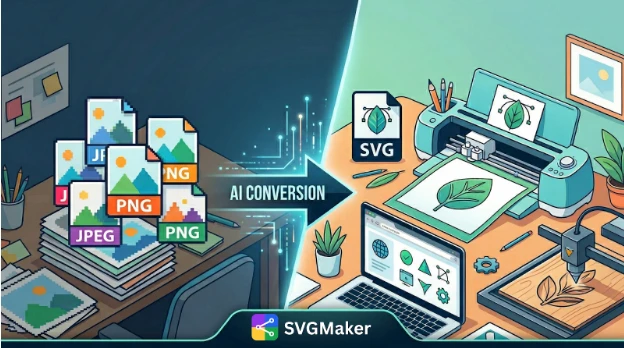
In 2026, the days of manually tracing every curve in Adobe Illustrator are over. AI-powered conversion tools have revolutionized how we create scalable graphics, offering a bridge between simple raster images (like PNGs and JPGs) and production-ready vector files.
Whether you are running an Etsy shop, designing for a Cricut, or building a web library, finding the best SVG converter using AI is critical. This guide explores how to achieve clean, cut-ready SVGs without the hassle of manual path tracing, focusing on workflows that prioritize speed and precision for modern crafters and developers.
AI-First SVG Conversion for Cutting and Web Design
Why Cut-Ready SVGs Matter for Modern Crafting, Cutting and Web
Unlike JPEGs, which are pixel-based, SVGs are mathematical paths. For a Cricut or Silhouette machine, a "cut‑ready" SVG means a file with clean edges and single‑layer clarity that the blade can follow. For web design, it means lightweight, scalable icons that look sharp on any retina display. Without a proper conversion, you risk over‑cutting or jagged edges in physical products and slow load times on websites.
How AI Replaces Manual Path Tracing in 2026
Modern AI models no longer just trace; they understand context. They differentiate between a background gradient and a foreground object, and they detect the difference between a complex photo (which doesn't vectorize well) and a simple logo (which does). This allows for a PNG to SVG converter online to deliver results in seconds that used to take designers 20 minutes to perfect manually.
Selecting an AI SVG Conversion Workflow for Your Use Case
Choosing the right tool depends entirely on your output goal. Below is a comparison to help you decide:
| Use Case | Recommended Approach | Key Benefit |
|---|---|---|
| Cricut / Silhouette | Craft‑Focused Web Converters | Optimized for single‑layer cuts, minimal node count. |
| Multi‑Format Output | SVGMaker | Exports SVG, DXF, AI, EPS, PDF from one upload. |
| Low‑Quality Logos | AI‑Driven Generation Tools | Rebuilds shapes rather than tracing noise. |
| High‑Volume Production | API‑Driven (SVGMaker API) | Automates conversion for thousands of assets. |
Desktop, Web-Based and API-Driven Approaches Compared
While desktop software like Inkscape offers manual control, it is slow. Web‑based tools offer convenience for single files. However, for teams managing libraries, API‑driven conversion is the most efficient, allowing you to integrate vectorization directly into your production pipeline.
SVGMaker for Multi-Format SVG Conversion and Editing
For those who need flexibility, using a platform like SVGMaker acts as a central hub. It functions as an image to SVG converter for single uploads but shines when you need SVG to DXF converter capabilities for laser cutters, or AI/EPS exports for professional design tools. The value lies in getting cut‑ready SVG plus design‑tool formats in one step, ensuring you aren't locked into a single ecosystem.
Preparing Raster Images for High-Quality AI SVG Output
Even the most powerful AI tool to convert raster images into cut‑ready SVG files for printing instantly, like SVGMaker relies on clean source material. The quality of your output begins with the quality of your input.
Pre-Processing Checklist: Resolution, Backgrounds and Color Reduction
- Resolution: Aim for at least 300 DPI. Low‑res images result in jagged vectors.
- Backgrounds: Remove complex backgrounds. Clean, white backgrounds yield the best silhouettes.
- Color Reduction: If converting a logo, reduce the number of colors in the raster first to limit the complexity of the vector output.
Preparing Assets Specifically for Batch SVG Conversion
If you are scaling up, organization is key.
- Organizing source files into logical folders (e.g., "Logos," "Decals") before running the API prevents mixing of different output settings.
- Normalizing formats (PNG/JPG) and resolution ensures consistent results.
- Naming conventions (e.g., clientA_logo_v1.png) make logs, retries, and client delivery easier later.
Edge Quality, Node Count and Cutting Performance
How AI Edge Detection Affects Cutting Precision
AI determines where a shape starts and stops. Good AI detection creates a smooth path; bad detection creates "noise" (tiny bumps) that confuse cutting machines.
Avoiding Over-Cutting, Tiny Artifacts and Machine Slowdowns
Too many nodes (points on a path) will cause a Cricut or laser cutter to stutter or over‑cut the same line multiple times. When using an AI‑powered PNG to SVG converter, always run a "simplify path" function post‑conversion to reduce node count by 50–80% without losing shape integrity.
Batch SVG Conversion with SVGMaker's API
This is where efficiency meets scale. If you manage an Etsy shop or a print‑on‑demand catalog, manual uploads are a bottleneck. Batch SVG conversion using SVGMaker's API saves 80–95% of your time.
When Batch Conversion Makes Sense
Typical scenarios include Etsy shops updating 200 decal designs, POD catalogs requiring multi‑format assets (SVG, DXF, PDF), or course creators building icon sets.
Designing a Batch Conversion Project
Start with an assessment phase: count images, categorize by type (logos, icons, illustrations), and set quality expectations. Always run a small pilot batch before converting hundreds to calibrate your settings.
Pre-Processing Steps Before Calling SVGMaker's API
Before coding, standardize your inputs. Convert everything to PNG, clean backgrounds, and normalize resolutions. You may find that logos need a different "preset" than complex art, so plan to separate these categories into different passes.
Implementing Batch Conversion with SVGMaker's API
The high‑level flow for a successful script:
- Read the list of images from your prepared folder.
- Call SVGMaker's API for each image (respecting rate limits).
- Store resulting SVG in structured output folders.
Tiered Quality Control for Batch-Converted SVGs
- Level 1: Automated checks (file size, path count, format validation).
- Level 2: Quick visual review via thumbnails to spot obvious failures.
- Level 3: Detailed inspection for branded assets only.
Post-Processing and Optimization of Batch SVGs
After your batch conversion completes, a final optimization step ensures every SVG is lean, fast, and ready for production. SVGMaker provides a built‑in optimization feature—accessible via SVGMaker's optimization endpoint—that automatically applies industry‑standard compression to your SVG vector files.
Running this process over your entire converted set reduces file sizes by 10–30% without affecting visual quality. This is especially valuable for web libraries (where smaller files mean faster page loads) and cutting machines (where cleaner paths improve performance). You can also request a compressed SVGZ version for lightweight web delivery.
By integrating this post‑processing step into your workflow, you eliminate the need for manual cleanup in desktop tools, ensuring every asset in your final delivery package is polished and production‑ready.
Comparing AI-Powered SVG Conversion Approaches
SVGMaker as a Central Hub for Multi-Format Vector Outputs
While there are many best AI SVG generators on the market, SVGMaker differentiates itself by handling the full pipeline. It serves the crafter needing a SVG to DXF converter for their laser cutter and the developer needing batch API access, bridging the gap between "making" and "selling."
Workflow Recipes for Different Scenarios
Cricut/Silhouette Workflow: PNG to SVG to Cut
- Upload PNG to an AI‑powered PNG to SVG converter.
- Ensure the output is "cut‑ready" (single layer).
- Import into Cricut Design Space, resize, and cut.
Laser Cutting Workflow: AI SVG to DXF
- Convert raster to SVG using AI.
- Use a tool like SVGMaker to export as DXF (optimized for CAD).
- Import into LightBurn for laser parameters.
Web Design Workflow: Icon and Logo Libraries
For web designers and developers, building scalable icon libraries is a frequent task. When working with existing assets, you can batch convert PNG icons or logos into clean SVGs using automated tools, then optimize them for lightweight performance.
When you need to create fresh icons from scratch—whether for a client's iOS app, macOS icon, or a consistent UI library—SVGMaker's AI App Icon Generator streamlines the process. Simply describe your vision, customize colors and layout, and export production-ready assets in every required platform size. From iOS and Android icons to watchOS icons, you can generate a complete icon package in minutes without design software.
This combination—converting existing raster assets and generating new vector icons with AI—gives you a complete toolkit for delivering professional, scalable assets for any web or app project.
Quality Review of AI-Generated SVG Files
Visual Inspection Techniques
Zoom in to 300%. If the edges look like stairs (jagged), the AI fails. If they look like smooth curves, it passes. For files that need refinement—such as overly complex paths or minor imperfections—you can open them in SVGMaker's advanced SVG Editor to manually smooth curves, adjust nodes, and perfect the final output.
Technical Checks: Path Count and Structure
Open the SVG in a svg editor. If you see hundreds of <path> elements for a simple shape, the vector is too complex. A good conversion will have minimal paths. When batch‑converted files show excessive path counts, use the svg editor to simplify paths and reduce node clutter, ensuring clean cuts and faster performance.
Batch Reporting and Issue Tracking
Maintain a simple tracking sheet for status (converted, pass, fail, redo). Document common issues by category. For instance, "Stickers with white borders" might need a different pre‑processing step than "Solid logos." This feedback loop improves your use of the AI tool for SVG conversion over time, and for assets flagged as "redo," the built-in SVG Editor provides a quick way to manually correct outliers before final delivery.
Frequently Asked Questions
1. What is the best AI tool to convert PNG to SVG for Cricut?
SVGMaker's AI converter is purpose-built for producing cut‑ready SVGs. It generates clean, single‑layer vector paths that import directly into Cricut Design Space without manual cleanup.
2. Can I batch convert hundreds of images to SVG?
Yes. The SVGMaker API supports batch conversion, allowing you to process hundreds of images programmatically. This saves 80–95% of the time compared to manual uploads.
3. Do I need to remove the background before converting to SVG?
It helps. Clean, white or transparent backgrounds yield the best silhouettes. SVGMaker's AI can separate foreground from background, but starting with a clean source produces more predictable results.
4. What resolution should my source image be?
Aim for at least 300 DPI or 900px wide. Higher resolution means more detail captured in the vector output. PNG or TIFF formats are preferred over JPEG to avoid compression artifacts.
5. What is the difference between SVG and DXF for laser cutting?
SVG supports both cut paths (strokes) and engrave areas (fills) in a single file. DXF is primarily for cut and score paths and is preferred by some CAD‑based laser software. SVGMaker lets you convert SVG to DXF when your machine requires it.
6. How do I reduce node count in my SVG for smoother cuts?
After conversion, run a "simplify path" function to reduce node count by 50–80% without losing shape integrity. SVGMaker's SVG Editor and optimization tools handle this automatically.
7. Can I generate SVG icons from scratch without a source image?
Yes. SVGMaker's AI App Icon Generator lets you describe your vision and generates production‑ready vector icons for iOS, Android, web, and more—no source image or design software needed.
Final Thoughts
The evolution from manual tracing to AI automation has democratized vector design. By leveraging tools like SVGMaker for both PNG to SVG converter online tasks and high‑volume batch SVG conversion, creators can focus on creativity rather than tedious technical cleanup.
Ready to streamline your vector workflow? Start with our AI SVG Conversion Guide and master the technical standards behind clean, production‑ready paths.
