Logo to SVG: How to Convert Any Logo into Scalable Vector Graphics with SVGMaker AI
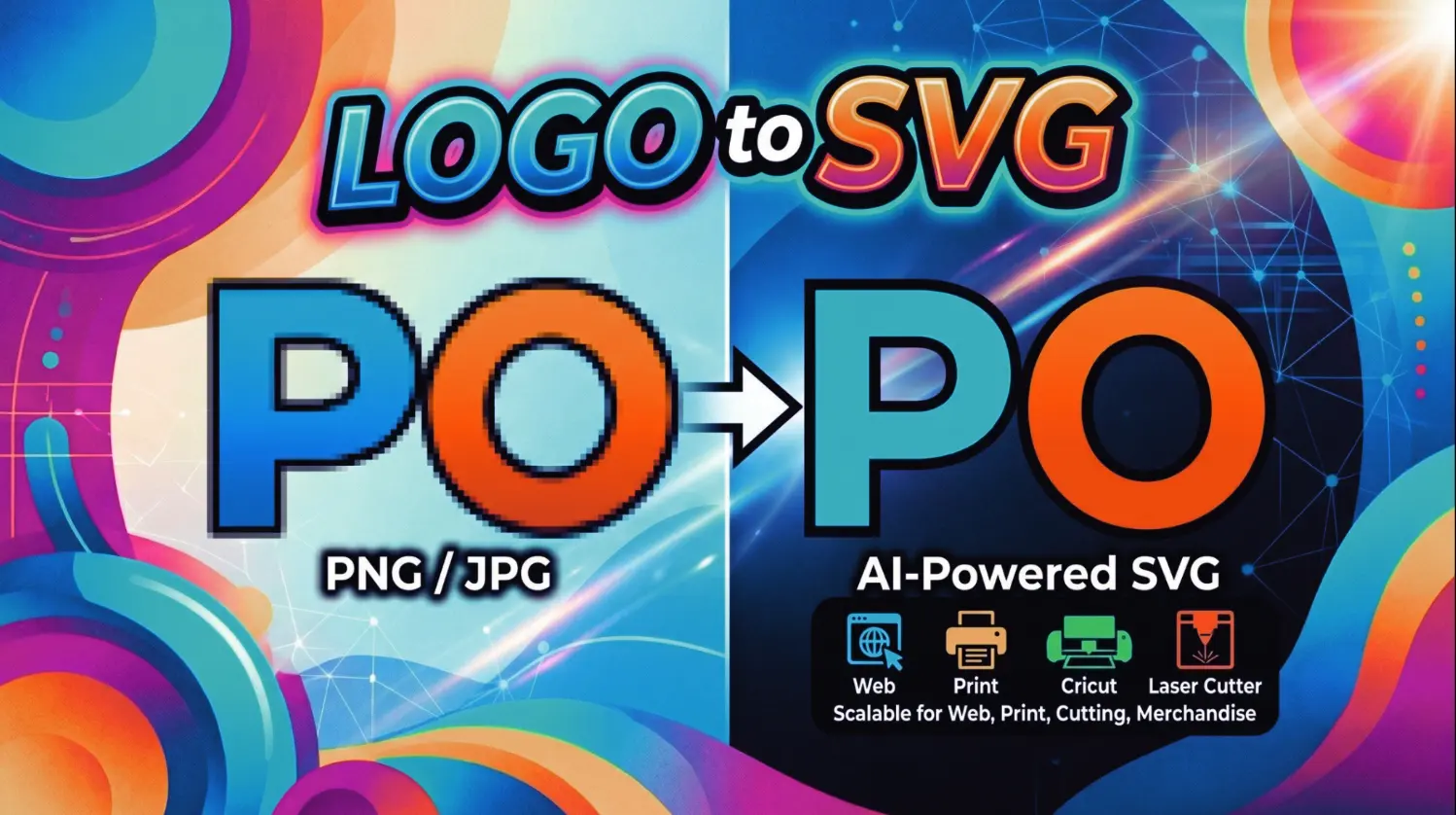
Your logo exists as a low‑res PNG or compressed JPG. The only file your old designer left behind. It looks fine at 300px wide, but the moment you try to print it on a banner, embroider it on a shirt, or even resize it for a favicon, the edges crumble, the colours bleed, and the whole brand looks amateur. The solution isn't to redraw from scratch — it's to convert your existing logo into a clean, editable SVG using AI SVG technology that understands what a logo is, not just where the pixel edges are.
SVGMaker's SVG Logo Converter is a dedicated AI SVG tool. Instead of manually tracing or wrestling with Inkscape's auto‑trace, you upload your logo and the AI rebuilds it as smooth, minimal‑node vector paths. This guide walks you through the entire process of creating SVG files from any logo and shows you how to produce every variant your brand needs, including assets for web dark mode, cutting machines, and even the building blocks for AI app icons, all without a design degree or an Illustrator subscription.
Why Your Logo Needs to Be an SVG
If your logo only exists as a raster file (PNG, JPG, WebP), you're permanently limited:
| PNG / JPG Logo | SVG Logo | |
|---|---|---|
| Scale up | Pixelates, blurs | Stays crisp at any size |
| Edit colours | Requires Photoshop; destructive | Change hex codes directly with a text command |
| File size | 50–500 KB typical | 2–15 KB typical |
| Print quality | DPI‑dependent, often too low | Infinite resolution |
| Web performance | Multiple sizes needed for different breakpoints | One file works everywhere |
| Cut / engrave | Cannot be used directly | Works in Cricut, Silhouette, Glowforge, CNC |
| Dark / light mode | Need two separate image files | Swap colours with CSS in inline SVG |
An SVG logo isn't a nice‑to‑have. It's the single source of truth for every place your brand appears.
When You Need Logo‑to‑SVG Conversion
- You inherited a brand — all you have are PNG exports; the original vector files are gone.
- A client sent a low‑res file — you need it scalable for signage, merch, and web immediately.
- You're rebranding on a budget — you like the existing logo but need it in vector format for production.
- Your print shop or merch vendor rejected the PNG — they need SVG, EPS, or AI to produce screens, embroidery files, or laser‑ready artwork.
- You need Cricut‑ or Silhouette‑ready cut lines — vinyl decals, HTV, stickers, and cardstock all require closed vector paths.
- You're building a website with dark mode — you need a single SVG you can re‑colour with CSS.
- You need favicons and app icons — a vector master lets you export to every required size, and the same clean SVG is the perfect source for generating polished, production‑ready AI app icons.
In every one of these situations, a complete SVG creation toolkit like SVGMaker which combines an AI generator, editor, and converter gives users a genuinely editable SVG in seconds, not a messy auto‑trace.
The Problem with Auto‑Tracing Logos (and How AI SVG Fixes It)
Traditional auto‑trace (Inkscape's Trace Bitmap, Illustrator's Image Trace) doesn't know it's looking at a logo. It blindly follows pixel contrast, and logos suffer in specific ways:
Text gets destroyed. Brand names and taglines become wobbly outlines. Letters lose their spacing, curves look hand‑shaken, and you end up with something that no longer matches your typeface.
Small details vanish or blob together. Fine lines, subtle cut‑outs inside shapes, and small icons merge into indistinguishable masses when the tool can't distinguish them from compression noise.
Colours multiply. A clean 3‑colour logo suddenly has 15 colours because the tracer creates intermediate shades along every anti‑aliased edge. You then spend half an hour manually re‑merging and re‑colouring.
The background becomes vector shapes. Instead of a transparent logo, you get a white rectangle — or worse, the textured photo background traced into hundreds of useless paths.
Paths stay open. Cutting machines and laser cutters demand closed paths. Auto‑trace frequently leaves gaps, making the file unusable for physical production without manual repair.
SVGMaker's AI Vectorization algorithm understands that it's processing a logo. It identifies text, shapes, colours, and the foreground/background relationship before generating any path. The output is a minimal‑node SVG that's already clean, transparent‑background, and text‑accurate.
Step by Step: Convert Your Logo to SVG with SVGMaker
1. Find the Best Source File
The AI works with any resolution, but the rule is simple: better source, better vector.
- Best: High‑resolution PNG with transparent background (1000px+ wide)
- Good: Large JPG on a clean white background, uncompressed
- Acceptable: 300–500px PNG/JPG — AI can still reconstruct shapes intelligently, though very fine text may simplify slightly
- Avoid: Tiny thumbnails under 200px, heavily compressed JPGs with artefacts, photos of printed logos (they introduce perspective distortion and shadows)
2. Upload to SVGMaker's Logo Converter
Go to SVGMaker Logo Converter and drop your logo file. The SVGMaker AI SVG engine inspects the image, identifying:
- logo shapes and their boundaries
- letterforms and text elements
- exact colour regions and their values
- foreground vs. background
Conversion finishes in seconds — no threshold sliders, no mode selection.
3. Review the Vector Output
SVGMaker shows the original PNG and the new SVG side‑by‑side. For a logo, check:
- Text accuracy — do letters match the original typeface?
- Shape precision — are circles round, straight lines truly straight?
- Colour count — does the SVG have the same number of colours as the original, with no extra edges?
- Background — is it transparent? No white rectangle?
- Small details — taglines, icons inside the logo, thin decorative strokes
4. Refine with AI Editing
Fix anything directly in the editor by typing a command:
- "Remove the background"
- "Change the red to #C8102E"
- "Make the tagline text larger"
- "Remove the icon, keep only the text"
- "Create an outline‑only version"
The SVG Editor with AI edits your logo while keeping the vector structure intact so no need to launch Illustrator.
5. Export for Every Use Case
Your SVG logo now serves as the master file for:
- Web — inline SVG with CSS colour control for light/dark mode
- Print — scale to any size for business cards, banners, and signage
- Merchandise — clean vectors for screen printing, embroidery, sublimation
- Cricut & Silhouette — closed paths imported directly into Design Space or Silhouette Studio
- Laser cutting & engraving — Glowforge, xTool, CO2 lasers
- Design tools — open in Figma, Canva, Sketch, or Illustrator without re‑tracing
- App icon generation — the same clean SVG becomes the master artwork for creating polished, production‑ready AI app icons with a single prompt.
Creating SVG Logo Variants from Your Master File
Once your logo is a clean SVG, use the same AI editor to build every variant your brand needs — no designer required:
- Full‑colour primary — your main logo in exact brand colours.
- Single‑colour black — for documents, invoices, and single‑colour print.
- Reversed white — for dark backgrounds, dark‑mode UI, and coloured merch.
- Icon only — drop the text for app icons, favicons, and profile pictures.
- Wordmark only — remove the icon for narrow headers, email signatures, and footer links.
- Simplified version — remove small details for very small sizes.
Typing a single sentence in the editor ("Make everything black on transparent background") gives you an instant variant. And when you're ready to turn your icon‑only variant into a full set of AI app icons — with correct sizes for iOS, Android, and the web. SVGMaker's App Icon Generator takes that clean SVG and outputs every required icon instantly, no manual resizing needed.
Logo SVG for Specific Use Cases
Cricut, Silhouette, and Vinyl Cutting
Your logo SVG needs closed, non‑overlapping paths. SVGMaker's AI SVG conversion automatically closes paths and separates colours into individual layers, so your design imports into Design Space ready to cut — no double‑cuts, no manual node cleanup.
Laser Cutting and Engraving
Stroke paths in the SVG become cut lines; filled regions become engrave zones. Use the same SVG for Glowforge, xTool, or CO2 lasers. Need DXF? Convert SVG to DXF directly after vectorisation.
Web and Apps
Inline SVG lets you change logo colours with a single CSS variable, enabling smooth dark‑mode switching. And because you have a clean vector, creating a complete set of AI app icons from your logo is straightforward. Upload the icon‑only SVG to the app icon generator and get all platform‑ready sizes in one download.
Print and Merchandise
SVG scales to billboard size with zero quality loss. For screen printing and embroidery, your single‑colour logo variant is production‑ready immediately.
Logo Formats: Quick Comparison
| Format | Best For | Scalable | Editable | Typical File Size |
|---|---|---|---|---|
| SVG | Web, apps, cutting, laser, all‑purpose | Yes | Yes | 2–15 KB |
| PNG | Social media, quick sharing | No | No | 50–500 KB |
| JPG | Photos, email previews | No | No | 30–200 KB |
| EPS | Professional print, Illustrator | Yes | With software | 50–500 KB |
| AI | Native Adobe Illustrator editing | Yes | Illustrator only | 100 KB–2 MB |
| DXF | Laser cutting, CNC machines | Yes | CAD software | 10–100 KB |
| Documents, print‑ready proofs | Yes | With software | 50–500 KB |
SVG is the most flexible starting point. From a clean SVG you can export to any other format; from a PNG you can't go back without conversion.
Common Logo Conversion Mistakes to Avoid
- Using a tiny thumbnail as source — a 64×64 favicon PNG doesn't contain enough detail. Always find the largest available file.
- Uploading a photo of your logo — photos introduce shadows, perspective skew, and texture. Use a digital file, not a camera image.
- Skipping the colour check — verify your SVG uses exact brand hex codes. AI gets them close, but adjust if needed with a quick edit.
- Keeping background elements — ensure the final SVG has a transparent background, not a white rectangle or the source image's backdrop.
- Stopping after one conversion — while you're in the editor, create black, white, and icon‑only variants. You'll need them.
- Over‑compressing before upload — heavy JPG compression creates artefacts that AI may trace as real edges. Use the least‑compressed version you have.
Frequently Asked Questions
1. How do I convert my logo from PNG to SVG?
Upload your logo to SVGMaker's AI SVG Logo Converter. The AI identifies shapes, text, and colours, then builds a clean, editable SVG with minimal nodes — no manual tracing needed.
2. Can AI handle low‑resolution logos?
Yes. While a larger source always yields finer detail, SVGMaker's AI intelligently reconstructs shapes even from files as small as 300px wide. For best results, use the highest‑resolution version you can find.
3. Will the SVG work in Cricut Design Space?
Absolutely. SVGMaker's AI SVG output produces closed paths and clean cut lines. Import the SVG directly into Cricut Design Space or Silhouette Studio — no additional cleanup required.
4. What's the difference between an SVG Logo Converter and an AI SVG Generator?
An SVG Logo Converter rebuilds your existing logo as a vector. An AI SVG Generator creates a brand‑new logo from a text prompt. If you already have a logo and just need it in vector format, use the converter.
5. Can I use my logo SVG to generate AI app icons?
Yes. Once you have a clean icon‑only variant, head to the SVGMaker AI App Icon Generator. Upload your SVG and the AI instantly delivers a complete set of AI app icons in every size required for iOS, Android, and web — perfectly sharp and ready to deploy.
6. Can I edit my logo's colours after creating the SVG?
Yes. The AI editor inside SVGMaker lets you change any colour instantly. Type "change the blue to #2563EB" or "make the logo monochrome" and the vector updates while staying perfectly clean.
Conclusion
Your logo deserves to look sharp at every size, and SVGMaker makes that effortless. Whether you're converting an existing PNG logo, generating a brand‑new vector from a text prompt, or editing an SVG you already have. If you've got a flat raster file, the image to SVG converter rebuilds it as clean, scalable paths in seconds. If you're starting from scratch, just describe your brand and the SVGMaker AI SVG logo generator delivers an original, ready‑to‑use vector logo.
Stop working with pixelated, unscalable logo files. Convert your logo to SVG today and get a single vector source file that works everywhere — from your website favicon to a vinyl decal on a storefront window, from a Cricut cut on a custom t‑shirt to a laser‑engraved sign on your office door. Your brand deserves to look sharp at every size.
