AI SVG Logo Generator: Create Professional Vector Logos Free
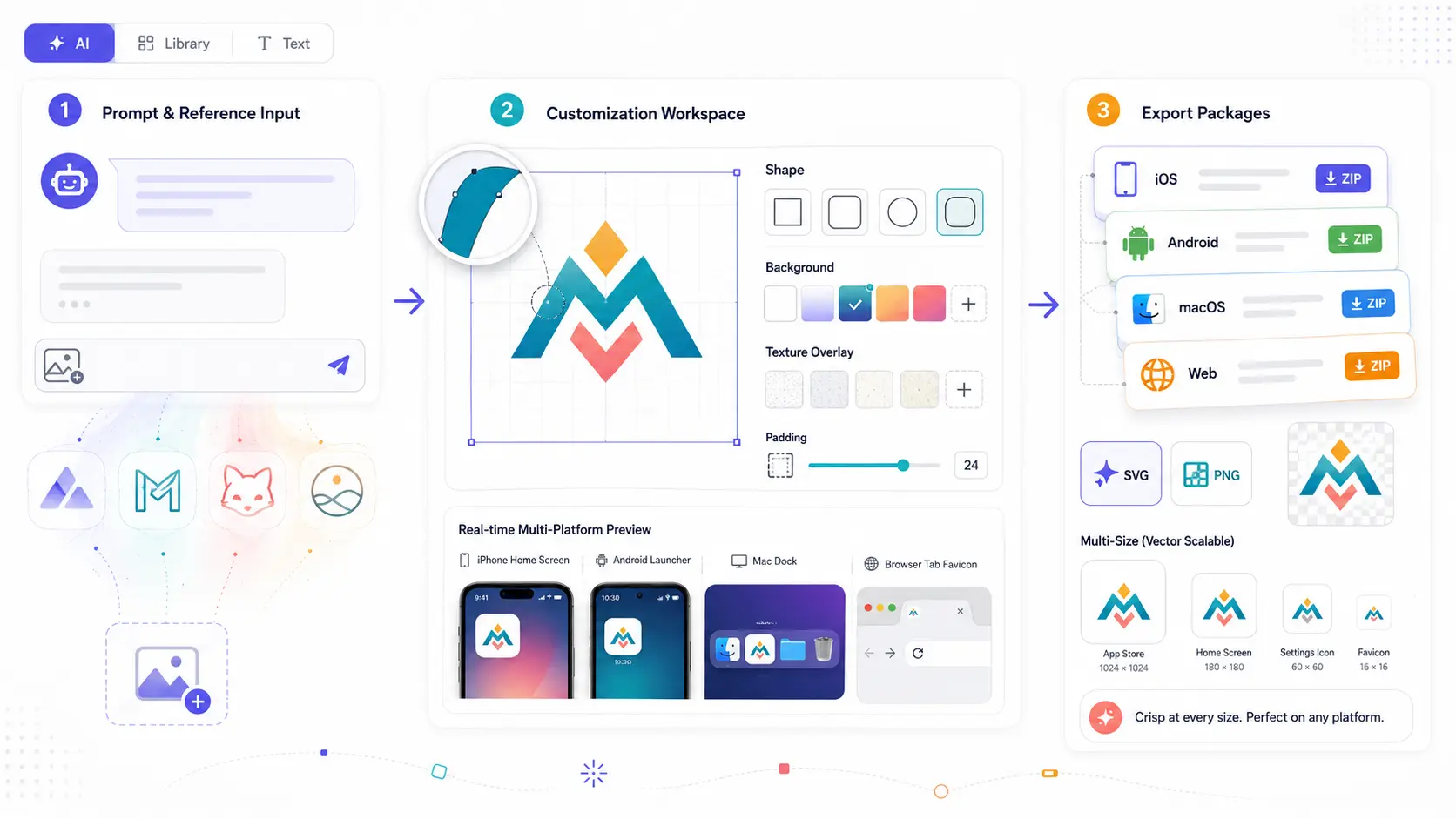
You need a logo. Not a blurry PNG from a template site, but a real vector logo — one that stays sharp from a 16-pixel favicon to a 16-foot banner. That means SVG: scalable, lightweight, editable, and ready for any screen or print surface.
SVGMaker is an AI SVG logo creation tool purpose-built for creating professional vector logos and app icons. Unlike generic image generators, it offers a dedicated workspace with shape customization, background options, texture overlays, multi-platform previews, and one-click export packages for iOS, Android, macOS, and the web. You describe the logo you want in plain English, customize its appearance in real time, and export a production-ready SVG in minutes. If you want to understand how AI logo generators work under the hood — how the models compare to traditional design and how to evaluate results — read our complete guide to AI SVG logo generators.
This article is the hands-on companion. You'll follow the exact workflow from first prompt to final export, with specific examples you can copy and use immediately. Open the Icon Generator in another tab and build alongside this guide.
What You'll Need Before You Start
This walkthrough assumes three things:
- A brand idea. You don't need a finalized brand strategy, but you should know your business name, industry, and the general feeling you want the logo to convey (professional, playful, bold, elegant, etc.).
- A rough color direction. Even "dark blue and white" or "earth tones" is enough. The AI works better with color guidance than without it.
- A free SVGMaker account. Sign up at svgmaker.io to receive 6 free credits instantly, plus additional free credits every day. AI logo generation costs 3 credits per generation. You can also browse 7,000+ open-source icons from libraries like Tabler and Heroicons for free, or create text-based logos at zero credit cost.
Step 1: Write Your Logo Prompt
When you open the Icon Generator, you'll land in a chat-based interface. The AI generation tab is where you describe the logo you want in plain English. You can also upload a reference image to guide the AI toward a specific style or layout.
The quality of your AI-generated logo depends almost entirely on how well you describe what you want. A vague prompt produces a vague logo. A specific prompt produces a specific, usable result.
Prompt Anatomy: What to Include
Every strong logo prompt has four components:
- Icon or symbol — The visual element at the center of the logo. Be concrete: "mountain peak," "rising arrow," "owl silhouette," "interlocking hexagons."
- Industry or context — Tells the AI what tone and conventions to follow. "For a law firm" produces a very different result than "for a surf school."
- Visual style — Describes the aesthetic. Use terms like minimal, geometric, hand-drawn, retro, futuristic, art deco, or flat.
- Color direction — Gives the AI a palette to work with. "Deep navy and gold," "monochrome black," or "warm earth tones" all produce distinct results.
10 Copy-Paste Logo Prompts by Type
These prompts are ready to paste directly into the SVGMaker Icon Generator. Each targets a different logo archetype:
- Abstract mark (SaaS product): "Abstract interlocking circles forming a data flow symbol for a cloud analytics platform, flat geometric style, gradient blue and teal on transparent background"
- Emblem (Craft brewery): "Circular emblem with a hop cone and wheat stalks framing the interior, vintage woodcut style, dark amber and cream, craft beer brewery"
- Lettermark (Design studio): "Uppercase letters D and S merged into a single connected mark, ultra-minimal line art, single weight stroke, black on transparent"
- Wordmark (Fashion label): "The word ATELIER in tall condensed sans-serif letterforms with exaggerated vertical proportions, high-fashion editorial style, matte black"
- Mascot (Pet care brand): "Friendly golden retriever face with a subtle smile, clean flat illustration style, warm orange and white, simple shapes suitable for app icon"
- Icon-based (Environmental nonprofit): "Single oak tree with spreading roots mirroring the canopy above, symmetrical design, forest green line art on transparent"
- Geometric (Architecture firm): "Isometric cube unfolding into a floor plan silhouette, precise architectural line work, steel gray and white, modern minimalist"
- Minimal (Music producer): "Sound wave forming the shape of a vinyl record, ultra-thin single-line stroke, electric purple on transparent background"
- Bold (Esports team): "Stylized wolf head in aggressive angular facets, sharp polygon style, crimson red and black with high contrast"
- Elegant (Boutique hotel): "Art deco keyhole motif with radiating sunburst lines, thin gold strokes on transparent, 1920s luxury aesthetic"
Prompts That Fail: Common Mistakes
Avoid these patterns as they produce unusable or generic results:
- Too vague: "Make me a cool logo" gives the AI no direction. Always include at least an icon and a style.
- Overloaded with contradictions: "Minimalist logo with lots of intricate detail and many bright colors" sends conflicting signals. Pick a lane.
- Copyrighted references: "Logo that looks like the Nike swoosh" or "Apple-style logo" will produce derivative results. Describe the aesthetic you want, not the brand you want to copy.
- Paragraph-length descriptions: Keep prompts to 1–3 sentences. The AI responds better to focused direction than exhaustive specifications.
Step 2: Customize Shape, Background, and Effects
Once the AI generates your logo, the Icon Generator gives you a dedicated customization workspace that goes far beyond basic style settings. This is where your logo goes from a raw AI output to a polished brand asset.
Shape and Frame
Choose how your logo is framed:
| Shape | Best For | Example Use |
|---|---|---|
| Square | Android adaptive icons, Windows tiles | App store listings, desktop shortcuts |
| Rounded | Modern app icons, social media avatars | iOS-style icons, profile images |
| Circle | Favicons, social badges, watermarks | Browser tabs, messaging avatars |
| Squircle | Apple ecosystem icons (iOS, macOS) | iPhone home screen, Mac dock |
Background Options
- Solid color — Pick any hex value. Best for clean, professional logos that need to stand on a uniform surface.
- Gradient — Choose two colors for a smooth transition. Adds depth without complexity.
- Image background — Upload a texture or pattern. Useful for badges and promotional variants.
- Transparent — No background at all. Essential for logos that will be placed on top of other content.
Textures and Effects
The generator includes 13 texture overlays (noise, grain, paper, halftone, and more) that add tactile quality to flat designs. You can also apply effects like drop shadow, cast shadow, or glow to give the logo dimension. Adjust padding from 0–50% to control how much breathing room the icon has within its frame.
These customization layers work in real time — you see every change immediately in the multi-platform preview, which shows how your logo will look on an iPhone home screen, an Android launcher, a Mac dock, and a browser tab simultaneously.
Step 3: Generate, Review, and Iterate
The AI-Powered Icon Generation tool is conversational. After your first generation, you can continue the chat to refine the result: "make the lines thicker," "try a warmer color palette," or "simplify the shape." Each follow-up builds on the previous output, so you're iterating toward your vision rather than starting over each time.
How to Evaluate Your Generated Logo
Before exporting, run through this quick checklist:
- Recognizable at small sizes? Check the multi-platform preview such as the favicon and Apple Watch sizes will reveal whether the logo holds up at tiny dimensions.
- Correct color count? More than 3–4 distinct colors usually means the logo will be harder to reproduce in print or embroidery.
- Clean lines? Zoom in on edges. AI-generated vectors should have smooth curves and sharp corners, not jagged artifacts.
- Works on light and dark? Toggle the background between light and dark in the preview to check contrast.
Three Ways to Generate (No AI Credits Required for Two)
The Icon Generator offers three generation modes:
- AI-generated — Describe your logo in text, optionally upload a reference image. Costs 3 credits per generation.
- Package icons — Browse 7,000+ open-source icons from Tabler, Heroicons, and Lucide. Completely free. Ideal if you find an existing icon that matches your brand and just need to customize colors, shape, and background.
- Text icons — Type your brand name or initials and customize font, size, and color. Completely free. Perfect for clean typographic logos and monograms.
All three modes feed into the same customization workspace, so you get the same shape, background, texture, and export options regardless of how you start.
Step 4: Edit and Refine Your Logo
If you need to go beyond what the Icon Generator's built-in customization offers, SVGMaker provides three additional editing tools for deeper refinement.
Visual Editor: Adjust Colors, Remove Elements, Resize
The visual online editor is the fastest path to pixel-level refinement. Use the color picker to adjust any fill or stroke to match your exact brand hex codes. The Magic Eraser removes unwanted elements with a single click. Layer management lets you reorder, group, or delete individual parts of the logo.
Code Editor: Fine-Tune the SVG Markup
For developers, the code editor opens the raw SVG markup in a Monaco-powered editor (the same engine as VS Code). Strip unnecessary metadata, snap coordinates to whole numbers, add accessibility attributes like <title> and aria-labelledby, and manually adjust path data for precise control.
AI Editor: Natural Language Refinements
The AI editor accepts plain English instructions. Upload your logo and type commands like "change the blue elements to dark navy," "remove the outer ring," or "simplify the design to fewer shapes." The AI modifies the SVG while preserving its vector structure.
| Editor | Best For | Skill Level | Link |
|---|---|---|---|
| Visual Editor | Color changes, element removal, layer management | Beginner | /svg-editor |
| Code Editor | Metadata cleanup, accessibility, precision path editing | Developer | /svg-code-editor |
| AI Editor | Quick style changes via natural language commands | Any level | /edit |
Step 5: Export Your Logo for Every Platform
This is where the Icon Generator's dedicated logo workflow pays off. Instead of manually resizing your SVG for each platform, you export a ready-made package.
One-Click Platform Packages
The Icon Generator exports platform-ready ZIP files containing every size your app or brand needs:
| Platform | What's Included |
|---|---|
| iOS | iPhone, iPad, and App Store icon sizes |
| Android | All density buckets (mdpi through xxxhdpi) plus adaptive icon layers |
| macOS | Standard Mac app icon sizes for Dock and Finder |
| watchOS | Apple Watch icon sizes |
| Web | favicon.ico, apple-touch-icon, PWA manifest icons, maskable variants |
You also get Icon Composer format for direct Xcode integration — drag the export straight into your Apple development project.
Individual Format Export
For non-app use cases (print, merchandise, signage), export your logo individually:
| Format | Use Case |
|---|---|
| SVG | Websites, Figma, design tools — your master file |
| PNG | Social media, email signatures, messaging |
For additional formats like EPS, PDF, AI, and DXF (print shops, laser cutting, Adobe handoff), use the SVG editor or converter to export from your master SVG file. If your logo has background artifacts, run it through the background remover before final export.
Batch Logo Generation with the SVGMaker API
If you're a design agency generating logo concepts for clients, or a developer building a white-label SVG logo maker, SVGMaker's API lets you automate the entire process. Send a prompt and configuration via API, receive a production-ready SVG in the response. The API supports batch processing with up to 10 files per request and unlimited queuing, so you can generate hundreds of logo variations programmatically.
Frequently Asked Questions
1. Is SVGMaker's AI SVG logo generator really free?
Yes. You receive 6 free credits when you sign up and additional free credits every day. AI logo generation costs 3 credits. The package icon library (7,000+ icons) and text icon generator are completely free with no credit cost. For higher volume, paid plans are available.
2. Can I use AI-generated logos for commercial purposes?
Yes. You own the output of your generations. The SVG files you create are yours to use on websites, products, merchandise, business cards, and any other commercial application.
3. What is the best prompt structure for a logo?
Include four elements: an icon or symbol (e.g., "mountain peak"), an industry or context (e.g., "for a hiking gear brand"), a visual style (e.g., "minimal line art"), and a color direction (e.g., "forest green on transparent"). See the 10 copy-paste prompts above for ready-to-use examples.
4. Which generation mode should I use for a minimalist logo?
For a purely typographic mark, use the Text Icon mode — it's free and gives you direct control over font, size, and color. For an icon-based minimalist logo, use AI generation with a prompt that specifies "minimal," "flat," and "few colors."
5. Can I add text to my AI-generated logo?
Yes. After generating the icon, you can add text using the editor. Alternatively, generate a text-based logo using the Text Icon mode and combine it with your AI-generated mark.
6. How do I export my logo for an iOS app?
Use the Icon Generator's one-click platform export. Select iOS, and you'll receive a ZIP containing every required icon size for iPhone, iPad, and the App Store. The export also includes Icon Composer format for direct Xcode import.
7. What file format should I save my logo in?
Always keep the SVG as your master file — it's infinitely scalable and fully editable. Use the platform export packages for app icons. Export to PNG for social media. For print and fabrication, convert your SVG to EPS, PDF, or DXF using the converter.
8. Can I convert my existing PNG logo to SVG?
Yes. Upload your PNG to SVGMaker's converter, and the AI will detect and optimize the paths into a clean vector file.
Conclusion: Your Logo, from Prompt to Production
Building a professional vector logo with SVGMaker follows a clear path: describe your logo in a prompt, customize shape and background and effects in the dedicated workspace, iterate through conversation, refine with the editing suite if needed, and export platform-ready packages for iOS, Android, macOS, and the web.
The entire process takes minutes, costs as little as 3 credits (or zero for package and text icons), and produces true SVG files that scale from a favicon to a billboard without losing a single edge.
For a deeper look at how AI logo generation works and how it compares to traditional design, read our complete guide to AI SVG logo generators. For the practical work, this SVG logo creator walkthrough has everything you need.
Create your first AI SVG logo now — your free credits are waiting.
