SVG Won't Open in Cricut Design Space or Silhouette Studio? Here's How to Fix Every Common Upload Error
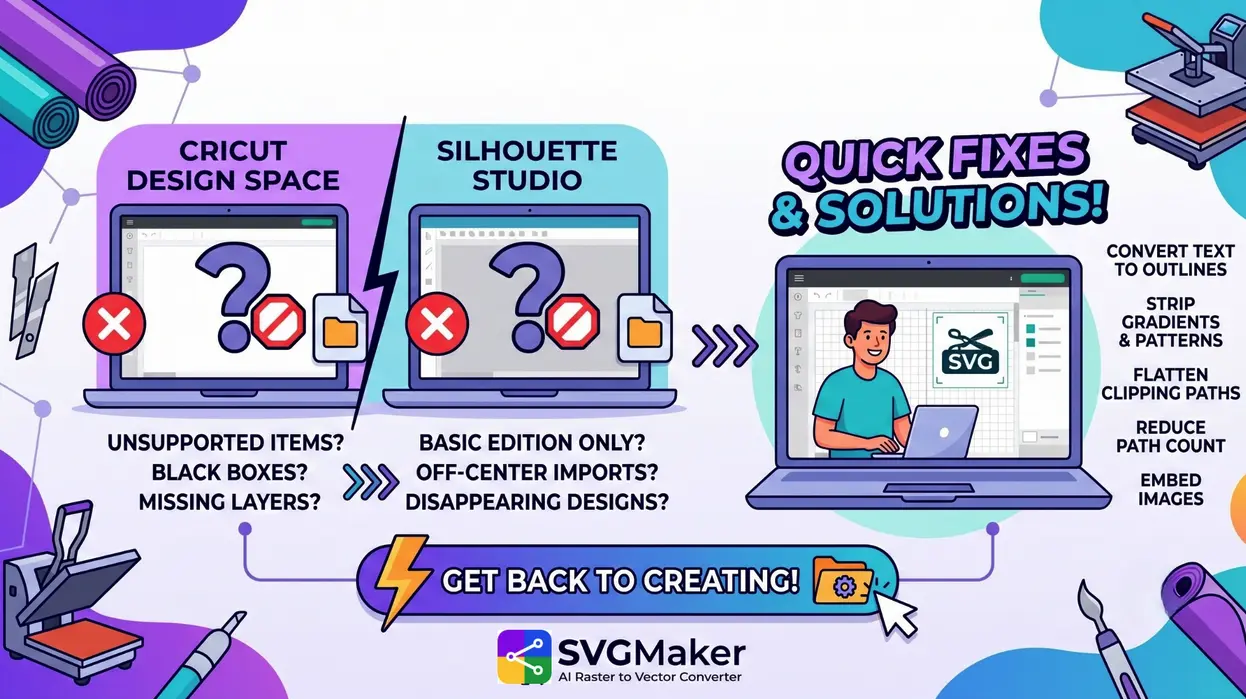
You download an SVG file, drag it into Cricut Design Space, and immediately hit a wall. “Unsupported file,” a blank canvas, or a spinning wheel that never stops. Or you open Silhouette Studio and the SVG doesn't even show up in the file browser. Your project — the vinyl decal, the custom shirt, the laser‑cut ornament — grinds to a halt.
The problem usually isn't your cutting machine software; it's the SVG file itself. A missing attribute, an unsupported element, or a bloated path count is all it takes to break an upload. Every fix below takes under two minutes, and once you understand the handful of reasons SVGs fail, you'll never be stuck again.
Why SVG Files Fail in Cutting Software
Both Cricut Design Space and Silhouette Studio expect a very specific kind of SVG: a vector‑only file with flat colours, no live text, no clipping masks, and a clean coordinate system. When a file is exported from a web‑focused tool, hand‑coded, or generated by a raster‑heavy source, it often carries features that cutting machines don't support.
SVGMaker's AI image to SVG converter produces cut‑ready SVGs by default — no hidden traps. But if you're working with a file from elsewhere, here's exactly how to diagnose and fix the most common errors.
Cricut Design Space Upload Errors (and How to Fix Them Fast)
When Cricut Design Space rejects an SVG, you'll usually see one of these:
- “Your file includes unsupported items”
- Black boxes or a blank preview instead of your design
- Only part of the design visible — missing layers
- The upload spinner hangs indefinitely
Every symptom maps to a specific cause.
Fix 1 — Convert Editable Text to Outlines (The #1 Culprit)
Live, editable text is the single most common reason SVGs fail in Cricut. The software cannot render fonts — it only understands shapes. If text isn't converted to outlines, the upload either dies silently or the text disappears.
How to spot it: Open the SVG in any text editor and search for <text. If you find it, the text is still live.
How to fix it:
- In Illustrator: Select text → Type → Create Outlines (Shift+Ctrl+O).
- In Inkscape: Select text → Path → Object to Path (Shift+Ctrl+C).
- In Figma: Select text → right‑click → Flatten.
- With SVGMaker: Open the SVG in the SVGMaker SVG editor. On export, text is automatically converted to outlines — no manual step required.
Re‑save and upload. This alone solves roughly 40% of Cricut upload failures.
Fix 2 — Strip Pattern Fills and Gradients
Cricut Design Space needs flat, solid colours to separate layers for cutting. Linear gradients, radial gradients, and pattern fills are not supported. If they're present, the upload will either show a black box or be rejected entirely.
How to spot it: Search your SVG file for <pattern, <linearGradient, or <radialGradient.
How to fix it:
- Replace every gradient with a flat hex colour (e.g.,
fill="#FF5733"). - In Illustrator: Object → Expand Appearance, then manually swap fills.
- In Inkscape: Remove gradients and apply solid fills from the Fill & Stroke panel.
- Fastest route: Re‑process the original image through SVGMaker's AI powered vectorizer. It outputs only flat‑colour SVG vectors.
Fix 3 — Flatten Clipping Paths
Clipping paths mask parts of a shape. Cricut Design Space does not understand them — the hidden areas either disappear or the file refuses to open.
How to spot it: Search the SVG for <clipPath or clip-path=.
How to fix it:
- In Illustrator: Select all → Object → Flatten Transparency → check “Convert All Strokes to Outlines.”
- In Inkscape: Select the clipped group, remove the clip, and manually trim.
- With SVGMaker: Open the SVG in the editor and save — clipping paths are resolved automatically during export, giving you a clean, flat vector.
Fix 4 — Reduce Path Count Below 5,000
Cricut Design Space enforces a hard limit of 5,000 individual paths per file. Highly detailed illustrations — especially those auto‑traced from photos or generated by pixel‑based AI — can easily exceed this. The file either refuses to upload or spins forever before timing out.
How to fix it:
- In Inkscape: Select all paths → Path → Simplify (Ctrl+L). Repeat until the path count drops.
- In Illustrator: Object → Path → Simplify → slide the curve precision down.
- In SVGMaker: Run the SVG through the built‑in optimizer. It merges redundant paths and simplifies complex geometry while preserving visual quality.
A quick reality check: if the SVG file is over 1MB, it almost certainly has too many paths for Cricut.
Fix 5 — Keep File Size Under 20MB
Cricut Design Space rejects any SVG larger than 20MB. Most cut‑ready SVGs are under 500KB, so a huge file usually means embedded raster images or thousands of unnecessary path points.
How to fix it:
- Pass the file through an SVG optimizer (SVGMaker's tool, SVGOMG, or Inkscape's “Save as Optimized SVG”).
- Remove any embedded bitmap images — they inflate size without adding cut paths.
Fix 6 — Embed All Images
SVG files can reference images either by embedding the image data directly or by linking to an external file. Cricut Design Space cannot follow external links — it needs the image data inside the SVG. Linked images result in missing graphics or a broken upload.
How to spot it: Search the SVG for xlink:href= pointing to a local file path (e.g., C:\Users\...). If it begins with data:image, it's embedded and safe.
How to fix it:
- In Inkscape: Extensions → Images → Embed Images.
- In Illustrator: Save As SVG → SVG Options → Image Location → Embed.
- Re‑exporting through SVGMaker always embeds images — never links.
Fix 7 — Add a Missing viewBox Attribute
Without a viewBox, Cricut has no coordinate system. The design may import at a single pixel or not at all. This is common with hand‑coded SVGs or exports from older software.
How to spot it: The opening <svg> tag should contain viewBox="0 0 width height". If it doesn't, that's the problem.
How to fix it:
- Manually add
viewBox="0 0 [width] [height]"matching the width and height attributes. - Or open the file in Inkscape and re‑save — it automatically inserts a viewBox.
SVG Not Opening in Silhouette Studio? Check These First
Do You Have the Right Edition?
The free Basic Edition of Silhouette Studio cannot open SVG files at all. You need at least Designer Edition ($49.99) to import SVGs. Without it, no SVG will appear — no matter how clean the file is.
Workaround: Convert the SVG to DXF using Inkscape (File → Save As → DXF) and import the DXF into Basic Edition. You'll lose colour information but preserve all cut paths.
Fix File Association Issues (Windows / Mac)
Double‑clicking an SVG opens it in your web browser, not Silhouette Studio. This is a system setting, not a file defect.
- Windows: Right‑click the .svg → Open with → Choose another app → select Silhouette Studio → check “Always use this app.”
- Mac: Right‑click → Get Info → under “Open with,” choose Silhouette Studio → click “Change All.”
Fix Disappearing Designs (Red Cut Line Bug)
A known bug in some Silhouette Studio versions makes shapes with only a red stroke and no fill vanish when saved as SVG. The file opens blank even though the path data is still there.
Fix: Update to the latest Silhouette Studio version (v4.5+). Before saving, give shapes a visible fill — not just a cut line.
Fix Off‑Center or Zoomed‑In Imports
If your design lands way outside the mat area, adjust the import settings:
- File → Preferences.
- Under Import Options, set SVG import to “Centered.”
- Re‑import the file.
Black Boxes and Blank Screens — What's Really Going On
When both Cricut and Silhouette show a black rectangle or a totally empty canvas, the cause is almost always one of three things:
- The SVG is a raster wrapper. It looks like a vector file, but inside it's just a PNG or JPG embedded in an
<image>tag. Cutting machines need real paths. - The SVG markup is corrupt. A partial download or non‑standard export can break the file structure.
- The SVG uses CSS for styling.
<style>blocks and external CSS are ignored; Cricut and Silhouette need inlinefillattributes on every element.
One‑step fix for all three: Re‑convert the original image through SVGMaker's AI converter. It generates true vector paths, never embeds raster images, and outputs only inline styling — a clean, cut‑ready SVG every time.
Cricut vs. Silhouette: SVG Compatibility at a Glance
| Feature | Cricut Design Space | Silhouette Studio |
|---|---|---|
| SVG support | All versions | Designer Edition+ ($49.99) |
| Max file size | 20 MB | No hard limit (slows above 10 MB) |
| Max path count | 5,000 paths | No hard limit |
| Pattern fills | Not supported | Supported |
| Gradients | Not supported | Limited support |
| Clipping paths | Not supported | Supported |
| Editable text | Not supported | Converts to paths on cut, but supported for display |
| CSS styling | Not supported | Partially supported |
viewBox required | Yes | Yes |
The take‑away: Cricut is stricter. An SVG that works perfectly in Silhouette Studio may still fail in Design Space. If you're designing for both, build for Cricut — and your files will always be safe in Silhouette too.
How SVGMaker Eliminates Upload Errors Before They Happen
SVGMaker's AI SVG platform, which includes an AI generator, editor, and converter. It is built to produce production‑ready vector files. When you create or re‑convert an image through SVGMaker:
- Text is automatically converted to outlines.
- Colours are flat and solid.
- Clipping paths are resolved.
- Images are embedded, not linked.
- A valid
viewBoxis always present. - Path counts are optimized for cutting machines.
- The file size stays well under any upload limit.
If you ever receive a broken SVG from another source, the fastest universal fix is to run it through SVGMaker's image to svg conversion AI tool. It rebuilds the file as a clean, cut‑ready vector that uploads to any machine for the first time.
Quick Troubleshooting Checklist
Before you upload any SVG to your cutting software, run through this list:
- File extension is
.svg(not.svg.zipor.svg.png) - File opens correctly in a web browser
- No
<text>elements — all text converted to outlines - No
<pattern>,<linearGradient>, or<radialGradient>tags - No
<clipPath>elements viewBoxattribute is present in the<svg>tag- All images are embedded (no external file paths)
- File size under 20 MB (for Cricut)
- Path count under 5,000 (for Cricut)
- Saved as “Plain SVG” — not “Inkscape SVG” or “SVG with CSS”
If all boxes are checked and the file still fails, the SVG is likely corrupt. Re‑convert from the original source.
Frequently Asked Questions
1. Why won't my SVG file open in Cricut Design Space?
The most common cause is editable text that hasn't been converted to outlines. Other frequent culprits include pattern fills, clipping paths, a missing viewBox, or a file that exceeds the 5,000‑path or 20MB limit. Open the SVG in a text editor and search for <text, <pattern, or <clipPath to quickly identify the issue.
2. How do I fix an unsupported SVG in Cricut?
Open the file in Inkscape (free) or SVGMaker's editor. Convert all text to paths, replace gradients with flat colours, flatten clipping masks, and re‑save as “Plain SVG.” For a one‑click fix, re‑convert the original image through SVGMaker's AI converter, which outputs a Cricut‑compatible SVG automatically.
3. Can Silhouette Studio open SVG files?
Only with Designer Edition ($49.99) or higher. The free Basic Edition cannot import SVGs. As a free workaround, convert the SVG to DXF using Inkscape, then import the DXF into Basic Edition. You'll keep all cut paths but lose colour layers.
4. Why does my SVG show as a black box in Cricut?
The SVG likely contains an embedded raster image (PNG/JPG) instead of actual vector paths. Cricut treats it as an image upload, not a cut file. You need to re‑trace or re‑convert the image into true vectors. SVGMaker has an AI raster to vector converter tool to perform this vectorization in seconds.
5. How do I reduce the number of paths for Cricut?
Use Inkscape's Path → Simplify (Ctrl+L) repeatedly, or Illustrator's Object → Path → Simplify. The SVGMaker optimizer also merges and reduces paths while keeping the design visually intact. Aim for under 5,000 paths.
6. Why is my SVG not showing up in Silhouette Studio even though I have Designer Edition?
Check your file associations (make sure SVGs open with Silhouette Studio) and the import centering preferences. Also, ensure the SVG doesn't rely solely on CSS for styling inline fills are safer.
7. How do I make any SVG cut‑ready instantly?
Drag the file into SVGMaker's AI converter. It rebuilds the SVG from scratch as a clean, flat, machine‑compatible vector that works in Cricut Design Space, Silhouette Studio, and any other cutting software.
Start Cutting, Not Troubleshooting
Your cutter is waiting. If an SVG won't open, you now know exactly what to check — and that the fastest, most reliable fix is often a single conversion. Upload your broken or original file to SVGMaker's converter, download a clean cut‑ready SVG, and get back to the project you planned for tonight. No Illustrator, no Inkscape marathon, just a perfect vector file that uploads for the first time.
