How to Edit SVG Files for Cricut Design Space: 10 Essential Tips for Layers, Colors, Text & Cut Lines
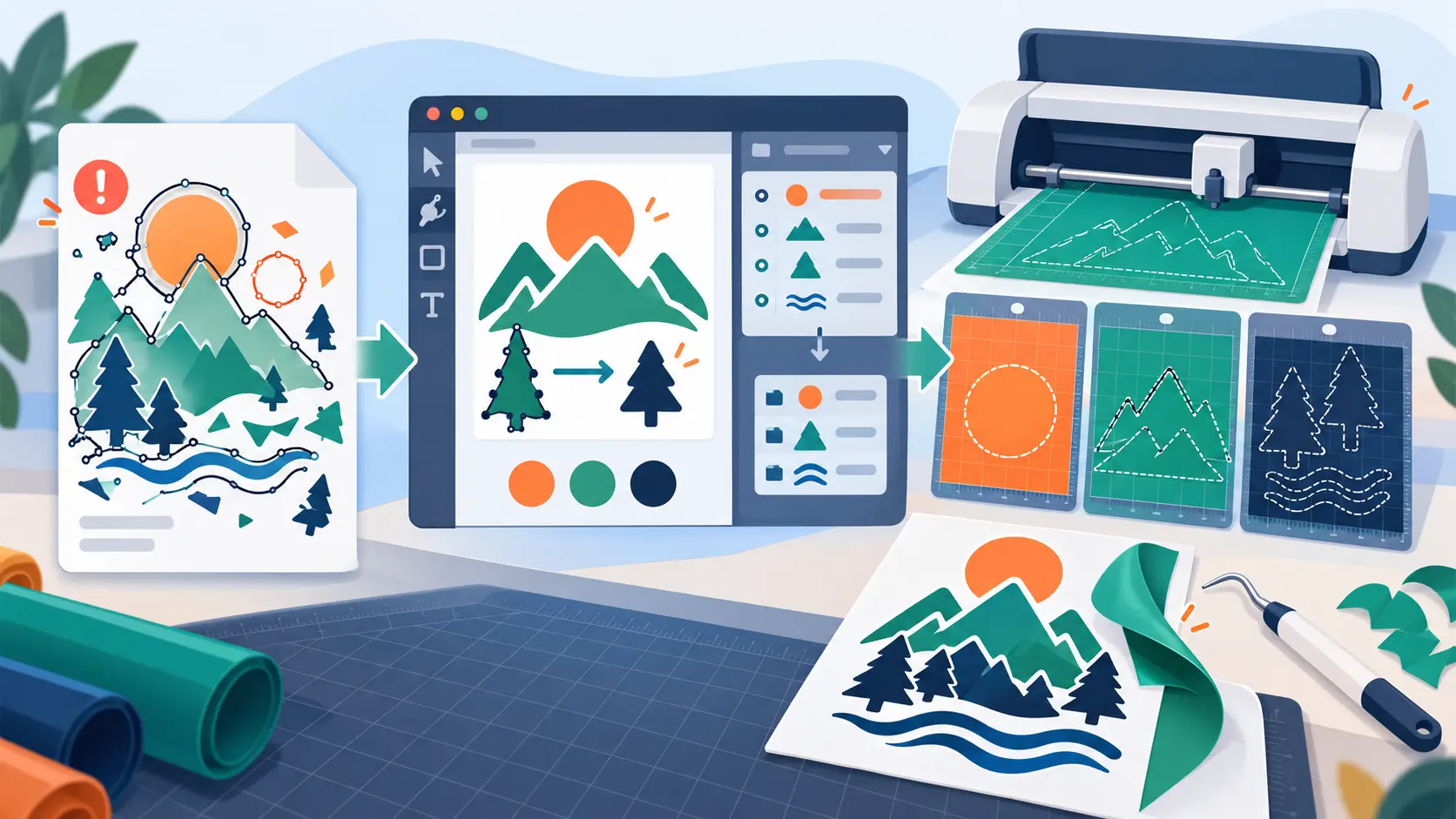
You found the perfect SVG for your next shirt, mug, or wall decal. You upload it to Cricut Design Space, hit Make It, and the trouble starts. The file asks for nine mats when you expected two. A white square shows up behind the artwork. The script text tears apart while weeding. One outline never gets cut at all.
And you're not alone. According to Cricut's Q2 2026 financial report, the platform had nearly 6 million active users, reflecting the popularity of personalized crafting. Yet even with SVG's popularity, not every vector design is ready for cutting. In fact, Cricut's official upload guidelines specify a 5,000-path limit for SVG files, beyond which uploads can fail.
None of this means the SVG is broken. It means the file was made for a screen, not for a blade. An SVG that looks great in a browser can still be a bad cut file, because a cutting machine reads every shape, every color, and every hidden object as an instruction. Missing paths, broken shapes, or corrupted SVG files can also cause unexpected cutting errors.
The good news is that most of these problems are fixed with a few small edits before you upload. You do not need Illustrator or years of design experience. A free browser tool like the SVGMaker’s SVG Editor and a few habits inside Design Space are enough.
In this guide, you will learn:
- What makes an SVG truly ready for Cricut.
- A quick check to run before you change anything.
- 10 essential tips for layers, colors, text, and cut lines.
- How to match each common upload problem to the right fix.
Whether you sell cut files on Etsy, run a small craft business, or just want your weekend project to cut cleanly the first time, this guide is for you. If you do not have a design yet, start with our guide on how to make SVG files for Cricut, then come back here to fix and fine tune it.
What Makes an SVG Cricut Ready?
Cricut Design Space reads an SVG as a cut plan. Every closed shape becomes a cut path, and every fill color becomes its own layer, which usually means its own mat. So a Cricut ready file is not about looking pretty. It is about giving the machine clear, simple instructions.
| Requirement | What It Means | Why Cricut Cares |
|---|---|---|
| Real vector shapes | Paths and shapes, not a PNG or JPG hidden inside the file | Design Space cannot cut a picture, only shapes |
| No accidental background | No full size white rectangle behind the art | Otherwise the machine cuts a big square |
| Flat, solid colors | No gradients, patterns, or textures | Cricut does not support pattern fills, and each color becomes a layer |
| Filled shapes, not strokes | Outlines drawn as thin filled shapes | The blade follows the path, not how thick the line looks |
| Text as shapes | Letters converted to outlines | Fonts on your computer are not packed into the SVG |
| A valid viewBox | The canvas size information is kept | The file imports at the right size and proportions |
| Cuttable details | Nothing smaller than the blade and material can handle | Tiny pieces tear or get lost while weeding |
Cricut's own help center confirms the two biggest rules: SVG files for upload cannot contain non vector images, and they cannot use pattern fills, which includes gradients and textures. If your file breaks one of those rules, no amount of resizing will save it.
First, Run a 2 Minute Check Before You Edit
Before you start changing things, find out what you are working with. This quick check tells you which tips below you actually need.
- Make a copy. Never edit the only version of a file you bought or made.
- Search the code for
<image. Open the SVG in a text editor and search. If you find<imageordata:image/png;base64, part of your “SVG” is really a picture. - Look for a background. A
<rect>near the top of the file with the full width and height and a white fill is the usual cause of the white square. - Count the colors. Every distinct color will turn into a separate layer in Design Space.
- Check the text. If you can select and retype the words, it is live text and must be outlined before cutting.
- Zoom to the final size. Look at the design at the real size you plan to cut. Hairline details and tiny dots will be obvious right away.
Once you know what is wrong, work through the tips below in order. Fix one problem at a time and save after each step, so you always know which change caused a new issue.
10 Essential Tips to Edit SVG Files for Cricut Design Space
1. Start From a Copy and Make Sure It Is a Real Vector
Every edit starts the same way: duplicate the original file and work on the copy. Name it something clear like design_cricut.svg so you never upload the wrong version.
Then confirm that the file is a true vector. Many free and AI made “SVGs” are just a PNG or JPG wrapped inside SVG tags. They open fine, but Design Space either rejects them or imports them as a flat image that cannot be cut into layers.
If your check found an <image tag, do not try to edit around it. Convert the original image into real vector shapes first, and pick the tool that matches what you started with:
- A logo or brand mark: Run the PNG, JPG, or WebP through the Logo to SVG converter. It turns the logo into clean, editable vector paths that Design Space can cut. The same AI converter also handles clipart, stickers, icons, and pictures, so most cut file sources are covered.
- A hand drawn sketch or doodle: Use AI Sketch to SVG. Upload a photo of your drawing or sketch it right on the canvas, then describe what you want, for example “bold single color outline, no thin lines.”
- A photo: Use AI Photo to SVG. Upload the photo and describe the result, such as “flat two color silhouette for vinyl, no tiny details.” Your prompt sets the style, so you can ask for a cut friendly design from the start.
After that, come back and continue with the rest of these tips.
2. Delete the Background and Anything That Should Not Cut
Design Space cuts everything it sees, including shapes you never meant to keep. The most common one is a background rectangle that design tools and converters add to fill the canvas.
A typical background looks like this in the code:
The second line, the <rect>, is the background. Delete it and the white square is gone. If you prefer not to touch code, open the file in the SVGMaker SVG Editor, click the background shape, and delete it. You can also use the Magic Eraser to remove a stray area that is not a clean rectangle.
While you are there, remove other things that should not cut: hidden objects, guide lines, watermarks, mockup frames, drop shadows, and tiny leftover fragments from tracing.
3. Ungroup and Organize Your Layers
A messy SVG often has everything packed into one big group, or the opposite, hundreds of loose pieces. Neither is easy to work with in Design Space.
Open the Layers panel in your editor and clean it up:
- Ungroup everything once so you can see each shape on its own.
- Group again by material. Put all the black vinyl shapes in one group, all the white shapes in another, and so on.
- Rename the groups with simple names like “Black base” or “Gold text” so they are easy to spot after upload.
- Lock or hide layers you are not editing so you do not move them by mistake.
The rule of thumb is simple: one group per material or color. When the file arrives in Design Space with that structure, every layer maps to a mat without extra work.
4. Merge Similar Colors to Cut Down on Mats
Here is where most people lose time and vinyl. Design Space treats every distinct fill color as a separate layer. To your eye, #1A1A1A and #1C1C1C are the same black. To Cricut, they are two layers and two mats.
AI generated and traced files are the worst offenders, because they often contain dozens of near identical shades.
Fix it before upload:
- Decide how many vinyl colors you actually plan to use.
- Replace every similar shade with one exact color for each material.
- Remove gradients completely and swap them for one solid color.
The fastest way to do this is editing SVG Color. It scans the file and lists every color it uses, including fills, strokes, and gradients. You can then select all the elements that share one color and recolor them together, so you change each shade once instead of clicking shapes one by one.
If you still end up with extra layers after upload, Design Space's Color Sync panel lets you drag one color onto another to merge them onto the same mat.
5. Turn Strokes Into Filled Shapes for Clean Cut Lines
This is the tip that saves the most failed cuts. In an SVG, a line can be drawn two ways:
- As a stroke: a thin path with a thickness setting, like
<path d="M10 10 L90 10" stroke="#000000"/>. - As a filled shape: a closed outline whose inside is filled with color.
Design Space follows the path itself, not the thickness you see on screen. So a thick stroked outline may cut as a single thin line, or not show up as a cut at all. What looked like a bold border on screen becomes a hairline in vinyl.
Before upload, convert important strokes into filled outlines. Most design tools call this “Stroke to Path” or “Outline Stroke.” Then check the result: the line should now be a closed shape with an inside and an outside edge. If you only need a border around a shape, an easier route is to use Design Space's Offset tool after upload, which draws a clean filled outline around your design.
6. Finalize Your Text, Then Outline It
Text causes trouble in two ways. First, fonts installed on your computer are not packed into the SVG, so Design Space may swap in a different font. Second, script fonts have letters that overlap, and each letter cuts separately unless you join them.
Follow this order:
- Fix the words first. Check spelling, spacing, and size while the text is still editable. In the SVGMaker SVG Editor you can retype text and pick from more than 90 fonts with a live preview.
- Outline the text. Cricut's own guidance is that text should be turned into a shape before it goes to Design Space. When you export from the SVGMaker SVG Editor, text set in its web fonts is saved as vector paths, so the letters arrive as shapes. In other tools, look for Create Outlines or Object to Path. Either way, check after upload that the words came in as shapes and not as live text.
- Weld script fonts. After upload, select the script word and use Weld so the overlapping letters become one continuous piece that cuts and weeds as a single word.
Keep a copy with live text before you outline it. Once text is a shape, you cannot retype it, so you will want that copy if a customer asks for a name change later.
7. Know When to Use Weld, Attach, Slice, and Combine
These four tools in Design Space look similar but do very different jobs. Picking the wrong one is a very common reason a design cuts in the wrong places.
| Tool | What It Does | When to Use It |
|---|---|---|
| Weld | Merges overlapping shapes into one single shape and removes the inner cut lines | Script text, joining letters to a base, making one solid sticker |
| Attach | Keeps shapes in the same position on the mat without merging them | Pieces that must stay arranged together, like letters in a word |
| Slice | Cuts one shape out of another, creating new pieces | Knocking text out of a shape, making cutouts |
| Combine | Unites, subtracts, intersects, or excludes shapes while keeping them editable | When you want the effect of Weld or Slice but may change it later |
| Group | Moves shapes together on the canvas only | Organizing; it does not affect how anything cuts |
A simple memory trick: Weld changes the shape, Attach keeps the layout, Group only moves things around. If letters fly to random spots on the mat, you needed Attach. If you see cut lines inside a word, you needed Weld.
If you would rather do the shape work before upload, the Boolean Operation tool in the SVGMaker SVG Editor does the same combine, intersect, and subtract jobs right inside the file.
8. Remove Details That Are Too Small to Cut or Weed
A design can look perfect on screen and still be impossible to cut. Very thin lines, tiny dots, and small holes inside letters either tear while cutting or vanish while weeding.
What counts as “too small” depends on your material and machine, but as a rough guide, many crafters treat about 1/8 inch (around 3 mm) as a safe minimum for lines and gaps in standard vinyl. Iron on vinyl and glitter vinyl usually need a little more room.
How to fix tiny details:
- Make thin lines thicker or delete them if they do not matter to the design.
- Remove specks and dots left over from tracing.
- Simplify noisy paths that have too many anchor points. Smoother paths cut cleaner and upload faster.
- Enlarge the whole design if the detail is part of the look and you have the space.
Do this cleanup after the design looks right, not before. Simplifying paths too early can change the shape of your art in ways that are hard to undo.
Stencils need extra care, because the small islands inside letters like O and A fall out when you cut. Our guide on creating Cricut ready SVG files for stencils and vinyl cutting shows how to add thin bridges so those pieces stay in place.
9. Keep the viewBox and Set the Real Size
The viewBox is a small line of information in the SVG that tells programs how big the canvas is and where the artwork sits. It looks like this: viewBox="0 0 300 300".
If the viewBox is missing or wrong, the design can import into Design Space at a strange size, get squished, or sit off to one side of the canvas. Some cleanup tools strip it out to make the file smaller, which is a bad trade for a cut file.
Two simple habits help here:
- Never delete the
viewBoxwhen cleaning up the code. - Resize in Design Space, not in the code. After upload, set the exact width you want and keep the lock icon closed so the height scales with it.
If you sell SVG bundles, also tell buyers the intended cut size. A design made to be 10 inches wide may have details that do not survive being shrunk down to 2 inches.
10. Set the Right Operation and Test Cut on Scrap First
Once the file is uploaded, check the Operation setting for each layer in Design Space. This tells the machine what to do with that layer.
| Operation | What It Does | Typical Use |
|---|---|---|
| Basic Cut | Cuts along the shape outline | Vinyl, cardstock, iron on |
| Pen / Draw | Draws the line with a pen instead of cutting | Cards, labels, handwritten effects |
| Score | Presses a fold line without cutting through | Boxes, folded cards |
| Engrave / Deboss / Foil | Uses special tools on supported machines | Metal, leather, foil accents |
| Print Then Cut | Prints the design, then cuts around it | Stickers and full color designs |
A common mistake is leaving a detail line set to Basic Cut when it should be Draw or Score, which slices your project apart. Another is needing Print Then Cut for a full color design; in that case, select the layers and use Flatten so they print as one image and cut as one outline.
Finally, always do a small test cut on scrap material before cutting the real project. It takes a minute and costs almost nothing, and it is the only way to be sure your edits worked on the actual blade and material.
Common Cricut SVG Problems and Which Tip Fixes Them
| Problem You See | Likely Cause | Fix |
|---|---|---|
| Upload is rejected or shows an error | Hidden PNG or JPG, or unsupported gradient | Tip 1 and Tip 4 |
| A white square cuts around the design | Background rectangle in the file | Tip 2 |
| Far more mats than expected | Many near identical colors | Tip 4 |
| An outline does not cut or cuts as a hairline | Line drawn as a stroke | Tip 5 |
| Wrong font or text breaks apart | Live text or unwelded script | Tip 6 |
| Letters scatter on the mat | Shapes grouped but not attached | Tip 7 |
| Pieces tear while weeding | Details too small for the material | Tip 8 |
| Design imports at a strange size | Missing or wrong viewBox | Tip 9 |
| Lines slice through the project | Wrong Operation setting | Tip 10 |
If Design Space will not open or upload the file at all, start with our quick fixes for SVGs that will not open in Cricut Design Space or Silhouette Studio, then come back to these tips.
Frequently Asked Questions
1. Can I edit an SVG file directly in Cricut Design Space?
Partly. Design Space lets you ungroup, hide, recolor, weld, slice, and resize layers. It cannot edit individual anchor points, convert strokes to fills, or remove a hidden background inside a complex group very well. For those jobs, edit the SVG in a dedicated editor first and then upload the clean file.
2. Why does my SVG create so many mats in Design Space?
Because Design Space makes one layer for every distinct fill color, and each color usually goes on its own mat. Files from AI tools and auto tracing often contain many shades that look the same. Merge them into one exact color per material before upload, or use Color Sync in Design Space after upload.
3. Why does a white box cut around my design?
There is a background rectangle inside the SVG. It is usually one of the first shapes in the file. Delete it in an editor or remove that <rect> line from the code, and the box will no longer cut.
4. Should I use strokes or filled shapes for Cricut cut files?
Filled, closed shapes whenever you can. The blade follows the path, not the visual thickness of a stroke, so stroked lines often cut as thin single lines or get missed. Convert important strokes to outlines before upload.
5. How do I keep script text in one piece?
Outline the text into shapes, upload the file, then select the word and use Weld in Design Space. Weld joins the overlapping letters into one shape so the word cuts and weeds as a single piece.
6. What is the difference between Weld and Attach?
Weld merges shapes into one new shape and removes the inner cut lines. Attach keeps shapes separate but locks their position to each other on the mat. Use Weld for joined letters and Attach for pieces that must stay arranged as designed.
7. Can I fix an AI generated image so it works with Cricut?
Yes, as long as you turn it into a real vector first. Convert the image into clean paths, then follow the tips above: remove the background, merge colors, outline text, and clean up tiny details before you upload.
Conclusion
Editing an SVG for Cricut Design Space is less about design skill and more about giving the machine a clear plan. Every shape should be meant to cut, every color should represent a real material, every line should be a filled shape, and every word should be a solid outline.
Work through the tips in order. Start with a copy, verify that the file is a true vector, remove unwanted backgrounds, organize layers, merge colors, fix strokes and text, clean up tiny details, preserve the viewBox, and select the correct cut operation. Always test on scrap material before making the final cut.
With SVGMaker, preparing SVG files for Cricut doesn’t have to be complicated. A few simple edits can help prevent failed uploads, unnecessary cutting mats, and wasted vinyl. By making these adjustments part of your workflow, you can turn even complex SVG designs into cleaner, cut-ready files and spend more time creating instead of troubleshooting.