How to Create Consistent, On Brand SVG Illustration Packs with an AI Design Agent and Figma Plugin
You open your product file in Figma and look at the onboarding flow. The welcome screen has a soft, flat illustration. The empty state two screens later has a sketchy one with thick outlines. The success screen uses a 3D style someone found on a stock site. The blues are close to your brand blue, but none of them are actually your brand blue.
Each illustration looks fine by itself. Together, they make a polished product look patched together.
This is the most common problem with illustration packs. It rarely comes from bad art. It comes from art made at different times, by different people, with different tools, and with no shared rules. AI generators can make this worse, because every prompt is a fresh start. The model has no memory of the last picture you made and no idea what your brand looks like.
The fix is to give the AI those rules up front and to keep the whole pack inside one workflow. In this guide, you'll learn how to do that with two tools that work well together:
- The AI Design Agent in SVGMaker, which builds the whole pack from your brand kit and a locked style.
- The SVGMaker Figma plugin, which brings vectors onto your canvas and lets you add, edit and convert pieces without leaving Figma.
Whether you're a product designer building a design system, a marketer making launch visuals, or a developer who needs clean SVGs for an app, this guide walks you through the full process.
Why Illustration Packs Drift Off Brand
Before you fix the problem, it helps to name it. Here are the five ways an illustration pack usually drifts.
| Problem | What It Looks Like | Why It Happens |
|---|---|---|
| Style drift | Flat art next to sketchy art next to 3D art in the same flow | Each piece was made or sourced separately, with no locked style |
| Color mismatch | Blues and greens that are "close enough" but not your real HEX codes | The AI or stock artist guessed your palette instead of using it |
| Detail mismatch | A busy hero image next to a nearly empty state screen | No shared rule for how much detail a piece should carry |
| Stroke and shape drift | Thin lines on one piece, thick outlines on the next, sharp corners here, round ones there | Every generation picks line weight and corners on its own |
| Lost time | Hours spent searching, recoloring, exporting and renaming files | The work happens in five tools instead of one |
Each of these is small. Together they slow down shipping, weaken your brand and leave you with design debt that grows every sprint.
Meet the Two Tools
The AI Design Agent
The Design Agent is a chat based designer in SVGMaker. You describe what you need in plain English, and it plans, draws and delivers real SVG files. Not a flattened image, but vectors you can open, recolor and ship.
Three features make it suited to illustration packs:
- Brand kits. A brand kit holds your logos, brand colors and fonts in one place. Attach it to a chat and every design in that chat follows it.
- Styles. A style holds one look, such as Flat Minimal, Line Art, Isometric, Cartoon or Kawaii. It is a short written instruction plus up to five reference images that show the look. You can use a community style or make your own.
- Sessions that remember. When you send a follow up in the same chat, the agent refines the work it already did instead of starting over. That memory is what keeps piece ten looking like piece one.
The SVGMaker Figma Plugin
The SVGMaker Figma plugin brings AI vector work into your Figma file. It does three jobs:
- Generate a new SVG from a text prompt, with a choice of aspect ratio (Auto, Square, Portrait or Landscape) and background (Auto, Transparent or Opaque).
- Edit an image with AI by uploading it or selecting it on your canvas and describing the change.
- Convert a raster image such as a PNG, JPG or WebP into a clean, scalable SVG.
Every result lands on your canvas as editable vector layers, and a copy is saved in your SVGMaker account. If you are new to the plugin, our guide on generating AI SVG graphics in Figma with SVGMaker covers setup and sign in.
One thing to know before you start: the plugin does not read your brand kit or styles. Those live in the Design Agent. So the agent builds the pack, and the plugin is where you place it, extend it and touch it up. The steps below are built around that split.
Step by Step: Build Your Illustration Pack
Step 1: Set Up Your Brand Kit
Your brand kit is the single source of truth for colors, fonts and logos. Set it up once and reuse it in every chat.
There are two ways to make one:
- From a brand book. Drop your brand guidelines as a PDF (up to 20 pages) or as page images. The agent reads the book, pulls out the palette and fonts, and crops and cleans the logo instead of redrawing it.
- From a design chat. If you don't have a brand book yet, start a chat and build the identity with the agent.
A few tips for the palette:
- Keep it to four to six colors: one main color, one or two support colors, and a set of neutrals.
- Use exact HEX codes. "Navy" is a guess.
#1E2A4Ais a rule. - Check the fonts. The kit only holds fonts from its library, so if your book names a commercial font, the agent will suggest the closest match for you to approve.
Step 2: Pick or Create a Style
A brand kit says whose the art is. A style says how it is drawn. You need both for a consistent pack.
Open the Styles page and either:
- Pick a community style like Flat Minimal, Line Art, Bold Stroke, Isometric, Geometric Pattern or Badge and Emblem.
- Create your own style. Write a short instruction and add up to five reference images of art you already like.
A good style instruction is specific and measurable, just like a good style guide:
"Flat vector illustration. Rounded shapes, no outlines, no gradients. Two tone shading only. Simple characters with no facial detail. Lots of empty space around the subject."
Then open your brand kit and set this style on it. A chat takes either a brand kit or a style, never both, so a branded chat gets its look from the style saved on the kit. Set it once, and every chat that uses the kit draws in that style.
If you already have illustrations you want the pack to match, put them into the style as references. A chat locked to a brand kit doesn't take file uploads, so the style is the place for your reference art.
Step 3: Brief the Whole Pack in One Request
Open a new chat, attach your brand kit from the + menu (its style comes with it), and describe the full pack in one message. Asking for the whole set at once gives the agent the chance to plan every piece on the same grid, with the same detail level and the same palette.
Here is an example brief for a pet care app:
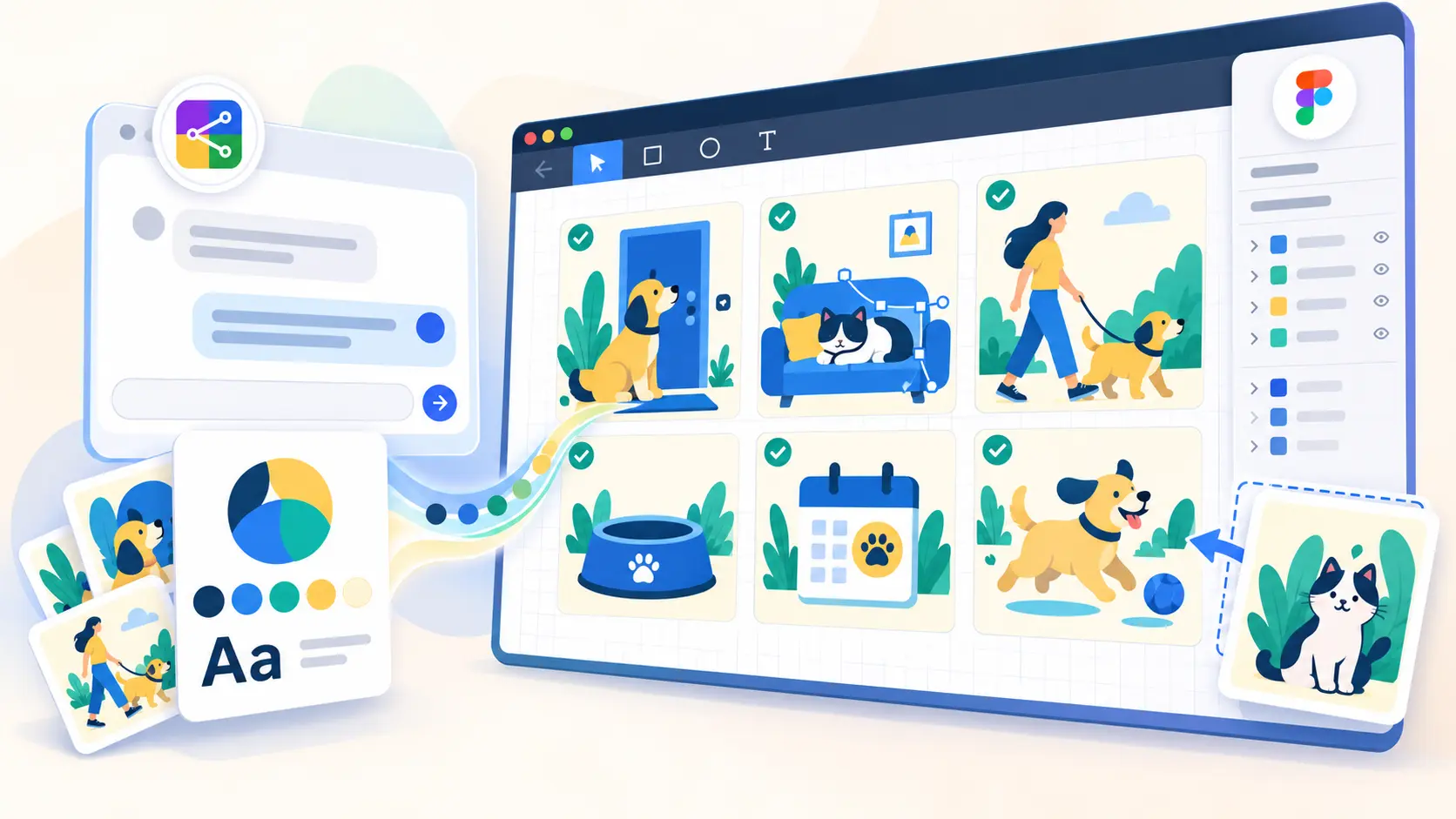
"Create a set of six illustrations for our onboarding and empty states: a dog waiting by the door, a cat sleeping on a sofa, a person walking a dog in the park, an empty food bowl, a calendar with a paw print, and a happy dog with a ball. Same size and framing for all six, transparent background, square format."
Notice what the brief does:
- It lists every subject, so nothing is left for the AI to invent.
- It sets shared rules for size, framing and background.
- It leaves color and drawing style to the brand kit and style, so you don't repeat them in every prompt.
The agent may ask you a quick question before it starts, such as which piece should feel like the hero. Answer it, and it gets to work. You can watch each stage live as it plans and draws.
Step 4: Refine with Follow Ups
When the first set arrives, review it side by side. Then fix what's off in the same chat:
- "Make the dog in image 3 the same size as the dog in image 1."
- "Use the main brand blue for the sofa instead of the support color."
- "Add two more: a vet visit and a bath time scene, in the same style."
Because the chat keeps its context, new pieces match the old ones. This is the step that turns a few good illustrations into a real pack.
Step 5: Keep It Organized
As the pack grows, use Projects to group the chats for one product or campaign. Everything the agent makes also lands in your Library, where you can browse, filter and find any piece later. When a teammate asks for "that empty state from the onboarding set," you'll know exactly where it is.
Step 6: Bring the Pack into Figma
Each message in the chat has a download menu that saves all of that message's files as one zip. Download the messages that hold your final pieces, then drag the SVG files into your Figma file. Figma imports SVG as editable vector layers, so every shape, color and path is yours to adjust.
To keep the pack reusable:
- Create a dedicated Illustrations page in your file.
- Lay the set out on one frame so you can compare pieces at a glance.
- Turn each final illustration into a component, so the whole team uses the same version everywhere.
Step 7: Fill Gaps and Tweak with the Plugin
New screens will need new art. This is where the plugin earns its place, because you never leave your file.
- Add a missing piece. Open the plugin, choose Generate, set the background to Transparent and the aspect ratio to match your set. Since the plugin doesn't read your brand kit, put the rules in the prompt: "Flat vector illustration of a dog in a raincoat, rounded shapes, no outlines, colors #1E2A4A, #F2A541 and #F7F4EE."
- Recolor or adjust an existing piece. Select an illustration on your canvas, choose Edit, and describe the change: "Change the background shape to the light neutral color." Starting from a piece of the pack keeps the result close to the rest of the set.
- Convert old assets. If you have older raster illustrations you need to keep, select them and choose Convert to turn them into SVGs you can recolor to match.
For a bigger batch of new pieces, go back to the Design Agent chat. It still has your brand kit, style and history, so the new pieces will match the first set more closely than single plugin prompts.
Which Tool Should You Use?
| Your situation | Best tool | Why |
|---|---|---|
| Starting a new pack of 5 or more illustrations | Design Agent | Uses your brand kit and style, plans the whole set together |
| Adding several pieces to an existing pack | Design Agent, same chat | Remembers the earlier pieces, so new ones match |
| One extra illustration for a screen you're designing | Figma plugin, Generate | Fastest path, lands right on your canvas |
| Small change to a piece already in Figma | Figma plugin, Edit | Select it, describe the change, done |
| Old PNG or JPG art you need as vector | Figma plugin, Convert | Turns raster art into a scalable SVG in place |
Real Ways Teams Use This Workflow
- In app illustrations. Onboarding screens, empty states, error pages and success screens for dashboards, mobile apps and internal tools, all in one locked style.
- Marketing visuals. Landing page heroes, launch graphics, email headers, blog covers and social posts that match the product.
- Design systems. A shared illustration library saved as Figma components, so new hires and agencies use the same art from day one.
- Multi brand or white label products. One brand kit per client and the same style across all of them, so every version looks consistent but carries its own colors and logo. Starter includes one brand kit, Basic three, and Pro unlimited.
Best Practices for Consistent Packs
- Lock one style per surface. Don't mix flat and sketchy art in the same flow. If you need a second look, make it a second style.
- Use exact HEX codes. Put them in the brand kit, and in plugin prompts, every time.
- Keep prompts short and systematic. Let the brand kit and style carry the look. Your prompt only needs the subject and the action, like "a dog waiting by the door."
- Ask for the whole set at once. One brief for six pieces beats six separate prompts.
- Refine in the same chat. A new chat starts with no memory of the pack.
- Keep a library page in Figma. Final illustrations live on one page as components, not scattered across frames.
- Ship a consistent set over one perfect piece. A pack of ten good, matching illustrations does more for your product than one stunning hero image.
Frequently Asked Questions
1. Can AI create a consistent illustration pack?
Yes, if you give it rules. A plain AI generator treats every prompt as a fresh start, so the results drift. The SVGMaker Design Agent fixes this with a brand kit for your colors, fonts and logos, a style for the drawing look, and a chat that remembers earlier pieces.
2. Does the SVGMaker Figma plugin use my brand kit?
No. Brand kits and styles live in the Design Agent. Build the pack there, then bring it into Figma. When you use the plugin for extra pieces, include your HEX codes and style words in the prompt, or select a piece from your pack and edit it as a starting point.
3. Are the illustrations real SVG files?
Yes. The Design Agent delivers real vector files, and the plugin places results on your canvas as editable vector layers. You can recolor them, change individual paths, and export them at any size without losing sharpness.
4. How many illustrations can I make in one pack?
There is no fixed pack size. Start with the set you need right now, such as six onboarding and empty state pieces, then add more with follow ups in the same chat. Keeping the work in one chat is what keeps later pieces in line with the first ones.
5. Can I match illustrations I already have?
Yes. Add your existing art as reference images in a custom style, up to five images. The agent uses them to match the look. If your old art is raster, convert it to SVG with the plugin first so you can recolor it to your palette.
6. Do I need a paid plan for this workflow?
Yes. The plugin is free to install from the Figma Community, but using it needs a paid plan, either a subscription or a Credit Pack. The Design Agent, brand kits and styles come with a subscription.
7. Can I use the illustrations commercially?
Yes, on any paid plan, either a subscription or a Credit Pack. Paid users can use the SVGs they generate in client work, products and marketing materials. Free accounts are for personal use only.
Conclusion
A consistent illustration pack comes down to three things:
- Set the rules once with a brand kit for colors, fonts and logos, and a style for the drawing look.
- Build the pack in one place with the Design Agent, asking for the whole set at once and refining in the same chat.
- Place, extend and tweak in Figma with the plugin, so new screens get art that still belongs to the set.
You don't have to fix every old illustration today. Start with the flow your users see first, usually onboarding and empty states, and build that set properly. Then grow the pack one screen at a time. With the rules locked in and the work kept in one workflow, every new illustration looks like it was always part of the brand.