10 Best Ways to Prepare and Fix SVG Files for Laser Cutting in LightBurn, xTool, and Glowforge
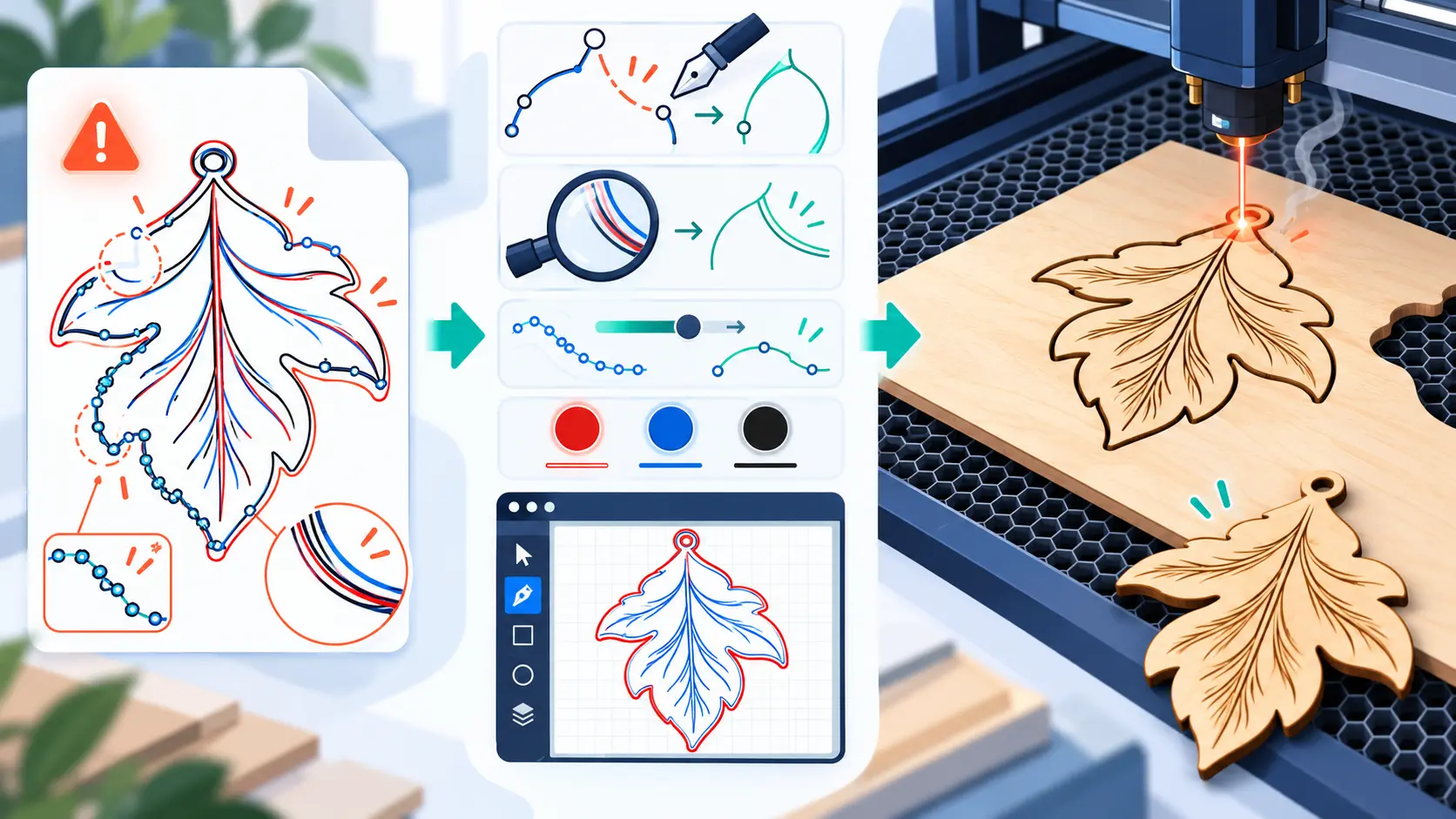
You found the perfect design, loaded a sheet of birch plywood, and hit start. Ten minutes later, the laser is still running. It cut the outline twice, scorched the corners, engraved a solid block where a thin line should be, and the finished piece is 25% smaller than the size you set.
The artwork looked perfect on screen. So what went wrong?
A laser does not see your design. It follows your geometry. Every cutting path in an SVG becomes an instruction for the laser head. A hidden duplicate line can mean two passes over the same spot, increasing cutting time and the risk of burning. An open path can prevent a shape from engraving correctly, while mismatched units can throw off the entire design.
Even a simple difference between 72 DPI and 96 DPI can cause a 25% reduction in imported dimensions when the SVG's pixel-based sizing is interpreted incorrectly. LightBurn's official documentation specifically addresses this scaling issue, and explains how unwanted lines and overlapping geometry can affect laser output.
The frustrating part is that many of these problems are nearly invisible in a normal design preview but become obvious once the laser hits the material.
The good news is that most SVG cutting problems come down to a handful of fixable issues. With SVGMaker, you can inspect and edit vector paths, remove unwanted elements, adjust dimensions, and clean up your artwork before sending it to your laser cutter. This guide covers 10 practical ways to edit, fix, and prepare SVG files for laser cutting, including common import issues in LightBurn, xTool Studio, and the Glowforge app, so you can achieve cleaner cuts, avoid unnecessary laser passes, and reduce wasted material.
Why SVG Files Fail on a Laser
An SVG is a set of instructions, not a picture. Your laser software reads those instructions and turns them into motion: where to move, when to fire, and how many times to pass. When the file carries something the software does not expect, it either guesses or ignores it. Here are the most common causes of a failed job.
| Problem on the machine | What is actually in the file | Where it usually comes from |
|---|---|---|
| Same line cut twice | Duplicate paths stacked on top of each other | Copy and paste, traced artwork, two shapes sharing an edge |
| Engrave area is empty | An open path that cannot hold a fill | Auto trace gaps, hand drawn shapes, broken nodes |
| Wrong size after import | Pixel units or a viewBox that does not match the document size | Illustrator (72 DPI) vs Inkscape (96 DPI) exports |
| Text missing or in the wrong font | Live text with a font the laser software does not have | Files moved between computers |
| Photo will not cut | A PNG or JPG wrapped inside SVG tags | “Fake” vectorizers and screenshot conversions |
| Slow, jerky cutting and burn marks | Thousands of tiny nodes | Auto trace on low resolution images |
Notice the pattern. Every single problem is invisible in a thumbnail and obvious on a scrap of wood. That is why preparation matters more than machine settings.
First, Run a 2 Minute File Check
Before you change anything, find out what kind of file you actually have.
- Look at the code. Open the SVG in any text editor. If you see
<path d="...">elements, you have real vectors. If you see<image href="data:image/png;base64,...">, the file is a raster image in disguise, and no laser can cut it. - Switch to outline view. In LightBurn, Inkscape, or any vector editor, view the file as wireframe. Stacked lines, stray dots, and hidden shapes become visible instantly.
- Measure one known dimension. If the design is supposed to be 200 mm wide, check that one number after import. If it is off by about 25% or 33%, you have a DPI mismatch, not a design problem.
If the file passes all three, you are most of the way there. If not, the 10 fixes below will cover it.
10 Ways to Prepare and Fix SVG Files for Laser Cutting
The order below follows a natural workflow, from getting a clean source file to the final test on scrap. You will not need every fix for every file, but checking all ten takes about ten minutes and can save a whole sheet of material.
1. Start With True Vector Paths, Not a Wrapped Image
A laser can only cut along a path. If your SVG contains an embedded PNG or JPG, the best it can do is engrave that image. It cannot cut around it, score it, or follow its edges.
Many free “PNG to SVG” tools do exactly this: they wrap the original pixels in SVG tags and call it a vector. If your source is a logo, sketch, photo, or clipart in raster format, convert it properly first. SVGMaker's AI SVG Converter traces the subject into clean, closed vector paths instead of embedding the image, so the output is ready for cutting rather than just engraving. It handles PNG, JPG, WebP, and other raster formats. If you are turning photos or pet portraits into cut outlines, our guide on the best way to convert raster images into silhouette SVGs for laser cutting walks through the full process.
For hand drawn sketches, scan at 300 DPI or higher with strong contrast. A cleaner source gives you fewer stray paths to clean up later.
2. Delete Hidden, Stray, and Duplicate Objects
Double cutting is the most common laser complaint, and it is almost always caused by duplicate geometry. Two identical paths sitting on top of each other look like one line on screen, but the laser cuts both. The result is extra burn time, charred edges, and sometimes a widened kerf that ruins a fitted joint.
To find and remove them:
- Switch to outline or wireframe view.
- Select a suspicious line and move it slightly. If another line is underneath, delete it.
- Check where two shapes meet. Adjacent pieces often share an edge that gets cut once for each shape.
- Remove hidden layers, locked objects, guides, and tiny stray dots left behind by tracing.
- Step through the job preview in your laser software and watch for any path that runs twice.
Giving duplicates the same color does not merge them. They still cut twice until one is deleted.
Watch for one more hidden object: a background shape. Many downloaded and exported SVGs carry a white rectangle behind the artwork. On screen it blends in, but the laser treats it as a real shape and cuts or engraves a big box around your design. Delete it by hand, or upload the file to SVGMaker's SVG Background Remover, which strips the background and keeps the file as a clean vector.
3. Separate Cut, Score, and Engrave by Color
Every laser workflow uses color to tell operations apart. A common convention looks like this:
| Color | Typical operation | What the laser does |
|---|---|---|
| Red (#FF0000) | Cut | Goes all the way through the material |
| Blue (#0000FF) | Score | Draws a shallow line without cutting through |
| Black (#000000) fill | Engrave | Shades an area by scanning back and forth |
| Green (#00FF00) | Second cut or alternate power | Lets you run a separate pass with different settings |
Here is the key detail most guides skip is the color itself does not set the power. It is only a label. LightBurn, xTool Studio, and the Glowforge app each group objects by color, and then you assign the actual operation and settings after import. So use solid, pure colors that are clearly different from each other. Two reds that differ by a few shades, like #FF0000 and #FE0101, can land on separate layers and confuse you later.
4. Use Strokes for Cuts and Fills for Engraves
Your laser software decides what to do with a shape based largely on whether it is a stroke or a fill.
- Strokes (outlines) become cut or score paths. The laser follows the centerline of the line.
- Closed fills become engrave areas. The laser scans the inside of the shape.
A design that mixes these up will import wrong. A filled shape meant to be cut often arrives as an engrave. A thick outline meant to be engraved as a bold border often arrives as a thin cut line.
Keep cut lines as thin strokes with no fill, around 0.01 to 0.1 mm, so what you see on screen matches what the laser will do. Be aware that stroke width does not change the beam. Glowforge ignores stroke width completely, and LightBurn uses its layer settings. If you want a wide engraved line, convert that stroke into a closed filled shape (“Outline Stroke” in Illustrator, “Stroke to Path” in Inkscape).
If you want the same shape both engraved and cut around its edge, use two copies: one with only a fill for the engrave, and one with only a stroke for the cut.
5. Close Every Open Path
A fill needs a clear inside and outside. If a shape has even a tiny gap between its start and end points, the software treats it as an open line, and your engrave comes out empty or missing.
Open paths are common in traced artwork, script lettering, maps, and files exported from CAD tools. Zoom in on corners and junctions and look for:
- Endpoints that nearly touch but do not connect
- Corner segments that overlap instead of meeting
- Self intersecting paths that cross over themselves
- Missing holes in compound paths, such as the inside of a letter O
Join the endpoints on purpose. Do not try to hide a gap by making the stroke thicker, because the laser will still see an open path. LightBurn has built in tools to close paths within a set tolerance and to auto join nearby shapes, which is helpful for files with many small gaps.
6. Convert Text to Paths and Add Bridges
Live text depends on a font being installed. If the computer running LightBurn or the Glowforge app does not have your font, the text gets swapped for a default font or disappears entirely.
Once your wording, spelling, and spacing are final, convert the text to paths (also called outlines or curves). Always keep a separate copy of the file with live text so you can still make edits later.
After converting, check two more things:
- Counters: The enclosed spaces inside letters like A, B, D, O, P, Q, and R. Make sure they are still there and set to the correct operation.
- Bridges: If you are cutting letters out of a sheet (a stencil or a sign with cut through lettering), the inner piece of an O or A will fall out. Add small bridges that connect the inside piece to the rest of the material, and make sure each bridge is thick enough for your material to hold.
7. Simplify Heavy Nodes Without Rounding Your Corners
Every node (anchor point) in a path is a point where the laser head can slow down, change direction, and speed back up. Thousands of tiny nodes make the head stutter, which causes slow jobs, uneven burn depth, and dark spots on corners.
Auto traced files are the worst offenders, especially when the source image was small or blurry. Simplify only where there are clearly too many nodes. Over simplifying is just as harmful: it rounds sharp corners and changes the size of fitted parts like tabs and slots.
A visual editor makes this much easier than a blind “simplify” command. In SVGMaker's SVG editing software, you can select a path and drag the Simplify slider to remove anchor points a little at a time, watching the shape live and resetting if the corners start to round. For finer control, the path tools let you move anchor points and reshape curves by hand. The same editor helps with other steps in this list too. The Magic Eraser removes stray fragments in one click, the layers panel exposes hidden and stacked objects, rulers and grid let you check dimensions, and you can recolor any element to match your cut, score, and engrave colors.
8. Set the Real Physical Size Before Import
A file that imports at the wrong size is almost never a broken design. It is a unit problem.
Adobe Illustrator writes SVG files at 72 DPI, while Inkscape and most other tools use 96 DPI. LightBurn assumes 96 DPI by default, so an Illustrator file can come in about 25% smaller than it should. You can switch LightBurn between 72 and 96 DPI under Edit → Settings → File Settings.
The more reliable fix is to avoid pixel units altogether:
- Set your document size in millimeters or inches, not pixels.
- Keep a valid viewBox that matches the document dimensions.
- After import, measure one known dimension, such as the outer edge of the design, not the empty canvas around it.
If the number matches, your scale is correct for the whole file.
9. Plan for Kerf on Fitted Parts
Kerf is the width of material the laser burns away as it cuts. It is typically around 0.1 to 0.3 mm on a CO2 laser and 0.05 to 0.15 mm on a diode laser, but it changes with material, thickness, focus, and power.
For signs, ornaments, and stickers, kerf barely matters. For anything that has to fit together, such as finger joint boxes, puzzles, inlays, and interlocking parts, it matters a lot. Ignore it and your joints will be loose.
- Offset cut paths by half the kerf width for parts that need a tight fit.
- Apply that offset in your laser software, like LightBurn's kerf offset setting, instead of permanently changing the SVG. That way the same file works on different materials.
- Cut a small test comb with slots of slightly different widths, then use the one that fits best to measure your real kerf.
10. Flatten Effects and Export the Right Format
SVG files made for the web often contain features that laser software reads differently or not at all: gradients, drop shadows, blur filters, masks, clipping paths, patterns, embedded fonts, and external CSS. A gradient might engrave as a solid block. A clipping path might be ignored, so the hidden parts of the artwork get cut too.
Before export, remove anything that is purely visual. Release clipping masks, expand effects into simple shapes, and replace gradients with solid fills or a grayscale image meant for engraving.
Then choose a format your machine handles best:
- SVG works directly in LightBurn, xTool Studio, and the Glowforge app, and keeps colors and curves.
- DXF is the safest choice for older controllers, CAD based workflows, and shops that cut precise mechanical parts. You can convert your finished SVG to DXF with SVGMaker's free image converter, which supports both R12 and R14 DXF versions for older and newer software, plus PDF and EPS if your workflow needs them. For a step by step walkthrough, read our guide on how to convert SVG to DXF for laser cutting and CNC.
Finally, always test on scrap before running the real piece. A small test cut costs a few cents. A ruined sheet of walnut or acrylic costs a lot more.
Machine Specific Tips: LightBurn, xTool, and Glowforge
The 10 fixes above apply to every laser. Each software also has its own habits worth knowing. If you are creating new designs from scratch for these machines, see our guide on how to create laser cut SVG files with AI for Glowforge and xTool.
| Software | How it reads your SVG | What to watch for |
|---|---|---|
| LightBurn | Each color becomes its own layer. You set mode (Line, Fill, Image), speed, and power per layer. | SVG import DPI (72 vs 96) under File Settings. Use the close path and auto join tools for traced art. Use Optimization Settings to control cut order and remove overlapping lines. |
| xTool Studio (XCS) | Each color in the design becomes a separate layer in the Layer and Object List. You choose Cut, Score, or Engrave per layer. | Raster images can only be engraved, so trace them to vectors first. Newer versions can merge objects with the same style on import, which you can turn off in settings. Run engrave and score before cut so parts do not shift. |
| Glowforge | No layers. Strokes default to cut or score, fills default to engrave, and each color becomes its own step. | Stroke width is ignored. Fill color does not matter, even white gets engraved. Open paths can be cut but not engraved. Any raster inside the SVG can only be engraved. |
One more tip for LightBurn users: if you design in Illustrator and import into LightBurn often, set the DPI once and leave it. Switching back and forth between files from different tools is the number one cause of “why is my file the wrong size” posts on the LightBurn forum.
Which Fix Do You Need?
| Your problem | Fix to use | Why |
|---|---|---|
| Photo or PNG will not cut | Fix 1 (convert to real vectors) | A wrapped image can only be engraved |
| Same line cuts twice | Fix 2 (delete duplicates) | Stacked paths each get their own pass |
| Wrong operation assigned | Fix 3 and Fix 4 (colors, strokes vs fills) | Software decides the operation from color and shape type |
| Engrave area comes out empty | Fix 5 (close paths) | Fills need closed shapes |
| Text missing or wrong font | Fix 6 (text to paths) | The laser computer may not have your font |
| Slow cutting, dark corners | Fix 7 (simplify nodes) | Too many nodes make the head stutter |
| File imports at the wrong size | Fix 8 (units and DPI) | 72 vs 96 DPI or pixel units |
| Joints are loose | Fix 9 (kerf offset) | The beam removes material along every cut |
| Parts missing or cut where they should not be | Fix 10 (flatten effects, right format) | Masks, filters, and gradients are read differently |
Frequently Asked Questions
1. What is the best stroke width for laser cutting in an SVG?
Use a thin hairline stroke, around 0.01 to 0.1 mm, for cut and score lines. The stroke width does not control the beam in LightBurn or Glowforge, but a thin line makes your preview match the real result and stops some software from treating the line as an engrave area.
2. Why does my laser cut the same line twice?
Almost always because there are two identical paths stacked on top of each other, or two shapes sharing the same edge. Switch to outline view, move the suspicious line, and delete the copy underneath.
3. Should I use SVG or DXF for my laser cutter?
SVG is best for artistic work because it keeps colors, curves, and operations together, and it works directly in LightBurn, xTool Studio, and Glowforge. DXF is better for older controllers and precise mechanical parts. If your workflow needs DXF, convert your finished SVG with an SVG to DXF converter rather than redrawing it.
4. Why is my SVG the wrong size in LightBurn?
Illustrator exports SVGs at 72 DPI and LightBurn assumes 96 DPI by default, so files can import about 25% smaller. Change the SVG import DPI under Edit → Settings → File Settings, or save your file in millimeters instead of pixels.
5. Can I laser cut a PNG or JPG?
You can engrave it, but you cannot cut it. A cut needs a vector outline. Convert the image into real vector paths first, then assign the outline as a cut.
6. Do I need to convert text to paths before laser cutting?
Yes, if there is any chance the computer running the laser does not have your font. Convert the final text to paths and keep an editable copy of the original file with live text.
7. Why is my Glowforge engraving a shape I wanted to cut?
Glowforge treats any filled shape as an engrave by default. Remove the fill and keep only a stroke on anything you want cut or scored. If you need both, use two copies of the shape: one fill only, one stroke only.
Conclusion
A laser cutter does exactly what the file tells it to do. When a job goes wrong, the problem is almost always in the geometry, not the machine: a hidden duplicate, an open path, a mismatched unit, or an image pretending to be a vector.
Run through the 10 fixes in order: start with true vector paths, remove duplicates, separate operations by color, use strokes for cuts and fills for engraves, close every path, outline your text, simplify carefully, confirm the real size, plan for kerf, and flatten effects before you export. Then test on scrap.
If your starting point is a raster image, convert it with an AI vectorizer that outputs real paths. If your SVG needs cleanup, open it in a visual SVG editor where you can see every node and layer before it reaches the laser. Ten minutes of preparation is always cheaper than a ruined sheet of material.