How to Convert SVG to DXF for Laser Cutting and CNC Machines
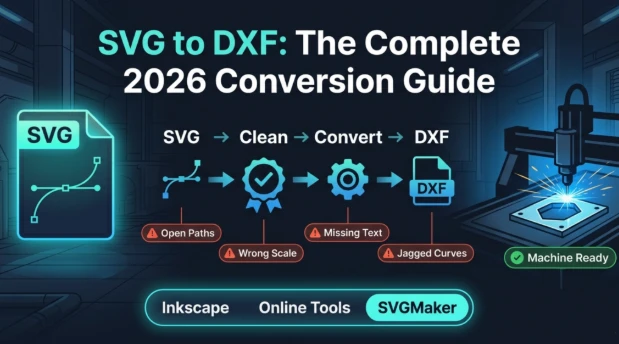
Quick Summary
- SVG is the standard format for web design, Cricut, and desktop cutting tools, but industrial CNC machines, AutoCAD, and professional laser cutters typically require DXF.
- Converting SVG to DXF is necessary when moving designs from desktop creative tools into CAD-based or industrial production environments.
- Three main methods exist: Inkscape (free, manual), online converters (fast, low precision), and SVGMaker's dedicated SVG to DXF converter for cleaner, more reliable output.
- The most common conversion problems are scale mismatches, open paths, unsupported SVG elements, and lost curve accuracy — all of which are fixable with the right workflow.
- Always verify dimensions and path integrity after conversion before sending a DXF file to any CNC or industrial laser machine.
- SVGMaker lets you create, edit, and optimize your SVG file before converting, so what goes into the DXF conversion is already clean and well-structured.
Why SVG Files Need to Be Converted to DXF
SVG (Scalable Vector Graphics) is the dominant format for web graphics, icon design, and desktop cutting machines like Cricut, Glowforge, and xTool. It is browser-native, resolution-independent, and supported by every modern design tool.
DXF (Drawing Exchange Format), developed by Autodesk, is a completely different standard built for CAD and manufacturing environments. AutoCAD, Fusion 360, SolidWorks, and industrial CNC controllers read DXF natively. Many professional laser cutters used in fabrication studios and manufacturing also expect DXF rather than SVG.
When your workflow crosses that boundary from creative design into industrial production — SVG to DXF conversion becomes a required step. A designer might create a logo, decorative panel, or mechanical part outline in SVG, then need to hand it off to a CNC operator or fabricator who works exclusively in DXF.
Getting that conversion right matters. A poorly converted DXF can produce incorrect cut dimensions, failed toolpaths, or machine errors that waste both material and time.
SVG vs DXF: Understanding the Core Difference
| Attribute | SVG | DXF |
|---|---|---|
| Primary Use | Web, design tools, desktop cutters | CAD, engineering, industrial machines |
| Path Type | Bezier curves | Geometric entities (lines, arcs, polylines) |
| Units | Pixels (with optional real-world units) | Millimeters or inches |
| Color and Fill Support | Full | Limited |
| Editing Environment | Browsers, vector editors | CAD software |
| Machine Compatibility | Cricut, Glowforge, xTool, LightBurn | CNC routers, AutoCAD, industrial laser cutters |
| Text Handling | Font-based or outlined | Geometry only |
| Gradients and Effects | Supported | Not supported |
The key challenge in SVG to DXF conversion is that SVG describes shapes using Bezier curves and supports visual properties like fills, gradients, and transparency that DXF simply does not have. A clean conversion requires resolving these differences before the DXF file reaches a machine.
When You Need to Convert SVG to DXF
SVG to DXF conversion becomes necessary in the following situations:
- You designed a decorative panel, part, or template in SVG and need to send it to a CNC router or industrial laser cutter
- A fabricator, machinist, or production partner requires DXF format and cannot accept SVG
- You are importing a creative design into AutoCAD, Fusion 360, or a similar CAD platform for engineering refinement
- You are preparing a design for plasma cutting, waterjet cutting, or vinyl cutting equipment that uses DXF as its native format
- You want to archive a design in a format compatible with manufacturing software for future production use
3 Methods to Convert SVG to DXF
Method 1: Convert SVG to DXF Using Inkscape
Inkscape is the most widely used free option for SVG to DXF conversion. It is open source and handles the conversion reasonably well, though it requires manual attention to produce a clean result.
Step-by-step process:
Step 1: Open Your SVG File in Inkscape
Launch Inkscape and open your SVG file via File > Open. All elements will appear on the canvas.
Step 2: Prepare the File Before Converting
This is the step most guides skip, and it is the most important one. Before converting, you should:
- Convert all text elements to paths (Path > Object to Path), since DXF has no font support
- Remove or simplify any gradients, blur effects, or transparency, as DXF cannot represent these
- Flatten or merge unnecessary groups to simplify the layer structure
- Verify that all paths intended for cutting are closed
Step 3: Set Document Units
Go to File > Document Properties and set the document units to millimeters or inches, matching the unit system expected by the receiving CNC software. SVG's default pixel unit must be mapped to real-world dimensions for the DXF to be correctly scaled.
Step 4: Export as DXF
Go to File > Save As and choose Desktop Cutting Plotter (DXF) from the format list. Inkscape will prompt for unit settings — confirm these match your document settings.
Step 5: Verify the Output in a DXF Viewer
Open the exported DXF in a viewer or directly in AutoCAD or your CAD software. Measure a known reference dimension to confirm the scale is correct. Inspect paths for any gaps or unexpected geometry.
Inkscape: Best for users who are comfortable with a vector editing interface and want a free, no-cost method with full manual control.
Method 2: Convert SVG to DXF Using Online Converters
Online SVG to DXF converters offer a fast, installation-free option. You upload the SVG file, the tool returns a DXF, and you download it. The trade-off is accuracy and consistency.
| Factor | Online Conversion Tools |
|---|---|
| Speed | Very fast |
| Accuracy | Medium, varies by tool and input complexity |
| Unit Handling | Often automatic, sometimes incorrect |
| Text Handling | Usually converts to geometry, sometimes drops |
| Curve Accuracy | Approximated, can be rough |
| Complex SVG Support | Limited |
| Best For | Simple shapes, quick handoffs, non-precision use |
Online tools work adequately for simple flat designs with clean paths and no complex SVG features. For precision CNC work, architectural files, or any design where dimensional accuracy matters, online converters are unreliable as a final step. Always measure the output before sending to a machine.
Common issues to watch for:
- Curves become segmented or faceted due to low-resolution Bezier-to-geometry conversion
- Text is dropped or corrupted if not pre-converted to outlines in the source file
- Scale is incorrect because the pixel-to-unit mapping was not handled properly
- Embedded SVG effects like shadows, filters, or masks produce unexpected geometry
Method 3: Convert SVG to DXF Using SVGMaker
SVGMaker's dedicated converter offers a more reliable path from SVG to DXF, particularly because it allows you to clean and prepare your SVG file within the same platform before conversion, meaning what goes into the DXF process is already properly structured.
The workflow with SVGMaker has a meaningful advantage over both Inkscape and online tools: you can use the SVG editor to inspect and fix your SVG file first, then convert it, rather than discovering problems in the DXF output after the fact.
How SVGMaker fits into the SVG to DXF workflow:
Step 1: Create or Import Your SVG
Generate a new SVG using the AI generator, or upload an existing SVG file into the editor. If you are working with a converted or downloaded file, the SVG editor lets you inspect the structure before converting.
Step 2: Clean and Prepare the SVG
Use the editor to convert text to outlines, remove unsupported visual properties, close open paths, and simplify any complex grouping. The real-time code editor lets you inspect the underlying markup and remove SVG-specific elements that will not translate to DXF.
Step 3: Verify Dimensions
Set your design to real-world dimensions inside SVGMaker before converting. A design sized at the correct millimeter or inch dimensions in SVG will produce a correctly scaled DXF output.
Step 4: Convert to DXF
Use SVGMaker's SVG to DXF converter to produce the output file. The converter handles the Bezier-to-geometry translation and produces a DXF file that is compatible with standard CAD and CNC software.
Step 5: Verify in Your CAD or CNC Software
Open the DXF in AutoCAD, Fusion 360, LightBurn, or your target application. Measure a reference dimension and inspect paths before sending to a machine.
| Factor | SVGMaker Approach |
|---|---|
| Pre-Conversion Editing | Built-in SVG editor for cleanup before converting |
| Output Compatibility | Compatible with standard CAD and CNC software |
| Text Handling | Convert to outlines before export |
| Workflow | Design, edit, and convert in one platform |
| Curve Quality | Clean Bezier-to-geometry translation |
Method Comparison
| Method | Best For | Control | Accuracy | Time Required |
|---|---|---|---|---|
| Inkscape | Free manual conversion with full control | High | High with effort | Longer |
| Online Converters | Quick handoffs, simple non-precision files | Low | Medium | Very fast |
| SVGMaker | Clean production-ready DXF with pre-conversion editing | Medium-High | High | Moderate |
SVG Elements That Do Not Convert to DXF
This is one of the most important things to understand before attempting any SVG to DXF conversion. DXF is a geometry-only format. It does not support the full range of SVG features, and any unsupported element must be handled before conversion or it will be dropped, corrupted, or cause errors.
| SVG Element | DXF Support | What to Do Before Converting |
|---|---|---|
| Text with font | Not supported | Convert text to outlines or paths |
| Gradients | Not supported | Replace with flat color or remove |
| Drop shadows and filters | Not supported | Remove all filter effects |
| Transparency and opacity | Not supported | Flatten or remove transparent elements |
| Bitmap images embedded in SVG | Not supported | Remove before conversion |
| Clipping masks | Not supported | Expand or flatten masked regions |
| Animations | Not supported | Remove all animation attributes |
| Open paths | Supported but problematic for cutting | Close all paths before converting |
Preparing your SVG file by addressing each of these elements before conversion is the single most effective step for producing a clean, usable DXF output. SVGMaker's editor and code editor make this preparation step faster than doing it in Inkscape for most users.
The Most Common SVG to DXF Conversion Problems and Fixes
Problem 1: Wrong Dimensions in the DXF Output
Cause: SVG uses pixels as its default unit. DXF uses millimeters or inches. If the converter does not correctly map pixel dimensions to real-world units using the SVG's viewBox and document dimensions, the output will be the wrong physical size.
Fix: Before converting, set your SVG document dimensions explicitly in millimeters or inches using your editor's document settings. Add a reference rectangle of a known size to your design. After conversion, measure that rectangle in your CAD software and scale if needed.
Problem 2: Text Is Missing or Corrupted
Cause: DXF has no native font or text rendering support. SVG text elements that are not converted to outlines before export are either dropped entirely or rendered as garbled geometry.
Fix: Always convert all text to outlines or paths before exporting to DXF. In SVGMaker, this is done in the editor before conversion. In Inkscape, select all text and use Path > Object to Path.
Problem 3: Curves Are Faceted or Jagged
Cause: SVG Bezier curves are converted to DXF line segments or arc approximations during conversion. If the conversion uses too few segments, smooth curves become angular or stepped.
Fix: Use a converter that produces high-resolution arc output. After conversion, inspect curves in your CAD software and use the arc smoothing or spline tools to refine any faceted sections. SVGMaker's optimization guide covers path quality principles that reduce this problem at the SVG stage.
Problem 4: Open Paths Causing Machine Errors
Cause: Open paths in the source SVG become open geometry in the DXF. CNC machines and laser cutters may skip open paths, interpret them as engraved lines instead of cut paths, or throw toolpath errors.
Fix: Inspect and close all paths in your SVG before converting. Use the node editor in SVGMaker or Inkscape to join path endpoints. Every closed shape should have a complete, connected boundary.
Problem 5: Visual Effects Producing Unexpected Geometry
Cause: SVG supports filters, shadows, blurs, and opacity effects. Converters that attempt to translate these produce unexpected additional geometry in the DXF — phantom shapes, extra lines, or artifacts that interfere with toolpaths.
Fix: Remove all visual effects from the SVG before conversion. DXF files should contain only clean cut path geometry with no decorative attributes. Use the SVGMaker editor to strip unnecessary attributes before converting.
Pre-Conversion SVG Checklist
Work through this checklist before converting any SVG to DXF. The few minutes this takes prevents machine errors and wasted material.
| Checklist Item | Why It Matters | How to Verify |
|---|---|---|
| All text converted to outlines | DXF has no font support | Select text elements and check for path conversion |
| Gradients and effects removed | DXF cannot represent visual effects | Inspect fill and filter attributes in editor |
| All paths are closed | Open paths cause cutting machine errors | Check path endpoints in node editor |
| Document units set to mm or inches | Correct scale in DXF output | Set in document properties before export |
| Reference dimension added | Verify scale after conversion | Measure known element in CAD software after export |
| No embedded bitmap images | DXF is geometry-only | Remove any linked or embedded raster images |
| Groups flattened where needed | Simplifies DXF layer structure | Ungroup or organize layers logically |
| No transparency or opacity | Not supported in DXF | Set all elements to 100% opacity |
CAD and CNC Software Compatibility Reference
| Software | Accepts DXF | Notes |
|---|---|---|
| AutoCAD | Yes | Full DXF support, industry standard |
| Fusion 360 | Yes | Import DXF for CAD refinement and CAM toolpaths |
| SolidWorks | Yes | Sketch import via DXF |
| LightBurn | Yes | DXF support for laser cutting workflows |
| Mach3 / Mach4 | Yes | CNC router control software |
| RDWorks | Yes | Used with CO2 laser cutters |
| Silhouette Studio (Pro) | Yes | DXF import for advanced users |
For users working within Glowforge or Cricut workflows who also need DXF for handoff to fabricators, SVGMaker's laser cutting guide explains how to structure your SVG correctly from the start so the DXF conversion produces usable output.
Frequently Asked Questions
1. Why do I need to convert SVG to DXF if both are vector formats?
Both are vector formats, but they describe geometry differently and serve different environments. SVG uses Bezier curves and supports visual styling for screens and desktop cutting machines. DXF uses geometric entities for CAD and CNC environments. They are not interchangeable across those two worlds, which is why conversion is necessary.
2. Does converting SVG to DXF reduce quality?
Conversion can reduce precision if curves are approximated poorly or visual elements are dropped. Preparing your SVG file correctly before conversion — removing unsupported elements, closing paths, and setting real-world dimensions — minimizes quality loss significantly.
3. Can I convert SVG to DXF for free?
Yes. Inkscape is free and handles SVG to DXF conversion. Online converters are also free for basic use. SVGMaker offers a free tier that covers core conversion and editing features. The choice depends on how much cleanup and precision your specific file requires.
4. Why does text disappear after SVG to DXF conversion?
DXF does not support font-based text. Any SVG text element that has not been converted to outlines before export will be dropped or corrupted. Always convert text to paths first.
5. What CAD software can open DXF files converted from SVG?
AutoCAD, Fusion 360, SolidWorks, LightBurn, and most professional CNC control software accept standard DXF. Check the specific version compatibility of your target software if you encounter import errors.
6. My DXF file is the wrong size after conversion. How do I fix it?
This is a unit mapping problem. SVG uses pixels; DXF uses millimeters or inches. Set your SVG document to real-world dimensions before converting. If the output is already the wrong size, measure a known reference element in your CAD software and scale the entire file proportionally to correct it.
7. Is SVGMaker's converter suitable for CNC production files?
SVGMaker is suitable for preparing and converting SVG files for CNC use, particularly when you use the editor to clean and prepare the file before conversion. For highly complex engineering drawings with tight mechanical tolerances, further review in AutoCAD or Fusion 360 after conversion is always recommended.
Conclusion
SVG to DXF conversion is a necessary step whenever your design workflow crosses the boundary from creative tools into CAD, CNC, or industrial laser cutting environments. The two formats serve fundamentally different purposes, and getting the conversion right prevents wasted material, failed toolpaths, and incorrect dimensions on the shop floor.
The single most impactful thing you can do is prepare your SVG file properly before converting. Convert text to outlines, remove unsupported visual effects, close all paths, and set real-world dimensions. Every conversion problem covered in this guide traces back to skipping one of those steps.
SVGMaker gives you a streamlined path from design to production-ready DXF — create or import your SVG, clean it up in the editor, verify it in the code editor, and convert with confidence. What goes into the conversion is already clean, so what comes out is ready for your machine.
