10 Common SVG Import Problems in Bambu Studio and How to Fix Them (Extrude, Emboss & Multicolor Printing)
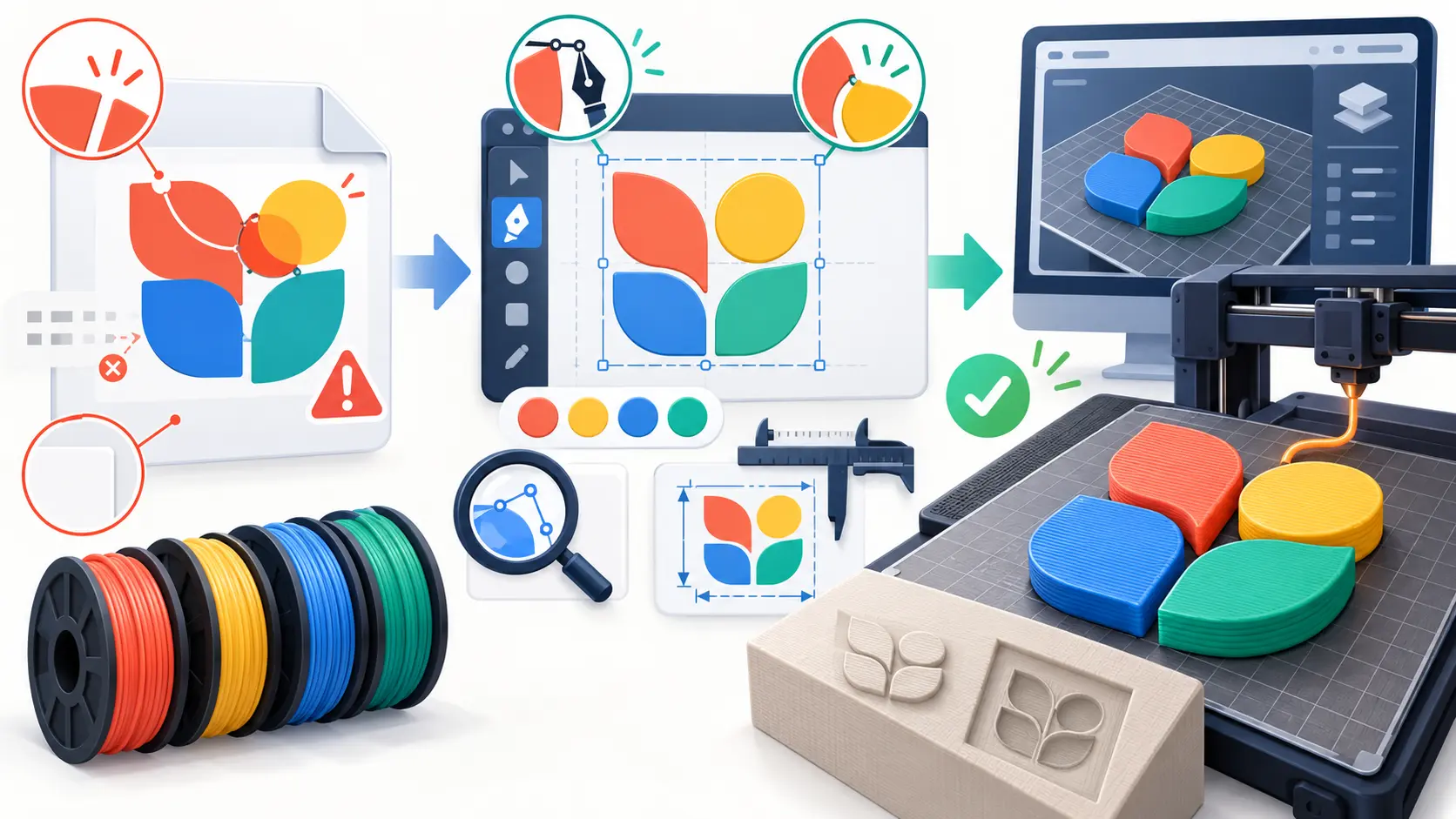
You found the perfect logo, saved it as an SVG, and dropped it into Bambu Studio. The plate shows something, but it is not your logo. The text is gone. The background turned into a thick white slab. Your four color design came in as one gray block that will only print in one filament. Or the whole thing landed on the plate at the size of a fingernail.
This happens to almost everyone who prints from SVG files. Bambu Studio has been able to turn SVGs into printable geometry since version 1.4.0.16, which added the “SVG to Mesh” feature so you no longer need a separate tool to make an STL. It works well, but it is strict about what it accepts.
The good news is that these failures are not random. Bambu Studio reads SVGs with a small parser called NanoSVG, and that parser only understands filled paths and basic shapes. Anything else in the file is skipped, merged, or misread. Once you know what the slicer expects, every problem below has a clear fix.
In this guide, you will learn the three ways an SVG gets into Bambu Studio, a quick check to run before you import, the 10 most common problems and how to fix each one, and which fix to use for your situation.
Three Ways to Get an SVG Into Bambu Studio
Before fixing anything, it helps to know which import path you are using. Each one treats the SVG differently.
| Import path | Where you find it | What you get | Best for |
|---|---|---|---|
| File > Import | Menu bar, or drag and drop onto the plate | A standalone extruded object, merged into one part | Signs, badges, keychains, one color art |
| Add Part > SVG | Right click an existing model | The SVG raised out of the model's surface (emboss) | Logos on boxes, lids and enclosures |
| Add Negative Part > SVG | Right click an existing model | The SVG cut into the model's surface (deboss) | Recessed nameplates and engraved marks |
| Add Modifier > SVG | Right click an existing model | Different print settings inside the SVG's outline | Changing infill or color inside a shape |
| Text tool | Toolbar | Editable 3D text with font, depth and surface options | Plain names, labels and dates |
If all you need is text, skip the SVG entirely and use Bambu Studio's own Text tool. For anything with a logo, icon or illustration, the SVG has to be clean before it goes in.
First, Run a 30 Second Check on Your SVG
Most import problems are visible in the file before you ever open the slicer. Open the SVG in any text editor and scan for these four things:
- A
<text>tag. Live text will not import. It must be converted to outlines first. - An
<image>tag. This means a PNG or JPG is hiding inside the SVG. The slicer cannot extrude pixels. - A
<rect>that matches the full canvas size with a white fill. This will become a solid slab under your design. - Shapes that only have a
strokeandfill="none". Outlines with no fill have nothing for the slicer to extrude.
If you see any of these, find the matching problem below and fix it before importing. It is much faster than trying to repair the result inside the slicer.
10 Common SVG Import Problems and How to Fix Them
1. “The SVG Does Not Contain a Single Path” Error
What you see: Bambu Studio refuses the file or shows a warning that there is no path to emboss. Nothing appears on the plate.
Why it happens: The file holds objects the parser cannot read as solid shapes. Common causes are text objects, stroke only lines, clipping masks, symbols that reference other parts of the file, and CSS styles stored in a separate <style> block. Files exported straight from Illustrator often store their colors this way.
How to fix it: Turn every object into a simple filled path and keep styles inline on each shape. In Inkscape, select everything and use Path > Object to Path, then save as Plain SVG. If you prefer to work in the browser, open the file in the SVGMaker’s SVG editor, ungroup everything with Ctrl+Shift+G, delete any hidden or empty layers in the layers panel, and export a fresh SVG. The editor flattens transforms on import, which removes a lot of the nested structure that confuses the slicer.
2. Text Disappears After Import
What you see: The icon or shape imports, but the words are simply missing. There is no error message.
Why it happens: NanoSVG does not read the <text> element at all. Live text depends on a font installed on your computer, and the slicer has no way to turn that font into geometry. It skips the text silently.
How to fix it: Convert all text to outlines (also called “create outlines” or “object to path”) before export. The SVGMaker editor exports custom and web fonts as real vector paths, so text you add or edit there comes out as shapes the slicer can read. Our guide on how to edit text in SVG without breaking its structure explains the difference between live text and outlined text in more detail. If your text is a separate line from the logo, you can also leave it out of the SVG and recreate it with Bambu Studio's Text tool, which gives you more control over depth and font.
3. The SVG Is Actually a PNG in Disguise
What you see: The file opens fine in a browser, but Bambu Studio imports nothing, or only a thin outline of the canvas.
Why it happens: Some “SVG” files contain only an <image> tag with a PNG or JPG embedded inside. They look like vectors but are really pixels wrapped in SVG code. This is very common with free downloads and with files saved from tools that do not trace the image. There are no paths to extrude, so the slicer has nothing to work with.
How to fix it: Convert the image into real vector shapes. Bambu Lab's own guidance is to vectorize a PNG or JPG before using it for printing, because raster edges are blurry and gradients do not translate into clean geometry. Upload the original image to the image to SVG converter and it will trace the picture into filled vector regions you can import directly. For tips on keeping edges sharp during conversion, see our guide on converting PNG to SVG without losing quality.
4. A White Background Turns Into a Solid Slab
What you see: Your logo prints, but it sits on top of a large rectangular plate you never asked for. With emboss, the whole rectangle gets raised or cut into your model.
Why it happens: The SVG contains a background rectangle, usually the first element in the file. A design tool or converter painted the canvas white before drawing the artwork. To a slicer, a white rectangle is just another filled shape, so it gets extruded like everything else.
A typical offender looks like this:
How to fix it: Delete that rectangle. Open the file in the SVG editor, select the background in the layers panel and remove it, or delete the line by hand in a text editor. If the background is made of several shapes and you cannot isolate it easily, run the file through the SVG background remover. Note that the background remover redraws the file as a new traced SVG, so if you need the exact original paths, deleting the rectangle by hand is the better choice. Our article on why your SVG has a white background walks through five ways to find and remove it.
5. Open Paths Leave Missing or Paper Thin Parts
What you see: Parts of the design are missing after import, or some shapes show up with zero thickness and never appear in the sliced preview.
Why it happens: The slicer can only extrude closed shapes. If a contour has a gap, even a tiny one that you cannot see on screen, there is no inside and outside, so the shape cannot become a solid. Hand drawn artwork, cut files and some auto traced files often have small gaps where two lines nearly meet.
How to fix it: Close every contour before importing. In the SVG editor, select the path and use path editing to drag the end anchor onto the start anchor so the shape is closed. If many small shapes are broken, it is often faster to convert the original image again with a tracing tool, since traced output is made of filled regions rather than open lines.
6. Overlapping Shapes Fuse and Multicolor Logos Merge Into One Part
What you see: Your multicolor logo imports as a single object. You cannot assign different filaments to the different colors. Or you split the object and the colored regions are still welded together.
Why it happens: Most SVGs are drawn in layers, like paint on a canvas. A red circle sits on top of a white square, and the white square is still a full square underneath. On screen you only see the top layer. When the slicer extrudes the file, every layer becomes a solid at the same height, and those solids pass through each other. Bambu Studio also merges every shape from a File > Import into one part. Right click > Split > To objects can separate shapes that do not touch, but touching colors stay joined. This is a known limitation, tracked as issue #8044 in the Bambu Studio GitHub repository.
How to fix it: Make each color a separate shape that sits edge to edge with its neighbors instead of on top of them. In the SVG editor, select the top shape and the shape below it and use Subtraction to cut the overlap out of the lower one. Repeat for each overlapping pair. If you are starting from an image, the SVGMaker image converter has a Hierarchical setting in its advanced options. Choose Cutout instead of Stacked and the traced shapes will not overlap. After import, use Split > To objects or To parts and then Change Filament on each part.
7. Too Many Colors for Your AMS
What you see: The traced or downloaded SVG has dozens of slightly different shades. You have four filament slots. Gradients either vanish or come in as a single flat block.
Why it happens: An AMS unit holds four spools. Photos and detailed illustrations often trace into 20 or 30 colors, many of them nearly identical. Gradients are worse, because a slicer has no way to print a smooth color fade and simply ignores it or fills the shape with one color.
How to fix it: Reduce the design to the number of filaments you actually own before you import it. You have three options in SVGMaker:
- In the image converter, choose the B&W or Poster preset and lower the Detail slider. Fewer colors are traced from the start.
- In the SVG color editor, the palette shows every color in the file and how many elements use it. Set similar shades to the same color, and replace any gradient with a solid fill.
- If you are creating a design from scratch with SVGMaker, pick the Few Colors, Monochrome or Flat style so the artwork is generated with a small, print friendly palette.
Plan one filament per color, plus one for a base if your design has one.
8. The SVG Imports at the Wrong Size
What you see: Your 60 mm badge lands on the plate at 15 mm, or at 400 mm and hanging off the edge.
Why it happens: An SVG has no fixed physical size. Its size comes from the width, height and viewBox values in the file, and different design tools write those values in different units. When they disagree, the slicer has to guess.
How to fix it: Never trust the imported size. Right after import, open the scale tool, turn on uniform scaling and type the exact width you want in millimeters. Then set the Z size to the thickness you want to print. For emboss and deboss parts, use the depth field in the SVG panel instead. If the same file keeps importing at strange sizes, open it in the SVG editor or a code editor and make sure the viewBox and the width and height describe the same shape. The SVGMaker editor also fixes files whose viewBox and size disagree when it loads them.
9. Fine Details Disappear When Sliced
What you see: The design looks perfect in the 3D view, but thin lines, small serifs and little dots are missing from the sliced preview or come out as broken strands.
Why it happens: A standard 0.4 mm nozzle lays a line of plastic roughly 0.4 to 0.45 mm wide. Anything thinner cannot be printed at all. The math is easy to miss: a 1000 pixel wide logo printed 40 mm wide works out to 0.04 mm per pixel, so a 6 pixel line becomes 0.24 mm and vanishes.
How to fix it: Keep the thinnest part of your design at 0.8 mm or more. That gives the printer room for two walls and a strong result. Between 0.45 and 0.8 mm you get one fragile wall. You can fix this three ways:
- Print the design larger, so every detail grows with it.
- In the SVG editor, use Simplify on busy paths to remove tiny anchor points and bumps.
- When converting from an image, raise Reduce Noise and Smoothness in the image converter so small specks are never traced in the first place.
10. Line Art Prints Hollow or Not at All
What you see: An outline style icon or a line drawing imports as nothing, or only the filled parts show up and the lines are missing.
Why it happens: A stroke is a line with a width, drawn on screen around a path. It is not a shape. NanoSVG mostly reads fills, so a design built only from strokes has nothing solid to extrude. This catches a lot of people who download outline icons.
How to fix it: Every line needs to become a filled shape before it goes into the slicer. In Inkscape, use Path > Stroke to Path. SVGMaker does not currently have a stroke to path tool, so if you are working in SVGMaker the better route is to start with a filled design. Generate the artwork in the Silhouette or Flat style, or render the line art as an image and trace it with the image to SVG converter, which outputs filled regions instead of strokes. Make sure the finished lines are at least 0.8 mm wide at your print size (see problem 9).
A Note on Emboss and Deboss
When you add an SVG as a negative part, Bambu Studio cuts it out of the model only at the moment of slicing. The model's geometry itself does not change. That is why exporting an STL from a model with a debossed logo gives you the model without the cut. If you need the cut saved in the mesh, use Bambu Studio's Mesh Boolean tool to subtract the SVG part from the model permanently, then export.
For emboss on a curved surface, the SVG panel lets you wrap the design around the surface instead of projecting it flat. Clean, closed, filled paths matter even more here, because small errors get stretched across the curve.
Which Fix Should You Use?
| Your problem | Best fix | Tool |
|---|---|---|
| Error says there is no path | Convert everything to filled paths | SVG editor or Inkscape |
| Text is missing | Outline the text, or use the Text tool | SVG editor, Bambu Text tool |
| File is a PNG inside an SVG | Trace it into real vector shapes | Image to SVG converter |
| White slab under the design | Delete the background rectangle | SVG editor or background remover |
| Shapes missing or paper thin | Close every open path | SVG editor path editing |
| Colors merge into one part | Make colors sit edge to edge | SVG editor Subtraction, converter Cutout mode |
| Too many colors for the AMS | Reduce the palette and remove gradients | Image converter presets, color editor |
| Wrong size on the plate | Set width in mm and Z for thickness | Bambu scale tool |
| Small details vanish | Scale up and keep details at 0.8 mm or more | Bambu scale tool, editor Simplify |
| Line art prints hollow | Turn strokes into filled shapes | Inkscape Stroke to Path, or a filled design |
Frequently Asked Questions
1. Can I import a PNG or JPG directly into Bambu Studio?
Not in a useful way. Bambu Studio needs vector shapes to build a clean 3D model. Convert the image to SVG first with an image to SVG converter, check the result against the problems above, and then import it.
2. Why does my SVG import so small or so large?
Because an SVG does not carry a real world size. The slicer reads the file's width, height and viewBox, and different apps write those in different units. Always set the final width in millimeters with the scale tool right after import.
3. Why can I not export an STL with my debossed logo?
A negative part is only subtracted during slicing, so the model's mesh never changes. Use the Mesh Boolean tool to bake the cut into the model before exporting.
4. How do I print a multicolor SVG with my AMS?
Reduce the design to four colors or fewer, make sure the colored shapes do not overlap, import it, split it into parts and assign a filament to each part. If touching colors still merge, edit the overlaps out in a vector editor before importing again.
5. Can SVGMaker export STL or 3MF files?
No. SVGMaker creates and edits SVG files and can export them as PNG, PDF, DXF and other formats, but it does not create 3D files. Bambu Studio does the 3D part itself. Your job is to give it a clean SVG, and SVGMaker's tools help you get there.
6. Why does my SVG work in Cricut but not in Bambu Studio?
Cutting machines follow lines, so stroke only and open path designs often work fine there. A 3D slicer needs closed, filled shapes it can turn into solids. A file made for cutting usually needs its strokes turned into shapes before printing. If the same file also gives you trouble in cutting software, our guide on fixing SVGs that will not open in Cricut or Silhouette covers those issues.
7. Do I need to fix overlapping shapes for a one color print?
Usually not. With a single filament, overlapping shapes simply merge into one solid and print fine. Overlaps only become a problem when you assign a second filament.
Conclusion
When an SVG fails in Bambu Studio, the cause is almost always something inside the file: live text, a hidden image, a background rectangle, open paths, overlapping layers, too many colors, or lines with no fill. The slicer is not broken. It just needs simple, closed, filled shapes at a size it can actually print.
Run the 30 second check before every import, fix what you find, and set the size and thickness yourself once the file is on the plate. Your extrudes, embosses and multicolor AMS prints will come out the way you designed them.
If you want to start with files that are ready for the slicer, create or convert your artwork with SVGMaker, clean it up in the SVG editor, and keep the palette small enough for your filament slots from the very first step.