SVG Background Generator: Create Waves, Blobs, Patterns, and Section Dividers with AI
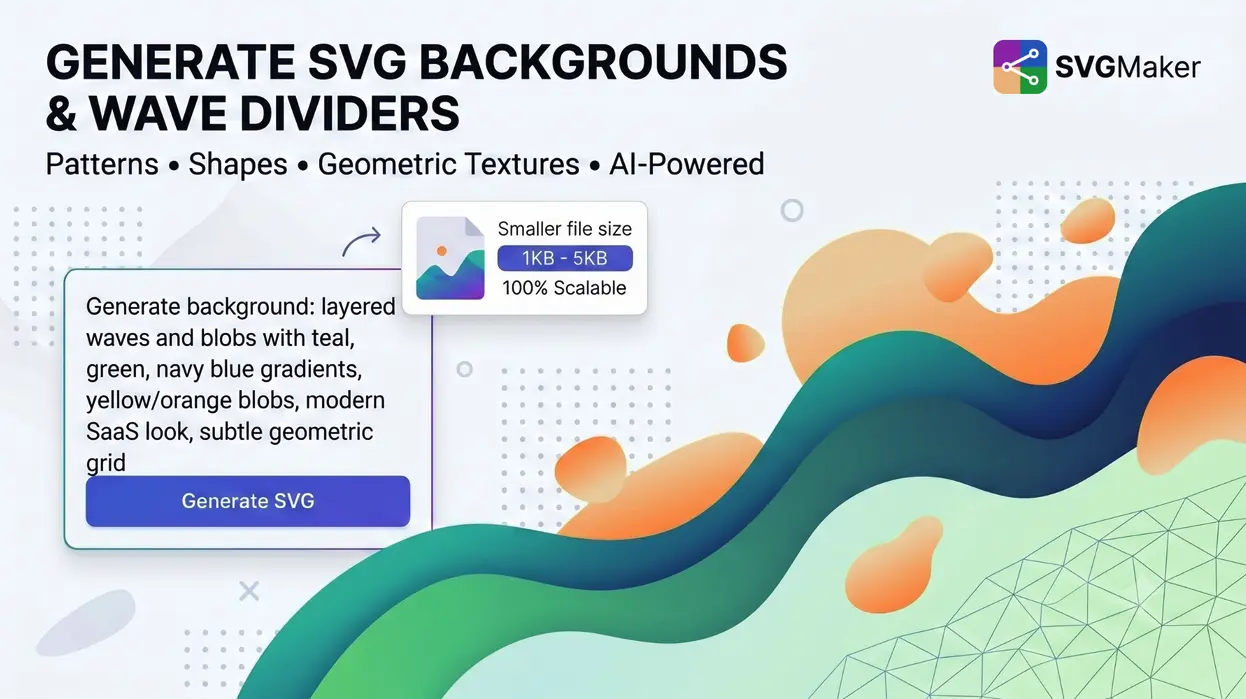
A website background shouldn't pixelate on a retina screen, slow down page load, or look identical to every other landing page on the web. That's exactly what you get with a high‑resolution PNG or a stock photo backdrop. SVG backgrounds solve all three: they stay sharp at any size, often weigh less than 5KB, and can be recoloured with a single line of CSS.
The problem? Building an original SVG background from scratch means understanding <pattern>elements, viewBox math, and path commands. Most online generators, meanwhile, hand you the same six presets everyone else is using.
An SVG background generator powered by AI changes that. You describe the mood, the shapes, the colours — "layered purple and blue gradient waves for a SaaS hero section" or "subtle geometric dot grid with soft grey on white" — and the AI creates a unique, production‑ready SVG that doesn't exist in any preset library. This guide walks you through every major type of SVG background, where to use each, and how SVGMaker lets you generate them from plain language instead of sliders.
Why SVG Backgrounds Beat Raster Images
Before picking a background style, it's worth understanding why SVG wins on the modern web.
- 95% smaller files. A complex repeating SVG pattern runs 1–5KB. The same design as a PNG: 20–200KB. That's the difference between a sub‑second paint and a 3‑second delay on mobile.
- Infinite scalability. An SVG renders perfectly on any screen — 1080p, 4K, 8K. No
@2xor@3ximage sets needed. - CSS‑customisable. Change fill colours, opacity, or even stroke width with a single CSS property. No need to re‑export assets every time a brand palette shifts.
- Animation‑ready. SVG paths can move with scroll, hover, or time using CSS or lightweight JavaScript — no heavy video files.
Types of SVG Backgrounds You Can Create
A single AI‑powered SVG background generator can produce dozens of unique styles. Below are the most practical categories, along with exactly where they work best.
Waves and Section Dividers
Waves are the most popular SVG background for a reason: they solve the "hard edge" problem between two flat‑colour sections. A smooth curve instantly makes a page feel crafted.
- Single wave — one smooth curve separating hero from content. Clean and minimal.
- Layered waves — multiple curves with different colours and opacities, adding depth.
- Section dividers — purpose‑built shapes (waves, angled cuts, stepped transitions) that sit between blocks.
Where they shine: Hero‑to‑content transitions, footer dividers, scroll‑triggered reveals.
Blobs and Organic Shapes
Blobs bring a friendly, modern feel. They're the go‑to for SaaS dashboards, creative agency sites, and any brand that wants to feel approachable instead of corporate.
- Single blob — one organic accent behind a heading or image.
- Blob scenes — compositions with shapes in opposing corners for balanced visual weight.
- Fluid shapes — softer, liquid‑like edges that mimic gradient meshes.
Where they shine: App onboarding screens, fintech and AI product landing pages, playful mobile backgrounds.
Geometric and Abstract Patterns
When you need texture without distraction, a repeating geometric pattern at 10–20% opacity is the answer. A 50×50px tile can fill a 4K screen while staying under 2KB.
- Dot grids — classic notebook/whiteboard look.
- Hexagon honeycombs — popular in tech and science contexts.
- Low‑poly meshes — faceted triangles that give a crystalline, data‑driven aesthetic.
- Abstract line networks — intersecting lines that add depth without competing with text.
Where they shine: Technical dashboards, data‑heavy admin panels, corporate websites, subtle card backgrounds.
Glassmorphism and Transparent Layers
Glassmorphism uses frosted shapes, transparency, and background blur to create depth. SVG handles this efficiently because the blur is computed by the browser, not baked into a heavy asset.
Where it shines: Dashboard overlays, modal backgrounds, modern admin interfaces, card hover effects.
How to Generate SVG Backgrounds with SVGMaker AI
Most generators give you a handful of sliders and a dozen presets. SVGMaker works differently. It's an AI SVG background generator that builds original designs from text prompts — no presets, no templates.
Step 1: Describe Your Background
Go to https://svgmaker.io and tell the AI exactly what you need. The more specific, the better.
- "Layered purple and blue gradient waves for a SaaS hero section, soft and modern."
- "Subtle hexagon pattern, light grey on white, 20px tile, for a data dashboard background."
- "A warm, organic blob scene with coral and peach tones, positioned in the bottom left corner, transparent background."
Step 2: Generate and Refine
The AI creates a unique SVG. If you want to tweak it, the built‑in SVGMaker SVG editor lets you change colours, adjust paths, or resize elements with a simple command — no Illustrator required.
Step 3: Download and Deploy
Every SVG is production‑ready. Use it as:
background-imagein CSS for repeating patterns.- Inline SVG for full‑bleed hero backgrounds.
- A data URI for self‑contained single‑file delivery.
Because the output is a true vector, you can open it in any design tool — Figma, Canva, Illustrator — or drop it straight into your code.
SVGMaker vs Other SVG Background Generators
| Tool | Type | Best For | Limitation |
|---|---|---|---|
| SVGMaker | AI‑generated from text prompts | Unique, custom backgrounds that don't look like presets | Requires writing a good prompt (not slider‑based) |
| Haikei | 15 preset generators (waves, blobs, peaks) | Quick, attractive backgrounds | Every design is from a fixed preset library |
| MagicPattern | 30+ tools including CSS patterns | Broadest variety of pattern types | Many tools output CSS, not SVG |
| GetWaves | Single‑purpose wave generator | Fast section dividers | Waves only — no other shapes |
| ShapeDivider | Section divider shapes | Page section transitions | Dividers only |
While preset tools are fine for a quick divider, SVGMaker is the right SVG background generator when you need something that hasn't already been downloaded by thousands of other websites.
Best Practices for Using SVG Backgrounds
Performance
- Keep pattern tiles small (20×20 to 100×100 pixels).
- Target under 5KB per background file.
- Prefer
<pattern>elements for repeating textures; they're far more efficient than a full‑canvas composition. - Remove unnecessary decimal precision from path coordinates (two decimal places is enough).
Design
- Behind text‑heavy sections, lower the background opacity to 10–20% — it should support the content, not fight it.
- Test scroll performance on a mid‑range mobile device; aim for a consistent 60fps.
- Match background complexity to content density. Busy information needs a calm background.
Implementation
- CSS
background-image– best for repeating patterns. Point it at your external SVG file. - Inline SVG – best for one‑off, full‑bleed backgrounds in hero sections or CTAs. Place it absolutely behind the content.
- CSS‑only backgrounds – some simple patterns (dots, stripes, grids) can be pure CSS, but an SVG generator gives you far more flexibility with no extra weight.
Frequently Asked Questions
1. What is an SVG background generator?
A tool that creates scalable vector graphics for use as website backgrounds, section dividers, or UI textures. Unlike raster images, the output scales to any screen size without pixelating, and the file size is typically measured in kilobytes — not hundreds.
2. Can I really generate unique backgrounds with AI?
Yes. With an AI SVG background generator like SVGMaker, you describe the style, colours, and mood, and the AI builds an original SVG. You aren't choosing from a preset library — you're creating something that hasn't been seen before.
3. How do I add an SVG background to my website?
Use CSS background-image: url('background.svg') for patterns, or inline the SVG directly in your HTML and position it behind your content. A third option is to encode the SVG as a data URI for a fully self‑contained approach.
4. Are SVG backgrounds free to use commercially?
SVGs you generate with SVGMaker are yours to use in any personal or commercial project. The same is true for most generators, but always verify the specific license terms of the tool you're using.
5. Can I animate SVG backgrounds?
Absolutely. SVG backgrounds can be animated with CSS transitions, keyframes, or JavaScript libraries like GSAP. Subtle wave motion, floating blobs, and colour shifts are all possible while keeping the page smooth on mobile devices.
6. How is an SVG background different from an SVG pattern?
A background is a full‑composition graphic designed for a specific area (like a hero section). A pattern is a small tile that repeats seamlessly to fill any container. Patterns are lighter and better for subtle textures; backgrounds are more dramatic and unique.
Get Your First Unique SVG Background
You don't have to settle for the same preset dividers and blob shapes everyone else downloads. SVGMaker's SVG Maker builds original, production‑ready vectors from a plain‑English description. Whether you need a layered wave set, a soft geometric pattern, or an organic blob scene, it takes seconds — not sliders.
Describe your background. Download the SVG. Drop it into your website, app, or design file. It's instantly sharp on every screen, weighs practically nothing, and belongs only to your project.
