Create High-Quality SVG Icons for Web and Mobile Apps Using AI | Step-by-Step Tutorial
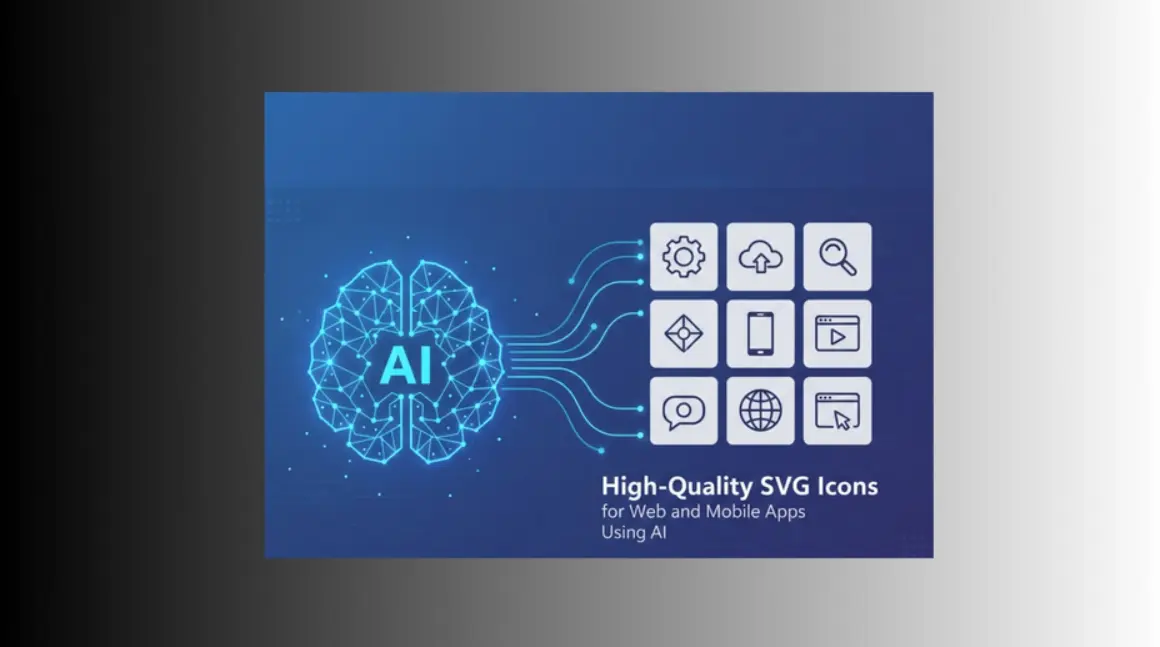
In today's digital landscape, high-quality icons are essential for enhancing user experience in web and mobile apps. Whether you're designing a sleek website interface or a responsive mobile application, SVG icons offer scalability, crisp visuals, and lightweight file sizes that perform flawlessly across devices. But creating custom icons from scratch can be time-consuming—unless you leverage the power of AI.
Enter SVGMaker, an advanced AI SVG icon generator that simplifies the process of designing professional-grade vector icons. With SVGMaker AI SVG icon generator, you can generate stunning web and app icons in minutes using simple text prompts. This step-by-step tutorial will guide you through using SVGMaker to create high-quality SVG icons tailored for your projects.
Why Use AI for Creating SVG Icons?
Traditional icon design often requires tools like Adobe Illustrator or Figma, along with graphic design skills. AI changes the game by automating creativity while maintaining quality. Here's why SVGMaker stands out as your go-to AI SVG icon generator:
Speed and Efficiency: Generate icons instantly without manual drawing.
Scalability: SVG format ensures icons look sharp on any screen size, from mobile apps to high-resolution web displays.
Customization: Tailor styles, colors, and details to match your brand.
Cost-Effective: Free or affordable access compared to hiring designers.
Versatility: Perfect for web and app icons, logos, UI elements, and more.
By using SVGMaker AI SVG icon generator, developers and designers can focus on innovation rather than tedious pixel-perfect adjustments.
Introducing SVGMaker: Your AI-Powered SVG Icon Generator
SVGMaker is a user-friendly platform that harnesses artificial intelligence to transform text descriptions into vector-based SVG icons. Unlike raster images, SVGs are resolution-independent, making them ideal for responsive web design and mobile app development.
Whether you're building an e-commerce site needing shopping cart icons or a fitness app requiring health symbols, SVGMaker delivers professional results. No advanced skills required—just your imagination and a few clicks.
To get started, visit the SVGMaker website and sign up for a free account to begin creating your custom SVG icons.
Step-by-Step Tutorial: Creating SVG Icons with SVGMaker
Follow this easy guide to create custom web and app icons using SVGMaker. We'll walk through the process from prompt to download.
Access SVGMaker and Prepare Your Prompt
Head to the SVGMaker dashboard and sign up for a free account if you haven't already. Once logged in, you'll see a prompt input field—the heart of this AI SVG icon generator.
Craft a clear, descriptive prompt. For example:
- "A minimalist shopping cart icon for e-commerce web app, outline style, black and white."
- "Colorful fitness tracker symbol for mobile app, with gradients and modern design."
Tips for effective prompts:
- Be specific about style (e.g., flat, lineart, isometric, 3D or monochrome).
- Include keywords like "web icon" or "mobile app icon" to guide the AI.
- Reference real-world objects or themes for better accuracy.
Customize Styles and Options
After entering your prompt, SVGMaker offers customization options. Select from various styles such as:
- Flat: Clean, simple shapes for modern and versatile web and app icons.
- Line Art: Minimal stroke-based icons with no fills, ideal for lightweight and scalable UI designs.
- Isometric: Three-dimensional angled visuals that add depth and visual interest.
- Monochrome or Full Color: Flexible color options to match your app's theme and branding.
- 3D icon: Generate 3D style icons using high quality SVGMaker AI icon generator.
Adjust size (e.g., 24x24 pixels for standard icons) and preview variations. SVGMaker's AI generates multiple options, allowing you to refine until it's perfect.
Generate and Review Your Icons
Hit the "Generate" button, and SVGMaker's AI will create your SVG icons in seconds. Review the outputs:
- Zoom in to check scalability—no pixelation!
- Test on different backgrounds to ensure compatibility with web and mobile apps.
If needed, regenerate with tweaked prompts for iterations.
Edit and Optimize (Optional)
While SVGMaker produces ready-to-use icons, you can edit using SVGMaker AI Editor for minor tweaks and refinements.
Download and Implement
Download your icon in SVG format. Integrate it into your project:
- For web apps: Use
<img src="icon.svg">or inline SVG code for better performance. - For mobile apps: Import into frameworks like React Native or Flutter.
SVGMaker ensures files are lightweight, typically under 5KB, boosting load times for website and user experience.
Tips for Optimizing Your AI-Generated SVG Icons
To get the most out of SVGMaker as an AI SVG icon generator:
Experiment with Prompts: Start simple, then add details like "inspired by Material Design" for web icons or "iOS-style" for mobile apps.
Multiple Generation: Create multiple versions of icon sets (e.g., navigation icons) in one go for consistency using external image models supported in SVGMaker's platform.
Test Responsiveness: Ensure icons scale well on retina displays and various devices.
Avoid Overcomplexity: Keep designs simple for faster rendering in apps.
This principle is also reflected in areas like UI development workflows or best practices in codeless test automation, where simplicity and clarity help ensure better performance, maintainability, and scalability across different systems.
Frequently Asked Questions
1. What is an AI SVG icon generator?
An AI SVG icon generator is a tool that uses artificial intelligence, such as machine learning and natural language processing, to create vector-based icons from text descriptions. Unlike traditional design tools, it automates the process, producing scalable, editable SVGs that maintain quality at any size. SVGMaker is a prime example, focusing on clean, professional outputs for web and app use.
2. What file formats does SVGMaker support?
SVGMaker primarily generates icons in SVG format, which is ideal for scalability and editing. You can also export in PNG for raster needs, but we recommend SVG for web and mobile apps to ensure crisp visuals across devices.
3. Can I use SVGMaker-generated icons for commercial projects?
Absolutely! Icons created with SVGMaker can be used commercially, including in apps, websites, logos, and marketing materials. We grant a royalty-free license, but always review our terms to ensure compliance with your specific use case.
4. Why use an AI tool like SVGMaker for creating SVG icons?
AI Icon Generator tools like SVGMaker save time by automating design, allow non-designers to create professional icons, offer endless customization through prompts, and produce lightweight, scalable files. It's cost-effective compared to hiring designers and perfect for rapid prototyping in web and app development.
5. What makes a good prompt for generating icons in SVGMaker?
Effective prompts are descriptive and specific. Include details like style (e.g., "flat," "outline," "gradient"), colors (e.g., "in HEX #00FF00"), shape, and theme (e.g., "futuristic robot icon for tech app"). Start simple and iterate—e.g., "refine to add shadows"—for better results.
6. How do I edit or refine icons generated by SVGMaker?
After generation, use follow-up prompts in SVGMaker's AI SVG Editor to regenerate variations, such as changing colors or adding elements, without starting over.
7. What sizes should I export icons in?
SVGMaker allows exports in various sizes, but since SVGs are vector-based, they're resolution-independent. For apps, follow platform guidelines: e.g., 1024x1024 for App Store icons. Generate once and scale as needed.
Conclusion
Creating high-quality SVG icons for web and mobile apps has never been easier, thanks to SVGMaker AI SVG icon generator tool. This AI tool empowers anyone to produce professional vectors without design expertise, saving time and resources. Whether you're a solo developer or part of a team, incorporate SVGMaker into your workflow for stunning results.
Ready to try it? Head over to SVGMaker today and start generating your custom web and app icons. If you have questions or need more tutorials, explore our other blog posts—happy designing!
