Designing for Apple's Icon Composer: How to Generate AI App Icons Compatible with Apple Icon Composer
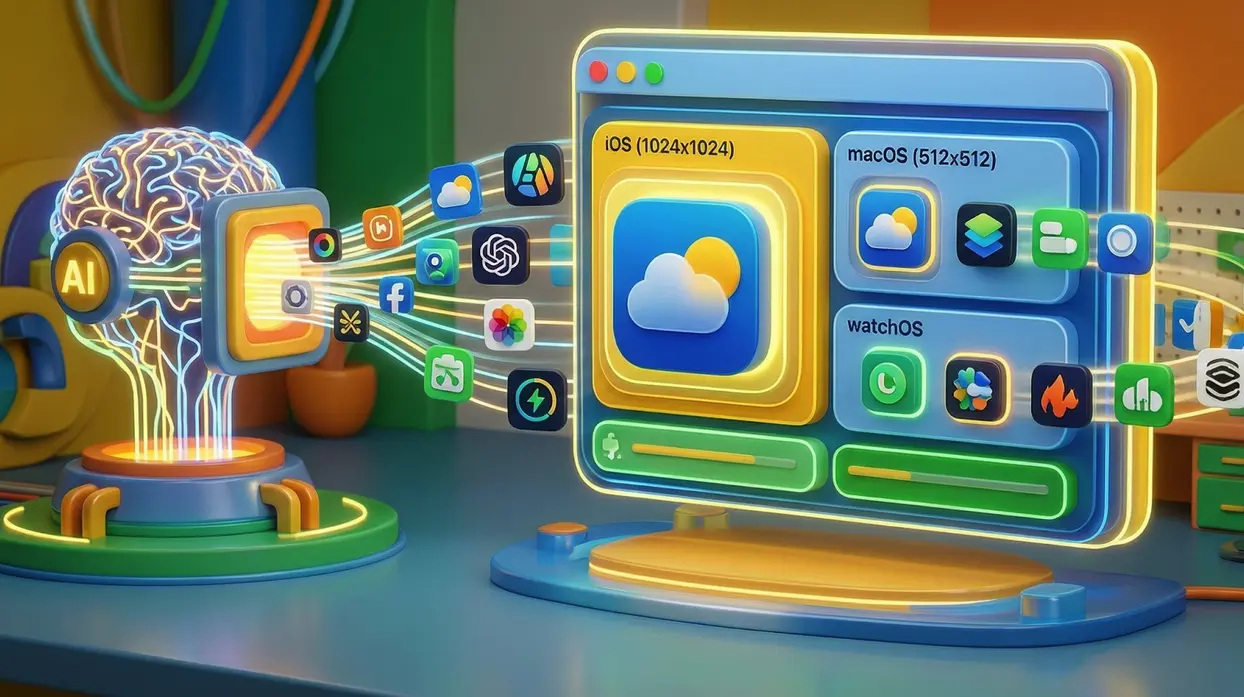
This guide explores how to generate AI app icons that are fully compatible with Apple's Icon Composer format. You'll learn how to create layered vector assets, structure files for dynamic Liquid Glass effects, and automate the export pipeline to Xcode—all while maintaining creative control.
The Evolution of App Icon Design for Apple Platforms
Building an application for Apple's ecosystem means embracing some of the most sophisticated design standards in the industry. From the precise corner radius of a Home Screen icon to the way a glyph responds to light and dark mode, every visual element is expected to perform flawlessly across devices.
For years, generating the required assets meant a tedious and repetitive cycle: design meticulously in one tool, export dozens of size-specific variants, and manually import each one into Xcode. Apple's introduction of the Icon Composer format streamlined the technical side of this process, but the fundamental creative bottleneck remained. How do you iterate quickly on a design that needs to be layered, scalable, and adaptable across iOS, macOS, and watchOS?
Recent advancements in AI-powered SVG generation are changing that equation. By integrating modern tools directly into the design pipeline, development teams can now generate AI app icons, explore concepts, refine intricate details, and export production-ready assets in a fraction of the time traditionally required.
Understanding Apple's Icon Composer Format
What Makes Icon Composer Different?
Apple's transition to a multi-layer icon format wasn't merely a matter of convenience; it was about creating visuals that feel dynamic and alive. The Icon Composer tool, detailed extensively in Apple's developer documentation, introduces sophisticated concepts like "Liquid Glass"—a material property that responds dynamically to lighting conditions and system appearance settings.
| Traditional Icon Workflow | Icon Composer Workflow |
|---|---|
| Single-layer, static PNGs | Multi-layer, dynamic format |
| Manual size exports (20+ files) | Single file with embedded sizes |
| No dark mode adaptation | Built-in appearance annotations |
| No dynamic lighting effects | Liquid Glass material support |
| Manual Xcode import | Direct Xcode integration |
Technical Requirements for Compatibility
To fully support these advanced features, an icon file must contain specific structural elements. When you generate AI app icons for Apple platforms, your output needs to include:
- Separated layers for foreground elements, background treatments, and visual effects
- Annotations specifying how the icon renders in Dark Mode, Light Mode, or with tinting applied
- Vector data to ensure absolute sharpness across all device scales and resolutions
Creating this structure manually within a traditional design application requires a deep understanding of layer organization, masking, and export settings. However, when you generate AI app icons using modern vector svg tools, much of this structural work can be automated or guided through intuitive interfaces.
The Vector Advantage in Modern Icon Design
Why SVG Dominates UI Development
Icons occupy a unique intersection between artistic expression and technical engineering. They need to be visually expressive at 1024x1024 pixels for an App Store listing, yet remain perfectly legible at just 16x16 pixels for a notification bar. This fundamental requirement is why vector formats, specifically SVG, have become the backbone of modern UI development.
Working with vectors offers distinct and powerful advantages:
- Infinite scalability without any loss of quality or introduction of artifacts
- Exceptionally small file sizes compared to their raster equivalents
- Editability at the code level, allowing developers to programmatically tweak colors, adjust paths, or animate elements directly
The Role of Vector Generation Tools
This is precisely where a capable vector generation tool becomes an invaluable asset. When you generate AI app icons that produce clean, semantic, and well-structured SVG code, you ensure that the designer's original intent survives the entire journey from initial concept to final production. When your source files are this robust, adapting them for Apple's layered format becomes a logical, straightforward next step, rather than a complete and costly rebuild.
How AI Bridges the Gap Between Concept and Production
From Blank Canvas to Structured Design
The most significant challenge for many developers isn't a lack of creative vision—it's the frustrating gap between having a clear idea and possessing a structured, layered design file. Sitting down in front of a blank canvas in a complex vector tool can be paralyzing, especially when the final output needs to meet Apple's notoriously exacting standards.
AI-powered SVG Generation tools fundamentally change this dynamic. They act as intelligent, collaborative partners, translating descriptive natural language into coherent visual primitives. When you generate AI app icons using a prompt like "a sleek, monoline gear icon for a settings app, optimized for dark backgrounds," the tool doesn't just produce a static image; it generates a sophisticated starting point that can be logically deconstructed and refined.
Learning the Fundamentals
For those who are new to this powerful process, understanding the foundational steps is key. A practical guide on how to create high-quality SVG icons for web and mobile apps using AI walks through the entire workflow in detail, from crafting effective prompts to exporting final, usable assets. This foundational knowledge is directly applicable when you generate AI app icons for more advanced formats like Icon Composer, as it builds the essential skill of communicating precise visual intent to an AI model.
The Hybrid Workflow Advantage
This approach inherently respects the developer's need for ultimate control. The AI SVG Generator and AI SVG Editor serve as intelligent collaborators: they handle the initial creative synthesis, producing polished variations in moments, while developers retain complete authority over every design decision. At this point, the human expert takes full control—using the SVG Code Editor to manually edit, reorganize, and optimize the vector structure. This hands-on refinement is essential because, as explored in our guide on why text-to-vector AI creates inconsistent results, raw AI outputs often suffer from geometric errors, logical incoherence, and code bloat that only human expertise can correct. The result is a transformation of the AI's raw concept into a polished, production-ready asset.. This hybrid workflow is particularly effective when you generate AI app icons for a format as specific and demanding as Apple's Icon Composer, because the final output always requires human judgment to layer and annotate correctly.
Structuring Layered Icons for Dynamic Effects
The Importance of Intentional Layer Organization
To take full advantage of Liquid Glass and other dynamic properties, an icon's layers must be intentional and well-organized. A flat, merged image simply cannot cast a specular highlight or subtly blur a background element. The underlying file must be structured with purpose. This is why it's essential to generate AI app icons with layering in mind from the very beginning.
Using AI to Guide Layer Structure
When using a capable tool, you can guide this intricate process through natural language commands. After generating a base design, you might prompt the system to perform specific actions:
- "Isolate the main symbol onto its own, clearly named layer."
- "Convert the background gradient into a separate, fully editable element."
- "Apply a subtle transparency effect exclusively to the accent layer."
This isn't just about simple editing; it's about intelligent restructuring. The AI interprets your high-level intent and modifies the vector file's internal composition accordingly. What emerges is a clean, multi-layered SVG that directly mirrors the structure required by Apple's format. When you generate AI app icons this way, you end up with logical groupings and semantically named elements that make the final export process seamless.
The Export Pipeline: From Layered SVG to Xcode-Ready Assets
Automating the Size Generation Nightmare
Once the layered design is finalized, the next critical step is packaging it correctly for development. Manually exporting every required size variant for iOS, iPadOS, macOS, and watchOS is a notorious recipe for human error. A single missed dimension or incorrectly named file can lead to a frustrating rejection during App Store submission. This is where the ability to generate AI app icons with automated export capabilities becomes invaluable.
| Platform | Required Icon Sizes |
|---|---|
| iOS / iPadOS | 20, 29, 40, 58, 60, 76, 80, 87, 120, 152, 167, 180, 1024 |
| macOS | 16, 32, 64, 128, 256, 512, 1024 |
| watchOS | 24, 27, 29, 30, 32, 33, 34, 36, 38, 40, 44, 48, 55, 58, 66, 80, 86, 98, 108, 172, 196, 216, 234, 258, 1024 |
Modern Export Solutions
Modern, forward-thinking vector platforms have begun integrating export presets specifically tailored to these exacting requirements. The ultimate goal is to take a single, well-structured SVG and automatically generate a complete asset package that Xcode can consume directly, with no manual intervention. When you generate AI app icons using such platforms, the entire process becomes streamlined.
This streamlined process typically involves:
- Validation: Automatically ensuring the SVG's layer structure is compatible with Apple's expectations
- Rendering: Generating perfect raster representations at every required dimension
- Packaging: Bundling all the generated assets into the precise format expected by Icon Composer and Xcode
The Developer Experience Transformation
When this entire pipeline is automated, the developer's role shifts dramatically from manual exporter to creative director. You are free to focus on the high-level questions of whether the icon truly feels right for your brand; the tool handles the drudgery of producing the 20+ individual files required for a single, modern application. This is the true power of modern workflows that generate AI app icons.
Why AI-Assisted Vector Workflows Resonate with Teams
Tangible Benefits Beyond Speed
For independent developers and small studios, time is the single most finite and precious resource. Spending hours manually exporting and organizing icon sets is time that is simply not spent on core feature development, performance optimization, or user testing. By adopting workflows that generate AI app icons with vector-first, AI-assisted approaches, teams can relocate those precious hours toward much higher-value activities.
| Benefit | Impact |
|---|---|
| Fidelity | Last-minute changes take minutes, not hours |
| Exploration | Test multiple concepts with users before committing |
| Consistency | Single source file ensures brand cohesion across platforms |
| Speed | Reduce icon production time by 70-80% |
Expert Tips for Designing with Layering in Mind
Prompt Engineering for Structured Outputs
When crafting prompts for any vector SVG generation tool, always consider the final destination of your asset. If you know the icon will eventually need to support Dark Mode or incorporate dynamic effects, explicitly build that requirement into your initial request. This foresight ensures that when you generate AI app icons, they're born with the right structure.
Instead of: "a blue icon"
Try: "a blue icon where the background and foreground are visually distinct, editable layers"
This subtle but powerful shift in language encourages the AI to generate a file that is structurally much closer to your end goal. You can always further refine the layers later with a dedicated vector editing tool, but starting with a sensible, layered structure saves significant cleanup time and effort down the road.
Testing Across Platforms
Always preview your icon designs across multiple platforms and appearance modes before finalizing. What looks stunning on an iPhone in Light Mode may lose its impact on a Mac desktop in Dark Mode. Modern design tools increasingly offer real-time previewing capabilities that simulate these conditions, allowing you to catch issues early in the workflow. This is especially important when you generate AI app icons for cross-platform deployment.
The Future of App Icon Design
Evolving Standards and Expectations
Apple's design language continues to evolve at a rapid pace, placing ever greater emphasis on visual depth, motion, and system-wide adaptability. The era of static, single-layer app icons is steadily fading. For developers and designers, keeping pace requires adopting tools that are as flexible, powerful, and dynamic as the platforms they are building for. The ability to generate AI app icons that meet these evolving standards will become increasingly important.
Strategic Recommendations
Integrating an AI-assisted, vector-centric workflow into your development pipeline isn't merely a convenience—it's a significant strategic advantage. It empowers you to meet Apple's exceptionally high standards without ever sacrificing iteration speed or creative exploration. The next time you start a project, consider letting the AI handle the initial heavy lifting of sketching and structuring while you focus your energy on what matters most: building a truly great product.
Getting Started with Your First AI-Assisted Icon
Ready to Transform Your Workflow?
Explore how a vector-first approach can fundamentally streamline your development process. When you generate AI app icons using these tools, you'll wonder how you ever managed without them:
- AI App Icon Generator: See how structured, layered assets can be created in minutes
- SVG Editor: Access precision tools for granular control over your vectors
- API Platform: Implement programmatic access for fully automated, scalable workflows
- Step-by-Step Tutorial: Master the fundamentals of AI-powered SVG icon creation
Additional Resources
For teams just beginning this journey, we recommend starting with the foundational tutorial to build confidence with prompt engineering and basic vector generation. From there, progressively incorporate more advanced techniques like layer separation and dynamic effect application. The investment in learning how to generate AI app icons with these workflows pays dividends in every subsequent project.
Frequently Asked Questions
1. Can AI-generated icons really meet Apple's quality standards?
Yes, when you generate AI app icons with proper prompts and refine them with vector editing tools, they can absolutely meet and exceed Apple's standards. The key is understanding the technical requirements and using tools that support layered, structured outputs.
2. How long does it take to create an Icon Composer-ready asset with AI?
Most users can go from concept to production-ready asset in 15-30 minutes, compared to 2-4 hours with traditional methods.
3. Do I need design experience to use these tools?
No, but understanding basic design principles and Apple's icon guidelines will help you achieve better results faster when you generate AI app icons.
4. Can I edit AI-generated icons after they're created?
Absolutely. Most platforms, including SVGMaker, provide robust editing tools for refining and customizing generated assets.
Conclusion
The convergence of AI-powered SVG generation and Apple's sophisticated Icon Composer format represents a significant leap forward for app development. By embracing these tools and workflows, developers and designers can dramatically accelerate their icon production while maintaining—or even exceeding—the quality standards expected in the Apple ecosystem.
The future of app icon design is collaborative: human creativity directing AI efficiency to produce results that neither could achieve alone. When you generate AI app icons using this approach, you're not just saving time—you're unlocking new levels of creative possibility. Start exploring this workflow today, and discover how much faster your next project can move from concept to completion
