Best AI SVG Tool to Create Icons and Infographics for LMS Dashboards
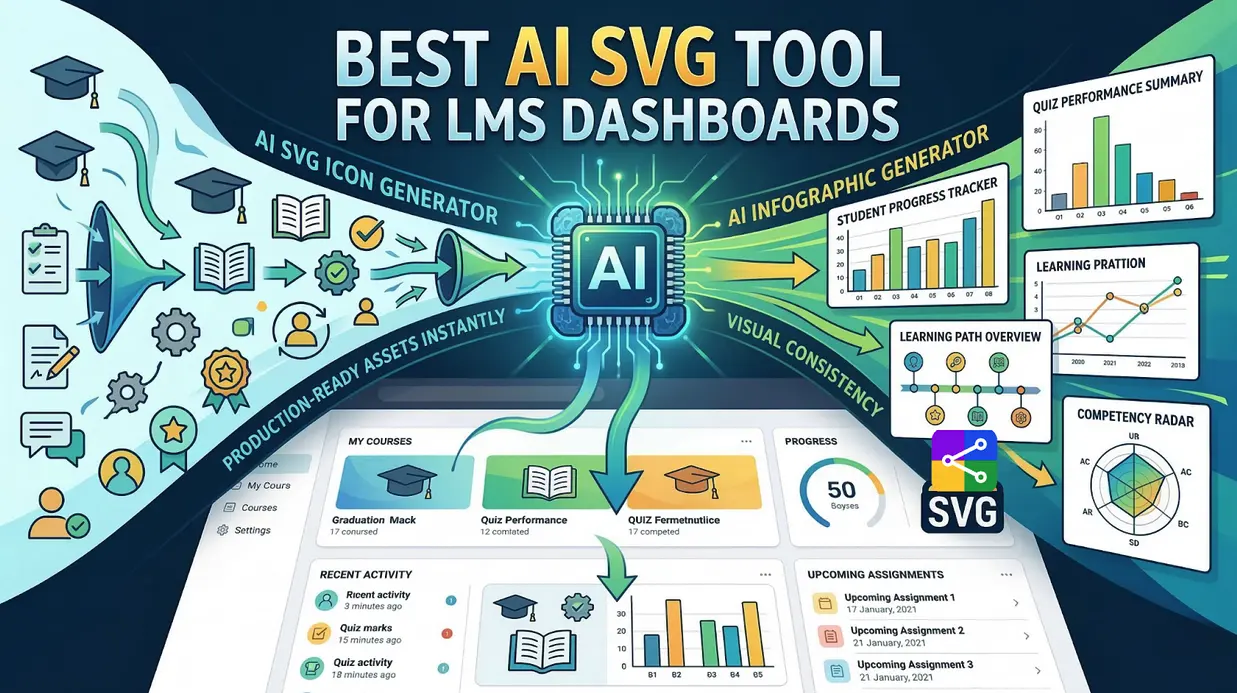
You've spent months architecting your learning management system. The course curriculum is rigorous, the assessment logic is flawless, and the user authentication is secure. But when you finally log in to the dashboard, something is undeniably off. The icons look pixelated on high-resolution displays, and the infographics displaying student progress resemble cluttered spreadsheets more than intuitive data visualizations.
This is the silent killer of user adoption in edtech. A disjointed visual interface creates cognitive friction, eroding the trust and clarity your learners need to succeed.
The good news? You no longer need a dedicated design team or a mastery of Adobe Illustrator to fix this. AI-powered SVG tools are revolutionizing how we build digital interfaces. In this comprehensive guide, we'll explore why visual consistency is critical for LMS platforms, define the non-negotiable features of the best AI SVG Generator tool to create icons and infographics, and demonstrate how SVGMaker provides an end-to-end vector solution for educators, developers, and designers in 2026.
Why Vector Visuals Matter: The Science of LMS Dashboard Design
An LMS dashboard is more than just a user interface; it's a learning environment. Its design directly influences cognitive load, engagement, and knowledge retention.
The Data-Backed Impact of Visual Hierarchy
When a learner logs in, their brain performs a rapid visual scan to answer three questions: Where am I? What should I do next? How am I doing? Icons act as visual anchors, accelerating this scan. A study from the Journal of Educational Psychology found that learners presented with well-organized, icon-rich interfaces completed tasks 33% faster and reported 25% lower cognitive strain compared to text-heavy dashboards.
Conversely, a dashboard cluttered with mismatched raster visuals forces the brain to work harder to reconcile inconsistencies and pixelation, leading to "cognitive overload." This is where a dedicated AI SVG icon generator becomes invaluable, ensuring every visual element is purposeful, coherent, and sharp at any size.
Why SVG is the Industry Standard for LMS Platforms
Choosing the right file format is a foundational technical decision. For LMS dashboards, SVG (Scalable Vector Graphics) is the undisputed champion. Here's why this vector format outperforms raster formats like PNG or JPG:
- Resolution Independence & Future-Proofing: As a vector format, SVGs are code-based, not pixel-based. They scale infinitely, rendering with perfect sharpness on a 4K monitor, a budget Chromebook, or the next generation of VR learning headsets. No pixelation, ever.
- Performance Optimization: A complex SVG icon is often under 1KB, compared to a 5-10KB PNG. For a dashboard with 50 icons, this saves nearly 500KB—a significant boost for learners on slow or metered connections.
- Accessibility Compliance: SVGs support embedded
<title>and<desc>tags, making them readable by screen readers. This is not just a best practice; for many educational institutions, it's a legal requirement under accessibility laws like the Americans with Disabilities Act (ADA) and Section 508. - Theming and Interactivity: Because SVGs are vector files that can be styled with CSS, you can implement dark mode, adjust colors for colorblind users, or create subtle hover-state animations without duplicating assets. For a deep dive, you can explore more about scalable vector graphics on developer resources like MDN Web Docs.
The 6 Non-Negotiables for an AI SVG Tool in LMS Dashboard Design
Before evaluating any software, you must establish a clear set of requirements. Generic AI art generators often fail spectacularly when applied to the structured world of UI/UX design. Here are the six criteria your chosen SVG AI tool must meet:
- Native Vector (SVG) Output: The tool must generate clean, semantic SVG code. Raster-based outputs (PNG/JPG) are unacceptable for production interfaces that need to scale across devices.
- Stylistic Consistency: The best AI tool to create SVG icons allows you to define and lock a visual language (grid size, stroke weight, corner radius) to ensure a family of vector icons looks cohesive, not like a random collection.
- Data Visualization Logic: For infographics, the tool must understand data relationships. It should be able to generate accurate bar charts, timelines, and pie charts as editable vector graphics from conceptual or numerical input.
- Post-Generation Editability: AI gets you 80% of the way there. The tool must offer robust editing—both visual and at the code level—to refine the vector output to perfection.
- Multi-Format Export: Your LMS stack may require SVG for the web, PNG for email receipts, and React components for your frontend. The tool must handle this seamlessly while preserving vector quality.
- Conversational UX: The interface should be accessible to non-designers. Natural language processing (NLP) is key, allowing an instructional designer to type, "Create a line vector icon of a graduation cap," and get an instant SVG result.
SVGMaker: The All-in-One AI SVG Powerhouse for LMS Visuals
After rigorous evaluation against the criteria above, SVGMaker emerges as the definitive AI SVG tool for LMS dashboard creation in 2026. It's not a single-purpose tool but an integrated ecosystem designed to handle the entire vector asset pipeline—from initial concept to production-ready code.
What sets SVGMaker apart is its unified workflow. You can ideate and generate an icon using its AI SVG icon generator, fine-tune its appearance in the visual SVG Editor, and then optimize its underlying code in the SVG Code Editor—all within the same platform. This eliminates the context-switching nightmare of jumping between Figma, Illustrator, and a code IDE.
Creating Cohesive Vector Icon Systems with the AI SVG Icon Generator
Icons are the atoms of your dashboard's visual language. For an LMS, you might need dozens of vector icons: for courses, quizzes, discussions, grade books, user profiles, notifications, and settings. SVGMaker's AI icon generator is purpose-built for this scale and specifically optimized for vector output.
For Educators and Administrators:
The conversational interface is a game-changer. You can prompt the AI with specific, constrained requests:
"Create a minimal line vector icon of an open book with a bookmark, using a 24x24 grid with 1.5px stroke width."
The result is a production-ready SVG icon in seconds, bypassing the need to learn complex design software. This makes it the best AI tool to create SVG icons for non-technical team members.
For Developers and Designers:
The generator offers granular control over your vector assets:
- Extensive SVG Library: Access to over 7,000 open-source vector icons from libraries like Tabler and Heroicons provides an instant foundation.
- Design System Consistency: You can define and lock core attributes (grid size, stroke style, color palette), ensuring that every new vector icon you generate adheres to your established design system.
- Multi-Platform Exports: Generate a ZIP file containing all required sizes for iOS, Android, and web, saving hours of manual export work while maintaining vector sharpness.
Building Data-Rich Vector Infographics with the AI Infographic Generator
An AI infographic generator for LMS platforms must do more than make things pretty; it must make data understandable. SVGMaker excels here by combining visual design with data logic, all while outputting clean, scalable vector graphics.
The tool allows you to describe complex data visualizations conversationally:
"Create a progress tracker infographic showing a 5-step learning path: Introduction, Core Concepts, Practice, Assessment, and Certification. Use a horizontal timeline style with vector icons for each step."
The AI then generates a fully editable SVG infographic, complete with the structural elements. You can iterate on this vector design—changing colors, adjusting proportions—until it perfectly matches your brand.
Practical Vector Infographic Templates for LMS Data:
| Infographic Type | Primary Use Case | Recommended SVG Visualization |
|---|---|---|
| Student Progress Tracker | Displaying module completion rates | Horizontal bar chart with milestone markers |
| Quiz Performance Summary | Visualizing score distribution across a class | Grouped bar chart or histogram |
| Learning Path Overview | Mapping the user journey from enrollment to certification | Timeline with vector icon milestones |
| Competency Radar | Showing skill proficiency across multiple areas | Radar / Spider chart |
| Engagement Heatmap | Tracking weekly login frequency and time-on-task | Calendar heatmap or line chart |
The Vector Editing Suite: From Visual Polish to Code Perfection
AI generation is the first draft. The final draft requires human (or AI-assisted) refinement. SVGMaker provides a three-tiered editing approach for your vector files:
- Visual Editing: This browser-based SVG Editor tool lets you manipulate the vector graphic directly. You can adjust colors with a color picker, use the "Magic Eraser" to remove unwanted elements, and manage complex layers in multi-part vector infographics.
- Code-Level Editing: For developers, this is where SVGMaker's SVG Code Editor truly shines. Powered by the Monaco editor (the same engine as VS Code), it allows for direct manipulation of the SVG vector code with real-time preview. You can strip out redundant metadata, optimize path data for performance, and inject accessibility attributes like
aria-labelledby. - AI-Powered Editing: This is a hybrid approach. You can upload an existing SVG vector file and use the AI SVG Editor of SVGMaker in simple natural language to modify it: "Change the color scheme from blue to green," or "Simplify this vector icon by removing the background shape." This is incredibly efficient for batch updates when your brand guidelines evolve.
Head-to-Head: SVGMaker vs. The Competition (Vector Focus)
To understand SVGMaker's dominance in the AI SVG space, it's helpful to compare it against the incumbent tools that LMS teams often piece together.
| Feature | SVGMaker | Canva | Adobe Illustrator | Figma |
|---|---|---|---|---|
| AI SVG Icon Generator | Yes (Conversational + library) | Limited (Raster-based) | No (Plugins required) | No (Plugins required) |
| AI SVG Infographic Generator | Yes (Data-aware, conversational) | Yes (Template-based, raster output) | No | No |
| Native Vector (SVG) Output | Yes (Clean, semantic code) | Limited (Often bloated code) | Yes | Yes |
| SVG Code Editor | Yes (Monaco, real-time preview) | No | No | No |
| AI-Powered SVG Editing | Yes (AI SVG Editor, Natural language commands) | Limited | No | No |
| Primary Strength | End-to-end AI SVG vector workflow | Fast, template-driven graphic design | Industry-standard vector illustration | Collaborative UI/UX prototyping |
| Learning Curve | Low | Low | High | Medium |
The key differentiator is vertical integration for vector workflows. While you might use Figma for design and Illustrator for polish, SVGMaker replaces this fragmented workflow with a single, AI-powered platform optimized for the specific demands of web and app interfaces. It is the only tool that truly functions as an all-in-one AI SVG generator, SVG editor, and SVG code editor.
Real-World Impact: SVGMaker in Action for LMS Teams
Theory is useful, but results matter. Here's how different roles within an LMS ecosystem can leverage SVGMaker for vector asset creation:
- For the Instructional Designer (Creating Course Icons): You need 30 distinct vector icons for a new "Data Science" track. Using the AI SVG icon generator, you define a style (filled, 24x24, blue palette) and generate crisp, scalable icons for "Python," "Statistics," "Machine Learning," and more in under 10 minutes.
- For the Product Manager (Reporting to Stakeholders): You need a visual for the quarterly board meeting showing user engagement. You use the AI infographic generator to create a clean, professional vector chart illustrating Monthly Active Users (MAU) vs. course completion rates.
- For the Frontend Developer (Implementing the Design System): You receive AI-generated vector icons from the designer. You open them in the SVG Code Editor, add appropriate ARIA labels for accessibility, remove unnecessary AI artifacts, and export them as optimized React components for direct integration into your Next.js application.
- For the LMS Administrator (Creating Accessible Content): You need to ensure all new visuals are WCAG compliant. You use the SVG Editor to check and adjust color contrast ratios on your vector files and then add descriptive
<title>elements in the SVG Code Editor to guarantee screen reader compatibility.
Frequently Asked Questions
1. Can I create a truly consistent vector icon set for my entire LMS dashboard using AI?
Absolutely. SVGMaker's AI SVG icon generator is designed for this. By locking in your parameters (grid size, stroke width, color palette) from the start, every vector icon you generate will share the same DNA, creating a professional and cohesive system.
2. I'm not a developer. Will I need to touch the SVG code?
Not at all. The visual built-in SVG Editor handles 99% of refinement tasks—color changes, positioning, and erasing elements—all while preserving vector quality. The code editor is a powerful tool for developers who want it, but it's entirely optional for designers and educators.
3. Can SVGMaker handle data visualization for things like quiz scores in vector format?
Yes. The AI infographic generator is built to understand data and output vector graphics. You can describe the chart you need (e.g., "bar chart of quiz scores for 30 students") and it will generate the correct visual structure as a clean SVG, which you can then populate with your real data.
4. How does SVGMaker's pricing work for an LMS team?
SVGMaker offers a robust free tier that includes full access to the visual SVG Editor online and SVG Code Editor for vector SVG files. AI generation features operate on a credit system, allowing you to pay for only what you use, which is often more economical than multiple software subscriptions. The library of 7,000+ package vector icons is completely free.
5. Can I convert existing raster icons to SVG vector format?
Yes. If you have existing PNG or JPG icons, SVGMaker's SVG converter online can trace and transform them into clean vector files. This is essential when migrating an older LMS to a scalable, resolution-independent icon system.
Conclusion
The landscape of digital design has shifted. The barrier to creating professional, high-performance vector visuals for your LMS dashboard has been eliminated by AI. You no longer need to choose between hiring an expensive designer or settling for a generic, pixelated interface.
With SVGMaker, you have a complete vector studio at your fingertips. From the initial spark of an idea to the final line of optimized SVG code, its integrated suite of AI tools empowers your entire team—educators, designers, and developers—to build a polished, engaging, and accessible learning environment.
