Best Way to Convert a Hand‑Drawn Sketch or Whiteboard Photo to Clean SVG in 2026 (Step‑by‑Step)
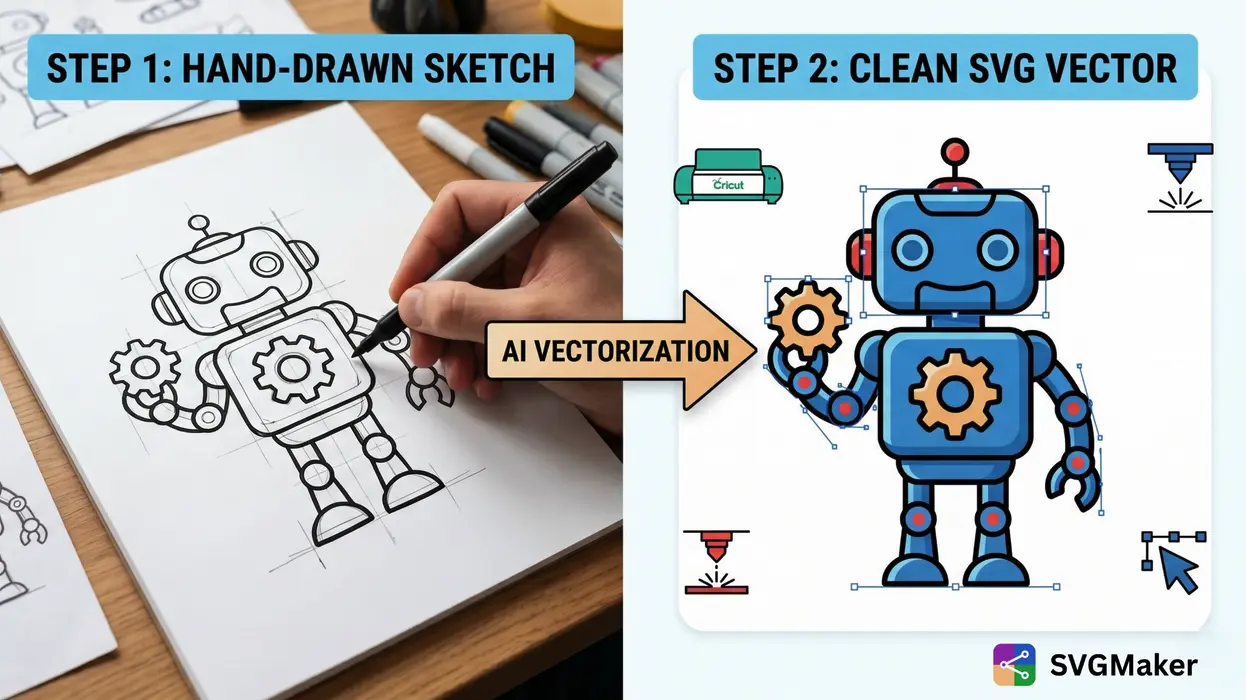
You drew a logo concept, a character, lettering, or a product idea and now you need to convert that sketch to SVG. A phone photo gives you pixels; an SVG gives you infinitely scalable, editable vector graphics. This guide walks you through how to turn a hand‑drawn sketch into a production‑ready SVG using AI vectorization, no manual tracing required.
What Is Sketch-to-SVG Conversion?
Sketch‑to‑SVG conversion is the process of turning a raster image (a photo of a drawing) into an SVG (Scalable Vector Graphics) file. Unlike a pixel‑based PNG or JPEG, an SVG describes your drawing with mathematical paths, shapes, and fills. This means the final file stays crisp at any size and you can edit each line, color, and shape individually. AI‑powered converters like SVGMaker's sketch‑to‑SVG converter understand what your sketch contains — they distinguish intentional strokes from paper texture and produce clean, usable vectors. For a broader look at how different conversion engines handle raster‑to‑vector tasks, see our side‑by‑side guide to the best SVG converters as it compares online and offline tools specifically for PNG, JPG, and other image‑to‑SVG workflows.
Why Convert Hand-Drawn Sketches to SVG?
Converting your sketch to SVG unlocks real production power:
- Scale infinitely – use the same file for a business card or a billboard
- Edit every element – change colors, adjust stroke weight, and modify paths independently
- Cut and engrave – import directly into Cricut Design Space, Silhouette Studio, Glowforge, or xTool
- Use on the web – lightweight, responsive, and sharp on every screen
- Iterate faster – refine hand‑drawn concepts digitally without starting over
Common Problems with Traditional Auto-Trace Tools
Inkscape's Trace Bitmap and Illustrator's Image Trace work by detecting pixel edges. For high‑contrast graphics that can be enough. But for hand‑drawn sketches you typically get:
- Paper texture traced as vector noise – every grain becomes a path
- Broken, open paths that should be connected
- Too many anchor points, causing rough curves and bloated file sizes
- The hand‑drawn character lost to aggressive smoothing or preserved as jagged mess
AI vectorization solves this by recognizing intentional strokes, closing gaps, and generating smooth paths that keep the organic feel of your drawing.
Step-by-Step: How to Convert a Sketch to Clean SVG Using AI
1. Capture the Best Photo of Your Sketch
You don't need a scanner. Use your phone with these tips:
- Bright, even lighting (natural daylight works great, avoid shadows)
- Hold the camera straight above the paper to minimize distortion
- White paper + dark ink or marker for maximum contrast
- Fill the frame – crop out clutter, just the drawing
- No flash – it creates hotspots that confuse the trace
For whiteboard photos, wipe away old marks and use fresh, dark markers.
2. Upload to the SVGMaker SVG Converter
Visit the SVGMaker sketch‑to‑SVG and upload your photo. The AI analyzes your image and identifies:
- Line strokes and their intended direction
- Shape boundaries and closed regions
- Text and letterforms
- The difference between your drawing and paper/whiteboard texture
This is the key difference from standard auto‑trace – the AI understands context, not just pixel edges.
3. Review the Vector Output
The converter generates a clean SVG with:
- Smooth Bézier curves and minimal anchor points
- Properly closed paths ready for cutting machines
- Separable elements you can select individually
- No background noise or paper grain
Preview the result in your browser and zoom in to check path quality.
4. Refine with AI Editing
If adjustments are needed, use the SVGMaker SVG editor to:
- Remove stray marks
- Change colors – swap black strokes for brand colors
- Adjust stroke weights – make lines thicker or thinner
- Fill closed regions with solid colors
- Clean up hand‑lettered text
Simply type what you want in plain English — "make the border thicker" or "fill the star shape with red" — and the AI applies the edit.
5. Download and Use Anywhere
Export your final SVG. It's ready for:
- Web and app UIs (embed directly in HTML, React, or any framework)
- Cricut, Silhouette, and vinyl cutters
- Glowforge, xTool, and CO₂ laser machines
- Print – scale to any size for posters, merchandise, or packaging
- Further editing in Figma, Canva, or Illustrator
For other raster‑to‑vector needs, you can also use the SVGMaker PNG to SVG converter to turn logos and JPG images into editable vectors.
Types of Sketches That Convert Well
| Sketch Type | Conversion Quality | Preparation Tip |
|---|---|---|
| Logo sketches | Excellent | Use bold, dark ink on white paper |
| Hand lettering | Excellent | High-contrast pen, clean background |
| Whiteboard diagrams | Very good | Fresh markers, wipe board clean first |
| Icons and symbols | Excellent | Keep shapes closed and simple |
| Pencil sketches | Good | Boost contrast in your photo editor before upload |
| Shaded drawings | Moderate | Simplify shading; AI flattens gradients |
| Highly detailed illustrations | May need refinement | Convert separate elements and combine later |
How SVGMaker Simplifies the Sketch-to-SVG Workflow
SVGMaker is an AI SVG Creator that turns your sketches into production‑ready vectors. Instead of fighting with manual tracing, you upload a photo, get a clean SVG, and refine it directly in the browser. The platform includes the sketch‑to‑SVG converter, an online SVG editor, and additional image conversion tools — all built for designers, makers, and developers. For automating high‑volume workflows, the SVGMaker API lets you integrate the same AI vectorization into your own apps and tools.
Tips for the Cleanest Vector Output
- Boost contrast first — increase contrast and brightness in your phone's photo editor to make lines darker and paper whiter
- Trace over pencil with pen — go over final lines with a black pen or marker before photographing
- Draw bigger — a larger sketch captured at high resolution gives the AI more detail
- Convert complex scenes in parts — split multi‑element sketches (logo + text + border) and combine the SVGs afterwards
- Close your shapes — if you need filled regions, make sure shape outlines connect fully
Sketch to SVG for Cutting and Laser Machines
If you're cutting or engraving your design, pay attention to these requirements:
| Machine Type | SVG Requirement | Best Practice |
|---|---|---|
| Cricut / Silhouette (vinyl, HTV) | Fully closed paths, clean cut lines | Keep details larger than 0.25 in.; use single color per layer |
| Glowforge / xTool (laser engraving) | Stroke paths for cut lines, filled regions for engraving | Export as SVG or convert to DXF if needed |
| CNC machines | DXF often preferred; SVGMaker can convert SVG to DXF | Verify scale and units before milling |
The SVGMaker sketch‑to‑SVG converter automatically closes paths and produces cut‑ready files.
Frequently Asked Questions
1. How do I convert a hand‑drawn sketch to SVG?
Upload a clear photo of your sketch to SVGMaker's sketch‑to‑SVG converter. The AI detects lines and shapes and outputs a clean SVG — no manual tracing, no desktop software required.
2. Can AI turn a pencil sketch into a clean vector file?
Yes. SVGMaker's AI distinguishes intentional strokes from paper texture, so even light pencil sketches can become smooth, professional vector paths. Boosting contrast in the photo improves results.
3. How do I turn a doodle into a cut‑ready SVG for Cricut?
Take a photo, upload it to the sketch‑to‑SVG converter, and the AI creates an SVG with closed paths and clean cut lines. The file works directly in Cricut Design Space and Silhouette Studio.
4. Do I need a scanner to convert sketches to SVG?
No. A phone photo works perfectly. Good lighting, a straight‑on shot, and high‑contrast ink on white paper are all you need.
5. What's the best way to digitize hand lettering as SVG?
Photograph your lettering on a clean white background and upload it to SVGMaker's sketch‑to‑SVG converter. The AI preserves the hand‑drawn character while turning letterforms into editable vectors.
6. Can I automate sketch‑to‑SVG conversion for a design tool?
Yes. The SVGMaker API integrates the same AI vectorization engine into your own app or workflow, letting you convert sketches, diagrams, or whiteboard photos in bulk.
Start converting your sketches today. Take a photo, upload it to the SVGMaker handdrawn sketch‑to‑SVG, and get a clean, editable SVG in seconds — ready for web, print, cutting, or any design workflow.
