Best Framer Plugin for Inline SVG Editing: Edit Vector Logos & Icons Without Leaving Framer (2026 Guide)

You're building a client site in Framer. The hero section needs a custom logo. The feature grid needs 12 icons. The footer needs brand marks. So you open Figma, export the SVGs, drag them into Framer, and the logo imports as a PNG. The icons lose their stroke properties. One SVG triggers the "SVGs with large images inside are not supported" error. Another renders at a fixed 24×24 pixels and won't scale.
Most Framer designers run into at least one of these issues early on. They're among the most commonly discussed problems in the Framer community, and many of them still appear despite several platform updates. Framer is a strong website builder with better vector editing tools than it used to have, but SVG imports can still fail or behave unpredictably in certain cases. And until recently, there was no way to create or edit SVG files without leaving the platform.
That's starting to change. Framer's recent vector editing updates added a dedicated vector canvas, Vector Sets, and stroke animations. The plugin marketplace now includes hundreds of plugins, and several of them deal with SVG generation, SVG conversion, and editing. SVGMaker, which already has an established Figma plugin for AI SVG work, now brings the same AI SVG generate-edit-convert workflow into Framer.
This guide covers the full Framer SVG plugin landscape. Which plugins let you edit vectors inline? Which ones generate new SVGs from text prompts? Which icon libraries actually produce clean, editable SVG layers? And how do you work around the platform limitations that still trip people up?
Why inline SVG editing matters in Framer
"Inline SVG editing" means modifying vector graphics directly on the Framer canvas, without exporting to an external editor and re-importing. It matters because of how Framer works and what it's for.
Context switching adds up fast
Every time you leave Framer to edit an SVG in Figma or Illustrator, you export, switch apps, make the change, re-export, re-import, reposition, and hope nothing shifted. For a single edit, it's a minor annoyance. For a project with 30+ vector assets that need iterative adjustments, it eats hours.
Framer renders SVGs as DOM elements
Unlike raster images that get converted to WebP or AVIF, SVGs in Framer become actual <svg> tags in the published HTML. Every unnecessary <g> wrapper, every orphaned <clipPath>, every redundant attribute inflates your DOM node count. Google's Lighthouse flags pages exceeding 1,400 DOM elements. A nav bar, icon grid, and footer full of bloated SVGs can push past that threshold on their own. Editing SVGs inline lets you catch structural problems before they ship.
Design-to-publish is the whole point of Framer
You chose Framer because it collapses the design-to-deployment pipeline into one tool. If SVG editing still requires a round-trip through Figma or Illustrator, you're reintroducing the exact friction Framer is supposed to remove.
For a deeper look at why SVG structure affects site performance, see our guide on SVG optimization techniques.
The current state of SVGs in Framer (2026)
Before evaluating plugins, it helps to understand what Framer handles natively and where the gaps are.
What Framer got right with its vector updates
The Framer Spring Event in May 2025 changed how the platform handles vectors. The update included:
- A dedicated vector canvas for drawing and editing paths inside Framer
- Vector Sets for organizing, browsing, and searching icon libraries within the tool, shareable across projects
- Drag-and-drop SVG import that converts multiple files into a Vector Set in one step
- Stroke Animation effects with configurable path length, gap, offset, and three looping modes
- Variables support for vectors, so you can theme stroke color, opacity, and size (useful for duotone icon sets)
- CMS integration for Vector Sets (added June 2025)
- Multi-selection for vectors (December 2025 update)
These updates moved Framer from "barely handles SVGs" to"workable vector tool for website design." For standard icon work and simple illustrations, the native tools do what you'd expect them to do.
What still breaks
The progress is real, but several SVG pain points persist. These come from Framer community threads and documented platform behavior:
| Issue | What happens | Impact |
|---|---|---|
| SVGs importing as PNGs | Uploaded SVGs render as raster images instead of editable vector layers | You lose all path-level editing; colors are baked in |
| 10KB plugin API limit | addSVG() only accepts SVGs under 10KB (raised from 4KB in Plugins 3.9) | Complex illustrations and detailed logos often exceed this |
| "Large images inside" error | SVGs with embedded raster content (common in Figma exports) are rejected | Forces manual cleanup before import |
| Stroke SVG inconsistency | Stroke-based SVGs display unexpected behavior, often becoming a flat "graphic" layer | Can't adjust stroke width, color, or style |
| Responsive scaling issues | Setting width to 100% with locked aspect ratio leaves height fixed | SVGs don't adapt to container size |
| Post-component scaling failure | SVGs converted to Framer components lose the "size" property | Can't resize the component version |
| Figma paste loses editability | Vectors pasted from Figma via the Figma-to-Framer plugin import without path-level editing | You can see the SVG but can't modify individual paths |
These aren't obscure edge cases. They affect logos, icons, and illustrations, which are the three most common SVG use cases on any website. If your workflow involves anything beyond dragging a simple, flat icon onto the canvas, you'll hit at least one.
The missing piece: A 3-in-1 AI SVG Generator, Editor & Vectorizer for Framer
Framer's AI features cover layout generation, text rewriting, and image creation. But if you look closely, you'll notice what's missing: there's no built-in way to describe an icon and get a production-ready SVG.
The vector canvas lets you draw paths manually. That works if you're a trained illustrator with time to spare. But most people building in Framer are designers and no-code builders. They want to describe what they need"a coffee cup icon, minimal style, two colors"and get a usable vector on their canvas. They don't want to spend 20 minutes mastering the pen tool to recreate something that should take 20 seconds.
And when you need to edit an existing SVG or convert a client's pixelated logo into a clean vector SVG? Same story. You leave Framer, open another tool, do the work, export, re-import, and hope the formatting survives the trip back.
That's three distinct workflows"AI SVG generation, SVG editing, raster to SVG conversion"all requiring external tools. Until now, there was no single solution inside Framer that handled all three.
This is where plugins come in.
The best Framer plugins for inline SVG editing (2026)
1. SVGMaker: AI-Powered SVG Generate, Edit, and Convert inside Framer
Best for: Designers who need to create, edit, or convert to SVG without leaving Framer. The only plugin that covers all three workflows in one interface.
Every other SVG plugin for Framer does one thing: insert pre-made icons, convert a raster file, or apply an animation effect. SVGMaker puts a full AI SVG platform inside your Framer panel. Generate SVG vectors from text descriptions. Edit existing SVG images with plain-language instructions. Convert raster files to clean SVG paths. Everything happens on your canvas without exporting or switching tools.
How insertion works
In canvas mode, the plugin first tries Framer's addSVG() method, which produces an editable vector layer. If the SVG exceeds 10KB or is too complex for Framer's parser, it falls back to addImage(), which inserts the SVG as a non-editable image layer. In image and editImage modes, the result is always set as an image fill on the targeted frame. The AI output itself is still proper vector markup that you can download, use in code, or open in any SVG editor.
The plugin lives in a compact panel (360px wide, top-right corner) with three tabs, each color-coded:
Generate Tab
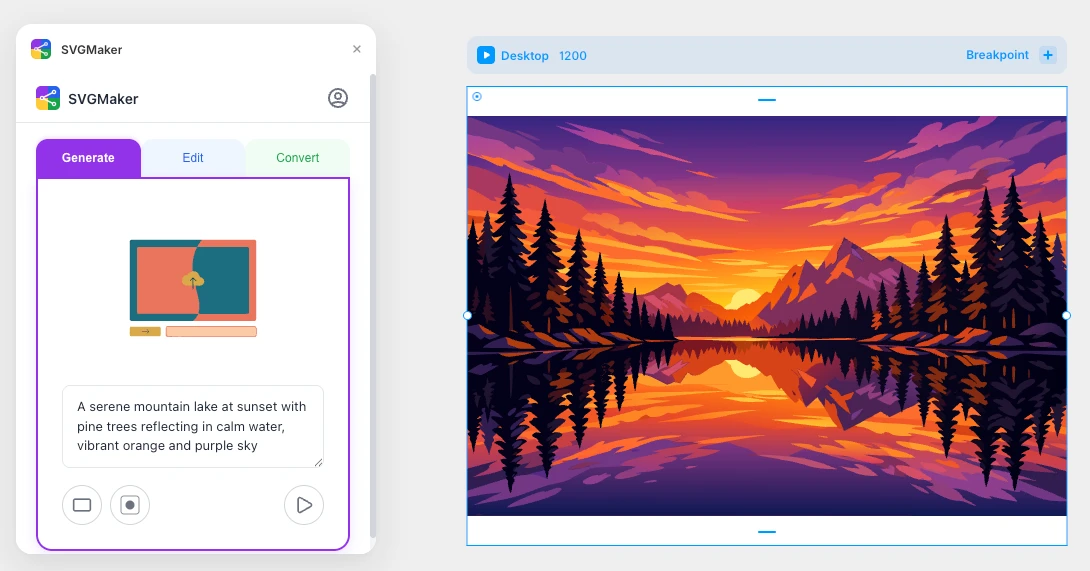
Type a text description like "minimal flat coffee cup icon, two colors, no background" and the AI returns a proper SVG built from vector paths, not a raster image wrapped in <svg> tags. For simpler SVGs that stay under 10KB, Framer treats the result as a native graphic layer. For more complex output, the plugin inserts it as an image layer.
Two settings before generating:
- Aspect ratio: Auto, Square (1:1), Portrait (3:4), or Landscape (4:3)
- Background: Auto, Transparent, or Opaque
Hit Generate, and the SVG appears on your canvas in seconds. The plugin positions the new asset and zooms to fit. For a comparison of AI-generated SVGs vs. traditional design approaches, see our guide to AI-Powered SVG Generation.
Edit Tab
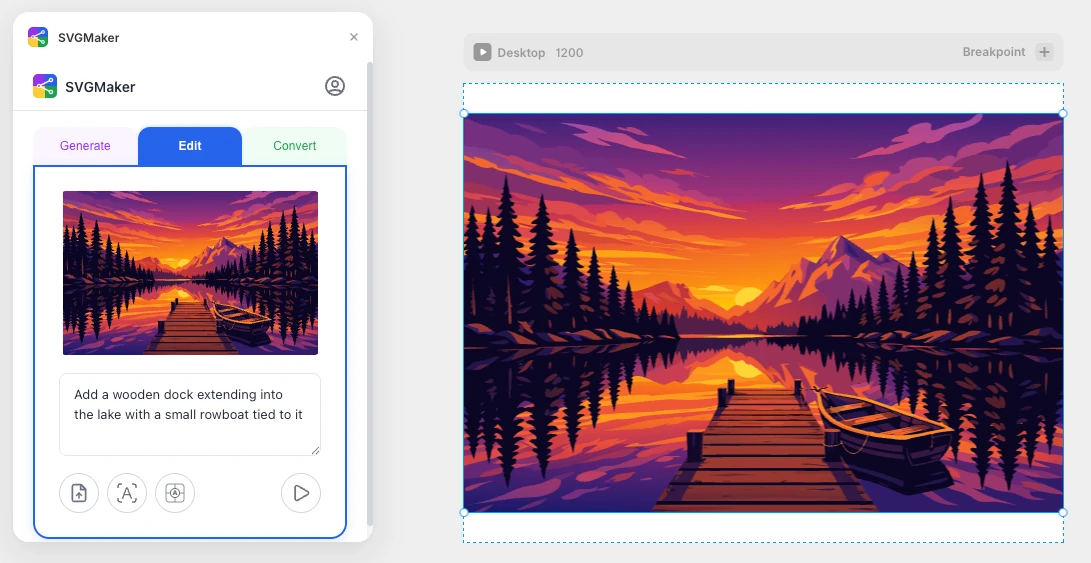
Select any element on your Framer canvas and the plugin auto-detects it. Or upload an image via drag-and-drop. Then write an instruction in plain language: "change the color palette to navy and gold," "remove the background," "simplify to a line-art style." The AI processes the instruction and returns a new SVG that replaces the original image on the frame. The workflow: select, describe, click Edit. No exporting, no file juggling, no re-importing.
Convert Tab
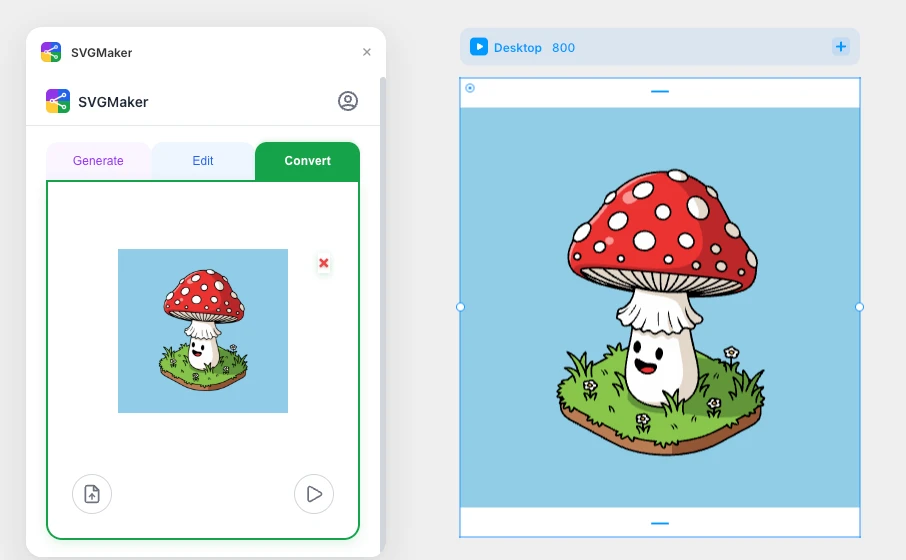
Upload a PNG, JPG, or WebP and the AI converts it to clean, organized vector paths. A pixelated logo from a client's old website, a hand-drawn sketch, a screenshot of an icon: they all work. Unlike traditional auto-tracing, SVGMaker's AI SVG Converter analyzes the actual content, understands shapes and colors, and outputs vector geometry with sensible structure. For a technical comparison, see how to convert PNG to SVG without losing quality.
Three Framer Modes
| Mode | When it activates | Behavior |
|---|---|---|
| Canvas | Opened from the plugin menu with nothing selected | Full 3-tab interface. Tries addSVG() first (editable layer); falls back to addImage() if SVG is too large or complex |
| Image | Opened while targeting an image fill | Generate tab active. Sets the SVG as the frame's image fill via setImage() |
| Edit Image | Opened while targeting an existing graphic | Edit and Convert tabs. Loads the existing image, returns the AI result to the same frame via setImage() |
Authentication and Credits
SVGMaker uses a browser-based sign-in. The first time you open the plugin, it sends you to svgmaker.io to authenticate. After that, your session persists. No API keys to copy and paste.
- Generate: 2 credits per operation
- Edit: 3 credits per operation
- Convert: 1 credit per operation
- New accounts get 6 free credits on signup, plus 3 daily free credits
- Credits are shared across the Framer plugin, the Figma plugin, and the web app at svgmaker.io
Why the Output is Clean by Default
The SVGs that SVGMaker generates are structurally lean because they're built as vectors from scratch by the AI, not exported from a design tool's layer system. There are no redundant <g> wrappers, no boolean operation artifacts, no orphaned <clipPath> definitions from frame boundaries. For most production use, the output is ready to publish without post-processing.
Practical Use Cases
- Describe 15 icons for a feature grid, generate them in minutes instead of drawing them by hand
- Client sends a 72dpi PNG logo from 2015? Convert to SVG without leaving Framer
- Select a hero illustration, tell the AI to restyle it for a dark theme, get a new version in seconds
- Generate placeholder logos and illustrations during wireframing that look good enough to present
- Convert old PNG sprite sheets or hand-drawn sketches into SVG assets on your canvas
Plugin link: SVGMaker on Framer Marketplace | Web app: svgmaker.io
2. PNG to SVG (Vectorizzer): One-click raster conversion
Best for: Free, quick raster-to-vector conversion when you don't need AI-level quality.
Vectorizzer is a free Framer plugin with about 1,400 users. Upload a PNG, JPG, or bitmap, pick a preset (icons, logos, illustrations, photos), tweak the advanced controls if you want, and get SVG code or a downloadable file.
- Smart presets for different asset types
- Advanced controls for line threshold, path optimization, color count, and stroke width
- Built-in SVGO optimization
- Local processing (nothing sent to external servers)
- Real-time preview, copy-to-clipboard or download
How it compares to SVGMaker's Convert tab
Vectorizzer uses traditional auto-tracing. It follows pixel edges to generate paths. For high-contrast logos with clean edges, the output is fine. For anything with gradients, subtle color transitions, or complex shapes, the results get noisy: too many anchor points, tangled paths, colors that don't match well. SVGMaker's AI conversion analyzes what's actually in the image and produces cleaner paths with sensible grouping. The trade-off is that Vectorizzer is completely free with no credit system, and processing stays on your machine.
Plugin link: PNG to SVG Vectorizzer on Framer Marketplace
3. Hugeicons: The largest icon library plugin
Best for: UI designers who need a large, consistent icon set with multiple style variants.
Hugeicons ships 46,000+ icons across 10 style variants (stroke, duotone, twotone, solid, bulk, and others). Search, select, and drag directly onto your Framer canvas. Because these are simple, lightweight icons (well under 10KB), they typically land as proper SVG graphic layers that you can recolor, resize, and apply Framer's stroke animation effects to.
- 46,000+ icons in 10 style variants, 4,000+ free
- Keyword search with category filtering
- Clean SVG layers that support Framer's Variables system
- Consistent sizing across the set
Plugin link: Hugeicons on Framer Marketplace
4. Iconify: 200,000+ icons from open-source collections
Best for: Access to every major open-source icon set in one plugin.
Iconify aggregates icons from over 100 open-source collections: Material Design, Font Awesome, Bootstrap Icons, Heroicons, Phosphor, Tabler, Lucide, and many more. Instead of installing separate plugins for each set, you get a unified search across all of them.
- 200,000+ icons from 100+ collections
- Unified cross-collection search
- SVG layer output compatible with Framer's vector tools
- Free and open-source
The trade-off is discoverability. With 200,000 icons, you need to know what you're looking for. And since the icons come from different design teams, mixing icons from different sets on the same page can look inconsistent.
Plugin link: Iconify on Framer Marketplace
5. SVGL: Brand logo library
Best for: Dropping recognizable brand logos onto your canvas without visiting 30 different brand asset pages.
SVGL has 3,000+ SVG brand logos. Need the Stripe logo for a payment section? The GitHub logo for a developer tools page? The Slack logo for an integrations showcase? Search, click, drag. Each logo is a clean SVG that renders at any size.
- 3,000+ brand SVG logos (tech, SaaS, platforms, services)
- Search by name, drag-and-drop onto canvas
- Clean scalable vectors
Plugin link: SVGL on Framer Marketplace
6. SVG to 3D: Depth and lighting for flat vectors
Best for: Making flat SVG logos and icons look dimensional in hero sections.
SVG to 3D converts any SVG file into a 3D model on your Framer canvas. Adjust depth, lighting, field of view, and orientation. The result renders as an image (not a live 3D model), but it gives flat vectors a physical quality that works well for hero sections and feature highlights.
- On-canvas SVG-to-3D conversion
- Adjustable depth and lighting
- One-click render export
- No 3D expertise needed
$10 one-time license. 3,000+ active users. Plugin link: SVG to 3D on Framer Marketplace
7. Custom SVG Icon Display: Code-level SVG control
Best for: Developers who want to paste raw SVG code and control properties through Framer's component system.
This is a Framer component (not a plugin) from SegmentUI. Instead of importing SVG files, you paste raw SVG code into a property control, then adjust colors, stroke width, and padding through the Properties panel. The SVG renders inline with no import pipeline to break. No file conversion issues. No "imported as PNG" surprises.
- Paste raw SVG code directly
- Control fill color, stroke color, stroke width, and padding via Properties panel
- No flickering, works regardless of SVG complexity
The downside: it requires SVG code. Non-technical designers won't want to touch it. Source: Custom SVG Icon Display on SegmentUI
8. SVG Animator Component: Path-based animation
Best for: Animated logo reveals and icon micro-interactions.
The SVG Animator from Framer University gives you control over SVG path animation: start state, end state, loop behavior, timing. All configured through Framer's Properties panel. It works alongside Framer's native Stroke Animation effect but gives you more granular control over the sequence.
- Start/end state configuration for SVG paths
- Loop toggle
- Customizable via Properties panel
- Works with any stroke-based SVG
Use it for animated logo reveals on page load, scroll-triggered icon animations, or line-drawing effects for section transitions. Source: SVG Animator Component on Framer University
Comparison table
| Plugin | Category | Best for | Creates new SVGs | Edits existing SVGs | Price |
|---|---|---|---|---|---|
| SVGMaker | AI SVG generation + editing + conversion | Full SVG workflow inside Framer | Yes (AI text-to-Vector) | Yes (AI-powered) | Free install, credit-based AI |
| Vectorizzer | Raster conversion | Quick PNG/JPG to SVG | Yes (from raster) | No | Free |
| Hugeicons | Icon library | Large-scale UI icon needs | No (pre-made) | Color/size only | Freemium |
| Iconify | Icon library | Access to all open-source sets | No (pre-made) | Color/size only | Free |
| SVGL | Brand logos | Tech brand logos | No (pre-made) | No | Free |
| SVG to 3D | Transformation | 3D logo/icon effects | No | Transforms to 3D | $10 one-time |
| Custom SVG Icon Display | Code component | Raw SVG control | No | Properties only | Free |
| SVG Animator | Animation | Path animations | No | Animation states | Free |
Common SVG workflows in Framer (and which plugins fit where)
Workflow 1: Building an icon system for a client site
A SaaS landing page needs 20 feature icons, social media icons, and navigation icons in a consistent style.
- Hugeicons or Iconify for standard UI icons (settings, search, menu, chevrons)
- SVGMaker's Generate tab for custom feature icons that don't exist in any library ("AI brain with circuit connections," "cloud with shield overlay")
- Framer Vector Sets to organize everything into a searchable, reusable collection
- Variables to make the set themeable (light/dark mode with one variable change)
Workflow 2: Rescuing a client's old brand assets
Client sends a 200px wide JPEG of their logo from a 2018 business card. They need it at hero-section scale on their new Framer site.
- SVGMaker's Convert tab to turn the JPEG into clean vector paths
- SVGMaker's Edit tab to clean up anything that needs it ("remove the white background," "sharpen the edges of the letterforms")
- The SVG lands on the Framer canvas, ready to use at any scale
Without SVGMaker: download the JPEG, open Illustrator, run Image Trace, manually clean up 200+ unnecessary anchor points, export as SVG, hope Framer imports it correctly. With SVGMaker: two steps inside Framer.
Workflow 3: Animated logo for a portfolio header
A designer's portfolio site needs their logo to draw itself on page load.
- SVGMaker's Generate tab to create the logo as an SVG (or import an existing one)
- Framer's Stroke Animation to apply the draw-on effect with configurable path length, gap, and looping
- Or the SVG Animator Component for more control over start/end states and timing
Workflow 4: Integrations showcase page
A SaaS product page showing "we integrate with" followed by 30+ tech company logos.
- SVGL for recognized brand logos (Stripe, GitHub, Slack, AWS, etc.)
- SVGMaker's Generate tab for any logos not in SVGL's library
- Arrange in a grid or marquee component within Framer
Workflow 5: Recoloring an existing illustration
A homepage illustration needs to match a new brand color palette.
- Select the illustration on your Framer canvas
- Open SVGMaker (it auto-detects the selection in Edit Image mode)
- Write: "Recolor to use navy (#1a2744), coral (#ff6b6b), and cream (#faf5f0). Keep the composition the same."
- The AI returns a recolored SVG that replaces the original
This previously required a trip to Figma or Illustrator. Now the AI handles the color mapping and you stay in Framer. SVGMaker is also available as a Figma plugin if you prefer working in Figma first.
Working around Framer's SVG limitations
Even with the right plugins, Framer's SVG handling has quirks. Here's how to deal with the most common ones.
"SVGs with large images inside are not supported"
The cause
Your SVG contains an embedded raster image — a <image> tag with a data:image/png;base64,... string inside it. Common when exporting from Figma, Canva, or Illustrator with linked images.
The fix
Open the SVG in a text editor. If you see a long base64 string inside an <image> tag, that's it. Three options:
- Re-export from the source tool with "Outline All" or "Flatten" enabled
- Use SVGMaker's Convert tab to re-vectorize the graphic
- Replace the embedded raster with an actual vector version
SVGs importing as PNGs
The cause
Framer's import pipeline sometimes can't parse complex SVGs and falls back to rasterizing them.
The fix
- Simplify the SVG before importing (remove filters, blend modes, complex gradients)
- Use the Custom SVG Icon Display component to paste SVG code directly (bypasses the import pipeline)
- Use SVGMaker to re-generate the graphic as a Framer-friendly SVG
Responsive scaling issues
The cause
The SVG has hardcoded width and height attributes without a proper viewBox, or Framer's layout system conflicts with the SVG's intrinsic dimensions.
The fix
- Check that the SVG has a
viewBoxattribute (e.g.,viewBox="0 0 24 24") - Remove hardcoded width and height attributes and let CSS handle sizing
- In Framer, set the SVG layer to relative values (%, Fill, or Fit)
Stroke properties disappearing
The cause
Framer converts certain stroke-based SVGs into flattened graphic layers, stripping individual stroke properties.
The fix
- Before importing, convert strokes to fills in your source editor (Object > Outline Stroke in Illustrator, or Flatten Selection in Figma)
- Use SVGMaker's Edit tab: "convert all strokes to filled paths while maintaining the visual appearance"
- Use pre-made icons from Hugeicons or Iconify that are already optimized for Framer
Best practices for SVG assets in Framer
These apply regardless of which plugins you use.
Before Importing
- Outline all strokes. Stroke-based SVGs behave unpredictably in Framer. Convert to fills for consistent rendering.
- Flatten boolean operations. Union, Subtract, Intersect, Exclude should all be flattened into compound paths before export.
- Remove hidden layers. They still show up in the SVG markup as invisible elements that add file weight.
- Use meaningful layer names. Layer names become element IDs in the SVG. "icon-search" tells a developer something. "Vector 47" doesn't.
- Keep file size under 10KB for plugin API insertion. SVGMaker handles this automatically, but manual imports need a size check. Complex illustrations may need the image fill approach instead.
- Strip embedded raster images. They trigger Framer's "large images" error and defeat the purpose of using SVG in the first place.
After Placing SVGs on the Canvas
- Check whether the layer is editable. Double-click the SVG to see if you can enter vector edit mode. Simple SVGs inserted via
addSVG()or drag-and-drop may be editable at the path level. SVGs that Framer treated as images (due to size or complexity) won't be. If you need path-level editing for a complex SVG, the Custom SVG Icon Display component or an external editor is the workaround. - Set responsive sizing. Avoid fixed pixel dimensions. Use Framer's Fill or relative width settings so SVGs scale with their containers.
- Apply Variables for theming. If you're using the same icon set in light and dark modes, bind fill colors to Variables so they switch automatically.
- Use
currentColorfor CSS-controllable icons. If your icons need to inherit text color from their parent container, set the fill value tocurrentColorinstead of a hardcoded hex.
For a full SVG code cleanup walkthrough, see our guide on compress and clean-up SVG code.
How to choose: A guide by role
Framer website designer (no-code)
Start with SVGMaker for custom assets and raster conversion. Add Hugeicons or Iconify for standard UI icons. Add SVGL for brand logos. Organize with Framer's Vector Sets. That covers about 95% of what you'll need without writing a line of code.
Freelancer building client sites
SVGMaker's Convert tab alone justifies installing the plugin. Every client project has at least one "here's a tiny JPEG of our logo" moment. Instead of a 30-minute Illustrator detour, you convert it on the Framer canvas and move on. The Generate tab handles the "we need an icon that represents synergy" requests too.
Design team building a design system
Use Hugeicons or a custom icon set imported as a Vector Set. Apply Variables across the set for consistent theming. Use SVGMaker to generate any custom icons that don't exist in your chosen library. Establish a naming convention for layers so the SVG markup stays readable when developers inspect it.
Developer using Framer
Custom SVG Icon Display gives you code-level control. Paste markup, bind properties, sidestep import bugs. Iconify's 200K+ collection probably has whatever standard icon you need. For custom graphics, SVGMaker's Generate tab is faster than writing SVG paths by hand.
Content creator or marketer
You probably don't want to think about SVG at all. SVGMaker lets you describe what you need in plain English. "Flat illustration of a person typing on a laptop, purple and blue color scheme, transparent background." Generate, place, publish.
Frequently asked questions
1. Can I edit SVG paths directly inside Framer?
For SVGs that Framer imports as graphic layers (typically simple, small SVGs), yes. Since the May 2025 vector updates, you can double-click an SVG graphic layer to enter vector edit mode and manipulate anchor points, curves, and path segments. However, SVGs that Framer imports as image layers (due to complexity or size) don't support path-level editing. The same limitation applies to plugin-inserted SVGs: if they exceed the 10KB addSVG() limit, they land as image layers. For path editing on complex SVGs, you'd need to work with the SVG code directly or use an external editor like Figma.
2. Why do my SVGs keep importing as images instead of editable vectors?
Usually because the SVG contains filters, blend modes, embedded rasters, or very deep nesting. Framer's parser falls back to rasterization when it can't handle the structure. Simplify the SVG before importing, or use the Custom SVG Icon Display component to bypass the import pipeline.
3. Is SVGMaker's Framer plugin different from its Figma plugin?
Same AI engine, same three workflows (Generate, Edit, Convert), same credit system. The Framer version is built for the Framer Plugin API, using addSVG() or addImage() for canvas insertion (depending on SVG size) and subscribeToSelection() for detecting what you've selected. The Figma version uses Figma's separate sandbox architecture, which has different constraints (no 10KB limit on SVG insertion, for example). Credits work across both plugins and the web app.
4. What's the maximum SVG size Framer can handle?
The Plugin API's addSVG() function has a 10KB limit (raised from 4KB in Plugins 3.9). Drag-and-drop import doesn't have a strict size limit, but complex SVGs with many paths slow down rendering. SVGs with embedded raster images are blocked regardless of size. For large illustrations, Framer's Image Fill approach works better than inline SVG.
5. Can I animate SVGs in Framer without code?
Yes. Framer's native Stroke Animation effect handles path drawing with configurable length, gap, offset, and looping. The SVG Animator Component from Framer University adds start/end state control and loop configuration through the Properties panel. For advanced needs like morphing or sequenced multi-path animation, you'd need SVGator or a custom code component.
6. Do I need both an icon library plugin and SVGMaker?
Depends on the project. For standard UI icons (arrows, settings, search, menu), a library like Hugeicons or Iconify is faster since you just search and drag. For custom icons, branded illustrations, logo conversion, or anything specific that wasn't already designed by someone else, SVGMaker generates it. Most projects benefit from both.
7. How do Framer's Vector Sets work with SVG plugins?
Drag SVGs from any plugin into a Vector Set. Once they're in the set, they're browsable, searchable, and reusable across the project. Generate or import SVGs with plugins, drag them into a Vector Set, apply Variables for theming. Vector Sets launched in the 2025 Spring Event and got CMS integration in June 2025.
8. My client sent me a low-resolution logo. What's the fastest way to get it onto their Framer site as a scalable vector?
Open SVGMaker in Framer, go to Convert, upload the image, click Convert. The AI produces clean vector paths. If the result needs cleanup ("remove the white background," "sharpen the type"), switch to the Edit tab and describe what you want fixed. Under 60 seconds total. The same task in Illustrator takes 15–30 minutes and Image Trace usually produces messier results.
Conclusion
Framer's SVG handling improved a lot with the vector updates that shipped in 2025. The vector canvas, Vector Sets, stroke animations, and Variables made working with SVGs inside Framer a real option for the first time. But the platform still has gaps: import bugs, the 10KB API limit, no native AI generation. Plugins fill those gaps.
SVGMaker fills the biggest one. It's the only Framer plugin that generates, edits, and converts SVGs with AI directly on your canvas. Instead of bouncing between Framer, Figma, and Illustrator every time you need a new vector or need to change an existing one, you stay in one tool. Describe what you need, pick two settings, click a button. The SVG shows up on your canvas, ready to publish.
Pair it with Hugeicons or Iconify for standard UI icons, SVGL for brand logos, and Framer's Vector Sets for organization. That stack handles everything from custom illustrations to 46,000-icon design systems to animated logo reveals.
