Figma to Framer SVG Imports: SVGMaker vs. Vectorizzer vs. Stock Finder vs. Pixabay – Best for Seamless Vectors (2026 Guide)
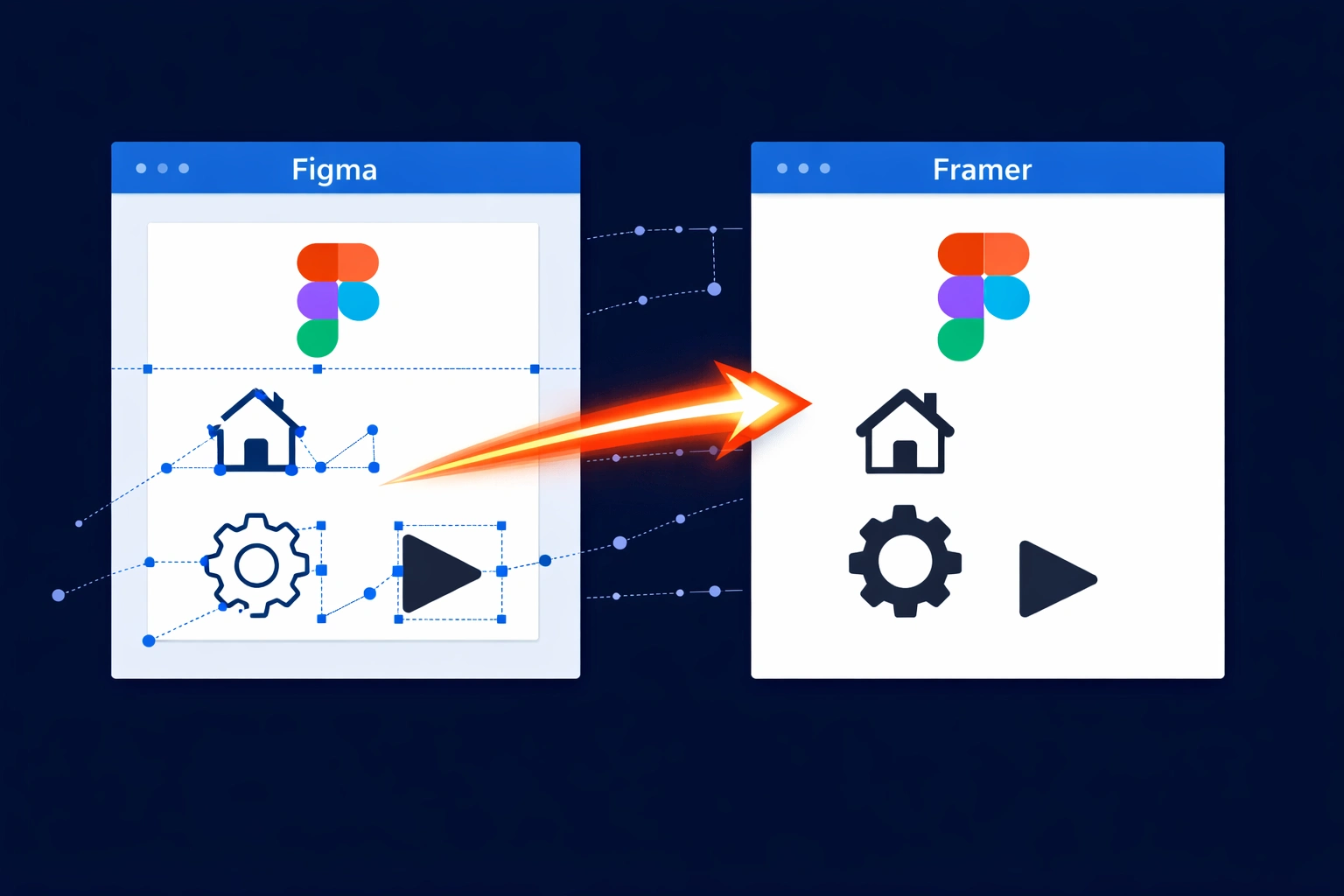
The dream workflow is simple: design a perfect icon set in Figma, hit a button, and have those SVGs land flawlessly in Framer, ready to be animated and themed. The reality, however, often involves blurry PNGs, cryptic "SVGs with large images inside are not supported" errors, and strokes that mysteriously vanish upon import.
Despite significant upgrades in the Framer platform—such as the dedicated vector canvas, Vector Sets, and Variables support for vectors—the Figma to Framer SVG pipeline still presents friction points that can disrupt a project. Designers frequently find themselves searching for the right tool to bridge this gap.
This guide provides a head-to-head comparison of four tools frequently mentioned in this context: SVGMaker, Vectorizzer, Stock Finder, and the Pixabay Framer plugin. We will clarify what each tool actually does, where it fits in your workflow, and how to combine them for a seamless vector workflow in 2026. For designers looking to convert to SVG or edit SVG files directly within their design tools, understanding these distinctions is crucial.
The Tools Compared
1. SVGMaker: The Complete AI SVG Studio for Figma and Framer
Best for: The entire SVG lifecycle—generating, converting, and editing—without leaving your design environment.
SVGMaker is the most comprehensive tool in this comparison, functioning as both a Figma plugin and a Framer plugin. It is a true AI SVG generator and AI SVG editor, handling all three critical stages of vector creation:
- Generate: Create custom icons and illustrations from text descriptions.
- Convert: Transform PNG, JPG, and WebP rasters into clean, AI-powered vector paths.
- Edit: Modify existing vectors or images on your canvas using natural language.
Unlike traditional auto-tracing tools that simply follow pixel edges, SVGMaker's AI understands shapes. It outputs semantically correct paths—a circle is a smooth <path>, not a jagged polygon. This results in lightweight SVG files that are production-ready by default, with minimal nesting and no redundant Figma metadata. This makes it an ideal SVG converter for any project.
Why it excels in the Figma-to-Framer workflow:
The Framer plugin intelligently handles Framer's 10KB upload limit for framer.addSvg(). If an SVG exceeds this limit, it automatically falls back to framer.addImage(), ensuring something lands on your canvas. The underlying SVG code is still clean and downloadable, but the fallback prevents silent failures.
- Shared Credit System: 6 free credits on signup + 3 free daily credits, shared across both plugins and the web app.
- Plugin Links: SVGMaker for Figma | SVGMaker for Framer | Web App: svgmaker.io
2. Vectorizzer: Free, Local PNG to SVG Conversion
Best for: Quick, offline conversion of simple, high-contrast rasters directly inside Framer.
Vectorizzer is a free, Framer-only plugin that acts as a straightforward PNG to SVG tool. It processes images locally on your machine, making it fast and private. With around 1,400 users, it's a popular choice for simple jobs.
How it works: Upload a PNG/JPG, choose a preset (icons, logos), and the plugin uses algorithmic tracing to generate vector paths.
Strengths: Completely free, works offline, real-time preview, and includes SVGO optimization.
Limitations: As an algorithmic tracer, it struggles with gradients, photos, and complex shapes, often creating messy paths with excessive anchor points. It has no AI generation or editing capabilities.
Verdict: Ideal for converting a simple, black-and-white logo exported from Figma. For anything more complex, an AI SVG Converter like SVGMaker's Convert tab will produce far cleaner results.
Plugin link: PNG to SVG Vectorizzer on Framer Marketplace
3. Stock Finder: Unified Stock Photography Search
Best for: Finding and importing stock photos from Unsplash, Pixabay, and Pexels in one place.
Important Clarification: Stock Finder is a tool for raster images (JPEG/PNG), not vectors. It's included here because it's often listed alongside SVG tools in marketplace roundups, but its function is entirely different.
With over 3,100 users, this free plugin aggregates three major stock libraries into a single search interface. It's excellent for sourcing photography for hero sections, backgrounds, or mockups, significantly reducing context switching.
Where it fits: While it doesn't help with SVG imports from Figma, it's a perfect companion for projects that mix photos and vectors. Any photo you import can later be vectorized using SVGMaker or Vectorizzer if needed.
Plugin link: Stock Finder on Framer Marketplace
4. Pixabay: Native Stock Photo Browser
Best for: Browsing and importing Pixabay's photo library directly from Framer's images panel.
Important Clarification: The Pixabay Framer plugin (10,400+ users) is exclusively a photo browser. It lives in Framer's images panel and allows you to search and import Pixabay's vast library of free stock photography.
The Gap: While Pixabay.com offers a large collection of free SVG vector files, the Framer plugin does not provide access to them. It only delivers photos.
Workaround: To use a Pixabay vector illustration, you must download the SVG from the main website and import it manually. If that SVG imports with errors (e.g., embedded rasters), you can use SVGMaker's Edit or Convert features to clean it up.
Plugin link: Pixabay on Framer Marketplace
Head-to-Head Comparison
| Feature | SVGMaker | Vectorizzer | Stock Finder | Pixabay |
|---|---|---|---|---|
| Primary Function | AI SVG generation, editing, conversion | Raster-to-SVG conversion | Stock photo search | Stock photo search |
| SVG Output | Yes (Core Feature) | Yes (Core Feature) | No (Photos only) | No (Photos only) |
| AI-Powered | Yes | No (Algorithmic) | No | No |
| Generate SVGs from Text | Yes | No | No | No |
| Edit Existing SVGs | Yes (Natural Language) | No | No | No |
| Works in Figma | Yes | No | No | No |
| Figma-to-Framer Relevance | High | Medium | Low | Low |
Workflows: Solving Real-World Vector Problems
Workflow 1: Rescuing a Low-Res Client Logo
A client sends a 72dpi JPEG. You need it as a crisp SVG in Framer.
- Open SVGMaker in Framer and go to the Convert tab.
- Upload the JPEG.
- The SVGMaker's AI returns a clean, vectorized logo. Use the Edit tab to refine it ("remove the white background").
Workflow 2: Recoloring a Hero Illustration for Dark Mode
Your light-mode illustration needs a dark-mode variant without a Figma round-trip.
- Select the illustration in Framer.
- Open SVGMaker (it auto-detects Edit Image mode).
- Type: "Recolor to use navy (#0f172a), amber (#f59e0b), and white."
- The AI returns a perfectly recolored SVG.
Workflow 3: Sourcing and Converting Stock Photos for a Landing Page
You need a textured background and custom icons.
- Use the Pixabay plugin or Stock Finder to import a high-res photo for your hero background.
- For your icons, use SVGMaker's Generate tab to create custom, lightweight SVG graphics that match your brand.
Working Around Framer's Most Common SVG Import Errors
Even with the right plugins, Framer's SVG handling has quirks. Here's how to deal with the most common ones.
"SVGs with large images inside are not supported"
The cause
Your SVG contains a <image> element with base64-encoded raster data. Common when exporting from Figma with photos or screenshots placed inside vector frames.
The fix
- Open the SVG in a text editor. Search for
data:image/. A long base64 string means the SVG is the problem. - Re-export from Figma with bitmap elements exported separately as PNG/JPG. Import them independently and layer them in Framer.
- Or use SVGMaker's Convert tab to re-vectorize the graphic — the AI outputs clean vector paths with no embedded rasters.
SVG imports as PNG instead of editable graphic layer
The cause
Framer's parser couldn't handle the SVG structure and silently rasterized it.
The fix
- Simplify the SVG before importing. Remove filters, blend modes, complex nested groups.
- Run through SVGO to remove Figma metadata and reduce file size.
- Use SVGMaker to re-generate or re-convert the asset. SVGMaker's output is purpose-built to be Framer-compatible — minimal nesting, clean paths.
Strokes disappear or flatten on import
The cause
Framer converts stroke-based SVGs into flat graphic layers, stripping stroke properties and breaking Framer's Stroke Animation.
The fix
- In Figma, convert all strokes to fills before exporting (Object → Outline Stroke).
- Use SVGMaker's Edit tab: "convert all strokes to filled paths while preserving the visual appearance."
- Or generate the icon fresh with SVGMaker using a "filled paths" or "solid" style description.
Best Practices for SVG Assets in Framer
These apply regardless of which plugins you use.
Before Exporting from Figma
- Outline Strokes: Framer can't handle Figma's inside/outside stroke alignment. Convert strokes to fills.
- Flatten Boolean Operations: Union, subtract, and intersect should be flattened into compound paths.
- Strip Embedded Rasters: An SVG with a base64-encoded image inside is not a true vector and will cause errors.
After Placing SVGs in Framer
- Check the Layer Type: Double-click the SVG. If you can edit individual paths, it's an editable graphic layer. If not, it's an image layer.
- Use Vector Sets: Organize your SVGs into Vector Sets for easy, reusable access across your project.
- Apply Variables: Bind fill colors to Variables for seamless light/dark mode switching.
Frequently Asked Questions
Answers to common questions about Figma to Framer SVG imports.
1. Can I transfer SVGs from Figma to Framer without quality loss?
For simple vectors, using "Copy as SVG" in Figma and pasting directly into Framer often works. For complex assets, use SVGMaker's Convert tab. It's the most reliable path to ensure a clean, editable SVG in Framer.
2. How does Vectorizzer compare to SVGMaker for raster-to-vector conversion?
Vectorizzer is a free, local tool best for simple, black-and-white images. SVGMaker uses AI to understand the image content, producing superior results for multi-color logos, illustrations, and images with gradients. It is a more powerful SVG converter.
3. Why do Stock Finder and Pixabay appear in SVG comparisons if they don't produce SVGs?
They're stock asset tools that live in the same "assets" category of the Framer marketplace and appear in "best Framer plugins" roundups. They're useful for photography-heavy projects but don't help with SVG workflows. Stock Finder aggregates photos from Unsplash, Pixabay, and Pexels. The Pixabay Framer plugin browses Pixabay photos. Neither produces vector output.
4. What's the fastest way to get a raster from Figma into Framer as a clean SVG?
Export as PNG from Figma → open Framer → open SVGMaker → Convert tab → upload the PNG → click Convert. AI-generated vector paths on your canvas in under 60 seconds. Compared to the Illustrator workflow: 15–30 minutes and usually messier output.
5. How does Vectorizzer's tracing compare to SVGMaker's AI conversion?
Vectorizzer uses algorithmic pixel tracing. SVGMaker uses AI that analyzes image content. For clean black-and-white logos with simple shapes, Vectorizzer's output is often sufficient and requires no account or credits. For logos with multiple colors, gradients, or complex edges, SVGMaker produces cleaner paths with better color fidelity. Vectorizzer is also entirely local — no internet required, no server round-trips.
6. What if my Pixabay SVG download imports incorrectly into Framer?
Many "vector" downloads from stock sites actually contain embedded raster images. If you encounter the "SVGs with large images inside" error, use SVGMaker's Edit tab. Upload the faulty SVG, and the AI will convert it to a true, clean vector.
7. Do I need both the SVGMaker Figma and Framer plugins, or just one?
Depends on your workflow. If you design in Figma and build in Framer, having both lets you generate brand-consistent assets in either tool. Credits are shared, so you're not paying twice. The Figma plugin is best for generating assets that need to integrate with your design system before transfer. The Framer plugin is best for quick on-canvas additions, last-minute edits, and raster-to-SVG conversion during the build phase.
Conclusion
The Figma to Framer SVG pipeline is stronger than ever, but it's not foolproof. While tools like Vectorizzer offer quick, free fixes for simple PNG to SVG conversions, and Stock Finder and Pixabay are invaluable for sourcing photography, they don't address the core challenges of complex vector imports.
SVGMaker stands out as the only complete solution. It acts as a powerful AI SVG generator, a precise built-in SVG editor, and an intelligent SVG converter—all within both Figma and Framer. It directly tackles the most common import errors, handles platform limits gracefully, and empowers designers to create, edit, and perfect vectors without ever leaving their canvas.
For a seamless, professional vector workflow in 2026, SVGMaker is the definitive choice.
