How to Vectorize an AI Image into an Editable SVG Inside ChatGPT with the SVGMaker Plugin
Can ChatGPT Turn an AI Image into an Editable SVG?
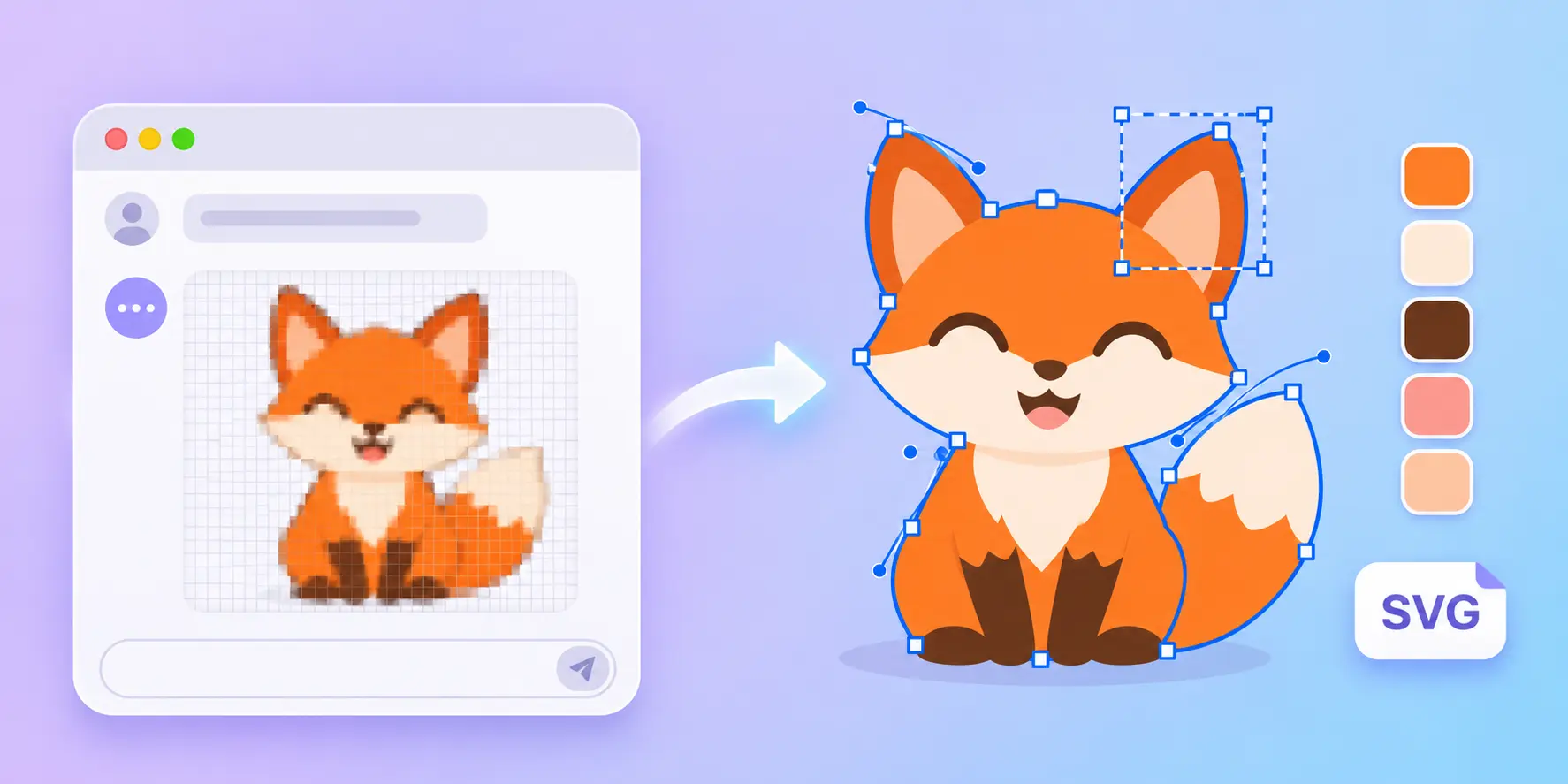
ChatGPT is great at making images. You describe a logo, a mascot or a sticker, and a few seconds later you have a picture you like. The trouble starts when you try to use it. ChatGPT gives you a PNG, a picture made of pixels. Enlarge it for a banner and the edges go soft. Upload it to a cutting machine and there are no paths to cut. Try to change one colour and you have to paint over it.
What you need is a vector: an SVG made of shapes that stay sharp at any size, where every part can be moved, recoloured or deleted. To get there from an AI image, a tool has to do three things. It has to trace the picture into real paths, not wrap the PNG inside an SVG file. It has to keep the colours and shapes you liked. And it has to let you fix the result without starting over.
In some cases, an SVG file may simply contain an embedded PNG wrapped inside an SVG container. It looks like an SVG and may open in a vector editor, but the artwork is still pixel-based. You can't independently select its shapes, adjust individual paths, or recolour specific elements as you would with a properly vectorized illustration.
SVGMaker does all three, and with the SVGMaker plugin for ChatGPT, you can do it in the same chat where you made the image. You make the picture in ChatGPT, tag @SVGMaker, and ask it to convert the picture to SVG. The result comes back as a card in the chat, ready to open on svgmaker.io.
In this guide:
- Why is a ChatGPT image not an SVG?
- What does the SVGMaker plugin do inside ChatGPT?
- How do you add the SVGMaker plugin to ChatGPT?
- How do you vectorize a ChatGPT image step by step?
- Should you convert, edit or remove the background?
- How do you write prompts that vectorize cleanly?
- What does it cost?
- How do you fix common problems?
- Frequently Asked Questions
Why Is a ChatGPT Image Not an SVG?
ChatGPT's image generator draws in pixels. Each image is a grid of tiny coloured squares, saved as a PNG. An SVG is a text file that describes shapes: a circle here, a curve there, each with its own colour. The two look the same on a screen, but they behave very differently once you start using them.
| AI image from ChatGPT (PNG) | Vectorized image (SVG) | |
|---|---|---|
| Made of | Pixels | Paths and shapes |
| Scaling | Gets blurry when enlarged | Stays sharp at any size |
| Editing | Paint over pixels | Move, recolour or delete each shape |
| Cutting machines | Nothing to cut | Every closed shape is a cut line |
| File size for flat art | Larger | Usually smaller |
| Best for | Photos, scenes, social posts | Logos, icons, stickers, print, cut files |
You can ask ChatGPT to write SVG code for you. For a simple shape, that can work. For anything with real detail, such as a mascot or an illustrated logo, the code it writes rarely looks like the image it made. Vectorizing works the other way round: it starts from the picture you already like and traces it into paths.
What Does the SVGMaker Plugin Do Inside ChatGPT?
The SVGMaker plugin connects ChatGPT to your SVGMaker account. Once it is added, you can tag @SVGMaker in any chat and ask it to work on an image. Each job comes back as an SVGMaker card in the chat, with a preview, the credits it used and your balance.
Here is what you can ask it to do:
| What you ask | What the plugin does |
|---|---|
| "Convert this image to SVG" | Traces a ChatGPT image or an attached PNG, JPG or WebP into an SVG, as it is |
| "Turn this into a flat vector logo" | Edits the image with AI and returns a new SVG with your changes |
| "Remove the background" | Cuts out the subject and returns a transparent SVG |
| "Make an SVG of a fox mascot" | Generates a new SVG from a text prompt |
| "Make the outline thicker" | Edits an SVGMaker result from earlier in the same chat |
| "Show my last five SVGs" | Lists your SVGMaker images |
| "Share this one" | Makes a public share link for one image |
Every image you make is saved to your SVGMaker account, so you can find it later on svgmaker.io, open it in the editor and download it there.
How Do You Add the SVGMaker Plugin to ChatGPT?
You only do this once.
- Open the SVGMaker plugin page in ChatGPT.
- Click to add SVGMaker to ChatGPT.
- Sign in to your SVGMaker account when asked, or create a free account. ChatGPT uses this sign in to spend your SVGMaker credits, so you never paste an API key.
- Start a new chat and type @. Pick SVGMaker from the list.
From now on, any message where you tag @SVGMaker can use the plugin.
How Do You Vectorize a ChatGPT Image Step by Step?
Step 1: Make the Image in ChatGPT
Describe the picture you want, the same way you always do. For the cleanest vector, ask for flat colours and simple shapes from the start, for example:
"A flat illustration of a smiling orange fox, simple shapes, five colours, plain white background, no shading."
Generate a few versions and keep going until you have one you like. This part costs nothing on SVGMaker.
Step 2: Ask @SVGMaker to Convert It
In the same chat, tag the plugin and ask:
"@SVGMaker convert this image to SVG."
ChatGPT passes the image to SVGMaker. Because a conversion spends credits, ChatGPT asks you to confirm before it runs. Approve it, and SVGMaker traces the picture into an SVG.
If the image is from somewhere else, such as a file on your computer, attach it to the message first. The plugin accepts PNG, JPG and WebP.
Step 3: Check the Result Card
The SVG comes back as an SVGMaker card in the chat. It shows a preview, how many credits the job used and how many you have left. Zoom in on the preview and look at the edges, the colours and any small details, such as eyes or text.
Step 4: Refine It in the Chat
If something is off, keep talking. Tag @SVGMaker again and describe the change:
- "@SVGMaker make the background transparent."
- "@SVGMaker change the orange to a deeper red."
- "@SVGMaker simplify the tail and remove the small dots."
Each request works on the result you already have, so the parts you liked stay as they are.
Step 5: Open It on SVGMaker and Download
Click the button on the card to open the image on svgmaker.io. From there you can open it in the SVG editor to move paths, change text and recolour shapes by hand, or use the AI SVG editor to change it in plain English. Downloads happen on svgmaker.io, not inside ChatGPT, and they depend on your SVGMaker plan.
Should You Convert, Edit or Remove the Background?
The plugin has three ways to turn an image into an SVG. Pick the one that matches what you want to keep.
| You want | Ask for | What happens | Credits |
|---|---|---|---|
| The image exactly as it is, in vector form | Convert | SVGMaker traces the picture into paths without changing the design | 1 |
| The image changed while it becomes a vector, such as flatter colours or a cleaner style | Edit | SVGMaker redraws the image with your changes and returns an SVG | 2, 3 or 5, by quality |
| Only the subject, with nothing behind it | Remove background | SVGMaker cuts out the subject and returns a transparent SVG | 1 |
A good rule: if you love the image, convert it. If you like the idea but the image has too much shading or texture to trace well, edit it into a flat vector instead, for example "@SVGMaker turn this into a flat vector illustration with six colours."
How Do You Write Prompts That Vectorize Cleanly?
Some AI images trace beautifully. Others turn into thousands of tiny shapes. The difference is almost always in the prompt you gave ChatGPT.
| Ask for | Avoid | Why |
|---|---|---|
| Flat colours | Gradients, soft shadows, glow | Each shade becomes its own shape |
| A small, fixed number of colours | "Colourful", "vibrant" with no limit | Fewer colours mean fewer layers and cleaner paths |
| Bold, simple shapes | Fine texture, fur, grain | Texture traces into hundreds of specks |
| A plain background | Busy scenes behind the subject | A clean edge is easier to trace and to remove |
| Thick outlines, if you want lines | Thin, sketchy lines | Thin lines can break up when traced |
| Short words in big letters | Long sentences of small text | AI images often misspell small text |
If your image already has text, check every letter in the SVG. When a word is wrong, fix it by hand in the SVG editor or ask the AI SVG editor to change it.
What Does It Cost?
The plugin uses the credits already in your SVGMaker account. There is no separate plugin price.
| Job | Credits |
|---|---|
| Convert an image to SVG | 1 |
| Remove a background | 1 |
| Edit an image into an SVG | 2 at low, 3 at medium, 5 at high quality |
| Generate a new SVG | 1 at low, 2 at medium, 3 at high quality |
A free SVGMaker account starts with sign up credits and gets a daily top up, which is enough to try a few conversions. Free account images and prompts are public in the SVGMaker gallery, and free images do not include commercial rights. Paid plans and credit packs keep your images private unless you share them, add commercial rights and unlock downloads in every format.
How Do You Fix Common Problems?
| Problem | Likely cause | Fix |
|---|---|---|
| The SVG has hundreds of tiny shapes | The image had texture, shading or gradients | Ask @SVGMaker to edit it into a flat vector with fewer colours |
| A white box sits behind the artwork | The ChatGPT image had a white background | Ask @SVGMaker to remove the background |
| Text is misspelled | The AI image had the wrong letters | Fix the word in the SVG editor, or ask the AI SVG editor to change it |
| The plugin does not respond | SVGMaker was not tagged | Start your message with @SVGMaker |
| A job failed or timed out | The request took too long | Ask @SVGMaker to list your recent SVGs before you try again, because the image may already be made |
| You are out of credits | Your balance ran out | Wait for the daily top up, or add credits on svgmaker.io |
Frequently Asked Questions
1. Can ChatGPT make SVG files on its own?
ChatGPT can write simple SVG code, but its image generator makes PNG pictures, not vectors. To turn one of those pictures into a real, editable SVG, add the SVGMaker plugin and ask @SVGMaker to convert it.
2. Is the SVGMaker plugin for ChatGPT free?
Adding the plugin is free. Each job uses SVGMaker credits from your account. A free SVGMaker account includes sign up credits and a daily top up, and a conversion costs 1 credit.
3. Do I need to download the image from ChatGPT first?
No. Ask @SVGMaker in the same chat, and ChatGPT passes the image it made to SVGMaker. You only attach a file when the image comes from somewhere else.
4. Is the result a real vector or a PNG inside an SVG?
It is a real vector. SVGMaker traces the image into paths and shapes, so you can select, recolour and move each part in any SVG editor.
5. Can I edit the SVG after it is made?
Yes. Ask @SVGMaker for changes in the chat, open the image on svgmaker.io and edit it by hand in the SVG editor, or describe the change to the AI SVG editor.
6. Where do I download the SVG?
On svgmaker.io. Click the button on the result card to open the image there. Downloads are not available inside ChatGPT, and whether you can download depends on your SVGMaker plan.
7. Can I use the SVG for Cricut or laser cutting?
Yes, once it is clean. Keep the colours few and the shapes simple, remove the background, and check for tiny pieces before you cut. For cut files, you can also open the image in the SVG editor and delete any stray shapes.
8. Are my images private?
Images from a free account, and the prompts behind them, are public in the SVGMaker gallery. Images from a paid plan or credit pack stay private unless you share them.
Final Verdict: Should You Vectorize Your AI Images Inside ChatGPT?
If you already make images in ChatGPT, the SVGMaker plugin removes the slowest part of the job. You no longer save a PNG, open another tool, upload it, wait and come back. You make the picture, tag @SVGMaker, and get a real, editable SVG in the same chat, with the option to keep refining it in plain English.
For the cleanest results, ask ChatGPT for flat colours and simple shapes, convert the images you love as they are, and edit the busy ones into flat vectors. Then finish each file on svgmaker.io for the website, sticker, label or cutting machine it is made for.
Add SVGMaker to ChatGPT and turn your next AI image into a vector you can actually use.