Is Canva's SVG Export Good Enough? What Professional Designers Prefer in 2026
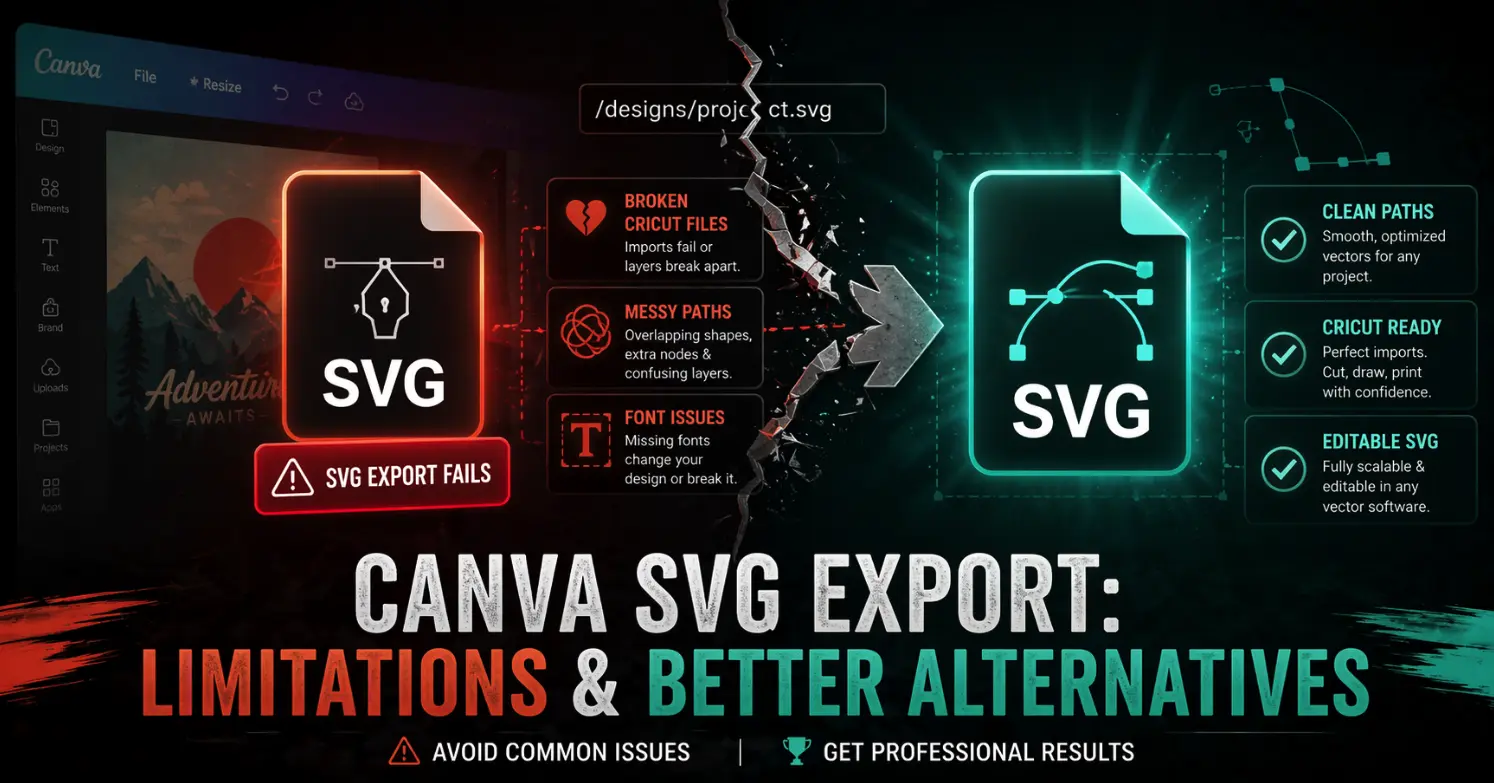
Quick Summary
- Canva SVG export is locked behind the Pro subscription, free users cannot download SVG files at all.
- Even with Canva Pro, SVG output commonly suffers from messy nested groups, unreliable font embedding, missing layers, and broken Cricut imports.
- Canva has no CMYK support, making its SVG exports unsuitable for professional print production.
- For simple social media graphics and flat web visuals, Canva performs well and the limitations rarely matter.
- For Cricut projects, layered design work, and professional SVG workflows, Canva consistently falls short and requires cleanup in a separate tool.
- Purpose-built platforms like SVGMaker produce clean, structured, edit-ready SVG files that do not need post-export repair.
Quick Answer
If you are working with simple graphics, Canva works fine.
But if you need clean, editable, and reliable SVG files, Canva starts to show limitations.
The truth is that Canva SVG export problems become noticeable the moment you move beyond basic designs. That is where professional tools and dedicated SVG editors become important.
If you regularly work with SVG files for Cricut, web, or print, it is worth using a tool designed specifically for clean SVG output, such as SVGMaker.
What Canva SVG Export Actually Provides
Before getting into the problems, it helps to understand the baseline of what Canva actually offers.
SVG export is available exclusively through Canva Pro. Users on the free plan cannot download SVG files at all, which is the first meaningful limitation for anyone evaluating Canva as part of an SVG workflow.
Even with Pro access, the SVG output is constrained in several important ways:
| Feature | Canva SVG Export |
|---|---|
| SVG Export Availability | Pro subscribers only |
| Layered Export | Not supported |
| Font Embedding | Unreliable |
| CMYK Color Support | Not available |
| AI or EPS Format | Not available |
| Clean Path Structure | Inconsistent |
| Editability After Export | Limited |
| Cricut Design Space Compatibility | Unreliable |
This is a functional export for simple use cases. It is not a professional-grade SVG workflow.
The 4 Most Common Canva SVG Export Problems
1. Fonts Do Not Transfer Correctly
One of the most common Canva SVG export problems is font handling. When you export an SVG, the fonts are not always embedded correctly. This means:
- Text may change when opened elsewhere
- Fonts may not display properly
- You may need to convert text to outlines manually
This adds extra steps and confusion, especially for beginners.
2. Invisible Shapes and Nested Groups
Another major issue is how Canva structures SVG files.
Instead of clean paths, you often get:
- Hidden shapes
- Extra layers
- Deeply nested groups
This creates messy files that are hard to edit. It also increases file size and slows down workflows. Understanding how to group and ungroup SVG elements becomes necessary just to fix what Canva exports.
3. Designs Break in Cricut Design Space
If you have tried using Canva SVG for Cricut, you may have already seen this problem.
After importing into Cricut Design Space:
- Elements shift out of place
- Layers separate incorrectly
- Designs do not cut as expected
This happens because Canva does not export SVG files in a way that is optimized for cutting machines. If you want Cricut-ready files from the start, reading about how to make SVG files for Cricut gives you a clearer picture of what a properly structured file actually requires.
4. No CMYK Support for Print
For professional printing, color accuracy matters.
However, Canva does not support CMYK color profiles in SVG exports. This leads to:
- Color mismatches
- Inconsistent print results
- Limited control over output
This is one of the biggest Canva SVG limitations for professional designers.
When Canva SVG Export Works Well
To be fair, Canva is not a bad tool. It just has a specific purpose.
Canva works well for:
| Use Case | Canva Performance |
|---|---|
| Social media graphics | Excellent |
| Basic icons | Good |
| Web visuals | Good |
| Simple flat designs | Good |
If your designs are simple and do not require editing after export, Canva is perfectly fine.
When Canva SVG Export Fails
The problems start when you need more control.
Here is where Canva struggles:
| Use Case | Canva Performance |
|---|---|
| Cricut or Silhouette files | Poor |
| Complex illustrations | Limited |
| Professional printing | Not suitable |
| Layered design work | Not supported |
These are the areas where Canva SVG export quality in 2026 falls short.
Real User Frustrations
Many users report the same issues again and again.
"My SVG looked fine in Canva but broke in Cricut"
"There is a white box behind my design"
"I had to fix everything in another tool"
These are not isolated problems. They are consistent issues tied to how Canva exports SVG files. Most of these problems trace back to the nested group structure and incomplete path data that Canva's export produces, issues covered in detail in SVGMaker's guide on cleaning up SVG files.
Canva vs Illustrator for SVG
To understand the difference better, here is how Canva vs Illustrator for SVG compares:
| Feature | Canva | Illustrator |
|---|---|---|
| Ease of Use | Very easy | Complex |
| SVG Quality | Limited | Professional |
| Layer Control | Low | High |
| Font Handling | Unreliable | Reliable |
| Print Support | Limited | Advanced |
| Price | Free or Pro | $59.99/month |
Illustrator offers full control, but it comes with a steep learning curve and high cost. Canva is easy but limited.
This leaves a gap for tools that are both simple and optimized for SVG workflows. For a deeper look at how these tools compare side by side, the SVGMaker vs Canva, Figma, and Adobe comparison covers the full picture.
What Professional Designers Use Instead
Professional designers rarely rely on Canva for SVG work.
Instead, they use tools that offer:
- Clean path structures
- Proper layering
- Reliable exports
- Editing flexibility
This is where dedicated SVG tools come in.
How SVGMaker Solves Canva's Problems
SVGMaker is designed specifically for SVG creation and editing, which makes a big difference.
Here is how it addresses the common issues:
| Problem | Canva | SVGMaker |
|---|---|---|
| Messy file structure | Yes | Clean paths by default |
| Cricut compatibility | Limited | Optimized for cutting machines |
| Editing flexibility | Low | High, with built-in SVG editor |
| Workflow | Multi-step cleanup required | All-in-one |
| Font handling | Unreliable | Convert to outlines before export |
Instead of dealing with cleanup after export, you get a file that is ready to use.
This is especially helpful for:
- Cricut users who need clean cut-ready files
- Etsy sellers who need consistent, reusable designs
- Designers working with SVG files regularly
SVGMaker also covers use cases Canva cannot handle at all, generating SVG from text prompts through the AI generator, converting photos using the photo-to-SVG tool, and creating icon sets with the AI icon generator.
Canva vs SVGMaker: When to Use Each
It is not about replacing Canva completely. It is about using the right tool for the right job.
| Use Case | Canva | SVGMaker |
|---|---|---|
| Social media design | Yes | Yes |
| Quick visuals | Yes | Yes |
| SVG for Cricut | No | Yes |
| Clean editable SVGs | No | Yes |
| Professional SVG work | Limited | Yes |
| Text-to-SVG generation | No | Yes |
| Raster image to SVG | No | Yes |
This comparison makes the decision much easier.
Which One Should You Use?
If your focus is visual content and marketing, Canva is still a great tool.
But if you need reliable SVG files, clean paths, and proper structure, Canva will not be enough.
That is when you need a dedicated SVG tool.
Frequently Asked Questions
1. Is Canva SVG export good enough for professional use?
When it comes to Canva SVG export quality in 2026, it really depends on your use case. Canva works fine for simple graphics and basic designs. However, for professional workflows that require clean paths and precise control, it often falls short. Many designers find that they need to clean up files after export, which adds time and affects quality.
2. Why are people questioning Canva SVG export quality in 2026?
More users are working with SVG files for Cricut, web design, and printing. As a result, Canva SVG export quality in 2026 is being examined more closely. People are noticing issues like broken layers and messy file structures, which become more obvious as projects get more complex.
3. What are the most common Canva SVG export problems?
Some of the most common Canva SVG export problems include missing fonts, extra hidden shapes, and messy grouping. These issues make the file harder to edit and reuse, and users also report designs breaking when imported into other tools.
4. Is Canva SVG for Cricut reliable?
Using Canva SVG for Cricut can work for very simple designs, but it is not always reliable. Many users notice that designs shift or break when imported into Cricut Design Space because the file structure is not optimized for cutting machines.
5. What are the main Canva SVG limitations?
The biggest Canva SVG limitations include lack of proper layering, poor font handling, no CMYK support, and messy file structure. These limitations make it difficult to use SVG files for advanced workflows, especially in print and production work.
6. How does Canva Pro SVG export differ from the free version?
With Canva Pro SVG export, you can download designs as SVG files, which is not available in the free version. However, even with Pro, the export still has structural limitations. You do not get fully clean or layered SVG files, so additional editing may still be required.
7. Is Canva Pro SVG export enough for advanced SVG needs?
While Canva Pro SVG export is useful for basic tasks, it may not be enough for advanced workflows. If you need clean, editable, and reliable SVG files, you may still run into limitations and end up needing a dedicated SVG editor.
Conclusion
When evaluating Canva SVG export quality in 2026, the answer depends on how you plan to use your files.
For simple designs, Canva works well. It is easy, fast, and accessible.
But for anything beyond basic use, the limitations become clear. From messy grouping to broken Cricut imports, the issues are difficult to ignore.
That is why many users move to tools built specifically for SVG workflows.
If you want clean, editable, and reliable SVG files without extra cleanup, SVGMaker gives you a much smoother experience from start to finish.
