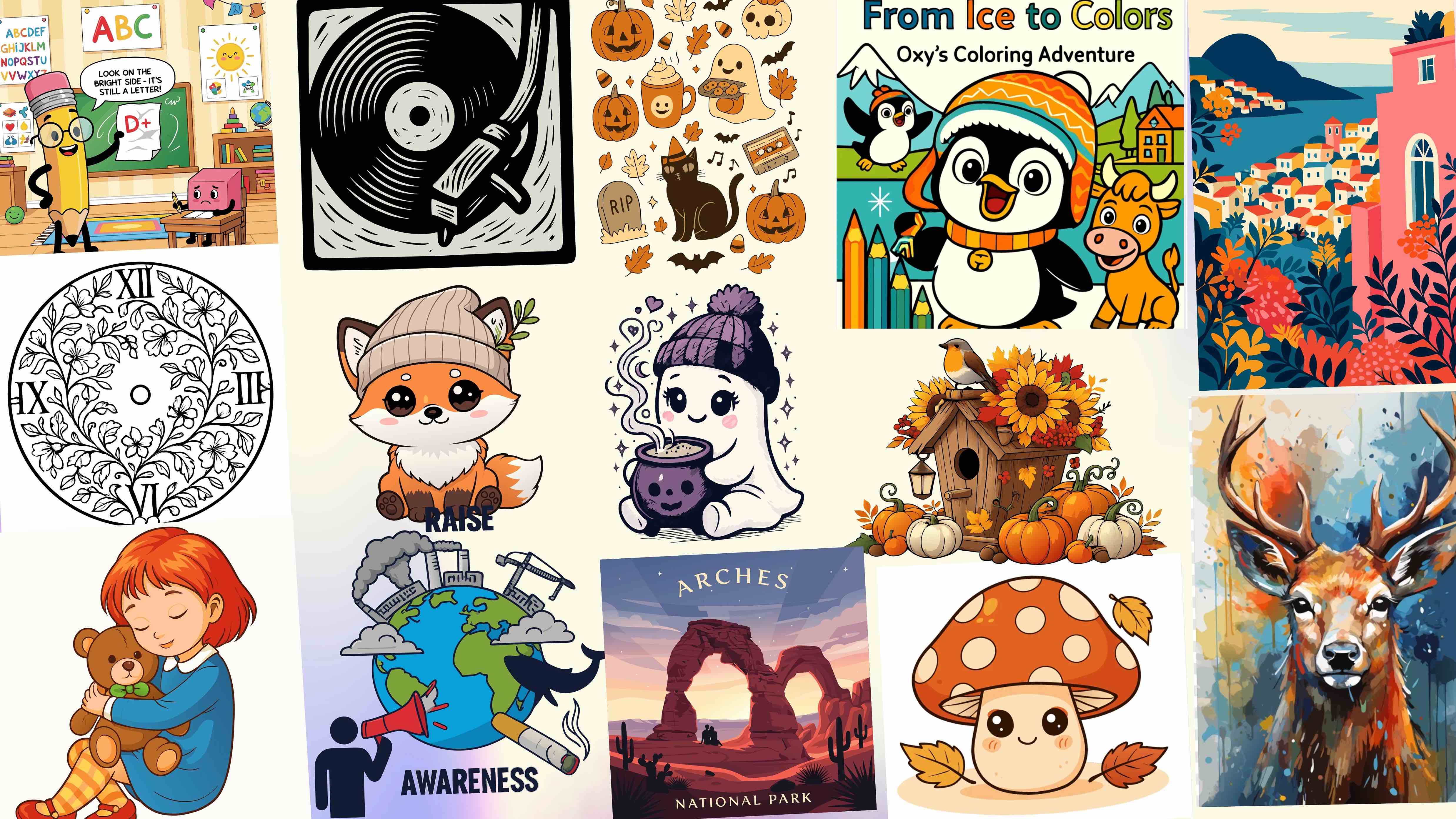
SVGMaker Chrome Extension: Convert Any Image to SVG
Turn any image on any webpage into a clean, scalable SVG without leaving your browser.
Quick Navigation
Introduction
You are browsing a site, you spot the perfect icon or logo, and you want it as a clean vector you can resize, recolour, and drop into your own project. So you save the PNG, open a converter in another tab, upload the file, wait, download the result, and then realise the tracing looks rough. By the time you have a usable SVG, you have jumped through five tabs and lost your train of thought.
That friction is exactly what the SVGMaker Chrome extension removes. Instead of hopping between a screenshot tool, a converter website, and an editor, you do the whole thing from the browser you are already in. Click the extension, pick the image, and get a crisp, scalable SVG in seconds.
This guide walks through what the extension is, how to install it, how to use it step by step, and every feature it brings. Whether you are a developer grabbing icons, a designer building a UI, or a maker prepping files for a cutting machine, this is the fastest path from "I like that image" to "I have the vector."
What You'll Learn:
- What the SVGMaker Chrome extension is and why SVG output matters
- How to install and pin the extension in under a minute
- The full step-by-step workflow from image to downloaded vector
- Every feature the extension packs, from AI generation to a code editor
- Which feature to reach for based on your situation
What the SVGMaker Chrome Extension Is
The SVGMaker Chrome extension is a browser add-on that turns text or any raster image into clean, scalable SVG vectors in seconds, powered by the SVGMaker platform. You can select an image straight from a webpage or upload your own file, and the AI traces it into editable vector code without you ever opening a separate app.
Here is why the output matters. SVG (Scalable Vector Graphics) is an image format made from code instead of pixels. Because it is math, not a fixed grid of dots, an SVG stays perfectly sharp at any size. A PNG or JPG blurs and blocks up when you scale it past its native resolution — an SVG does not. That is why SVG is the standard for icons, logos, and UI elements: one file looks flawless on a phone, a laptop, and a 4K display, and it usually weighs a fraction of the equivalent PNG.
The extension pairs that format with AI, so you are not just shrinking a file. You are converting a flat, pixel-bound picture into a true vector you can edit, recolour, and reuse forever.
Infinitely Scalable
Because an SVG is math, not pixels, it stays perfectly sharp at any size — phone, laptop, or 4K display.
Smaller Files
A vector icon usually weighs a fraction of the equivalent PNG, so pages load faster.
Fully Editable
You get true vector paths and shapes you can recolour, reshape, and reuse forever.
Real Vectorization
The AI traces genuine paths — not a PNG hidden inside SVG tags — so the result stays editable.
How to Install the Extension
Getting set up takes under a minute.
Open the Chrome Web Store — Head to the SVGMaker listing on the Chrome Web Store.
Add to Chrome — Click Add to Chrome, then confirm with Add extension in the popup.
Pin the extension — Click the puzzle piece icon in your toolbar and pin SVGMaker so its icon stays visible.
You're ready — The SVGMaker icon now sits in your toolbar, ready on any tab.
Note
No account is required to install it, and it works on any standard webpage you visit in Chrome.
How to Use It Step by Step
The core workflow is built to be fast. Here is the full loop from image to downloaded vector.
Find your image — Land on any webpage that has the graphic, logo, or photo you want.
Open SVGMaker — Click the extension icon in your toolbar, or choose an image directly from the page. You can also upload a file from your computer if the graphic is not on the current page.
Let the AI trace it — The tool sends your PNG, JPG, or bitmap through its AI image-to-SVG engine and returns a clean, scalable vector. This is real vectorization, not a PNG hidden inside SVG tags.
Preview and refine — Check the result, adjust colours, tweak paths, or clean up stray shapes right in the built-in editor.
Export — Download your finished SVG, or export to a raster format if a project needs one. You now have a resolution-independent file ready for the web, an app, or a cutting machine.
Tip
The whole sequence usually takes seconds, and because you never leave Chrome, your workflow stays unbroken.
Key Features
The extension is more than a one-trick converter. It bundles a full vector toolkit into the browser.
Image to SVG Conversion
Traces PNG, JPG, and bitmap images into clean, scalable vector code.
AI Generator
Produces brand-new SVGs from a plain text prompt — no source image required.
AI Editor
Refines any SVG using natural language commands like "make the background transparent".
Built-in Visual Editor
Adjust paths, shapes, and layers by clicking — point-and-click cleanup with no code.
Code Editor
Shows the SVG source with a live preview as you type, ideal for optimising paths.
Developer Integration
API and MCP server access for automating conversion at scale inside a pipeline.
| Feature | What it does | Best for |
|---|---|---|
| Image to SVG conversion | Traces PNG, JPG, and bitmap images into clean, scalable vector code | Grabbing logos, icons, and web graphics as reusable vectors |
| AI generator | Produces brand new SVGs from a plain text prompt | Creating an icon or illustration from scratch when you have no source image |
| AI editor | Refines any SVG using natural language commands | Fast tweaks like "make the background transparent" or "change blue to green" |
| Built-in visual editor | Lets you adjust paths, shapes, and layers by clicking | Point-and-click cleanup with no code |
| Code editor | Shows the SVG source with a live preview as you type | Developers optimising paths or adding accessibility tags |
| Style controls | Customises colours, layouts, and aspect ratios | Matching output to a brand or design system |
| Multiple export options | Outputs as SVG or a raster format | Delivering the right file type per project |
| Developer integration | Offers API and MCP server access for programmatic workflows | Automating conversion at scale inside a pipeline |
Each of these lives in the same place, so you can generate, convert, edit, and export without the usual context switching between Figma, a converter site, and a code editor.
Which Feature Should You Use?
Not sure where to start? Match your situation to the right tool.
| Your situation | Best feature | Why |
|---|---|---|
| You found a raster logo online and want it as a vector | Image to SVG conversion | Traces the graphic into clean, editable vector code in one step |
| You have no image yet, just an idea | AI generator | Creates an SVG from a text prompt, no source file needed |
| You want a quick change and prefer plain English | AI editor | Describe the edit and let the AI apply it |
| You want precise, hands-on control | Visual editor | Select and adjust exactly the shapes you want |
| You are a developer tuning the output | Code editor | Edit the raw SVG with a live preview |
| You need to convert many files automatically | Developer integration | API and MCP handle conversion in bulk |
Frequently Asked Questions
1. Is the SVGMaker Chrome extension free to install?
Yes. Installing the extension from the Chrome Web Store is free, and it takes under a minute. AI-powered generation and conversion features run through the SVGMaker platform, so you sign in there when you want to save or process work.
2. Does it work on any website?
It works on standard webpages in Chrome. You can select an image on the page you are viewing or upload a file from your computer, so you are never locked to a single source.
3. What image formats can I convert to SVG?
The extension handles common raster formats including PNG, JPG, and bitmaps. It traces them into scalable vector graphics using AI, which is far cleaner than manually redrawing the shapes.
4. Is the result a real vector or just a PNG inside an SVG file?
It is a real vector. The engine performs genuine vectorization, producing editable paths and shapes rather than wrapping a bitmap in SVG tags. That means the file stays sharp at any size and remains fully editable.
5. Do I need to know how to code to use it?
Not at all. The visual editor and the AI editor cover most tasks with clicks or plain language. The code editor is there for developers who want it, but it is completely optional.
6. Can I generate an SVG without an existing image?
Yes. The built-in AI generator creates SVGs from a text prompt. Describe what you want, such as a line icon of a graduation cap, and you get an editable vector back.
7. Is there a version for other browsers?
The SVGMaker extension is built for Chrome. If you use a different browser, you can still convert images through the SVGMaker website directly, which offers the same core image-to-SVG conversion.
8. Can developers automate conversions?
Yes. The platform exposes an API and an MCP server, so you can wire image-to-SVG conversion into your own scripts, build steps, or automation pipelines.
Conclusion
Converting an image to a clean vector used to mean juggling tabs, tools, and file downloads. The SVGMaker Chrome extension collapses that into a single click inside the browser you already live in. Spot an image, trace it into a scalable SVG, refine it, and export, all without breaking your flow.
Between fast vectorization, an AI generator, natural language editing, a visual editor, and developer-friendly automation, it covers the full journey from raw picture to production-ready vector. If you regularly pull icons, logos, or graphics off the web and wish they were crisp, editable SVGs, add the extension to Chrome and turn that wish into a one-click habit.
Need Help?
Get support and find answers to your questions
FAQ
Find answers to frequently asked questions about SVGMaker features and functionality.
Documentation
Check the full documentation for detailed guides and tutorials.
Support
Contact support through the chatbot for personalized assistance.
Ready to convert any image to SVG?
Add the SVGMaker extension to Chrome and turn every image you spot on the web into a crisp, editable vector — in one click.