Best SVG Background Remover Online: Create Transparent Backgrounds for SVG Logos, Icons & Illustrations
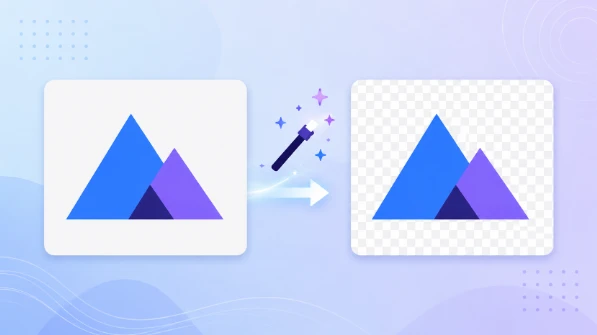
Quick Summary
- Most "SVG background remover" tools actually rasterize your file and return a transparent PNG, destroying the vector format.
- A true SVG background remover works directly on the XML structure, removing background elements while keeping foreground paths fully editable and scalable.
- Common failures include raster output disguised as SVG, loss of original vector structure through auto-tracing, and no cleanup of orphaned nodes after removal.
- SVGMaker's SVG background remover combines AI detection, a visual Magic Eraser, and automatic node cleanup to deliver production-ready transparent SVGs.
You download a logo in SVG format. It looks perfect until you place it on your website header, app layout, or print file and see a solid white rectangle that follows it everywhere. The background won't disappear.
Most designers reach for one of two fixes: open the SVG in a code editor and hunt for the offending <rect> or <path>, or run the file through a generic background remover that returns a transparent PNG. The first approach is slow and risks breaking the graphic. The second defeats the purpose of using a vector format — you lose scalability and editability, ending up with a raster image.
What you actually need is an AI-powered tool that removes the background from SVG vector images directly in the code, delivering a clean, transparent SVG that stays fully editable and resolution-independent. This article explains how such an SVG background remover works, why most online tools fail, and how SVGMaker handles the entire workflow — AI detection, manual precision, and automatic node cleanup — all inside a browser-based platform.
What Is an SVG Background Remover?
An SVG background remover is a tool that deletes background elements from an SVG file's XML structure — full-canvas <rect> elements, boundary-tracing <path> shapes, or CSS-applied fills sitting behind your actual artwork.
Unlike a standard photo background remover, it produces a transparent SVG background without rasterizing the file. The output remains true vector paths that scale to any size without pixelation or quality loss. This works because SVGs are markup documents, not pixel grids. A proper SVG background remover parses the vector DOM, identifies which nodes constitute the background, and removes only what needs to go while leaving the foreground intact.
SVGMaker's SVG background remover is designed for exactly this: native vector-level removal, combining AI automation, a visual Magic Eraser, and built-in code cleanup — all in one place.
Why Most Online Tools Fail at SVG Background Removal
The majority of "SVG background remover" tools don't actually remove backgrounds from SVGs. Instead, they perform a pixel-based operation:
Raster Output Disguised as SVG Removal
Canva, Adobe Express, and Vecteezy all strip backgrounds using AI trained on photographs and export a transparent PNG. That's fine for social media, but useless for web development or print. Some tools even wrap the raster inside an SVG container — technically a .svg file, but with a bitmap inside. That's not a vector.
Loss of Original Vector Structure
Even tools that return an SVG often use a rasterize-then-auto-trace pipeline. The output has completely different path geometry. A clean 5 KB logo can balloon to 50 KB of jagged, auto-traced paths that are harder to edit.
No Cleanup After Removal
Deleting the background element is only half the job. You're left with orphaned gradient definitions in <defs>, empty <g> groups, leftover editor metadata (Inkscape inkscape:, sodipodi: namespaces), and unused <clipPath> elements. The file stays bloated and can render inconsistently.
SVGMaker works directly on the SVG structure, includes automatic node cleanup, and always outputs a production-ready, transparent SVG. For a full walkthrough on post-removal optimization, see our guide on Smart SVG Background Removal.
How SVGMaker Removes SVG Backgrounds (Three Methods)
SVGMaker gives you three ways to remove backgrounds from SVGs, so you can match the method to the job.
1. One-Click AI Background Remover
Go to SVGMaker's SVG Background Remover tool, upload your SVG, and hit "Remove." No prompts, no manual element selection.
The AI automatically detects background elements and outputs a native, transparent SVG. If you have a logo or icon with a flat colored background and just want it gone, this is the fastest path.
2. Magic Eraser — Manual Precision
Sometimes the AI gets 90% of the way but leaves a decorative border, or it misidentifies a design element as background. The Magic Eraser solves this.
Click any element in the SVG preview to select it, then erase. The tool operates on the vector DOM — it identifies the exact <path>, <rect>, or <g> group under your cursor and removes it. No code editing, no path tracing.
This is especially useful for complex AI-generated artwork where clean separation is tricky, or for tidying edges after an automatic removal pass.
3. AI SVG Editor — Prompt-Based Control
For the most control, open SVGMaker's AI SVG Editor, upload your SVG, and type a natural instruction like "remove the white background but keep the border" or "make the background transparent and clean up stray paths."
The AI identifies background elements and strips them out while leaving foreground paths untouched. It's ideal when you need to give specific constraints, and it works on logos, icons, and illustrations without any manual code diving.
After removing the background, you may want to compress and optimize the remaining code. Our guide on how to Optimize SVGs for Speed and Performance walks through that process. For a detailed walkthrough on post-removal cleanup, see our guide on Smart SVG Background Removal.
Feature Comparison: SVG Background Remover Tools
Below is how major tools actually perform when the goal is native, vector-level background removal.
| Feature | SVGMaker | Vector Ink | Canva | Adobe Express | Shadcn | Vecteezy |
|---|---|---|---|---|---|---|
| AI-powered background removal | ✅ Yes | ✅ (Raster only) | ✅ (Pro, $15/mo) | ✅ (Firefly) | ❌ No | ✅ Yes |
| Native SVG output | ✅ Yes | ✅ Yes | ❌ PNG only | ❌ PNG only | ✅ Yes | ❌ PNG only |
| Magic Eraser (precise vector element removal) | ✅ Yes | ✅ Yes | ✅ Yes (raster) | ❌ No | ❌ No | ❌ No |
| Node cleanup & code optimization | ✅ Yes | ❌ No | ❌ No | ❌ No | ✅ (Manual code) | ❌ No |
| Production-ready vector result | ✅ Yes | ❌ No (re-traced) | ❌ No | ❌ No | ⚠️ Developer-only | ❌ No |
SVGMaker is the only tool in this table that checks every box. Every other option falls short in at least two critical categories for real vector workflows.
Competitor Deep Dive: Strengths and Limitations
Vector Ink
Vector Ink pairs AI removal with an inline SVG editor, which is better than most. However, its AI background remover works on raster images; you then convert the cutout to SVG via auto-tracing — an extra step that changes your original path structure. Good for raster-to-vector, but it's not removing backgrounds from SVGs natively.
Canva
Canva has an easy-to-use background remover, but the output is always a transparent PNG. Canva Pro's "SVG export" merely wraps a raster image inside an SVG container. Background removal is also locked behind a $15/month Pro subscription. For scalable vectors, Canva cannot deliver.
Adobe Express
Adobe Express uses Adobe Firefly for edge detection; the detection quality is strong. But, like Canva, it only exports a transparent PNG. There is no SVG export from the background remover at all. Firefly's "Text to Vector" feature is separate and doesn't connect to background removal.
Shadcn
Shadcn.io offers a browser-based SVG background remover that works directly on SVG code — it detects and removes background <rect> elements at the DOM level. That's actual vector manipulation, putting it ahead of raster-only tools. The limitation: there's no AI. It only works on simple, well-structured SVGs. Throw a messy AI-generated file at it and it won't know what to do.
Vecteezy
Vecteezy is a stock vector marketplace that added a background remover. It accepts JPG and PNG input only (no SVG upload) and outputs transparent PNGs. The free tier gives 20 removals per day with a 5 MB limit. It has nothing to do with SVG editing.
SVGMaker was purpose-built for native SVG background removal and combines AI detection, manual vector eraser, and automatic code cleanup in a single workflow.
Why AI-Generated SVGs Often Need Background Removal
If you use text-to-vector AI to generate SVGs, you've probably encountered unwanted background artifacts, stray paths, or elements that render differently across browsers. These inconsistencies happen because most generative models are trained on raster images and later convert to vectors — a process that often introduces structural noise in the SVG code. A generated icon might include a phantom background rectangle; a logo might have paths that appear fine at one zoom level but break at another.
SVGMaker's Magic Eraser and built-in node cleanup were designed specifically to address this. Generate your SVG, then clean it up in the same tool. For a deeper look at the root causes, read Why Text-to-Vector AI Creates Inconsistent Results.
Common Mistakes When Removing SVG Backgrounds
Using a photo background remover on SVGs
Tools like remove.bg or Cutout.pro are built for photographs. They'll rasterize your SVG, erase the background from the pixel version, and hand back a PNG. Your vector is gone. Always use a tool that works on vector code.
Not checking the output format
You upload an SVG, click "remove background," download the result — and later discover it's a PNG (or a PNG wrapped in an SVG container). SVGMaker always outputs a native SVG with real vector paths.
Skipping cleanup after removal
You delete the background but leave behind orphaned <defs>, empty groups, unused gradients, and editor metadata. The file can be three times larger than necessary and render slower. SVGMaker's automatic cleanup handles this, but it's a step many standalone tools skip entirely.
Removing the wrong element
In complex SVGs — especially AI-generated ones — it's easy to accidentally delete a foreground shape or miss a background piece buried in nested groups. The Magic Eraser lets you visually select and confirm what you're removing before anything is deleted.
Frequently Asked Questions
1. What is the best AI tool to remove background from SVG vector images?
SVGMaker. It combines AI prompt-based removal, a visual Magic Eraser, node cleanup, and always outputs a native, scalable SVG.
2. Can I remove the background from an SVG without losing quality?
Yes. SVGMaker works on the SVG vector structure directly — no rasterization. You get a clean, transparent SVG that retains all path data and scalability.
3. How does SVGMaker compare to Canva for SVG background removal?
Canva removes backgrounds from raster images and only produces transparent PNGs. It cannot export actual vector SVGs from its background remover. SVGMaker gives you native SVG output and includes code cleanup tools.
4. How does SVGMaker compare to Adobe Express?
Adobe Express uses Firefly AI for edge detection but only exports transparent PNGs. SVGMaker outputs true SVG files and adds manual element removal and cleanup that Adobe Express lacks.
5. Is there a free SVG background remover?
SVGMaker's free tier includes SVG background removal. Canva restricts background removal to its Pro plan ($15/month). Many other tools limit free exports to PNG.
6. What's the difference between removing a background from an SVG vs. a PNG?
PNG removal works on pixels — the AI decides which pixels are "background" and makes them transparent. SVG removal works on code — it identifies which XML elements (<rect>, <path>, <g>) form the background and deletes them. Vector removal is lossless and preserves unlimited scalability; PNG removal depends on resolution and can leave edge artifacts.
7. Can I remove backgrounds from AI-generated SVGs?
Yes. AI-generated SVGs often contain messy background artifacts. SVGMaker's AI editor handles prompt-based removal, the Magic Eraser lets you click to delete specific elements, and node cleanup optimizes the result.
Conclusion
Most "SVG background remover" tools promise vector output but actually deliver raster files. Canva, Adobe Express, and Vecteezy all do background removal well — on photographs — but cannot process an SVG without converting it to pixels first. Shadcn works on raw SVG code but lacks AI and visual tools. Vector Ink has AI and an editor but doesn't perform native SVG-to-SVG removal.
SVGMaker was built for the full vector background removal workflow: a one-click background remover, a Magic Eraser for manual precision, an AI SVG Editor for prompt-based control, and true native SVG output throughout. It handles logos, icons, and illustrations inside a single browser-based platform.
Try SVGMaker's SVG Background Remover — upload your file and get a transparent, production-ready SVG in seconds.
