SVGMaker vs Inkscape: Which Free SVG Editor Actually Wins for Web and Cutting Machine Use?
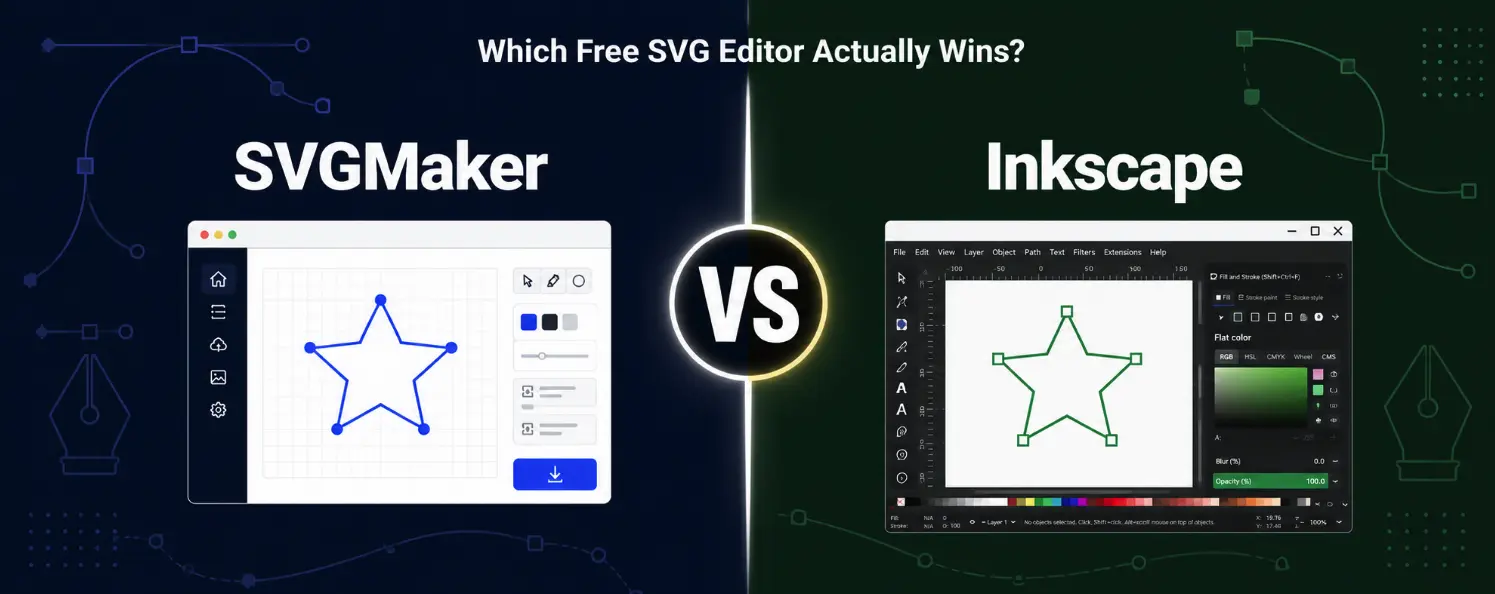
Quick Summary
- Inkscape is a powerful, fully-featured free vector editor best suited for professional illustration, detailed path editing, and users willing to invest time in learning desktop software.
- SVGMaker is a browser-based AI-powered SVG tool focused on speed, simplicity, and clean export, ideal for beginners, Cricut users, and everyday web SVG workflows.
- Neither tool is universally better, the right choice depends entirely on what kind of SVG work you actually do.
- SVGMaker has a built-in DXF export for cutting machines; Inkscape requires an extension for the same output.
- Inkscape exports can include extra metadata that adds file weight, SVGMaker outputs leaner, web-ready files without manual cleanup.
- For beginners, simple SVG edits that take minutes in SVGMaker can take significantly longer to complete in Inkscape.
SVGMaker vs Inkscape: What Is Each Tool Actually Designed For?
Before comparing features, it helps to understand what each tool is trying to do.
Inkscape is a traditional vector editor. It gives you deep control over paths, nodes, layers, and effects. Many professional designers use it because it is powerful and completely free.
SVGMaker takes a different approach. It focuses on fast SVG workflows using a browser-based editor with AI-powered features. The goal is to make SVG creation easier for beginners and faster for everyday use.
| Tool | Best For | Workflow Style |
|---|---|---|
| Inkscape | Advanced vector editing | Manual desktop editing |
| SVGMaker | Fast SVG creation and editing | Browser-based workflow |
This difference is important because many people searching for SVG tools are not professional illustrators. They simply want clean SVG files without a steep learning curve.
SVG Output Quality: Which Tool Creates Cleaner Files for Web Use?
When creating SVGs for websites, file quality matters a lot. You want files that are clean, lightweight, easy to edit, and fast to load.
Inkscape gives you full control over your SVG structure. You can edit nodes manually, adjust paths, and create detailed vector artwork. But there is one thing many beginners do not realize: Inkscape exports can include extra metadata and namespaces such as solid information. This does not make the file unusable, but it can make the SVG heavier and more complex than necessary for web use.
SVGMaker focuses on lean, web-ready output. The files are usually cleaner out of the box and require less manual cleanup.
| Factor | Inkscape | SVGMaker |
|---|---|---|
| Node editing control | Excellent | Basic |
| File cleanup needed | Sometimes | Minimal |
| Web-ready export | Good with cleanup | Good immediately |
| Ease for beginners | Medium | Easy |
This does not mean Inkscape is bad for web SVGs, many professional designers use it every day. But beginners often prefer workflows that require fewer adjustments before files are ready to use.
"According to the W3C SVG specification, valid SVG files should avoid unnecessary vendor-specific attributes and metadata for optimal browser rendering, an area where web-focused tools like SVGMaker have an inherent advantage over general-purpose desktop editors."
Which Tool Works Better for Cricut and Laser Cutters?
This is where many users start comparing tools seriously.
People using Cricut, Silhouette, Glowforge, or laser cutters often want clean paths, smooth imports, fewer cutting errors, and quick exports. Both tools support SVG files, so both can technically work for cutting machines. However, the workflow feels very different.
SVGMaker is built to make cutting machine workflows easier. It also supports DXF export, which is useful for laser cutters and CNC projects.
Inkscape can export DXF too, but this often requires extensions or additional manual setup.
| Feature | Inkscape | SVGMaker |
|---|---|---|
| SVG support | Yes | Yes |
| DXF export | Through extension | Built-in |
| Cricut workflow | Manual setup | Simpler workflow |
| Browser-based access | No | Yes |
| Laser cutter support | Yes | Yes |
For users searching for the best SVG editor for cutting machines, ease of workflow becomes very important. A file may technically work in both tools, but one may take significantly longer to prepare.
For creating Cricut-ready SVG files from scratch, SVGMaker's AI generator and SVG editor are built around clean path output, which is exactly what cutting machines need.
Why Closed Paths Matter for Cutting Machines
This is one thing many beginners miss.
Cutting machines need closed paths to cut correctly. If your SVG contains open paths, duplicate lines, or broken nodes, you can end up with incomplete cuts, double cutting, and wasted material.
Inkscape gives you powerful tools to fix these issues manually. SVGMaker focuses on cleaner export structure from the start, which can reduce cleanup work for beginners. This is especially important for people using a web SVG editor for Cricut because they usually want quick and reliable results rather than spending time troubleshooting path errors.
Speed and Learning Curve: Which One Feels Easier?
This is probably the biggest practical difference between the two tools.
Inkscape is powerful, but it takes time to learn. Even basic tasks like node editing, tracing, path cleanup, and layer management can feel confusing at first.
SVGMaker is designed for faster workflows. Simple SVG edits that take multiple steps in Inkscape can be completed in seconds in SVGMaker.
| Task | Inkscape | SVGMaker |
|---|---|---|
| Simple SVG edits | Multiple steps | Fast workflow |
| Learning basics | Hours | Minutes |
| Browser access | No | Yes |
| Advanced illustration tools | Excellent | Limited |
This does not mean Inkscape is difficult forever. Many designers become very fast with it over time. But beginners often want results quickly, especially for Cricut or laser cutting projects where speed and reliability matter more than deep illustration control.
When SVGMaker Makes More Sense
SVGMaker is usually the better choice if you:
- Want quick SVG edits without technical setup
- Use Cricut or laser cutters regularly
- Prefer browser-based tools with no installation
- Do not want to learn complex vector software
- Need fast, clean exports for web or cutting machine use
It works especially well for users who care more about practical results than advanced illustration control.
Quick Comparison Summary
| Category | Inkscape | SVGMaker |
|---|---|---|
| Ease of use | Medium to difficult | Easy |
| Browser-based | No | Yes |
| AI-powered tools | No | Yes |
| Cricut workflow | Good | Excellent |
| DXF export | Extension required | Built-in |
| Advanced illustration | Excellent | Limited |
| Web-ready SVG export | Strong with cleanup | Strong immediately |
| Learning curve | Higher | Lower |
Which Free SVG Editor Should You Choose?
Choosing between SVGMaker and Inkscape depends on what kind of work you actually do.
If you want advanced illustration tools and full vector control, Inkscape is still one of the strongest free options available. But many users today are not creating complex artwork. They want fast SVG workflows for websites, Cricut projects, laser cutting, and simple editing.
That is where SVGMaker feels easier and more practical. If you want a simpler workflow with clean exports and cutting machine-friendly features, SVGMaker is a great place to start without feeling overwhelmed.
Frequently Asked Questions
1. Which tool is easier for beginners, SVGMaker or Inkscape?
Most beginners find SVGMaker easier. The interface is simpler, and the workflow is faster for common SVG tasks. Inkscape offers more advanced tools but can feel overwhelming at first.
2. Is Inkscape better than SVGMaker for professional design work?
For advanced illustration and detailed vector editing, Inkscape has the advantage. Professional designers often prefer it for its powerful node editing and path control. SVGMaker focuses more on speed and clean output for everyday use.
3. What is the best SVG editor for cutting machines?
SVGMaker works well for Cricut and laser cutting workflows because it simplifies SVG preparation and includes built-in DXF export. Inkscape is also capable but often requires more manual setup and path cleanup before files are cutting-ready.
4. Is a web SVG editor for Cricut better than desktop software?
For beginners, a browser-based tool is usually easier because there is no installation or complicated setup. Browser-based tools also allow faster workflows for quick edits and exports. Desktop software like Inkscape offers more advanced tools but takes longer to learn.
5. Why is SVG cleanup important for cutting machines?
Duplicate lines, open paths, or broken nodes cause cutting errors and wasted material. Tools with cleaner export structure save time and reduce frustration, especially for beginners using Cricut or laser cutters for the first time.
6. Can a SVG editor for laser cutting also work for web SVGs?
Yes. The important thing is having clean paths and optimized SVG output. Both SVGMaker and Inkscape can produce files suitable for web and cutting machine use, the difference is in how much cleanup is required before the files are ready.
