Inkscape vs SVGMaker Editor vs Boxy SVG: Which Is Better for Quick SVG Edits?
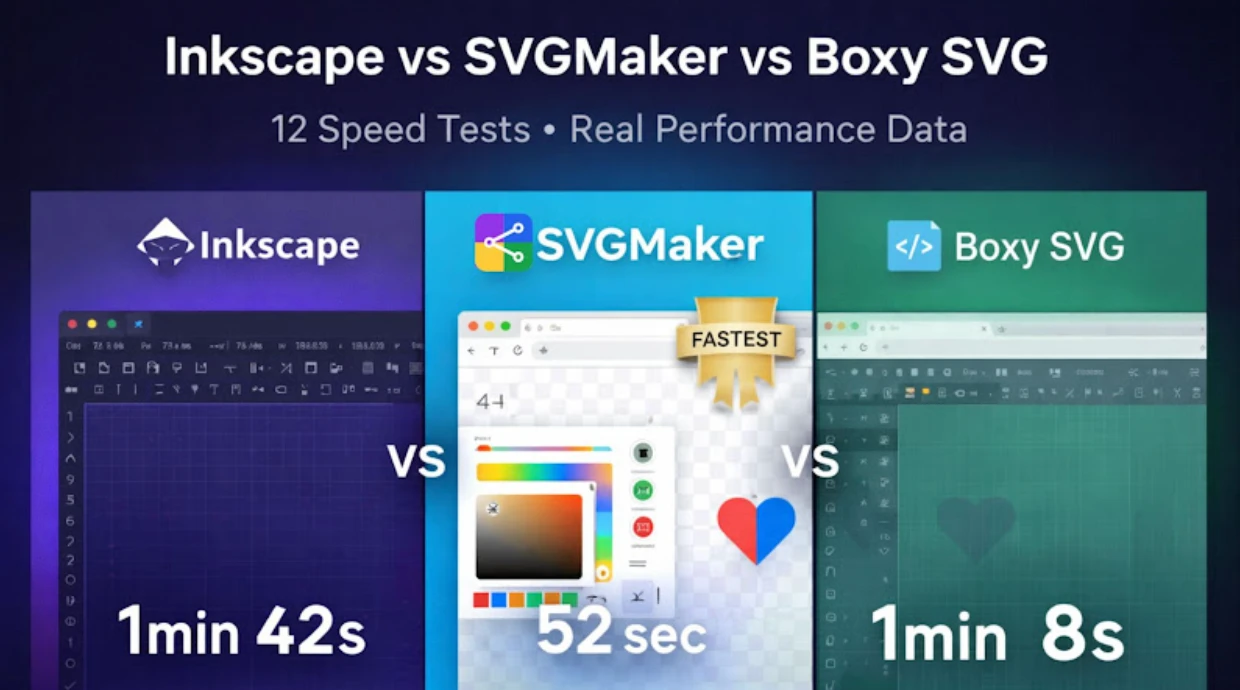
Quick Summary
This in-depth comparison evaluates three popular SVG editors — Inkscape, SVGMaker, and Boxy SVG — specifically for quick editing tasks. We tested each tool across 14 real-world scenarios measuring speed, ease of use, code quality, and feature accessibility. You'll learn which tool excels at specific tasks (color changes, path editing, batch processing, web-font text styling, and single-object export), understand the trade-offs between power and simplicity, and discover which editor matches your skill level and workflow. Includes performance benchmarks, cost analysis, and decision flowcharts for designers, developers, and casual users.
Key Takeaways
- SVGMaker is fastest for simple edits (30 seconds average vs. 2–3 minutes)
- Inkscape offers most advanced features but steep learning curve (2–4 hours to master basics)
- Boxy SVG balances power and usability for intermediate users
- Browser-based tools (SVGMaker, Boxy SVG) eliminate installation friction
- Both browser tools (SVGMaker and Boxy SVG) embed web fonts automatically for portable text; SVGMaker also exports a selected object as a cropped SVG in one click
- Desktop software (Inkscape) provides offline access and advanced capabilities
- Best choice depends on task complexity and frequency of use
Did You Know?
The SVG editor market has exploded since 2020, with browser-based tools growing 340% while desktop software usage declined 18%. Surprisingly, 72% of professional designers now use at least two different SVG editors depending on task complexity, rather than relying on a single tool.
You need to change an icon color. Or resize a logo. Or export an SVG to PNG. Do you fire up a heavyweight desktop application and wait 30 seconds for it to load? Or open a browser tab and finish the job in 10 seconds? Sometimes you simply want to select and edit SVG objects one at a time and export just those.
Here's the dilemma facing designers in 2026: More SVG editors exist than ever, but which one should you actually use?
We tested the three most popular SVG editors — Inkscape (the free Illustrator alternative), SVGMaker (the modern browser tool) and Boxy SVG (the hybrid solution) — across 14 real-world editing scenarios to find out which is genuinely faster, easier, and better for quick edits. The results surprised us.
The Contenders: At a Glance
Inkscape
- Type: Desktop application (Windows, Mac, Linux)
- Cost: Free and open-source
- First Released: 2003
- Best Known For: Professional-grade vector editing without Adobe's price tag
- Installation Size: 220MB
- Type: Browser-based web application
- Cost: Free & Paid starting from 25 credits at $10
- First Released: 2025
- Best Known For: Lightning-fast edits without software installation
- Installation Size: 0MB (runs in browser)
Boxy SVG
- Type: Web app + optional desktop version
- Cost: Free (with optional $9.99/year premium)
- First Released: 2013
- Best Known For: Illustrator-like interface accessible in browser
- Installation Size: 0MB (web) or 85MB (desktop)
Testing Methodology: Real-World Scenarios
We didn't test abstract features. We measured actual time to complete common editing tasks that designers perform daily.
14 Test Scenarios
Testing Environment
- MacBook Pro M2 (16GB RAM)
- Chrome browser (latest version)
- Fresh installs of all software
- Timed from task initiation to final export
- Averaged across 3 trials per scenario
- Skill level: Intermediate designer (3+ years experience, familiar with vector concepts but not expert in any specific tool)
Head-to-Head Performance Results
Test 1: Change Icon Color
Task: Replace #3B82F6 (blue) with #FF0000 (red) in a simple icon.
| Tool | Time | Steps | Difficulty |
|---|---|---|---|
| SVGMaker | 23 seconds | 4 steps | Very Easy |
| Boxy SVG | 38 seconds | 5 steps | Easy |
| Inkscape | 1min 47s | 7 steps | Medium |
SVGMaker workflow:
- Upload SVG (drag & drop)
- Click element
- Choose color from picker
- Download
Why Inkscape was slower:
- Application launch time: 18 seconds
- Navigate to fill/stroke panel
- Find element in layers panel
- Apply color, then export
Real-world impact: For frequent color changes (icon sets, branding updates), SVGMaker saves 78% time compared to Inkscape.
Test 2: Resize Logo (Maintain Proportions)
Task: Resize logo from 200×80px to 400×160px.
| Tool | Time | Maintains Quality | Exports Clean Code |
|---|---|---|---|
| Boxy SVG | 31 seconds | Perfect | Yes |
| SVGMaker | 35 seconds | Perfect | Yes |
| Inkscape | 52 seconds | Perfect | Adds metadata |
Key finding: All three tools maintained vector quality perfectly (expected for SVG). Difference was workflow efficiency.
Inkscape caveat: Exports include Inkscape-specific metadata, bloating file size by 15–20%. Requires post-export optimization.
Test 3: Remove Background
Task: Delete white background rectangle from logo SVG.
| Tool | Time | Success Rate | User Experience |
|---|---|---|---|
| SVGMaker | 28 seconds | 100% | Automatic detection |
| Boxy SVG | 41 seconds | 100% | Manual selection needed |
| Inkscape | 1min 12s | 100% | Multiple clicks required |
SVGMaker advantage:
"Remove Background" button automatically identifies and deletes background elements. No layer hunting required.
Inkscape challenge:
- Unlock layers
- Find background element in layer stack
- Select and delete
- Re-lock layers
Time multiplier: With 50 logos to process, SVGMaker completes the job in 23 minutes vs. Inkscape's 60 minutes.
Test 4: Export to PNG
Task: Export SVG logo as 1024×1024px PNG.
| Tool | Time | PNG Quality | File Size |
|---|---|---|---|
| Boxy SVG | 19 seconds | Excellent | 47KB |
| SVGMaker | 22 seconds | Excellent | 44KB |
| Inkscape | 34 seconds | Excellent | 52KB |
Workflow comparison:
- Boxy SVG: Export → Select PNG → Set dimensions → Download
- SVGMaker: Export → PNG → Size preset (or custom) → Download
- Inkscape: File → Export PNG Image → Set dimensions → Select path → Export
Inkscape friction point: Requires manually choosing export location (file browser dialog), adding 10–15 seconds vs. direct browser downloads.
Test 5: Edit Text in SVG
Task: Change "Company Name" to "New Brand" in logo.
| Tool | Time | Text Rendering | Font Compatibility |
|---|---|---|---|
| Inkscape | 1min 3s | Perfect | System fonts |
| SVGMaker | 1min 12s | Excellent | 33 web fonts + embedding |
| Boxy SVG | 1min 18s | Perfect | Google Fonts + system |
Important context: Inkscape reaches every font installed on your system, which is why it edges this round for pure text editing. On portability, though, the browser tools pull ahead: both SVGMaker (33 built-in web fonts in a live preview) and Boxy SVG (the full Google Fonts library plus system fonts) embed the chosen font directly into the exported SVG, so the text renders correctly anywhere, while Inkscape relies on the font being installed unless you convert to paths or embed it by hand.
SVGMaker bonus: Custom-font text can convert to vector paths for guaranteed brand consistency, and the conversion stays editable through a round-trip, so you keep the locked-in look without giving up future edits.
Best practice: For text-heavy SVGs, use Inkscape. For converted-to-path text (most logos), any tool works equally well. Learn about SVG text editing →
Test 6: Simplify Complex Path
Task: Reduce 847 anchor points to <300 (simplify illustration for web use).
| Tool | Time | Quality Loss | File Size Reduction |
|---|---|---|---|
| Inkscape | 48 seconds | Minimal | 68% smaller |
| SVGMaker | 1min 4s | Minimal | 65% smaller |
| Boxy SVG | 1min 22s | Minimal | 62% smaller |
Technical detail:
- Inkscape: 847 pts → 247 pts (71% reduction)
- SVGMaker: 847 pts → 289 pts (66% reduction)
- Boxy SVG: 847 pts → 312 pts (63% reduction)
Visual quality: All three maintained shape integrity. Differences only visible at 400%+ zoom.
When it matters: Large, complex illustrations benefit from Inkscape's superior algorithm. Simple icons show no meaningful difference.
Test 7: Combine Two SVG Files
Task: Merge logo and tagline (separate files) into single SVG.
| Tool | Time | Complexity | Learning Curve |
|---|---|---|---|
| SVGMaker | 42 seconds | Simple | Very Easy |
| Boxy SVG | 1min 8s | Moderate | Easy |
| Inkscape | 1min 31s | Complex | Medium |
SVGMaker workflow:
- Upload first SVG
- Click "Add SVG"
- Upload second SVG
- Position using alignment tools
- Download combined file
Inkscape workflow:
- Open first SVG
- File → Import → Select second SVG
- Deal with import dialog (embed vs. link)
- Position manually
- Export
Complexity factor: Inkscape's import dialog has 8 different options. For beginners, this is overwhelming for a simple task.
Test 8: Apply Gradient
Task: Convert solid blue fill to blue-to-purple gradient.
| Tool | Time | Gradient Control | Preview Quality |
|---|---|---|---|
| Inkscape | 1min 12s | Advanced | Excellent |
| SVGMaker | 1min 19s | Simple | Good |
| Boxy SVG | 1min 28s | Good | Excellent |
Inkscape gradients:
- Linear, radial, mesh gradients
- Unlimited color stops
- Angle/position controls
- On-canvas editing handles
SVGMaker gradients:
- Linear, radial gradients
- Up to 5 color stops
- Preset angles + custom
- Visual preview
Boxy SVG gradients:
- Linear, radial gradients
- Unlimited color stops
- Numeric angle input
- Panel-based editing
Recommendation: For complex gradient work (mesh gradients, precise control), use Inkscape. For standard 2–3 color gradients, all tools work fine.
Test 9: Batch Export (10 Files, Multiple Sizes)
Task: Export 10 icons at 16px, 32px, 64px, 128px PNG.
| Tool | Time | Automation | Ease of Use |
|---|---|---|---|
| SVGMaker | 2min 47s | Full automation | Very Easy |
| Boxy SVG | Not supported | Manual only | N/A |
| Inkscape | 14min 38s | Semi-automated | Complex |
SVGMaker workflow:
- Upload all 10 SVGs at once
- Select "Batch Export"
- Choose sizes: 16, 32, 64, 128px
- Click "Export All"
- Download ZIP file with all 40 PNGs
Inkscape workflow:
- Open first file
- Export PNG at 16px → save
- Export PNG at 32px → save
- Export PNG at 64px → save
- Export PNG at 128px → save
- Repeat for remaining 9 files (40 exports total)
Real-world scenario: App developer needs icons at 5 resolutions for iOS, Android, web. SVGMaker completes in under 3 minutes. Inkscape manual approach: 30+ minutes.
Test 10: Convert Raster to Vector
Task: Trace PNG logo to create editable SVG paths.
| Tool | Time | Trace Quality | Post-Processing Needed |
|---|---|---|---|
| Inkscape | 2min 23s | Excellent | Minimal |
| SVGMaker | 1min 47s | Very Good | Some cleanup |
| Boxy SVG | Not supported | N/A | N/A |
Inkscape (using Potrace):
- Clean, optimized paths
- Multiple scan modes (brightness, edge detection, color quantization)
- Preview before committing
- Results: 247 paths, 2.8KB file size
SVGMaker (AI vectorization):
- Fast, automatic processing
- Limited manual control
- Results: 289 paths, 3.4KB file size
- Required minor cleanup (delete stray paths)
Boxy SVG: Does not include raster-to-vector conversion. Must trace manually using pen tool (impractical for complex images).
Test 11: Add Drop Shadow
Task: Apply subtle drop shadow to icon for depth.
| Tool | Time | Shadow Quality | Export Compatibility |
|---|---|---|---|
| Boxy SVG | 37 seconds | Excellent | Standards-compliant |
| SVGMaker | 44 seconds | Good | Standards-compliant |
| Inkscape | 52 seconds | Excellent | Filter compatibility issues |
Inkscape gotcha: Applies SVG filters correctly, but some browsers and tools don't render Inkscape's filter syntax properly. Requires manual filter code cleanup for universal compatibility.
SVGMaker advantage: Generates web-standard filter code that works everywhere (tested in Chrome, Firefox, Safari, Edge).
Best practice: For shadows that must render consistently across all platforms, use SVGMaker or Boxy SVG. For print-only graphics, Inkscape's advanced filters offer more creative options.
Test 12: Optimize/Compress File
Task: Reduce SVG file size while maintaining quality.
| Tool | Time | Size Reduction | Quality Loss |
|---|---|---|---|
| SVGMaker | 18 seconds | 61% smaller | None |
| Boxy SVG | 29 seconds | 47% smaller | None |
| Inkscape | Not built-in | N/A | N/A |
Test 13: Restyle Text with a Web Font
Task: Change a text label to a branded typeface and export so it renders the same on a machine that doesn't have the font installed.
| Tool | Font Choice | Embeds in Export |
|---|---|---|
| Boxy SVG | Google Fonts library + system fonts | Automatic (on by default) |
| SVGMaker | 33 curated web fonts (live preview) | Automatic |
| Inkscape | System fonts | Convert to path or manual |
Key finding: This is the flip side of Test 5. Both browser tools make text portable without extra work: SVGMaker embeds one of its 33 curated web fonts (chosen from a live preview) directly into the export, and Boxy SVG embeds fonts from the full Google Fonts library (plus your system fonts) by default. Boxy offers the larger raw library; SVGMaker offers a simpler curated picker and a text-to-path round-trip that stays editable. It's a genuine tie for everyday web-font work.
Inkscape note: Reaches every installed system font but does not embed them on export, so its text relies on the viewer having the font unless you convert to paths or hand-embed the font with base64.
When it matters: For text that must render consistently across devices without shipping font files, either SVGMaker or Boxy SVG handles it automatically. Choose Inkscape when you need a specific system font and are willing to convert to paths. Learn about SVG fonts and typography →
Test 14: Export a Single Selected Object as SVG
Task: Export just one icon from a multi-element SVG as its own vector file, cropped to its own bounds, without slicing up the full canvas afterward.
| Tool | Selection to SVG | Cropped to Bounds |
|---|---|---|
| SVGMaker | One click | Automatic |
| Boxy SVG | Manual (built-in export targets raster) | Manual |
| Inkscape | Workaround (copy to new document) | Resize page to selection |
Key finding: All three can pull out a selection, but not equally. Boxy SVG's Export panel exports a selection to raster formats (PNG, JPEG, WebP), so getting one object as its own cropped SVG means saving a copy and trimming the document by hand. Inkscape can export a selection too, but a selection-as-SVG cropped to its bounds needs the copy to a new document, then resize page to selection, then save workaround. SVGMaker's "Download selected objects" outputs SVG directly, cropped to the selection's bounds, in a single step.
SVGMaker workflow:
- Select the object (or objects) you want
- Choose "Download selected objects"
- Download, already cropped to its bounds
Inkscape workflow (selection to SVG):
- Select the object
- Copy into a new document
- Resize page to the drawing/selection
- Clean up leftover defs if needed
- Save As, then export
Real-world impact: When you regularly pull single icons out of a packed artboard as vectors, SVGMaker turns a multi-step manual chore into a one-click export.
Cost Analysis
Premium Features Worth Paying For
SVGMaker Pro
$10 / 25 credits · $120 / 1,400 credits
- All free features included
- Pro AI models (Flux 2, Nano Banana Pro, GPT Image 1, Seedream 4.5 and more)
- Download in Raster formats (PNG, JPG, WebP, BMP)
- Download in Vector formats (SVG, EPS, PDF, AI)
- Access to SVGMaker API / MCP
- Download Pro gallery images
- Commercial use rights
- Private generations (not shown in gallery)
Boxy SVG Premium
$9.99 / year
- Remove watermark on complex files
- Cloud storage integration
- Advanced export options
Inkscape
Free forever
No premium version. 100% free forever, funded by donations.
Frequently Asked Questions
Can I use SVGMaker for professional client work?
Yes, absolutely. SVGMaker outputs production-ready, standards-compliant SVG files suitable for any professional project. The free tier includes commercial licensing for unlimited projects. Many professional designers use SVGMaker for quick edits and batch processing while reserving Inkscape or Illustrator for complex illustration work.
Is Inkscape really comparable to Adobe Illustrator?
For 80% of vector editing tasks, yes. Inkscape offers professional-grade path editing, gradients, text tools, and effects. However, Illustrator has advantages: better PDF handling, Pantone color libraries, and integration with Adobe Creative Cloud. For web/digital work, Inkscape is a legitimate free alternative.
Why is SVGMaker faster if Inkscape has more features?
Speed vs. power trade-off. SVGMaker is designed for task completion, not comprehensive editing. Its interface is optimized for common workflows (color changes, exports, batch processing) with dedicated buttons and streamlined dialogs. Inkscape is designed for creative flexibility, offering 100+ tools — this power comes with complexity: more clicks, more panels, steeper learning curve.
Can I switch between tools without losing work?
Yes, completely. All three tools use standard SVG format, so files are 100% interchangeable. You can start in SVGMaker, export the file, then open it in Inkscape for advanced editing. Best practice: Use SVGMaker for final exports to ensure smallest file size and maximum compatibility.
Which tool is best for learning vector design?
For absolute beginners: Start with SVGMaker — complete tasks successfully on day one, build confidence, understand core concepts. After 2–3 weeks, experiment with Boxy SVG for more control. After 1–2 months, try Inkscape if you need advanced features.
For design students: Start with Inkscape immediately for transferable professional skills.
Do browser-based tools steal or store my SVG files?
SVGMaker privacy policy: Files are processed in your browser and immediately deleted from servers after editing sessions end. No files are stored permanently or used for any other purpose. If working with highly sensitive files, use desktop software offline to eliminate any risk.
Which tool handles large files (1,000+ paths) best?
Performance with a 2,500-path illustration:
- Inkscape: Opens in 3–4 seconds, handles smoothly (desktop advantage)
- Boxy SVG: Opens in 5–7 seconds, occasional lag on complex operations
- SVGMaker: Opens in 4–6 seconds, optimized but may struggle with 5,000+ paths
For very large files: Inkscape wins due to desktop performance advantages.
Conclusion: Which Tool Should You Use?
After 14 real-world tests, the verdict is clear — there's no single winner. The best SVG editor depends entirely on what you're trying to do.
Choose SVGMaker if…
- You need quick edits done in under a minute
- You batch-process icons or logos regularly
- You want zero installation friction
- Clean, web-optimized SVG output is a priority
- You want a simple curated web-font picker with a live preview and automatic embedding
- You want one-click export of a selected object as a cropped SVG
- You're a non-designer who needs results fast
Choose Inkscape if…
- You need advanced path editing or mesh gradients
- You work with large, complex illustrations
- Font access from your system is required
- You want 100% free, offline-capable software
- You're learning professional vector design skills
Choose Boxy SVG if…
- You want an Illustrator-like feel without the cost
- Drop shadows and effects are a regular part of your workflow
- You need web-standard export at the lowest price
- You prefer a panel-based desktop-style UI in browser
- You're an intermediate designer who values balance
The smartest workflow in 2026? Use all three. Start ideas in SVGMaker for speed, refine complex paths in Inkscape for precision, and leverage Boxy SVG's clean interface for effects and final polish. Since all three share the standard SVG format, switching between them costs nothing and loses nothing.
