12 Best AI Icon Generators in 2026: Free vs Paid Tools
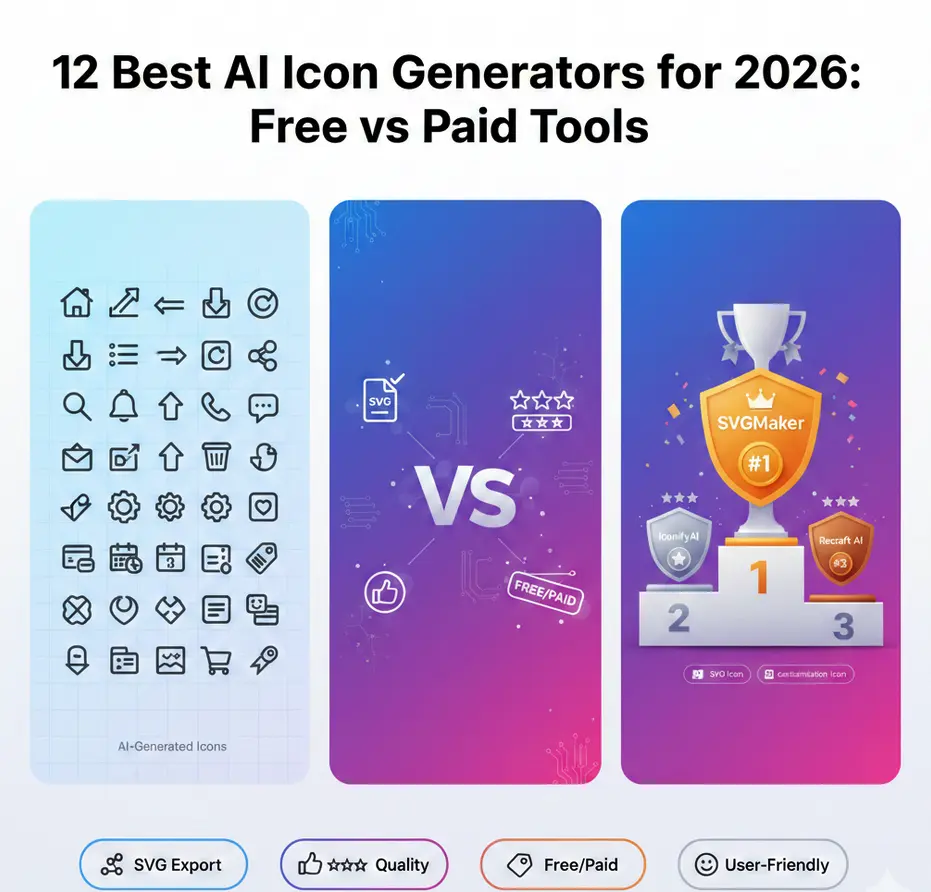
Icons quietly power the digital world. Every app, website, dashboard, and online store relies on clear and consistent icon design. In 2026, AI icon generators have made it possible to create professional icon sets in minutes instead of hours.
But with so many tools available, which ones are actually worth using? And are free tools good enough, or do paid platforms deliver better results?
We tested and ranked 12 of the best AI icon generators based on output quality, SVG support, customization, ease of use, and overall value. Here is what you need to know before choosing one.
How We Assessed Performance and Value for These Tools
Each tool was evaluated based on:
- Output quality and visual consistency: How clean, professional, and cohesive are the generated icons?
- True SVG export support: Does it provide editable vector files or just raster images?
- Customization and style control: Can you adjust stroke width, style, color, and complexity?
- Ease of use for beginners: How steep is the learning curve?
- Pricing and value: What do you get for free vs paid tiers?
- Commercial usage rights: Are there licensing restrictions?
We included both free and paid tools to give a balanced view for different budgets and use cases.
Quick Comparison Table
| Tool | Free Tier | SVG Support | Customization | Ease of Use | Best For |
|---|---|---|---|---|---|
| SVGMaker | Yes | Yes | High | Very Easy | Complete icon sets |
| Design.com | Yes (including vectors) | Yes (SVG, EPS, PDF) | High | Very Easy | Logo and brand identity |
| IconifyAI | Yes | Yes | Medium | Easy | App icons |
| Recraft AI | Yes | Yes | High | Easy | Styled icon systems |
| Adobe Firefly | Limited | Yes | High | Medium | Pro workflows |
| Canva AI | Yes | Limited | Medium | Very Easy | Quick visuals |
| Fotor | Yes | Limited | Basic | Very Easy | Beginners |
| Picon | Paid | Yes | Medium | Easy | Branding sets |
| Magestic Figma Plugin | Paid | Yes | High | Medium | UI designers |
| Icons8 AI | Yes | Yes | Medium | Easy | Web icons |
| OpenArt | Yes | Yes | Medium | Easy | Creative styles |
| DeepAI | Yes | Limited | Low | Very Easy | Quick drafts |
1. SVGMaker – Best Overall for 2026
SVGMaker takes the top spot because it balances simplicity with powerful SVG output. It allows you to generate clean vector icons directly in scalable format through AI-powered generation.
Key Features:
- AI-Driven Icon Generation: Create icons from text prompts with remarkable precision. The AI understands style descriptors like "minimal," "outlined," "filled," "rounded," or "sharp."
- True Vector Output: Every icon is generated as a genuine SVG file with optimized paths, not a traced raster image. This ensures clean code and small file sizes.
- Style Consistency Engine: Generate complete icon sets with matching visual language. Specify a style once and apply it across dozens of icons for perfect cohesion.
- Advanced Customization: The built-in SVG editor allows you to adjust stroke width, corner radius, colors, and individual paths after generation.
- Grid and Sizing Controls: Align icons to standard grids (16px, 24px, 32px, 48px) for pixel-perfect UI work.
- Batch Generation: Create multiple related icons in one session to maintain stylistic consistency across your entire icon system.
- Export Flexibility: Download as SVG, or convert to PNG, JPG, or PDF for various use cases.
Use Cases:
- SaaS dashboard icons
- Mobile app interface systems
- Website navigation icons
- Design system libraries
- Marketing and presentation graphics
Pricing:
Free tier (6 Credits daily) for testing and small projects. Premium plans (Starting from only $10 - 25 credits) offer unlimited generations, advanced AI models, batch processing, and full commercial rights.
Best for:
Designers, developers, startups, and agencies that need professional icon sets quickly with complete creative control. Particularly valuable for teams building comprehensive design systems.
2. Design.com – Best for Brand-Driven Logo and Icon Design
Design.com's AI logo generator stands apart from every other tool on this list because it treats your logo as the foundation of a complete brand identity, not a standalone file. The AI generates industry-specific logo concepts from your business name and keywords, and once you've finalized a design, your colors and typography automatically carry across business cards, email signatures, social media posts, and letterheads. Every output is guaranteed to be copyright-safe, a meaningful advantage for businesses that need legally clean brand assets from day one.
Key Features:
- Brand-First AI Generation: Generates logo concepts tailored to your specific industry and business name, producing results that reflect real brand intent rather than generic shapes
- Brand Auto-Sync: Approved colors and typography automatically apply across all matching brand assets — no manual coordination needed
- Copyright-Safe Outputs: Every generated design is legally clean, making it safe for commercial use from day one
- Free Vector Downloads: SVG, EPS, and PDF exports are available even on the free tier, with no file format paywalls, unlike most competing tools
- 500,000+ Design Templates: Access to one of the largest professionally designed template libraries on the market
- Unlimited Logo Changes: Refine and iterate as many times as needed on paid plans
- Permanent File Storage: All logos and brand assets are stored permanently under paid plans
Use Cases:
- Startups and entrepreneurs building a brand identity from scratch
- Small businesses that need a logo and matching brand assets in one workflow
- Creators launching personal brands who need commercial-ready vector files immediately
Pricing:
The free tier includes browsing, customizing, and downloading logos in vector formats. Paid plans start at $3/month (billed annually) and include unlimited logo changes, permanent file storage, and matching brand assets. Website builder unlocks at $4/month, with digital business cards and link-in-bio at $5/month.
Best for:
Entrepreneurs and small businesses that need a professional logo and a consistent brand identity built together in one place, with commercial-ready vector files available even on the free tier.
3. IconifyAI
IconifyAI focuses heavily on app icons and clean interface visuals. It offers simple prompt-based generation and produces consistent results across mobile and web contexts.
Key Features:
- Specialized in mobile app icon aesthetics
- Clean, modern design language aligned with iOS and Android guidelines
- Prompt-to-icon generation with style presets
- SVG and PNG export options
- Icon animation preview (for supported formats)
Strengths:
- Excellent understanding of mobile design conventions
- Fast generation speed (typically 3-5 seconds per icon)
- Good at interpreting minimalist prompts
- Consistent line weights and proportions
Limitations:
- Less suitable for highly stylized or decorative icons
- Limited batch generation capabilities
- Smaller library of style variations compared to competitors
Pricing:
Free tier with watermarks and limited exports. Paid plans ($15-30/month) remove watermarks and provide commercial licensing.
Best for:
Mobile app developers and UI designers working on iOS/Android projects who need standard interface icons quickly.
4. Recraft AI
Recraft AI is strong at generating stylistically consistent visuals across multiple asset types including icons. It handles icon sets well and supports robust vector export.
Key Features:
- Multi-asset generation (icons, illustrations, logos)
- Style locking for consistent icon families
- Vector-first approach with clean path generation
- Brand kit integration for color consistency
- Real-time style adjustment
Strengths:
- Excellent stylistic coherence across icon sets
- Sophisticated prompt interpretation
- High-quality vector output with minimal cleanup needed
- Good balance of automation and manual control
- Supports creating icon families with variations (outlined, filled, two-tone)
Limitations:
- Steeper learning curve than simpler tools
- Some features locked behind paid tiers
- Generation can take 10-15 seconds for complex icons
Pricing:
Free tier with limited monthly credits. Professional plans start at $20/month with increased generation limits and team features.
Best for:
Branding projects where visual cohesion is critical, design agencies serving multiple clients, and teams building comprehensive design systems.
5. Adobe Firefly
Adobe Firefly integrates seamlessly with professional design tools including Illustrator, Photoshop, and Express. It offers advanced control and strong creative capabilities within the Adobe ecosystem.
Key Features:
- Native integration with Adobe Creative Cloud
- Text-to-icon generation with style controls
- Reference image input for style matching
- Vector export directly to Illustrator
- Commercial-safe training data (important for licensing)
- Generative Fill for icon refinement
Strengths:
- Professional-grade output quality
- Seamless workflow for existing Adobe users
- Advanced editing and refinement options
- Strong copyright protection (trained on licensed content)
- Excellent understanding of design terminology
Limitations:
- Requires Adobe Creative Cloud subscription ($54.99/month)
- Higher learning curve for non-Adobe users
- Less intuitive for quick, simple icon generation
- Overkill for users who only need icons occasionally
Pricing:
Included with Adobe Creative Cloud All Apps plan. Standalone access via Adobe Express premium ($9.99/month).
Best for:
Professional designers already working within Adobe products, agencies with existing Creative Cloud licenses, and projects requiring tight integration with Illustrator workflows.
6. Canva AI
Canva AI is beginner-friendly and easy to access within Canva's familiar design interface. It works well for marketing materials and simple web icons integrated into larger design projects.
Key Features:
- Integrated into Canva's design platform
- Simple text-to-icon generation
- Style templates and presets
- Drag-and-drop into Canva projects
- Basic customization tools
Strengths:
- Extremely easy to use with minimal learning curve
- Perfect for non-designers
- Quick generation for simple icons
- Convenient for projects already in Canva
- Free tier includes icon generation
Limitations:
- SVG export limited to Canva Pro subscribers ($12.99/month)
- Less precise control over icon details
- Not optimized for comprehensive icon system creation
- Generated icons may lack the refinement of specialized tools
- File organization and asset management less robust
Pricing:
Free tier with basic features. Canva Pro ($12.99/month) includes SVG export and removes watermarks.
Best for:
Marketing teams, social media managers, small business owners, educators, and anyone already using Canva who needs occasional icon graphics without learning new software.
7. Fotor
Fotor offers an accessible icon generator aimed at beginners and casual users. It produces basic icon visuals and is simple to use without requiring design knowledge.
Key Features:
- One-click icon generation
- Template-based approach
- Basic style presets
- Integration with Fotor's photo editing suite
- Simple color customization
Strengths:
- Very beginner-friendly interface
- Fast generation times
- No design experience required
- Free tier available
Limitations:
- Limited SVG support (primarily PNG exports)
- Less customization depth
- Icons may appear generic
- Not suitable for complex icon systems
- Limited style variety
Pricing:
Free tier with limited features. Premium plans ($8.99/month) provide more exports and remove ads.
Best for:
Beginners, bloggers, small projects, presentations, and users who need quick icon graphics without professional design requirements.
8. Picon
Picon integrates with design ecosystems and focuses on stylistic consistency for brand icon systems. It produces polished UI work suitable for professional applications.
Key Features:
- Brand style guidelines integration
- Icon family generation (create related variations)
- Grid alignment tools for pixel-perfect icons
- Export presets for common platforms (iOS, Android, Web)
- Version control for icon iterations
Strengths:
- Excellent for brand consistency
- Strong focus on UI standards
- Good documentation and tutorials
- Reliable customer support
- Regular updates with new styles
Limitations:
- Paid subscription required (no free tier)
- Smaller user community compared to major platforms
- Learning curve for advanced features
- Limited animation capabilities
Pricing:
Starts at $29/month for individual plans. Team plans available at $79/month.
Best for:
Brand designers creating comprehensive icon systems, design teams working on long-term projects, and companies building proprietary design languages.
9. Magestic Figma Plugin
Magestic works directly inside Figma and is specifically designed for interface designers. It supports vector outputs and fits seamlessly into UI/UX design workflows.
Key Features:
- Native Figma plugin (no external tool needed)
- Generate icons directly in design files
- Component-ready output
- Auto-layout compatible
- Variant creation for different states
- Team library integration
Strengths:
- Zero-friction workflow for Figma users
- Icons generated as editable Figma components
- Supports design system creation
- Collaborative features for teams
- Version history and iteration tracking
Limitations:
- Only works within Figma (not standalone)
- Requires Figma Pro for full team features
- Plugin subscription in addition to Figma subscription
- Limited to Figma's vector capabilities
Pricing:
Plugin subscription $19/month. Requires Figma account (free tier available, Pro at $12/month/user).
Best for:
UI/UX designers working in Figma, product design teams, companies with Figma-based design systems, and anyone who lives in Figma for daily work.
10. Icons8 AI
Icons8 provides AI generation alongside its existing library of over 180,000 human-designed icons. It offers good SVG export options and consistent styles that complement the main library.
Key Features:
- AI generation + massive human-designed library
- Style matching to existing Icons8 collections
- Multiple icon styles (iOS, Material, Office, etc.)
- Recolor entire icon sets instantly
- API access for developers
- Plugin support for Figma, Adobe XD, and Sketch
Strengths:
- Best of both worlds: AI + curated library
- Consistent quality across all icons
- Excellent style variety
- Strong web integration documentation
- Free tier includes substantial access
Limitations:
- AI generation is newer feature, less mature than core library
- Some AI-generated icons may blend with existing library
- Free tier includes attribution requirements
- Premium features require subscription
Pricing:
Free tier with attribution. Icons8 Pro starts at $12.50/month, includes AI generation and removes attribution.
Best for:
Web developers, freelancers, startups needing diverse icon styles, projects mixing AI-generated and pre-designed icons, and teams wanting icon library + generation in one platform.
11. OpenArt
OpenArt allows creative exploration and stylistic icon generation with emphasis on artistic freedom. It supports vector-style outputs and offers flexibility for unique icon aesthetics.
Key Features:
- Artistic style exploration
- Multiple AI model options
- Creative control over aesthetic direction
- Community gallery for inspiration
- Prompt templates for icons
Strengths:
- Excellent for non-standard icon styles
- Supports experimental and unique aesthetics
- Good for illustration-style icons
- Active community sharing prompts
- Flexible output options
Limitations:
- Less reliable for standard UI icons
- Consistency can vary between generations
- Steeper learning curve for optimal results
- Vector output quality varies by model choice
Pricing:
Free tier with credits. Premium plans start at $12/month with increased credits and features.
Best for:
Experimental projects, unique brand identities, illustration-style icons, creative agencies, and designers exploring unconventional icon aesthetics.
12. DeepAI
DeepAI offers free AI generation for quick drafts and concept testing. The results can vary in quality, and customization options are limited compared to specialized tools.
Key Features:
- Completely free with no account required
- Fast generation times
- Multiple AI model options
- API access for developers
- No daily limit on free tier
Strengths:
- Truly free with no hidden costs
- No signup required for basic use
- Good for rapid concept testing
- API available for integration
- Educational resource for learning AI generation
Limitations:
- Inconsistent output quality
- Limited customization controls
- Primarily PNG output (limited SVG)
- Results may require significant editing
- No advanced features or style control
Pricing:
Completely free for basic use. Pro plan ($4.99/month) provides higher priority and better quality.
Best for:
Quick concept testing, students, hobbyists, budget-conscious users, learning AI generation, and projects where icon quality is not critical.
Writing Better Prompts for AI Icon Generators
The quality of your icons depends heavily on your prompt engineering skills. Here's how to write prompts that produce excellent results.
Be Specific About Style
Instead of: "shopping icon"
Try: "minimal line shopping cart icon, 24px grid, rounded corners, 2px stroke weight"
Instead of: "home icon"
Try: "simple house icon, filled style, flat design, modern aesthetic"
Mention Technical Requirements
Include details about:
- Grid size: 16px, 24px, 32px, 48px
- Stroke weight: 1px, 1.5px, 2px, 3px
- Corner style: sharp, rounded, pill-shaped
- Style: line, filled, two-tone, duotone
- Alignment: center-aligned, optical adjustment
Describe Visual Characteristics
- Color approach: monochrome, single color, gradient, multi-color
- Weight: light, regular, medium, bold
- Complexity: minimal, simple, moderate detail, complex
- Mood: friendly, professional, playful, serious
Reference Design Systems
Mention established styles:
- "Material Design style calendar icon"
- "iOS style navigation icon"
- "Fluent Design system search icon"
- "Feather Icons inspired settings icon"
Keep Complexity Balanced
Overly detailed prompts can create cluttered icons that don't scale well. Focus on 3-5 key characteristics rather than listing everything.
Good prompt: "Minimalist line email icon, rounded corners, 24px, 2px stroke"
Overly complex: "Email icon with envelope showing paper inside, stamp in corner, rounded edges, slight shadow, gradient background, 3D effect, modern but vintage feeling"
Test Variations
Slight wording changes can dramatically improve output:
- Try synonyms: "purchase" vs "buy" vs "shopping"
- Adjust detail level: "simple" vs "minimal" vs "basic"
- Vary style terms: "line" vs "outlined" vs "stroke"
Create a Style Guide for Consistency
When generating icon sets, create a prompt template:
[Icon subject], [style], [stroke weight], [corner style], [grid size], [mood]
Examples:
- "Home icon, line style, 2px stroke, rounded corners, 24px grid, friendly"
- "Settings icon, line style, 2px stroke, rounded corners, 24px grid, friendly"
- "Profile icon, line style, 2px stroke, rounded corners, 24px grid, friendly"
For more guidance, explore our tutorial on creating high-quality SVG icons for web and mobile apps using AI.
13. AppIcons.ai
AppIcons.ai pairs text-to-image generation with a Photopea-based editing integration. Describe what you want, and the AI generates an icon at 1024x1024. If the result needs tweaks, you can open it in the built-in editor to adjust colors, crop, or composite elements. There's also an image-to-image mode for building on an existing design, GPT-powered prompt enhancement, and upscaling up to 2048x2048.
Key Features:
- Text-to-icon generation at 1024x1024
- Built-in Photopea editor for post-generation tweaks
- Image-to-image mode for iterating on existing designs
- GPT-powered prompt enhancement
- Upscaling up to 2048x2048
Strengths:
- Straightforward generate-then-edit workflow
- Integrated editor removes need for external software
- Prompt enhancement helps non-designers get better results
- Upscaling produces higher-resolution output than most tools
Limitations:
- Does not produce multi-size platform packs on its own
- For generating all the sizes Apple and Google require, the site recommends using external tools like Appicon.co, Xcode, or Android Studio
- Output is raster PNG only — no SVG or vector files
- No post-generation customization beyond the editor
Pricing:
Limited free tier. Paid credit packs available for higher volume.
Best for:
Developers who want to generate an icon from a prompt and refine it with an integrated editor without switching between multiple tools.
14. Stockimg.ai
Stockimg.ai is a broad AI design platform, not a dedicated icon tool. It generates logos, stock photos, illustrations, posters, wallpapers, avatars, and social media content. You can generate app icon concepts by prompting for logo-style or icon-style outputs, then editing the result with the built-in tools.
Key Features:
- All-in-one AI design platform (logos, icons, stock photos, illustrations)
- Over 3.5 million users
- Integration with 10+ social platforms for post scheduling
- Built-in editing tools
- API access for developers
Strengths:
- Generates icons alongside other visual assets from one platform
- Saves adding another tool to the stack if already using Stockimg.ai for marketing
- Large user base and active development
- Social media integration for quick publishing
Limitations:
- No dedicated app icon category or generator
- No SVG or vector output
- No multi-size export for App Store or Play Store
- Using a general image generator and adapting the output for icon use
- Icons may need manual resizing and reformatting before submission
Pricing:
Free tier available. Paid plans for more credits and features.
Best for:
Teams that need icons alongside other visual assets (social posts, logos, illustrations, product photos) from one platform without adding another tool to the stack.
App Store Icon Requirements
Before evaluating tools for app store submissions, here's what Apple and Google actually demand:
| Requirement | Apple App Store | Google Play Store |
|---|---|---|
| Size | 1024×1024 px | 512×512 px |
| Format | PNG (no alpha) | PNG (32-bit, alpha allowed) |
| Shape | Square (system applies corner mask) | Square (system applies adaptive mask) |
| Color space | sRGB or Display P3 | sRGB |
| Layers | Single layer, no transparency | Single layer |
| Detail level | Legible at 16×16 | Legible at 48dp |
Beyond those specs, both stores penalize icons that:
- Cram in text (unreadable below 60px)
- Rely on thin strokes or hairline details (invisible when scaled down)
- Look like screenshots or unprocessed photos
- Mimic system UI elements (Apple rejects this specifically)
A good AI app icon generator accounts for most of these constraints by default. A mediocre one produces something pretty that fails on submission day.
Same Prompt, Different Tools
To show how output varies, we ran the same prompt through several tools:
"Minimal app icon of a compass, flat design, navy blue and gold, no text, no background."
| Tool | Output Quality | Vector? | Notes |
|---|---|---|---|
| SVGMaker | Clean, sharp geometry | Yes | Scales from 1024px to 16px without loss. Editable in SVG editor. |
| Midjourney | Most visually polished | No | Subtle shadows and textures. Raster PNG—shadows become muddy below 60px. |
| Recraft | Clean with stylistic flair | Yes | Real SVG export. Slightly more "designed" feeling. |
| IconifyAI | Bold, simple shapes | No | Works well at small sizes but feels generic at full resolution. |
| Canva AI | Acceptable with extra elements | No | Added gradients and textures not in prompt. Needs manual cleanup. |
| Stockimg.ai | Acceptable with extra elements | No | Added decorative details. Needs manual cleanup. |
| Adobe Firefly | Clean, professional | No | Recognizable "Adobe stock" aesthetic. Not distinctive. |
The pattern is clear: Tools built for icons (SVGMaker, IconifyAI, Recraft) output cleaner results that follow icon conventions. General-purpose generators (Midjourney, Canva, Stockimg.ai, Firefly) produce prettier images that need post-processing to work as actual icons.
Common Mistakes with App Store Icons
These come up repeatedly in App Store rejection threads:
Not testing at the smallest size
Your icon looks amazing at 1024x1024. Then it becomes an unrecognizable blob at 29x29. Always test at the smallest required size first.
Including text
Your app name already appears below the icon. Text is unreadable at small sizes and wastes space that should go to a recognizable symbol.
Using transparency for iOS
Apple fills transparent areas with black. If your icon has a transparent background, it'll look wrong on every iPhone. Always use an opaque background for iOS icons.
Ignoring the mask zone
iOS applies a squircle mask. Android manufacturers apply circles, rounded squares, or other shapes. If your icon's content extends to the edges, the mask will cut it off. Keep the core symbol within the inner 80% of the canvas.
Letting the system downscale
Uploading a single 1024x1024 PNG and letting the system downscale sounds easy, but automated downscaling blurs fine details. Platform-specific exports (like SVGMaker's ZIP packs) handle this correctly.
Testing only on one background
Your icon looks great in Figma on a white artboard. Put it on a dark wallpaper, then a light one, then a busy photo. Icons need to work on any background.
Following competitors too closely
Browsing the top 10 apps in your category for inspiration is smart. Making your icon look like a slight variation of the #1 app is not. Users will assume yours is a knockoff.
Wrong color space
Apple requires sRGB or Display P3. If your icon is in CMYK (common if your designer came from print), the colors will shift. Check the color profile before uploading.
App Store Submission Checklist
Run through this before submitting:
- Icon is 1024x1024 pixels (Apple) and 512x512 pixels (Google Play)
- Format is PNG
- No transparency/alpha channel on the iOS version
- Color space is sRGB or Display P3
- Single layer, no embedded layers or masks
- Core symbol is recognizable at 29x29 pixels
- No text in the icon (or if present, legible at smallest size)
- Central element stays within the inner 80% of the canvas (mask-safe zone)
- Tested on light, dark, and busy wallpaper backgrounds
- Does not mimic iOS/Android system icons or UI elements
- All required platform sizes included (use SVGMaker's ZIP export or Xcode asset catalog)
- Icon visually matches the app's UI color scheme and style
- No embedded raster images inside SVG files (if using SVG as source)
- Source vector file (SVG) saved separately for future re-exports
How to Choose the Right Icon Generator
| If You Are... | Choose This Tool | Why |
|---|---|---|
| Shipping your first indie app | SVGMaker | Handles design and multi-platform export in one place. ZIP download gives every iOS, Android, and web size. Free daily credits cover a single icon project. |
| Building a family of related apps | Recraft AI or SVGMaker | Recraft for style-locked batch generation with SVG export. SVGMaker if you also need editing and conversion. |
| Running a revenue-generating app | Adobe Firefly | Only tool here with commercial indemnification. |
| Prioritizing visual impact | Midjourney | Raw visual quality. Check legibility at small sizes manually. |
| Not a designer, need this in 10 minutes | IconifyAI or Canva AI | IconifyAI for app-specific output; Canva if you also need store screenshots and marketing assets. |
| Wanting a vector source file for indefinite modifications | SVGMaker | SVG output by default, AI editing, manual SVG editor, and format conversion. Generate once, re-export whenever. |
Frequently Asked Questions
1. What is an AI icon generator?
An AI icon generator is a tool that creates icons based on text prompts or style selections. Instead of manually designing each icon in vector editing software, you describe what you need (for example, "minimal shopping cart icon, line style, 24px grid") and the AI generates a visual icon in seconds. Modern generators use advanced machine learning models trained on millions of design examples to understand style conventions and produce professional results.
2. Are AI generated icons good enough for professional projects?
Yes, many AI icon generators now produce high-quality SVG files that are suitable for websites, mobile apps, dashboards, and branding systems. Professional-grade tools like SVGMaker, Recraft AI, and Adobe Firefly generate production-ready icons with clean vector paths, optimized file sizes, and consistent styling. The key is choosing a tool that supports clean vector export and consistent styling, and refining outputs when necessary using built-in editing tools.
3. Do all AI icon generators export SVG files?
No, not all tools support true SVG export. Some only provide PNG downloads or rasterized versions of vector designs. If scalability and editing flexibility matter to you—which they should for professional work—make sure the platform offers proper SVG vector output. Tools like SVGMaker, IconifyAI, and Recraft AI prioritize genuine vector generation, while others like Canva AI may limit SVG export to paid tiers.
4. Can I use AI generated icons for commercial purposes?
Most platforms allow commercial use under certain plans, but licensing terms vary significantly. Always review the tool's usage policy before using icons in paid products, apps, or client projects. Platforms like SVGMaker include full commercial licensing with paid plans, while others may restrict commercial use or require attribution. Check the specific terms for each tool and keep documentation of your license for legal protection.
5. What is the difference between SVG and PNG icons?
SVG icons are vector-based and can scale to any size without losing quality—from 16px mobile icons to billboard-sized graphics. PNG icons are raster images made of pixels that become blurry when enlarged beyond their original resolution. For web and app development, SVG is generally the better choice because it provides perfect scalability, smaller file sizes, editability, and CSS styling capabilities. Learn more in our detailed SVG vs PNG comparison.
6. Are free AI icon generators enough for startups?
Free tools can work well for early-stage projects, prototypes, and MVPs. However, paid versions often provide higher resolution exports, better customization, batch generation, consistent quality, and commercial usage rights—all important for growing businesses. As your product matures and user base grows, investing in professional tools typically saves time and ensures your visual identity scales properly. Many startups start with free tiers for exploration and upgrade to paid plans for production use.
7. How can I make sure my icon set looks consistent?
Use clear style instructions in your prompts and maintain them across all generations. For example, specify "line style, 2px stroke, rounded corners, 24px grid" and use this template for every icon in your set. Generating icons within the same tool session using consistent prompt structure helps maintain visual coherence. Many advanced tools like SVGMaker offer style locking features that automatically apply your chosen aesthetic to all subsequent generations.
8. Do AI generated SVG icons affect website performance?
Optimized SVG icons actually improve website performance because they are often 60-80% smaller in file size than large PNG images at equivalent visual quality. They also render sharply across all devices without requiring multiple resolution versions (1x, 2x, 3x). However, unoptimized SVG files with excessive paths or embedded data can be bloated. Always use SVG optimization tools to clean up generated files before deployment.
9. Which AI icon generator is best for beginners?
Beginner-friendly tools like Canva AI and Fotor are easiest to use because they have simple interfaces and require no design knowledge. However, if you want more control and professional SVG output with room to grow your skills, platforms like SVGMaker offer strong long-term value. SVGMaker balances ease of use with professional capabilities, making it suitable for both beginners and experienced designers. Check out the quick start guide for a gentle introduction.
10. Can I edit AI-generated icons after downloading them?
Yes, SVG icons are fully editable in vector editing software like Adobe Illustrator, Inkscape, or online tools like SVGMaker's built-in editor. You can adjust colors, modify paths, change stroke widths, or combine elements without losing quality. This editability is one of SVG's key advantages over raster formats. Some AI generators even include built-in editing capabilities, allowing refinements before download.
Final Thoughts
AI icon generators have transformed how designers and developers create visual systems. From free beginner-friendly tools to advanced professional platforms, there is now a solution for every workflow, budget, and skill level.
The key is choosing a tool that offers clean SVG output, consistent style control, and practical export options that match your workflow requirements. Whether you're building a mobile app, designing a website, creating a SaaS dashboard, or developing a comprehensive design system, the right icon generator can save dozens of hours while maintaining professional quality.
For occasional needs, free tools like Canva AI or DeepAI provide adequate results. For professional projects where quality, consistency, and licensing matter, specialized platforms like SVGMaker, Recraft AI, or Adobe Firefly deliver superior results worth the investment.
If you want a powerful and easy way to generate professional SVG icon sets with full creative control, try SVGMaker today and create scalable vector icons that elevate your designs. Explore the quick start guide to begin creating immediately.
